
Set up the extension once, and every download link you click in Firefox, Chrome, Edge, Brave, Opera or Vivaldi goes to GDM.
پیش از شروع
On Windows, GDM must be installed with the setup, with Set up browser integration (Chrome, Edge, Brave, Firefox) ticked. It is ticked by default. If you're not sure, run the setup again. A portable copy can't do this. On Linux and macOS, start GDM once: it sets browser integration up itself.
GDM's Add GolinksPRO Download Manager to your browser window, which opens at each start until a browser's extension has reached GDM, does the steps below for you: Add the extension opens the store's page in that browser.
پس از راهاندازی، پیوند بارگیری اینطور عمل میکند:
Click a download link in the browser: Download File Info opens in GDM. 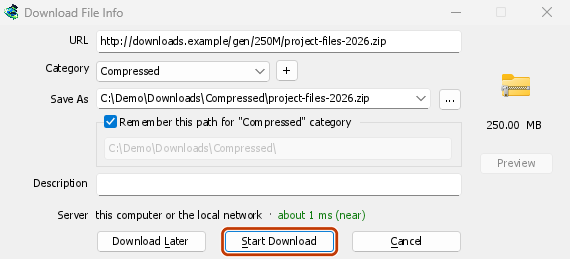

شروع دانلود: پنجره پیشرفت، روند بارگیری را نشان میدهد. 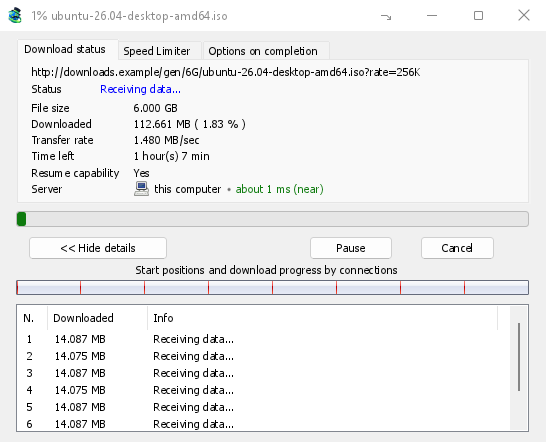
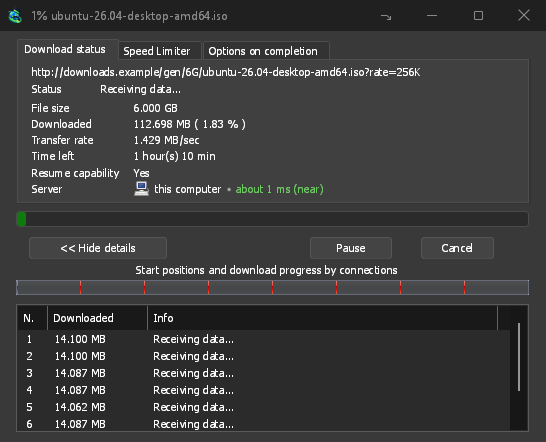
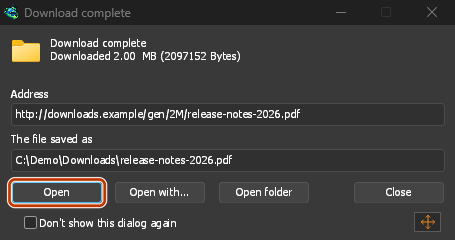
بارگیری کامل شد: فایل را باز کنید، یا پوشه را باز کنید. 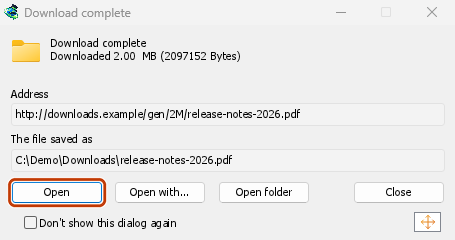
در Firefox
- Open the add-on's page on addons.mozilla.org, GolinksPRO Download Manager, and click Add to Firefox. Zen and LibreWolf use the same page.
- Firefox درخواست تأیید میکند: روی افزودن کلیک کنید. Firefox افزونه را بهروز نگه میدارد.
- Go to a web page and click a download link, for example a ZIP or an EXE: GDM opens Download File Info. Click Start Download.
در Chrome، Edge، Brave، Opera یا Vivaldi
- Open the extension's page in the Chrome Web Store, GolinksPRO Download Manager, and click Add to Chrome. In Edge the button is Get, and Edge first asks to Allow extensions from other stores: click Allow.
- مرورگر از شما میخواهد تأیید کنید: روی افزودن افزونه کلیک کنید. مرورگر افزونه را بهروز نگه میدارد.
- Go to a web page and click a download link, for example a ZIP or an EXE: GDM opens Download File Info. Click Start Download.
بدون فروشگاه
اگر مرورگر نمیتواند از فروشگاه خود استفاده کند (مثلا رایانهای که سازمان مدیریت میکند یا نسخهای که خودتان ساختهاید)، افزونه را بهصورت دستی اضافه کنید:
- صفحه افزونههای مرورگر را باز کنید:
chrome://extensions،edge://extensionsیاbrave://extensionsرا در نوار نشانی تایپ کنید. - حالت توسعهدهنده را روشن کنید.
- روی بارگذاری بستهبندینشده کلیک کنید.
- Choose the
extension\chromiumfolder inside GDM's folder. If you installed GDM for yourself, that is%LOCALAPPDATA%\Programs\GolinksPRO Download Manager\extension\chromium; you can paste that path into the folder box. - GolinksPRO Download Manager appears. Make sure it is turned on.
- به یک صفحه وب بروید و روی پیوند بارگیری، مثلا یک ZIP یا EXE، کلیک کنید.
- GDM opens Download File Info instead of the browser downloading the file. Click Start Download.
You don't need to start GDM first: if it isn't running, it starts by itself.
Choose what GDM takes
- انواع فایل: گزینهها → انواع فایل → شروع خودکار بارگیری انواع فایل زیر. نوعها را اضافه یا حذف کنید و آنها را با فاصله از هم جدا کنید.
- سایتهایی که نباید بارگیری از آنها انجام شود: گزینهها → انواع فایل → بارگیری از سایتهای زیر بهطور خودکار شروع نشود. نام سایت را اضافه کنید، مثلا
downloads.example.comیا*.example.com. - One browser only: Options → General → Capture downloads from the following browsers. Untick the ones GDM should leave alone.
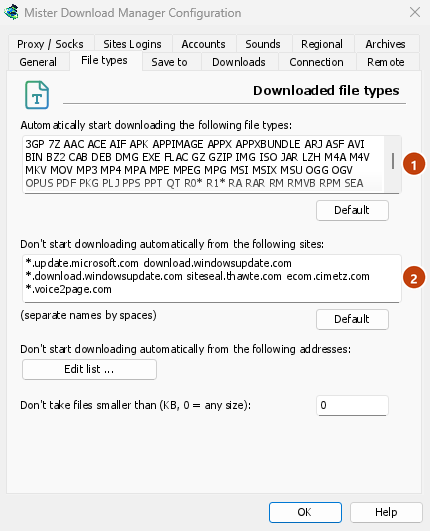
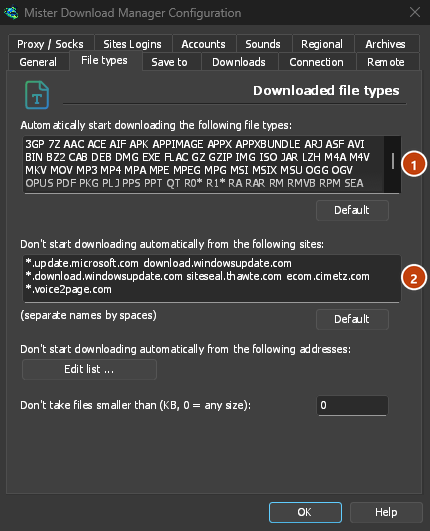
Everything GDM doesn't take stays with the browser.
بارگیری پیوندی که مرورگر باز میکند
Links to a PDF or a video file, which the browser would open itself, go to GDM too when their type is listed. To leave one to the browser, hold Alt while clicking it (Firefox opens it; Chrome and Edge download it themselves). Any other link: right-click it and choose Download with GolinksPRO Download Manager, which takes any type.
مراحل بعدی
- جزئیات یکپارچهسازی مرورگر (Firefox، پنجرههای خصوصی، اطلاعات ارسالی) →
- اگر مرورگر بارگیریها را تحویل نمیدهد →
- دانلود در طول شب →
رایگان، متنباز، بدون تبلیغات، بدون دوره آزمایشی.
Download GolinksPRO Download Manager