

Set up the extension once, and every download link you click in Firefox, Chrome, Edge, Brave, Opera or Vivaldi goes to GDM.
Antes de começar
On Windows, GDM must be installed with the setup, with Set up browser integration (Chrome, Edge, Brave, Firefox) ticked. It is ticked by default. If you're not sure, run the setup again. A portable copy can't do this. On Linux and macOS, start GDM once: it sets browser integration up itself.
GDM's Add GolinksPRO Download Manager to your browser window, which opens at each start until a browser's extension has reached GDM, does the steps below for you: Add the extension opens the store's page in that browser.
Depois de configurado, um link de download funciona assim:
Click a download link in the browser: Download File Info opens in GDM. 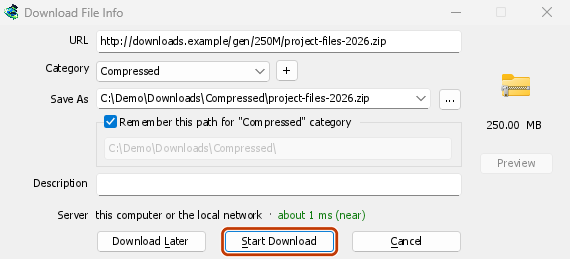

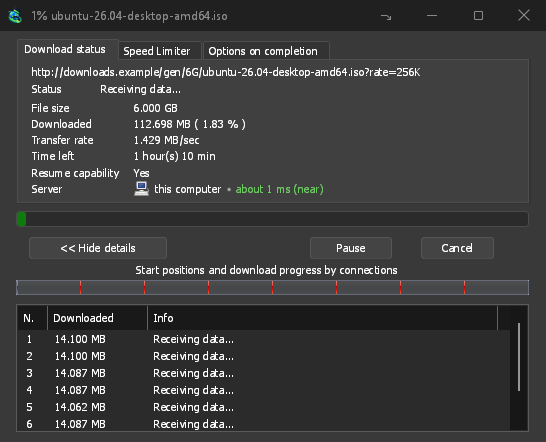
Iniciar Transferência: a janela de progresso mostra-o a chegar. 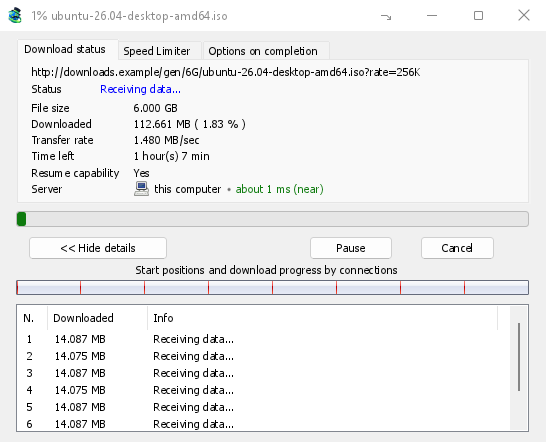
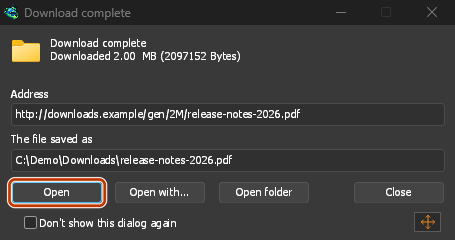
Transferência concluída: Abrir o ficheiro, ou Abrir pasta. 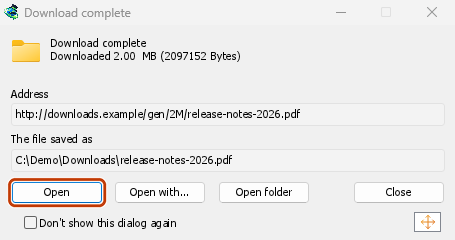
No Firefox
- Open the add-on's page on addons.mozilla.org, GolinksPRO Download Manager, and click Add to Firefox. Zen and LibreWolf use the same page.
- O Firefox pede confirmação: clique em Adicionar. O Firefox mantém o suplemento atualizado.
- Go to a web page and click a download link, for example a ZIP or an EXE: GDM opens Download File Info. Click Start Download.
No Chrome, Edge, Brave, Opera ou Vivaldi
- Open the extension's page in the Chrome Web Store, GolinksPRO Download Manager, and click Add to Chrome. In Edge the button is Get, and Edge first asks to Allow extensions from other stores: click Allow.
- O navegador pede para confirmar: clique em Adicionar extensão. Ele mantém a extensão atualizada.
- Go to a web page and click a download link, for example a ZIP or an EXE: GDM opens Download File Info. Click Start Download.
Sem a loja
Quando um navegador não consegue usar a sua loja (um computador gerido por uma organização, ou uma compilação própria), adicione a extensão manualmente:
- Abra a página de extensões do seu navegador: escreva
chrome://extensions,edge://extensionsoubrave://extensionsna barra de endereço. - Ative o Modo de programador.
- Clique em Carregar descompactado.
- Choose the
extension\chromiumfolder inside GDM's folder. If you installed GDM for yourself, that is%LOCALAPPDATA%\Programs\GolinksPRO Download Manager\extension\chromium; you can paste that path into the folder box. - GolinksPRO Download Manager appears. Make sure it is turned on.
- Vá a uma página web e clique num link de transferência, por exemplo, um ZIP ou um EXE.
- GDM opens Download File Info instead of the browser downloading the file. Click Start Download.
You don't need to start GDM first: if it isn't running, it starts by itself.
Choose what GDM takes
- Que tipos de ficheiro: Opções → Tipos de ficheiro → Iniciar automaticamente a transferência dos seguintes tipos de ficheiro. Adicione ou remova tipos, separados por espaços.
- Sites a ignorar: Opções → Tipos de ficheiro → Não iniciar automaticamente a transferência dos seguintes sites. Adicione o nome do site, por exemplo
downloads.example.comou*.example.com. - One browser only: Options → General → Capture downloads from the following browsers. Untick the ones GDM should leave alone.
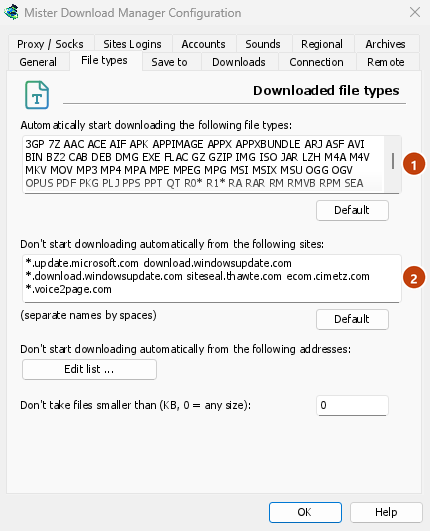
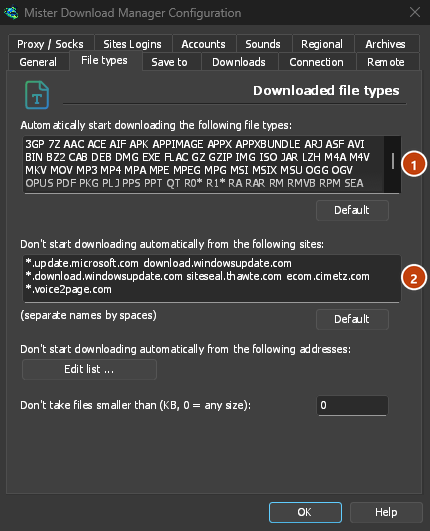
Everything GDM doesn't take stays with the browser.
Transferir um link que o navegador abriria
Links to a PDF or a video file, which the browser would open itself, go to GDM too when their type is listed. To leave one to the browser, hold Alt while clicking it (Firefox opens it; Chrome and Edge download it themselves). Any other link: right-click it and choose Download with GolinksPRO Download Manager, which takes any type.
Próximos passos
- Integração do navegador em detalhe (Firefox, janelas privadas, o que é enviado) →
- Se o navegador não entregar os downloads →
- Transferir durante a noite →
Gratuito, de código aberto, sem anúncios, sem período de avaliação.
Download GolinksPRO Download Manager