
Set up the extension once, and every download link you click in Firefox, Chrome, Edge, Brave, Opera or Vivaldi goes to GDM.
Prima di iniziare
On Windows, GDM must be installed with the setup, with Set up browser integration (Chrome, Edge, Brave, Firefox) ticked. It is ticked by default. If you're not sure, run the setup again. A portable copy can't do this. On Linux and macOS, start GDM once: it sets browser integration up itself.
GDM's Add GolinksPRO Download Manager to your browser window, which opens at each start until a browser's extension has reached GDM, does the steps below for you: Add the extension opens the store's page in that browser.
Una volta configurato, un collegamento di download funziona così:
Click a download link in the browser: Download File Info opens in GDM. 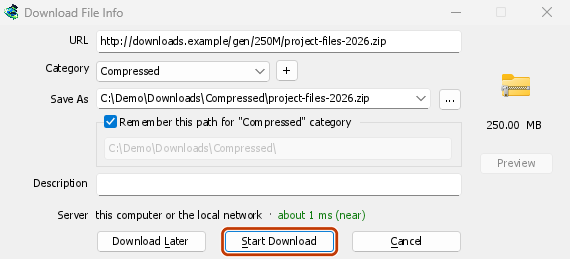

Avvia download: la finestra di avanzamento mostra il download in corso. 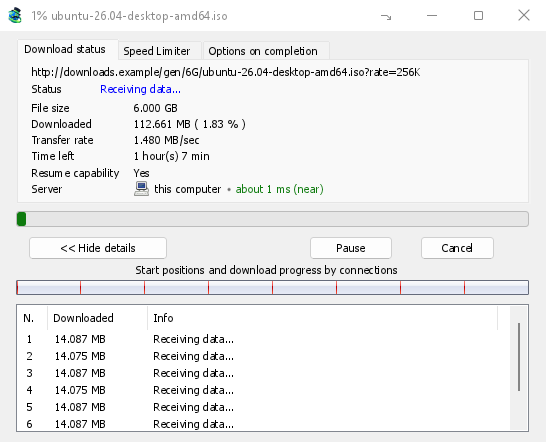
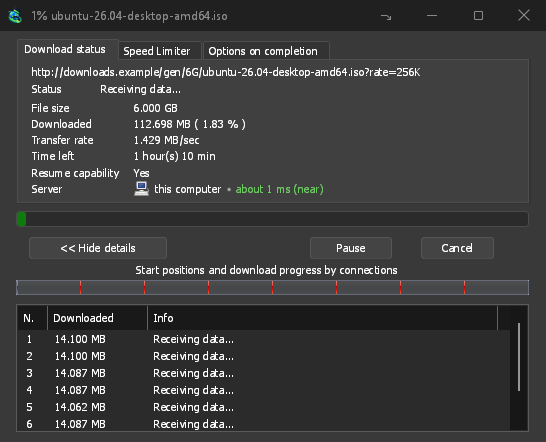
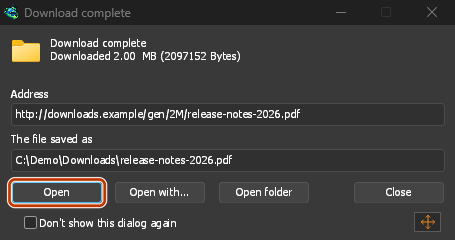
Download completato: apri il file o apri la cartella. 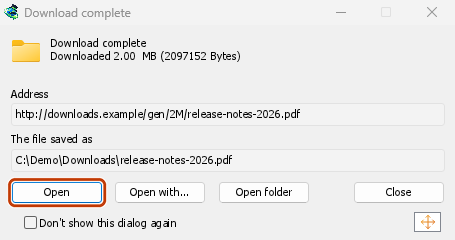
In Firefox
- Open the add-on's page on addons.mozilla.org, GolinksPRO Download Manager, and click Add to Firefox. Zen and LibreWolf use the same page.
- Firefox chiede conferma: fai clic su Aggiungi. Firefox mantiene aggiornato il componente aggiuntivo.
- Go to a web page and click a download link, for example a ZIP or an EXE: GDM opens Download File Info. Click Start Download.
In Chrome, Edge, Brave, Opera o Vivaldi
- Open the extension's page in the Chrome Web Store, GolinksPRO Download Manager, and click Add to Chrome. In Edge the button is Get, and Edge first asks to Allow extensions from other stores: click Allow.
- Il browser chiede conferma: fai clic su Aggiungi estensione. Il browser mantiene aggiornata l'estensione.
- Go to a web page and click a download link, for example a ZIP or an EXE: GDM opens Download File Info. Click Start Download.
Senza lo store
Quando un browser non può usare il suo store (per esempio su un computer gestito da un'organizzazione o con una build personalizzata), aggiungi l'estensione manualmente:
- Apri la pagina delle estensioni del tuo browser: digita
chrome://extensions,edge://extensionsobrave://extensionsnella barra degli indirizzi. - Attiva la Modalità sviluppatore.
- Fai clic su Carica estensione non pacchettizzata.
- Choose the
extension\chromiumfolder inside GDM's folder. If you installed GDM for yourself, that is%LOCALAPPDATA%\Programs\GolinksPRO Download Manager\extension\chromium; you can paste that path into the folder box. - GolinksPRO Download Manager appears. Make sure it is turned on.
- Vai a una pagina web e fai clic su un collegamento di download, per esempio un ZIP o un EXE.
- GDM opens Download File Info instead of the browser downloading the file. Click Start Download.
You don't need to start GDM first: if it isn't running, it starts by itself.
Choose what GDM takes
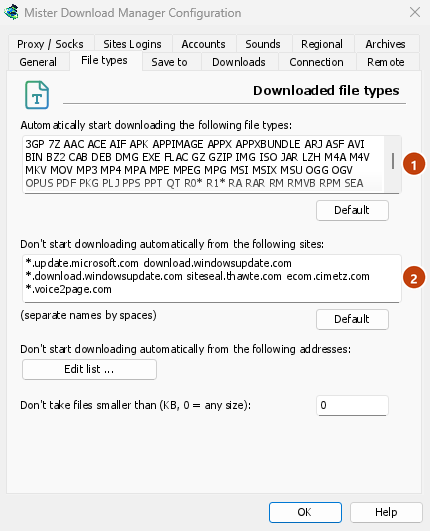
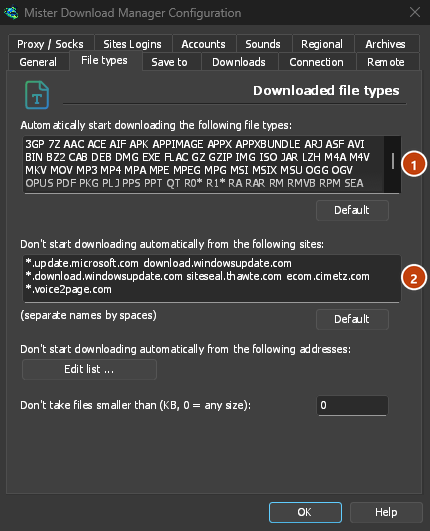
- Tipi di file: Opzioni → Tipi di file → Avvia automaticamente il download dei seguenti tipi di file. Aggiungi o rimuovi i tipi, separandoli con spazi.
- Siti da ignorare: Opzioni → Tipi di file → Non avviare automaticamente il download dai seguenti siti. Aggiungi il nome del sito, per esempio
downloads.example.como*.example.com. - One browser only: Options → General → Capture downloads from the following browsers. Untick the ones GDM should leave alone.
Everything GDM doesn't take stays with the browser.
Scarica un collegamento che il browser aprirebbe
Links to a PDF or a video file, which the browser would open itself, go to GDM too when their type is listed. To leave one to the browser, hold Alt while clicking it (Firefox opens it; Chrome and Edge download it themselves). Any other link: right-click it and choose Download with GolinksPRO Download Manager, which takes any type.
Passi successivi
- Integrazione con i browser nel dettaglio (Firefox, finestre private, cosa viene inviato) →
- Se il browser non passa i download a GDM →
- Scaricare durante la notte →
Gratuito, open source, senza pubblicità, senza periodo di prova.
Download GolinksPRO Download Manager