
Set up the extension once, and every download link you click in Firefox, Chrome, Edge, Brave, Opera or Vivaldi goes to GDM.
Перед початком
On Windows, GDM must be installed with the setup, with Set up browser integration (Chrome, Edge, Brave, Firefox) ticked. It is ticked by default. If you're not sure, run the setup again. A portable copy can't do this. On Linux and macOS, start GDM once: it sets browser integration up itself.
GDM's Add GolinksPRO Download Manager to your browser window, which opens at each start until a browser's extension has reached GDM, does the steps below for you: Add the extension opens the store's page in that browser.
Після налаштування посилання для завантаження працює так:
Click a download link in the browser: Download File Info opens in GDM. 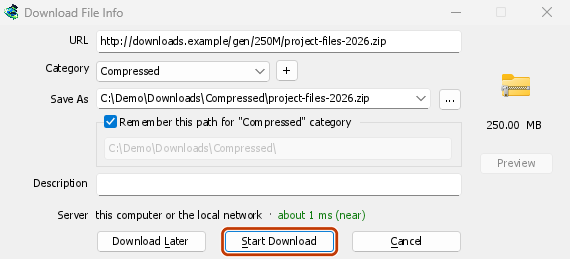

«Почати завантаження»: у вікні прогресу видно, як завантажується файл. 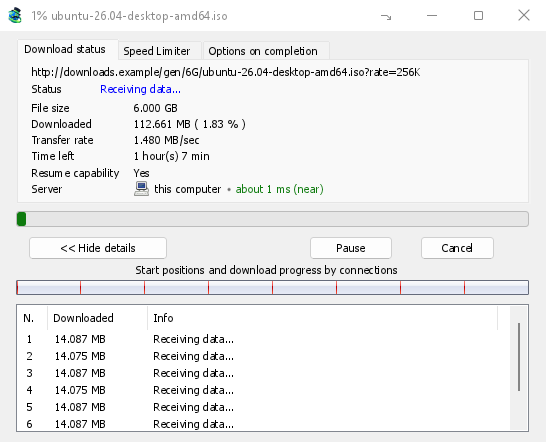
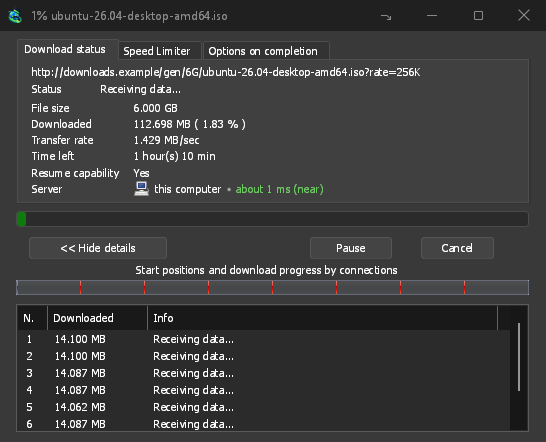
«Завантаження завершено»: відкрийте файл або папку. 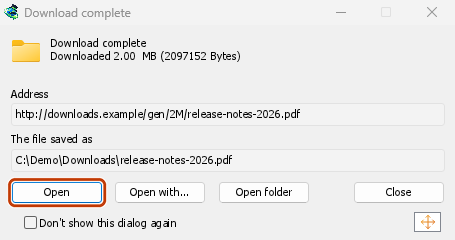
У Firefox
- Open the add-on's page on addons.mozilla.org, GolinksPRO Download Manager, and click Add to Firefox. Zen and LibreWolf use the same page.
- Firefox попросить підтвердити дію: натисніть Додати. Firefox оновлюватиме доповнення автоматично.
- Go to a web page and click a download link, for example a ZIP or an EXE: GDM opens Download File Info. Click Start Download.
У Chrome, Edge, Brave, Opera або Vivaldi
- Open the extension's page in the Chrome Web Store, GolinksPRO Download Manager, and click Add to Chrome. In Edge the button is Get, and Edge first asks to Allow extensions from other stores: click Allow.
- Браузер попросить підтвердити дію: натисніть Додати розширення. Браузер оновлюватиме розширення автоматично.
- Go to a web page and click a download link, for example a ZIP or an EXE: GDM opens Download File Info. Click Start Download.
Без магазину
Якщо браузер не може використовувати свій магазин (комп'ютер, керований організацією, або власна збірка), додайте розширення вручну:
- Відкрийте сторінку розширень вашого браузера: введіть
chrome://extensions,edge://extensionsабоbrave://extensionsв адресний рядок. - Увімкніть Режим розробника.
- Натисніть Завантажити розпаковане.
- Choose the
extension\chromiumfolder inside GDM's folder. If you installed GDM for yourself, that is%LOCALAPPDATA%\Programs\GolinksPRO Download Manager\extension\chromium; you can paste that path into the folder box. - GolinksPRO Download Manager appears. Make sure it is turned on.
- Перейдіть на веб-сторінку та натисніть посилання для завантаження, наприклад ZIP або EXE.
- GDM opens Download File Info instead of the browser downloading the file. Click Start Download.
You don't need to start GDM first: if it isn't running, it starts by itself.
Choose what GDM takes
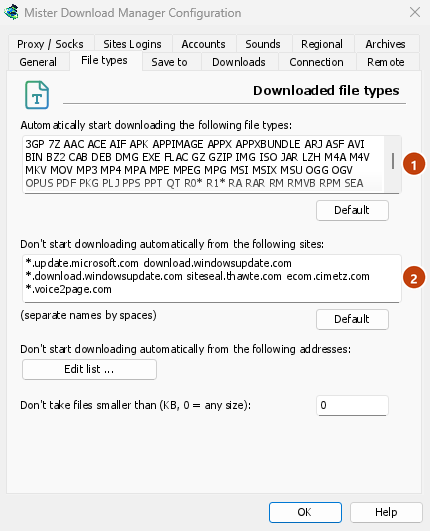
- Які типи файлів: Параметри → Типи файлів → Автоматично починати завантаження наступних типів файлів. Додайте або видаліть типи, розділені пробілами.
- Сайти, які слід залишити без уваги: Параметри → Типи файлів → Не починати завантаження автоматично з наступних сайтів. Додайте назву сайту, наприклад
downloads.example.comабо*.example.com. - One browser only: Options → General → Capture downloads from the following browsers. Untick the ones GDM should leave alone.
Everything GDM doesn't take stays with the browser.
Завантажити посилання, яке браузер відкрив би
Links to a PDF or a video file, which the browser would open itself, go to GDM too when their type is listed. To leave one to the browser, hold Alt while clicking it (Firefox opens it; Chrome and Edge download it themselves). Any other link: right-click it and choose Download with GolinksPRO Download Manager, which takes any type.
Наступні кроки
- Детальніше про інтеграцію з браузером (Firefox, приватні вікна, що надсилається) →
- Якщо браузер не передає завантаження →
- Завантажувати вночі →
Безкоштовно, з відкритим кодом, без реклами, без пробного періоду.
Download GolinksPRO Download Manager