

Set up the extension once, and every download link you click in Firefox, Chrome, Edge, Brave, Opera or Vivaldi goes to GDM.
Sebelum Anda mulai
On Windows, GDM must be installed with the setup, with Set up browser integration (Chrome, Edge, Brave, Firefox) ticked. It is ticked by default. If you're not sure, run the setup again. A portable copy can't do this. On Linux and macOS, start GDM once: it sets browser integration up itself.
GDM's Add GolinksPRO Download Manager to your browser window, which opens at each start until a browser's extension has reached GDM, does the steps below for you: Add the extension opens the store's page in that browser.
Setelah penyiapan selesai, tautan unduhan akan diproses seperti ini:
Click a download link in the browser: Download File Info opens in GDM. 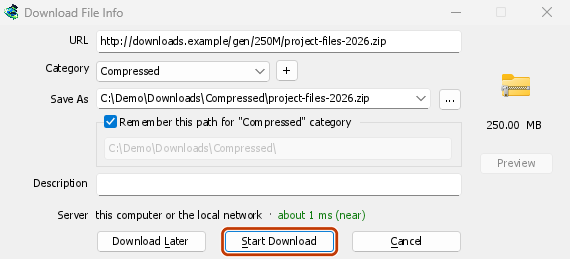

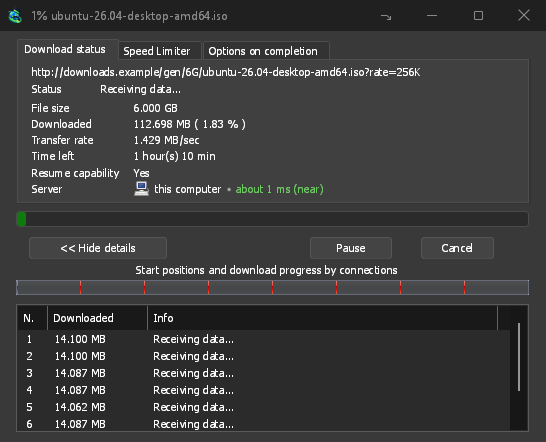
Mulai Unduhan: jendela progres menunjukkan unduhan sedang berlangsung. 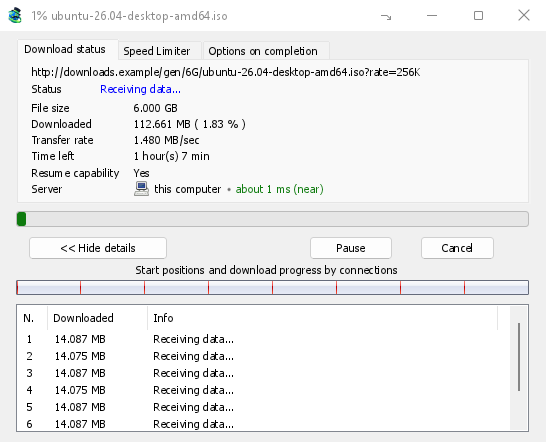
Unduhan selesai: Buka file, atau Buka folder. 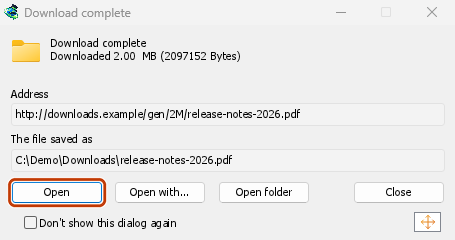
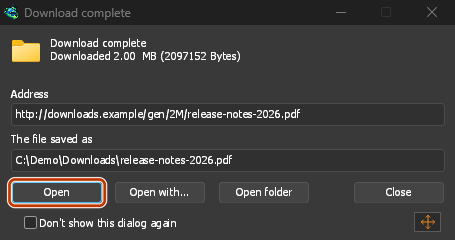
Di Firefox
- Open the add-on's page on addons.mozilla.org, GolinksPRO Download Manager, and click Add to Firefox. Zen and LibreWolf use the same page.
- Firefox akan meminta konfirmasi: klik Tambahkan. Firefox akan terus memperbarui pengaya.
- Go to a web page and click a download link, for example a ZIP or an EXE: GDM opens Download File Info. Click Start Download.
Di Chrome, Edge, Brave, Opera, atau Vivaldi
- Open the extension's page in the Chrome Web Store, GolinksPRO Download Manager, and click Add to Chrome. In Edge the button is Get, and Edge first asks to Allow extensions from other stores: click Allow.
- Browser akan meminta konfirmasi: klik Tambahkan ekstensi. Ini akan menjaga ekstensi tetap mutakhir.
- Go to a web page and click a download link, for example a ZIP or an EXE: GDM opens Download File Info. Click Start Download.
Tanpa toko
Jika browser tidak dapat menggunakan tokonya (komputer yang dikelola oleh organisasi, atau build Anda sendiri), tambahkan ekstensi secara manual:
- Buka halaman ekstensi browser: ketik
chrome://extensions,edge://extensionsataubrave://extensionsdi bilah alamat. - Nyalakan Mode pengembang.
- Klik Muat tanpa paket.
- Choose the
extension\chromiumfolder inside GDM's folder. If you installed GDM for yourself, that is%LOCALAPPDATA%\Programs\GolinksPRO Download Manager\extension\chromium; you can paste that path into the folder box. - GolinksPRO Download Manager appears. Make sure it is turned on.
- Buka halaman web dan klik tautan unduhan, misalnya ZIP atau EXE.
- GDM opens Download File Info instead of the browser downloading the file. Click Start Download.
You don't need to start GDM first: if it isn't running, it starts by itself.
Choose what GDM takes
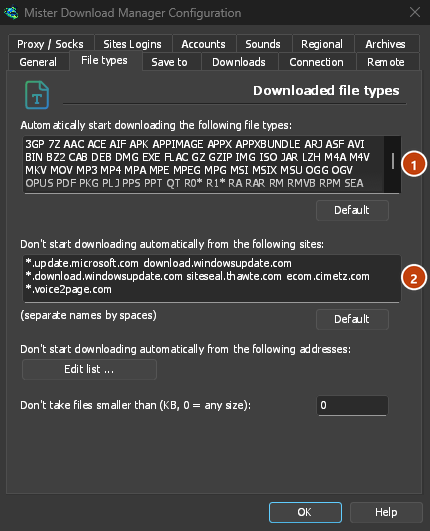
- Jenis file mana: Opsi → Jenis file → Mulai mengunduh secara otomatis jenis file berikut. Tambahkan atau hapus jenis, dipisahkan oleh spasi.
- Situs yang tidak disentuh: Opsi → Jenis file → Jangan mulai mengunduh secara otomatis dari situs berikut. Tambahkan nama situs, misalnya
downloads.example.comatau*.example.com. - One browser only: Options → General → Capture downloads from the following browsers. Untick the ones GDM should leave alone.
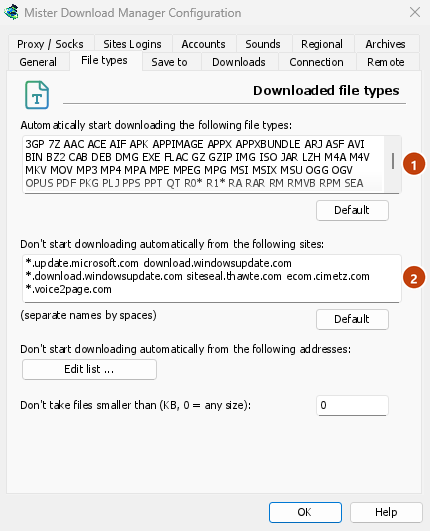
Everything GDM doesn't take stays with the browser.
Unduh tautan yang akan dibuka browser
Links to a PDF or a video file, which the browser would open itself, go to GDM too when their type is listed. To leave one to the browser, hold Alt while clicking it (Firefox opens it; Chrome and Edge download it themselves). Any other link: right-click it and choose Download with GolinksPRO Download Manager, which takes any type.
Langkah selanjutnya
- Integrasi browser secara detail (Firefox, jendela pribadi, apa yang dikirim) →
- Jika browser tidak menyerahkan unduhan →
- Unduh semalaman →
Gratis, sumber terbuka, tanpa iklan, tanpa masa uji coba.
Download GolinksPRO Download Manager