

GDM downloads BitTorrent files from magnet links and .torrent files. Torrents appear in the same list as other downloads, marked Torrent in the Source column, and can be queued and scheduled like them.
Tambah torrent
- Klik Tambah Torrent di bilah alat untuk memilih file
.torrent. Atau klik panah di sebelahnya dan pilih Buka file torrent... atau Tambah tautan magnet... (juga di bawah Tugas). - Jendela Tambah torrent terbuka. Tempel tautan magnet ke Torrent, atau klik ... untuk memilih file
.torrent, lalu klik Cari. - GDM reads the torrent and shows its files as a folder tree. A
.torrentfile is read at once. A magnet link first has to get the file list from other peers, usually within seconds. While it waits, Add torrent shows how many peers it found, from the trackers, the DHT or your local network, and how many answered. After 30 seconds without an answer, it says what may be in the way: a link with no trackers while the DHT is off, or a firewall, a VPN or a network that blocks BitTorrent. - Hapus centang pada folder atau file yang tidak Anda inginkan. Pilih semua dan Jangan pilih apa pun membantu dengan torrent besar. Terpilih menunjukkan berapa banyak file dan berapa banyak data yang Anda pilih.
- Periksa Simpan ke. File masuk ke menunjukkan folder yang tepat. Torrent memiliki kategorinya sendiri, jadi secara default ini adalah
Downloads\Torrents. - Untuk menonton video saat sedang diunduh, centang Unduh berurutan (lihat Unduh berurutan).
- Klik Unduh sekarang, atau Nanti untuk menambahkannya ke daftar tanpa memulai unduhan.
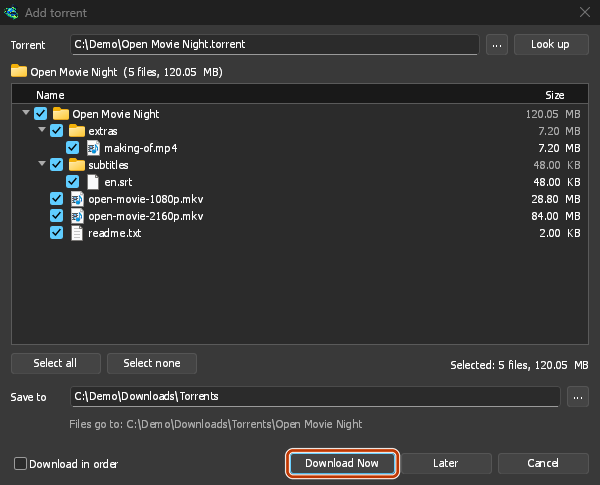
Hapus centang yang tidak diinginkan, lalu Unduh Sekarang. 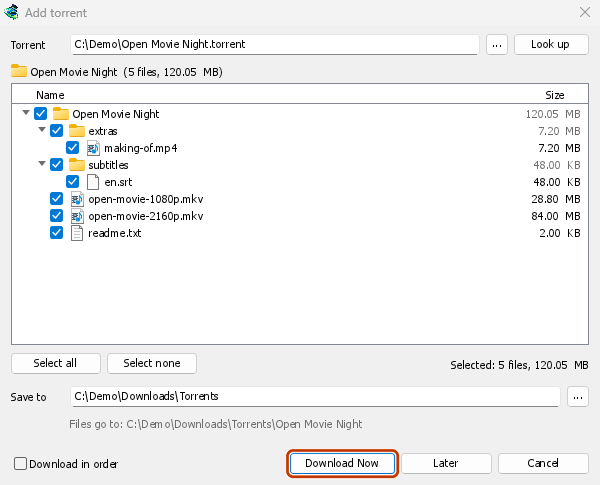
Jendela progresnya: setiap file dan berapa banyak yang sudah ada di sini. 
Potongan: peta torrent, sedang terisi. 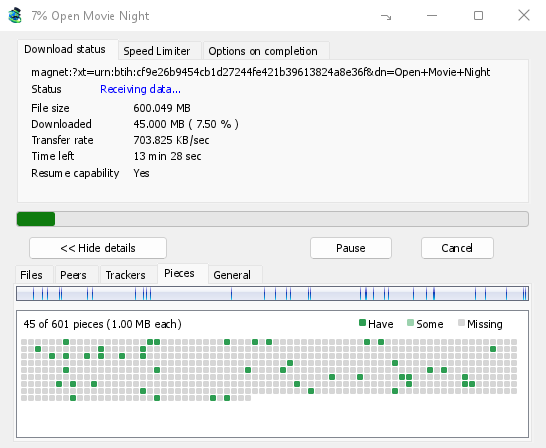
You can also paste a magnet link into Add URL, or drop a magnet link or a .torrent file on the drop target (Tasks → Show drop target). If a torrent is already in the list, GDM says so instead of adding it twice.
A .torrent file's web address works too: paste it into Add URL or Torrent, or let the browser hand the download over. GDM fetches the file, with the browser's cookies when the browser sent it, and Add torrent shows what it holds. The browser hands .torrent downloads over because TORRENT is in Options → File types. It's there by default; a list you had before this version keeps what it had, so add TORRENT to it yourself. Download with GolinksPRO Download Manager on a link always hands it over. A command line with /n (silent) saves the .torrent file itself, like any file. GDM fetches at most 10 MB: anything bigger isn't a .torrent file.
If some of the torrent's files are already in the folder, GDM asks before using them. Yes keeps them for the torrent: GDM checks them, keeps what matches the torrent and downloads the rest, which is how you continue a download started elsewhere or share files you already have. No (the default) goes back, so you can choose another folder and nothing of yours is overwritten.
GDM refuses a torrent with file names your system can't write safely, says which name, and writes nothing. What others can see, the network switches in Torrent settings, blocklists and proxies: Torrents and your security.
Saat mengunduh
Klik dua kali torrent dalam daftar untuk membuka jendela progresnya. Selain status biasa, jendela torrent memiliki lima tab:
- File — setiap file, ukurannya, dan seberapa banyak yang sudah selesai. File yang tidak Anda centang akan menunjukkan Dilewati. Centang atau hapus centang kotak file untuk mengubah apa yang diunduh, bahkan saat torrent berjalan. Setidaknya satu file tetap tercentang. Jika Anda menghapus centang semua yang masih belum ada, torrent akan selesai. Jika torrent yang sudah selesai dan tidak berjalan mendapatkan file kembali, ia akan menunggu dalam keadaan berhenti sampai Anda melanjutkannya, sehingga tidak ada yang terunduh tanpa terlihat.
- Rekan — komputer tempat Anda mengunduh, dengan berapa banyak yang Anda terima dari dan kirim ke masing-masing.
- Pelacak — pelacak torrent. Tanpa pelacak, rekan berasal dari DHT dan rekan lain.
- Potongan — peta potongan torrent: ada, sebagian ada, atau hilang.
- General — the info hash, pieces, peers, how much was sent, the share ratio, how long it has been shared and the folder. What was sent and the time shared add up over all of the torrent's runs: they don't start again at 0 after a pause or a restart of GDM.
Tab akan tetap ada setelah torrent selesai, selama masih dibagikan.
Tab Pembatas Kecepatan pada jendela torrent memiliki, selain batas unduhannya, Batasi pengunggahan ke kecepatan pilihan Anda. Batas tersebut dipertahankan dengan torrent: berlaku lagi setiap kali torrent berjalan atau berbagi. Torrent tidak dapat ditahan di bawah 16 KB/dtk dalam kedua kasus.
Perintah torrent
Klik kanan torrent di daftar dan buka Torrent:
- Periksa ulang file — membaca setiap bagian dari file torrent dan memeriksanya, misalnya setelah Anda memindahkan file atau disk mengalami kesalahan. Torrent yang sedang berjalan akan melanjutkan setelahnya dan mengambil apa yang hilang. Torrent yang berhenti akan tetap berhenti. Log kejadiannya mengatakan berapa banyak yang ditemukan: torrent yang selesai dengan bagian yang rusak menjadi berhenti, dan melanjutkannya akan mengambil bagian itu lagi.
- Umumkan ulang — meminta pelacak torrent untuk rekan lagi sekarang, alih-alih menunggu giliran berikutnya. Ini berfungsi saat torrent berjalan atau dibagikan.
- Add trackers... — adds trackers, one address a line (
http,httpsorudp). They are kept with the torrent, after the ones it has, and the Trackers tab shows them. A tracker on your computer or your local network is refused: GDM never contacts those (why). - Unduh berurutan — mengunduh file torrent dari awal (lihat di bawah). Klik lagi untuk kembali mengunduh potongan yang paling langka terlebih dahulu.
- Potongan pertama dan terakhir dulu — dengan Unduh berurutan, potongan pertama dan terakhir setiap file diunduh sebelum potongan lainnya. Opsi ini aktif secara bawaan.
- Salin tautan magnet — menyalin tautan magnet untuk torrent, beserta pelacaknya.
Hasil setiap perintah dicatat di log peristiwa torrent. Arahkan kursor ke sel Status di daftar untuk membacanya.
Unduh berurutan
By default GDM downloads the pieces that the fewest peers have first, as BitTorrent programs usually do. That way a piece only one peer has is fetched before that peer leaves, and GDM can pass it on to others sooner. On GDM's test swarms it finished just as fast as downloading in order, and it was the only order that finished when a scarce piece's only holder left.
Unduh berurutan mengunduh bagian awal file terlebih dahulu, sehingga Anda dapat menonton video saat diunduh. Buka video di pemutar setelah bagian pertamanya selesai diunduh. Centang opsi ini di Tambah Torrent, atau pilih Torrent → Unduh berurutan dari menu klik kanan daftar kapan saja, bahkan saat torrent sedang diunduh. Potongan berikutnya yang diminta akan mengikuti urutan baru.
- Dengan Potongan pertama dan terakhir dulu (aktif secara bawaan), potongan terakhir setiap file juga diunduh lebih awal. Sebagian besar file video menyimpan indeksnya di bagian akhir, dan pemutar membacanya sebelum memutar video.
- Beberapa file diunduh satu per satu, diurutkan berdasarkan nama.
- Peer yang lebih lambat mengunduh potongan yang letaknya lebih jauh, sehingga bagian awal tidak perlu menunggu mereka.
Torrent yang diunduh berurutan tidak selesai lebih cepat dan kurang membantu swarm. Gunakan cara ini untuk file yang ingin Anda tonton sekarang.
Umpan RSS
Many sites publish their new torrents as an RSS or Atom feed. GDM can watch feeds, list what they hold, and add the new torrents you want by itself. Choose Tasks → RSS feeds..., or click the arrow next to Add Torrent.
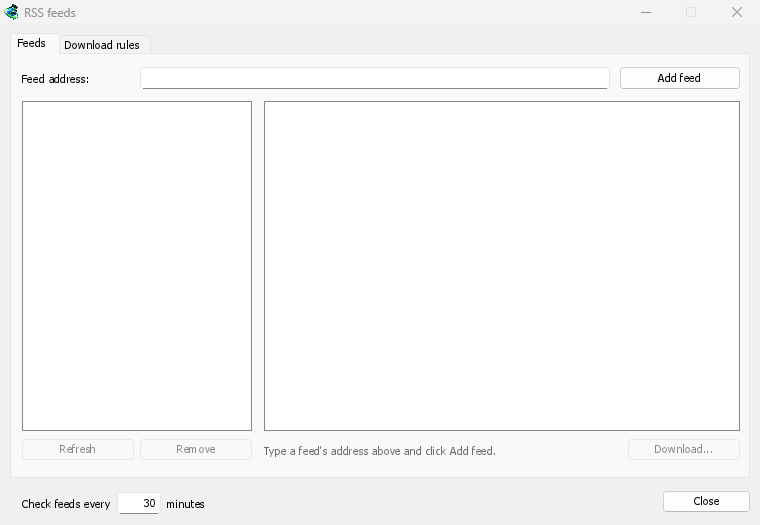
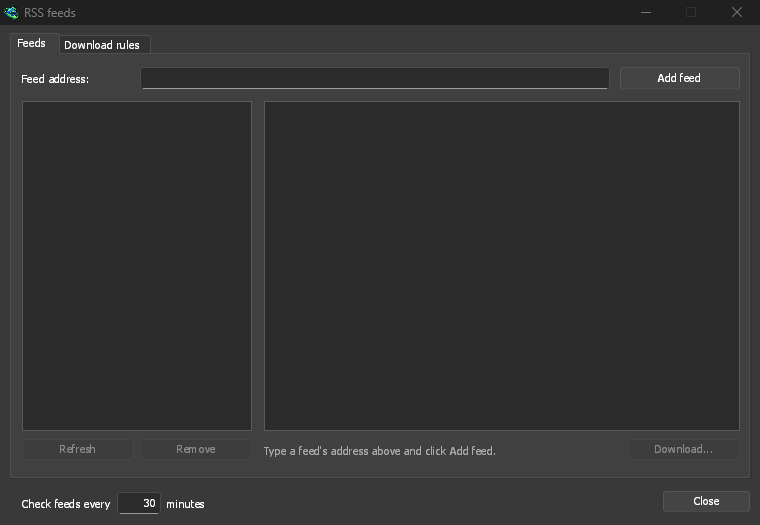
Tab Umpan:
- Type a feed's address into Feed address and click Add feed. GDM fetches it at once, then every 30 minutes; change that under Check feeds every ... minutes, 5 at the least.
- Pilih umpan di sebelah kiri untuk melihat artikelnya. Artikel yang berisi torrent menampilkan ikon torrent dan ukurannya jika informasi ukuran tersedia di umpan. Klik dua kali artikel, atau pilih lalu klik Unduh..., untuk membukanya di Tambah Torrent, seperti tautan magnet atau alamat
.torrentlainnya. - Segarkan mengambil umpan yang dipilih saat itu juga. Hapus menghentikan pemantauan umpan. Umpan yang tidak dapat dibaca ditampilkan dengan warna merah, dan baris di bagian bawah menjelaskan alasannya.
Tab Aturan unduhan: aturan akan menambahkan torrent dari artikel baru yang judulnya cocok, tanpa meminta konfirmasi.
- Harus mengandung: kata-kata yang wajib ada dalam judul, semuanya, dalam urutan apa pun.
|memisahkan pilihan (1080p|2160p), sedangkan*dan?adalah karakter pengganti. Huruf besar dan kecil tidak dibedakan. - Tidak boleh mengandung: kata-kata yang membuat aturan melewatkan artikel, ditulis dengan cara yang sama.
- Ekspresi reguler: kedua kotak berisi ekspresi reguler sebagai gantinya.
- Episode: episode yang akan diambil, berdasarkan
S01E05atau1x05dalam judul.1x2berarti musim 1 episode 2,1x5-8berarti episode 5 hingga 8,2x1-berarti semua episode mulai musim 2 episode 1, dan3berarti semua episode musim 3. Pisahkan dengan;. Jika kosong, artikel apa pun akan dipilih. Aturan hanya mengambil setiap episode satu kali: rilis kedua dari episode yang sudah ditambahkan akan dilewati. - Simpan ke: folder tempat torrent disimpan. Jika kosong, torrent disimpan di folder kategori Torrent. Tambahkan tanpa memulai menambahkan torrent seperti opsi Unduh nanti.
- Umpan: umpan yang dipantau. Jika tidak ada yang dicentang, semua umpan dipantau.
Rules only look at articles that are new since the feed was last fetched, and a feed's first fetch only lists what is there. So adding a feed or a rule never downloads a whole backlog. Matches ... articles now shows which of the articles the feeds hold now the rule matches, to check it; download those by hand. A torrent the list already has isn't added again, and neither is one whose files are already in the folder: GDM never writes into files it didn't make without asking. The bottom line of the tab says what the rules did last, and a torrent a rule added says so in its event log.
Feeds and rules are kept in rss.json in GDM's data folder. GDM reads at most 5 MB of a feed.
Pengaturan torrent
Pilih Tugas → Pengaturan torrent... (atau klik panah di samping Tambah Torrent):
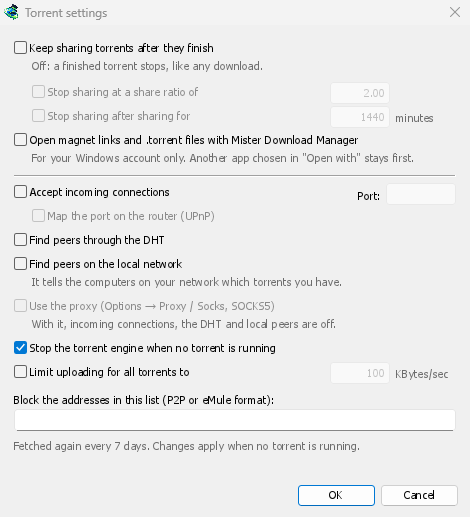

- Terus berbagi torrent setelah selesai — mati secara default: torrent yang selesai berhenti, seperti unduhan lainnya. Aktifkan untuk terus mengunggah ke rekan lain setelah unduhan Anda selesai.
- Berhenti berbagi pada rasio berbagi — torrent yang sudah selesai berhenti dibagikan setelah mengirimkan data sebanyak kelipatan yang diunduh (2.00: dua kali). Nonaktif secara default.
- Berhenti berbagi setelah berbagi selama … menit — atau setelah dibagikan selama itu, di semua sesi. Nonaktif secara default.
A torrent stopped by one of these says so in its event log, and isn't shared again when GDM starts. Raise or turn off the limit to share it again.
- Limit uploading for all torrents to — off by default. Caps what all your torrents together send to other peers, while they download and while they share. A torrent's own upload limit, in its progress window, applies on top of it.
- Open magnet links and .torrent files with GolinksPRO Download Manager — Windows then opens magnet links in your browser and .torrent files in Explorer with GDM. This is for your Windows account only; a program you chose in Windows' Open with stays first. The setup can turn it on for you.
Jendela yang sama memiliki sakelar jaringan (koneksi masuk, port, UPnP, DHT, proksi SOCKS5) dan daftar blokir: lihat Torrent dan keamanan Anda.
GDM starts its torrent engine the first time you add a torrent. If you never use torrents, it never listens for peers.
On a Linux system without CA certificates (a minimal install without the ca-certificates package), torrents still work: peers, the DHT and http:// trackers. An https:// tracker can't be checked there, so GDM skips it; install that package to use those too.
With a debrid account, torrents and magnet links can go to the service instead of to peers, and GDM downloads the files from it over HTTP: see Torrents through the service.
Langkah selanjutnya
Gratis, sumber terbuka, tanpa iklan, tanpa masa uji coba.
Download GolinksPRO Download Manager