

Set up the extension once, and every download link you click in Firefox, Chrome, Edge, Brave, Opera or Vivaldi goes to GDM.
Trước khi bắt đầu
On Windows, GDM must be installed with the setup, with Set up browser integration (Chrome, Edge, Brave, Firefox) ticked. It is ticked by default. If you're not sure, run the setup again. A portable copy can't do this. On Linux and macOS, start GDM once: it sets browser integration up itself.
GDM's Add GolinksPRO Download Manager to your browser window, which opens at each start until a browser's extension has reached GDM, does the steps below for you: Add the extension opens the store's page in that browser.
Khi đã thiết lập, một liên kết tải xuống sẽ như thế này:
Click a download link in the browser: Download File Info opens in GDM. 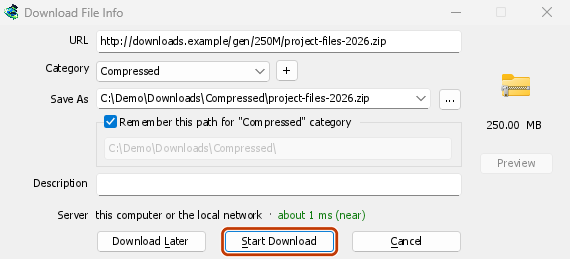

Bắt đầu tải xuống: cửa sổ tiến trình hiển thị tệp đang được tải xuống. 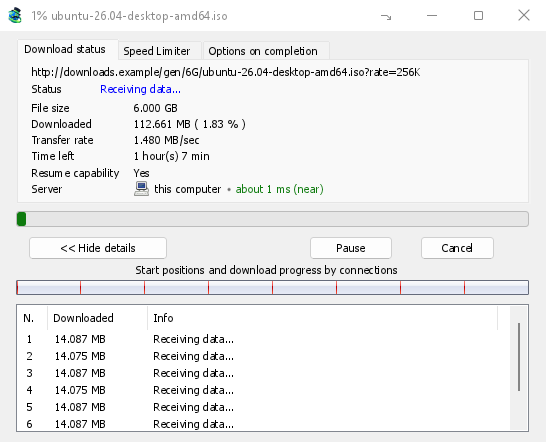
Tải xuống hoàn tất: Mở tệp, hoặc Mở thư mục. 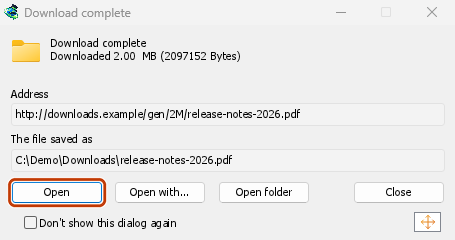
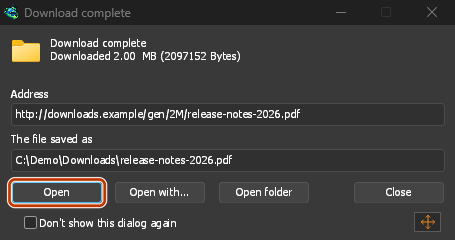
Trong Firefox
- Open the add-on's page on addons.mozilla.org, GolinksPRO Download Manager, and click Add to Firefox. Zen and LibreWolf use the same page.
- Firefox yêu cầu xác nhận: nhấp vào Thêm. Firefox sẽ tự động cập nhật tiện ích bổ sung.
- Go to a web page and click a download link, for example a ZIP or an EXE: GDM opens Download File Info. Click Start Download.
Trong Chrome, Edge, Brave, Opera hoặc Vivaldi
- Open the extension's page in the Chrome Web Store, GolinksPRO Download Manager, and click Add to Chrome. In Edge the button is Get, and Edge first asks to Allow extensions from other stores: click Allow.
- Trình duyệt yêu cầu xác nhận: nhấp vào Thêm tiện ích. Tiện ích này sẽ tự động cập nhật.
- Go to a web page and click a download link, for example a ZIP or an EXE: GDM opens Download File Info. Click Start Download.
Không qua cửa hàng
Khi trình duyệt không thể sử dụng cửa hàng của nó (máy tính do tổ chức quản lý, hoặc bản dựng của riêng bạn), hãy thêm tiện ích mở rộng theo cách thủ công:
- Mở trang tiện ích mở rộng của trình duyệt của bạn: gõ
chrome://extensions,edge://extensionshoặcbrave://extensionsvào thanh địa chỉ. - Bật Chế độ nhà phát triển.
- Nhấp vào Tải tiện ích đã giải nén.
- Choose the
extension\chromiumfolder inside GDM's folder. If you installed GDM for yourself, that is%LOCALAPPDATA%\Programs\GolinksPRO Download Manager\extension\chromium; you can paste that path into the folder box. - GolinksPRO Download Manager appears. Make sure it is turned on.
- Truy cập một trang web và nhấp vào một liên kết tải xuống, ví dụ như tệp ZIP hoặc EXE.
- GDM opens Download File Info instead of the browser downloading the file. Click Start Download.
You don't need to start GDM first: if it isn't running, it starts by itself.
Choose what GDM takes
- Loại tệp nào: Tùy chọn → Loại tệp → Tự động bắt đầu tải xuống các loại tệp sau. Thêm hoặc xóa các loại, cách nhau bằng dấu cách.
- Các trang web bỏ qua: Tùy chọn → Loại tệp → Không tự động bắt đầu tải xuống từ các trang web sau. Thêm tên trang web, ví dụ
downloads.example.comhoặc*.example.com. - One browser only: Options → General → Capture downloads from the following browsers. Untick the ones GDM should leave alone.
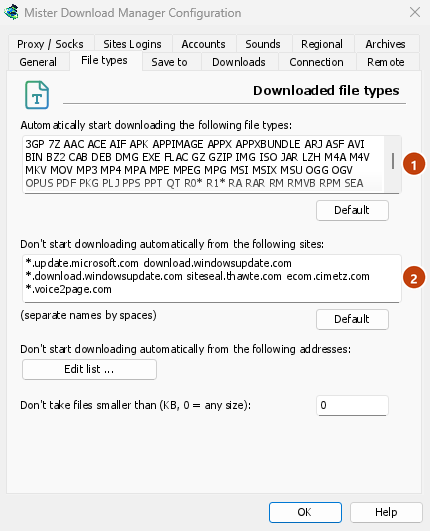
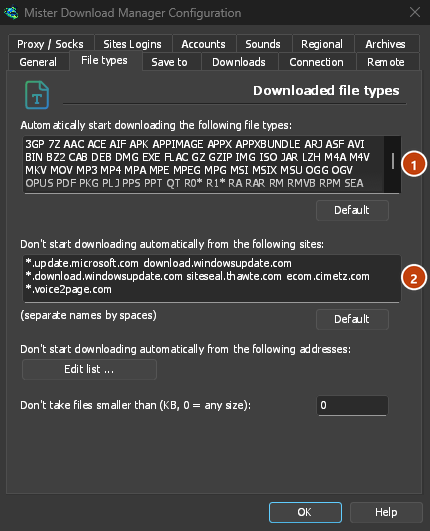
Everything GDM doesn't take stays with the browser.
Tải xuống một liên kết mà trình duyệt sẽ mở
Links to a PDF or a video file, which the browser would open itself, go to GDM too when their type is listed. To leave one to the browser, hold Alt while clicking it (Firefox opens it; Chrome and Edge download it themselves). Any other link: right-click it and choose Download with GolinksPRO Download Manager, which takes any type.
Các bước tiếp theo
- Chi tiết tích hợp trình duyệt (Firefox, cửa sổ riêng tư, những gì được gửi) →
- Nếu trình duyệt không chuyển giao tệp tải xuống →
- Tải xuống qua đêm →
Miễn phí, mã nguồn mở, không quảng cáo, không dùng thử.
Download GolinksPRO Download Manager