

Set up the extension once, and every download link you click in Firefox, Chrome, Edge, Brave, Opera or Vivaldi goes to GDM.
Before you start
On Windows, GDM must be installed with the setup, with Set up browser integration (Chrome, Edge, Brave, Firefox) ticked. It is ticked by default. If you're not sure, run the setup again. A portable copy can't do this. On Linux and macOS, start GDM once: it sets browser integration up itself.
GDM's Add GolinksPRO Download Manager to your browser window, which opens at each start until a browser's extension has reached GDM, does the steps below for you: Add the extension opens the store's page in that browser.
Once it is set up, a download link goes like this:
Click a download link in the browser: Download File Info opens in GDM. 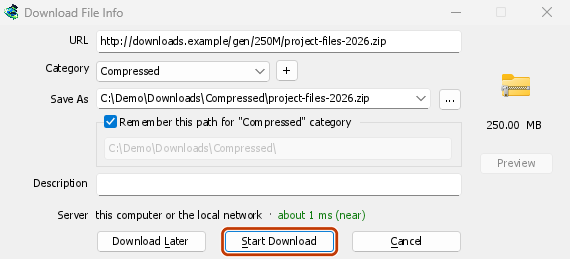

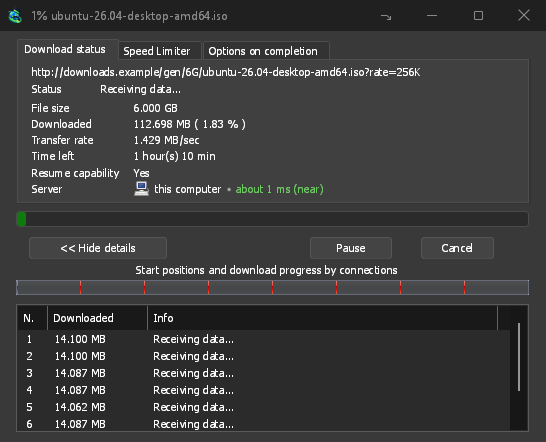
Start Download: the progress window shows it coming in. 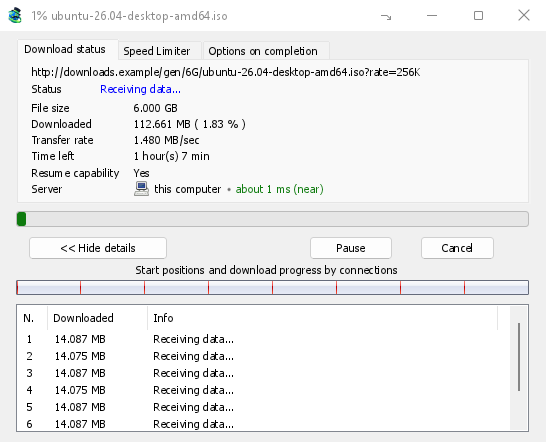
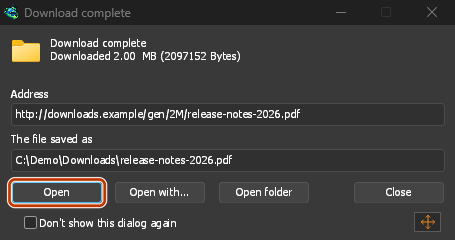
Download complete: Open the file, or Open folder. 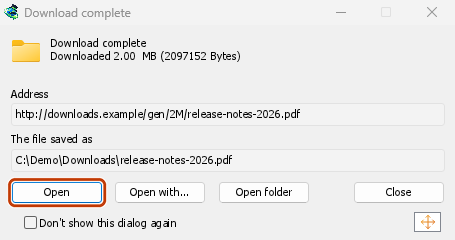
In Firefox
- Open the add-on's page on addons.mozilla.org, GolinksPRO Download Manager, and click Add to Firefox. Zen and LibreWolf use the same page.
- Firefox asks to confirm: click Add. Firefox keeps the add-on up to date.
- Go to a web page and click a download link, for example a ZIP or an EXE: GDM opens Download File Info. Click Start Download.
In Chrome, Edge, Brave, Opera or Vivaldi
- Open the extension's page in the Chrome Web Store, GolinksPRO Download Manager, and click Add to Chrome. In Edge the button is Get, and Edge first asks to Allow extensions from other stores: click Allow.
- The browser asks to confirm: click Add extension. It keeps the extension up to date.
- Go to a web page and click a download link, for example a ZIP or an EXE: GDM opens Download File Info. Click Start Download.
Without the store
When a browser can't use its store (a computer managed by an organization, or a build of your own), add the extension by hand:
- Open your browser's extensions page: type
chrome://extensions,edge://extensionsorbrave://extensionsin the address bar. - Turn on Developer mode.
- Click Load unpacked.
- Choose the
extension\chromiumfolder inside GDM's folder. If you installed GDM for yourself, that is%LOCALAPPDATA%\Programs\GolinksPRO Download Manager\extension\chromium; you can paste that path into the folder box. - GolinksPRO Download Manager appears. Make sure it is turned on.
- Go to a web page and click a download link, for example a ZIP or an EXE.
- GDM opens Download File Info instead of the browser downloading the file. Click Start Download.
You don't need to start GDM first: if it isn't running, it starts by itself.
Choose what GDM takes
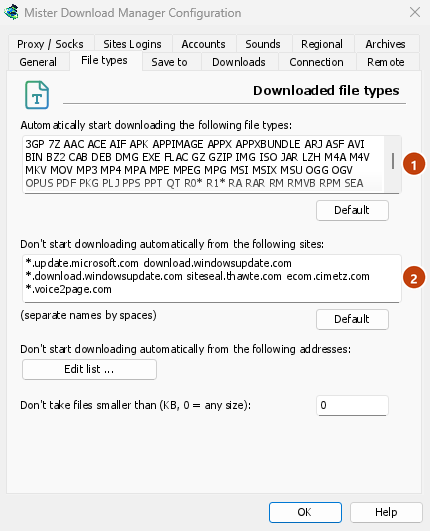
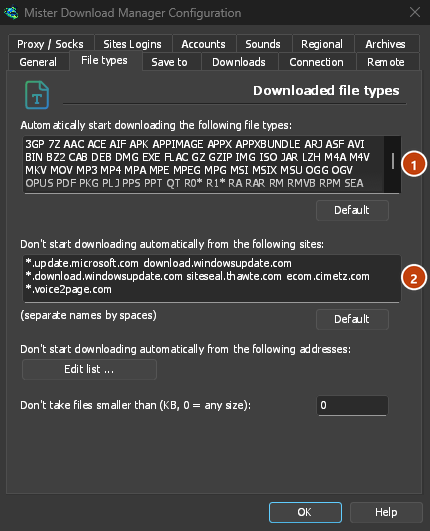
- Which file types: Options → File types → Automatically start downloading the following file types. Add or remove types, separated by spaces.
- Sites to leave alone: Options → File types → Don't start downloading automatically from the following sites. Add the site's name, for example
downloads.example.comor*.example.com. - One browser only: Options → General → Capture downloads from the following browsers. Untick the ones GDM should leave alone.
Everything GDM doesn't take stays with the browser.
Download a link the browser would open
Links to a PDF or a video file, which the browser would open itself, go to GDM too when their type is listed. To leave one to the browser, hold Alt while clicking it (Firefox opens it; Chrome and Edge download it themselves). Any other link: right-click it and choose Download with GolinksPRO Download Manager, which takes any type.
Next steps
- Browser integration in detail (Firefox, private windows, what is sent) →
- If the browser doesn't hand downloads over →
- Download overnight →
Free, open source, no ads, no trial.
Download GolinksPRO Download Manager