
GDM runs on 64-bit Windows 10 and Windows 11, and on 64-bit Linux: see On Linux. Builds for macOS are new and still experimental: see On a Mac.
Виберіть завантаження
Усі версії доступні на сторінці Випуски. Для Windows є три файли:
| Файл | Що це |
|---|---|
MisterDownloadManager-<version>-setup.exe |
The installer. Pick this one unless you have a reason not to. It can set up browser integration and open .torrent files and magnet links with GDM. |
MisterDownloadManager-<version>-portable.zip |
Портативна версія. Список завантажень і налаштування зберігаються в папці data поруч із програмою, а до реєстру нічого не записується. Для інтеграції з браузером потрібен інсталятор. Див. Портативний режим. |
MisterDownloadManager-<version>-x64.zip |
Ті самі програми без інсталятора. Дані зберігаються в %APPDATA%\misterdownloadmanager, як і у встановленої версії. |
У Linux
GDM runs on 64-bit Linux with a desktop session. It is tested on Ubuntu 24.04, Debian 12 and
Fedora, with GNOME, KDE Plasma, Xfce and Cinnamon, on X11 and in Wayland sessions. Pick one
of these files (up to version 0.2.4, their names end in -experimental, as in
...-linux-x86_64-experimental.deb):
| Файл | Що це |
|---|---|
...-linux-x86_64.deb |
For Ubuntu, Debian, Mint and Pop!_OS: sudo apt install ./<file>.deb. It brings the libraries GDM needs. |
...-linux-x86_64.rpm |
For Fedora, openSUSE and RHEL: sudo dnf install ./<file>.rpm. It brings the libraries GDM needs. |
...-linux-x86_64.AppImage |
Працює на більшості дистрибутивів: зробіть його виконуваним (chmod +x) і запустіть. Він оновлюється на місці (Довідка → Перевірити наявність оновлень). |
...-linux-x86_64.tar.gz |
Звичайні програми для будь-якого дистрибутива. |
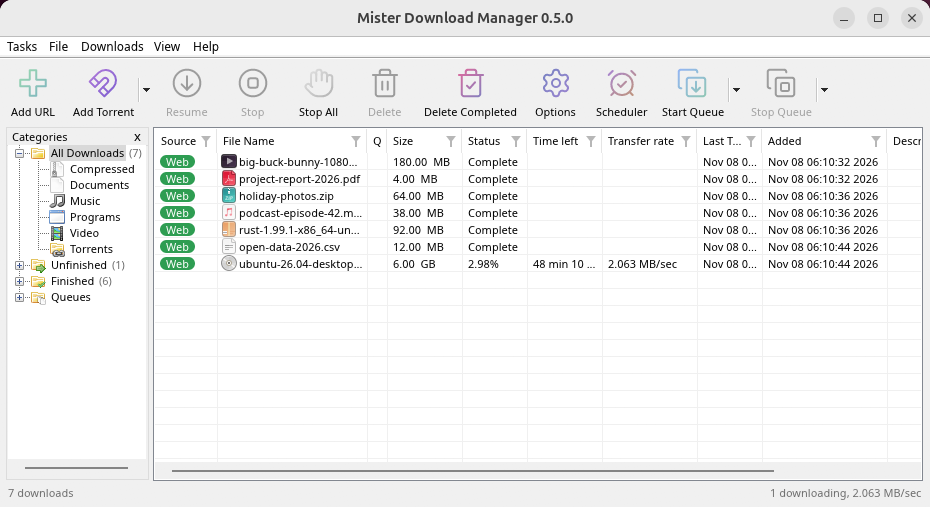
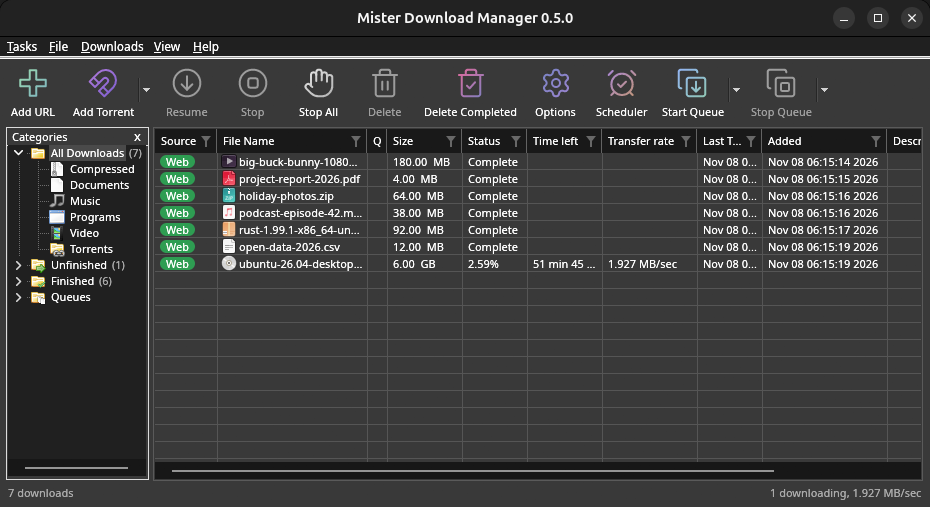
Browser integration is set up by GDM itself at each start (the browsers installed then are found); add the extension as in Browser integration. Firefox installed as a Snap (Ubuntu's) reaches GDM once you allow it; other Snap and Flatpak browsers can't (see Flatpak and Snap browsers). The tray icon, Dark Mode support and Launch on startup work on GNOME (Ubuntu's), KDE Plasma, Xfce and Cinnamon.
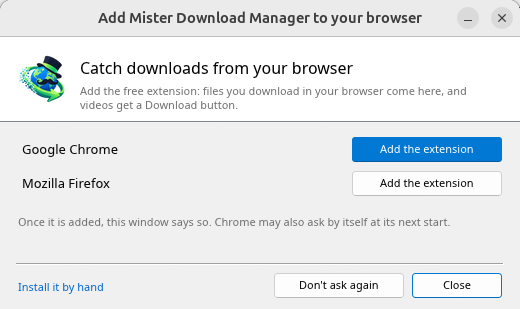
In a Wayland session the windows go through XWayland (below). Not there yet on Linux: screen readers (Orca) don't read GDM's windows; browsers installed as a Flatpak can't reach GDM (Firefox from Flathub may, through the desktop as the Snap does, but that isn't checked yet); and View → Draw with → Vulkan is a choice, OpenGL stays the default.
In a Wayland session (GNOME, KDE Plasma and others), GDM's windows run through XWayland when it is there: Wayland doesn't let a program place its own windows, so GDM's menus and drop-down lists would open in the middle of the screen. To run on Wayland itself anyway, start it with MDM_WAYLAND=1 misterdownloadmanager. If the system lacks a library X11 windows need (such as libxkbcommon-x11, which the .deb and .rpm bring but the AppImage and the tar.gz can't), GDM opens on Wayland instead; with no window system it can use, it names what's missing and the command that installs it.
Вікна є тими, що описані в цій довідці, зі шрифтами, піктограмами файлів та заголовками вікон робочого столу:
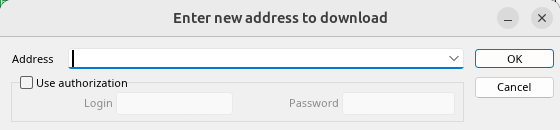
Додати URL-адресу. 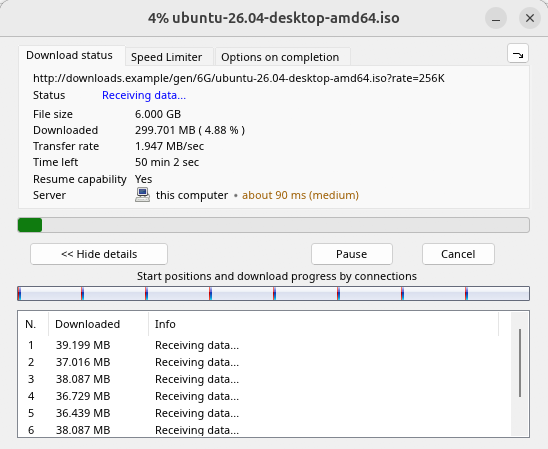
Прогрес завантаження. 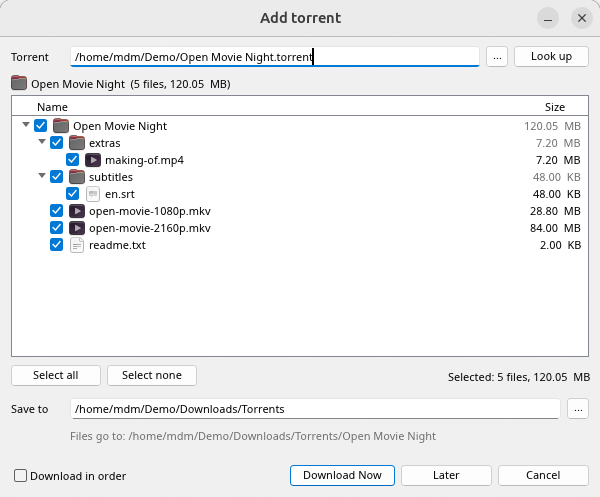
Додати торрент. 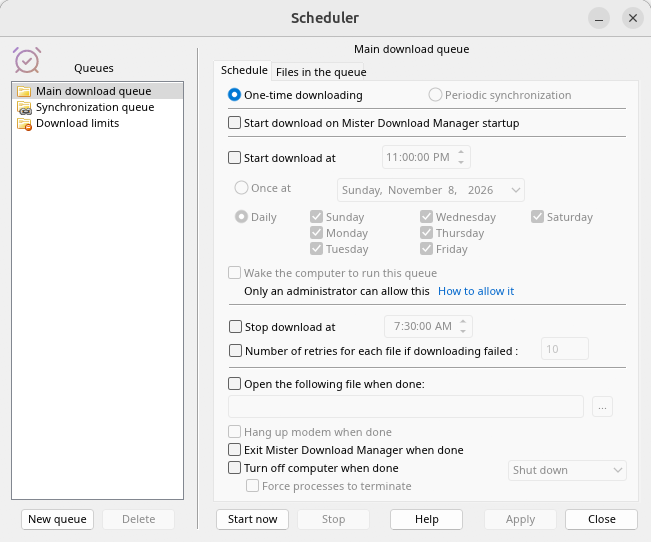
Планувальник. 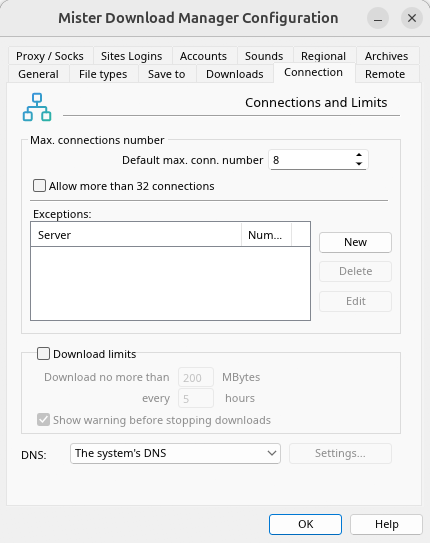
Параметри.
І на інших робочих столах, на яких він був перевірений:
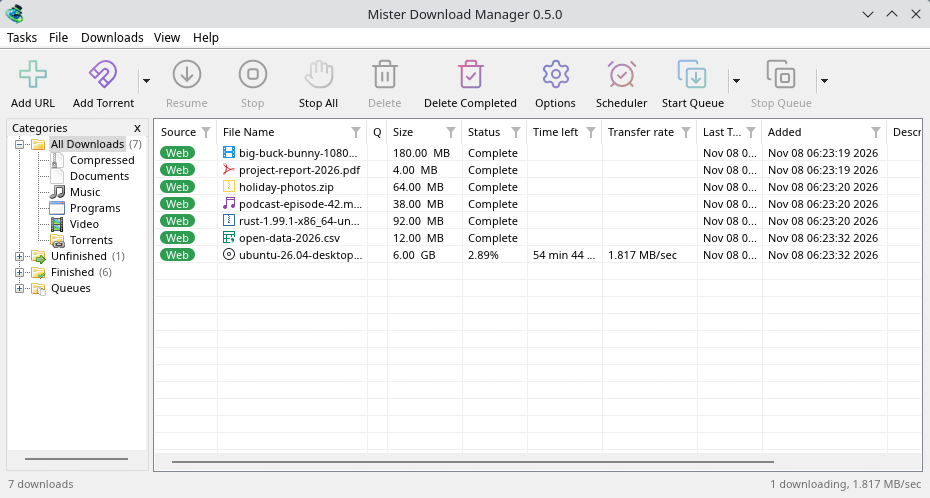
KDE Plasma. 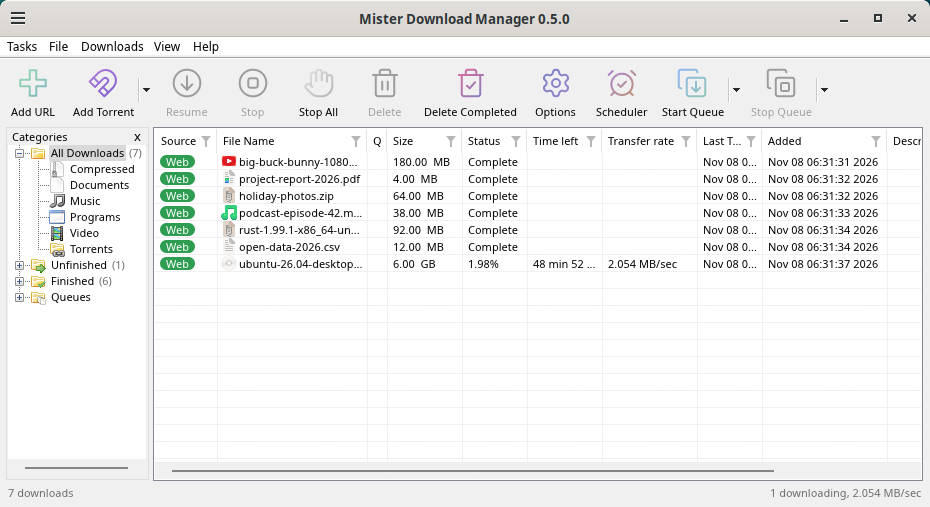
Cinnamon. 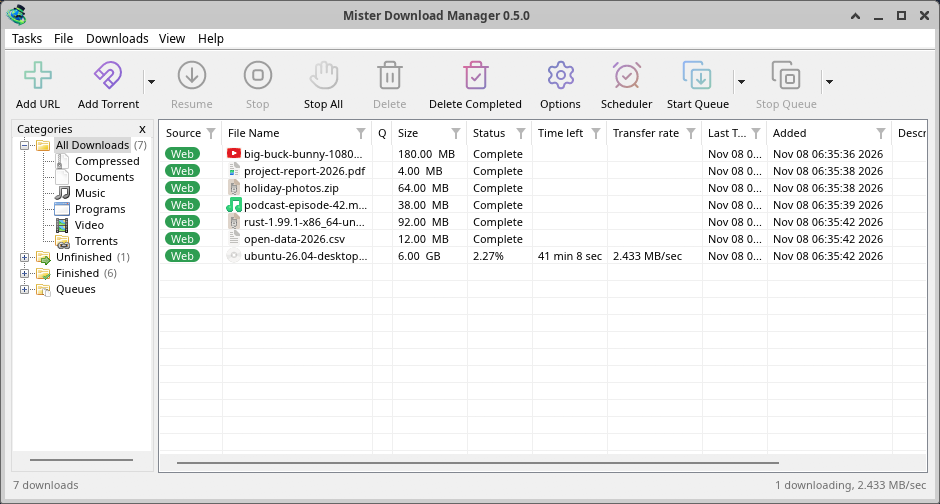
Xfce.
Видалення в Linux
sudo apt remove misterdownloadmanager (or sudo dnf remove misterdownloadmanager) removes the
programs, and the small files that tell your browsers where GDM's helper is: the .deb and .rpm
install those for everyone (in /etc and /usr/lib), for Chrome, Chromium, Edge, Brave, Vivaldi
and Firefox (the Snap too), so GDM doesn't write them in your home folder. For the AppImage or the
tar.gz, delete the file or the folder.
What GDM keeps in your home folder stays, as with any package: your list and settings
(~/.local/share/misterdownloadmanager), the AppImage's and the tar.gz's browser files, and
those of the browsers that read them only there (Opera, Helium, Thorium, and Firefox's forks:
Zen, LibreWolf, Floorp, Waterfox). A package can't remove those: it never touches
home folders. Without GDM they lead nowhere, so the extension says it can't reach GDM. To remove
them as well, run this as each user who used GDM, before uninstalling:
misterdownloadmanager-nmhost --unregister
(З AppImage: ~/.local/share/misterdownloadmanager/browser-host/misterdownloadmanager-nmhost --unregister.) Вже видалено? Це видаляє ті ж файли:
find ~/.mozilla ~/.librewolf ~/.config -name com.misterdownloadmanager.host.json -delete 2>/dev/null
На Mac
Збірки для macOS є новими та все ще експериментальними: ми ще не пробували їх на Mac самі, тому ви будете серед перших. Будь ласка, повідомте нам, як це пройшло, добре чи погано.
| Файл | Що це |
|---|---|
...-macos-arm64-experimental.dmg |
For a Mac with Apple Silicon (M1 or later: Apple menu → About This Mac shows a Chip). Open it and drag GolinksPRO Download Manager to Applications. macOS asks before its first start, because the app isn't notarized by Apple: right-click it and choose Open (on macOS 15 and later: System Settings → Privacy & Security → Open Anyway). |
...-macos-x86_64-experimental.dmg |
Те саме для Mac із процесором Intel (у розділі «Про цей Mac» зазначено Процесор). |
Browser integration is set up by GDM itself at each start (the browsers installed then are found); add the extension as in Browser integration.
Встановлення за допомогою інсталятора
- Запустіть
MisterDownloadManager-<version>-setup.exe. - Choose the language. Windows' display language is already selected. The setup offers every language GDM has, and GDM starts in the one you pick.
- Виберіть, установити програму лише для себе чи для всіх користувачів комп’ютера. Для встановлення лише для себе права адміністратора не потрібні; програма встановиться в
%LOCALAPPDATA%\Programs\GolinksPRO Download Manager. Для всіх користувачів програма встановиться вProgram Files. - Pick what the setup should do: - Set up browser integration (Chrome, Edge, Brave, Firefox) - Open .torrent files and magnet links with GolinksPRO Download Manager - Start GolinksPRO Download Manager when Windows starts - Create a desktop shortcut (off unless you tick it)
- Click Install, then Finish to start GDM.
If GDM is already running, the setup asks it to save and close first. To update, use Help → Check for updates → Update now, or run the setup of the new version; your list and settings stay.
Щоб налаштувати інтеграцію з браузером, потрібно виконати ще один крок у кожному браузері — додати розширення. У Firefox натисніть Додати до Firefox на сторінці розширення на addons.mozilla.org; у Chrome, Edge, Brave, Opera та Vivaldi натисніть Додати до Chrome на сторінці розширення в Chrome Web Store. У розділі Інтеграція з браузером описано, як це зробити.
Видалення
Uninstall GDM from Windows Settings → Apps. The uninstaller asks whether to delete your download list and settings too. Your downloaded files are never touched.
Використання zip-копії
- Розпакуйте файл у папку, до якої можна записувати (не безпосередньо в
Program Files). - Запустіть
misterdownloadmanager.exe.
ZIP-архіви містять ті самі програми, що й інсталятор: програму, misterdownloadmanager-cli.exe (завантаження з командного рядка; див. Командний рядок та автоматизація) і папку extension.
Перший запуск і мова
- Installed with the setup: GDM starts in the language you chose in the setup.
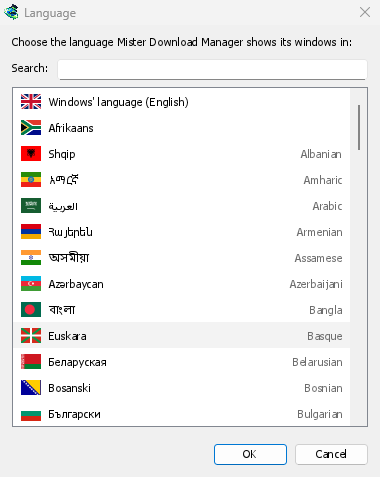
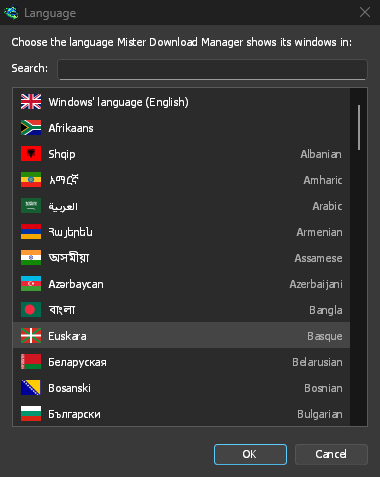
- Otherwise: GDM shows the list of languages, each with its flag and its own name. Pick yours.
Змінити мову можна будь-коли в меню Вигляд → Мова. Докладніше — у розділі Мови.
Допоміжні засоби для відео
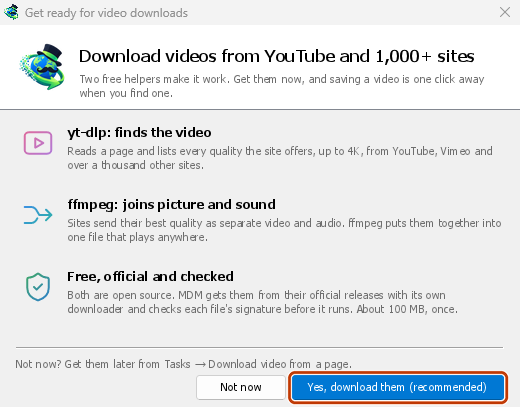
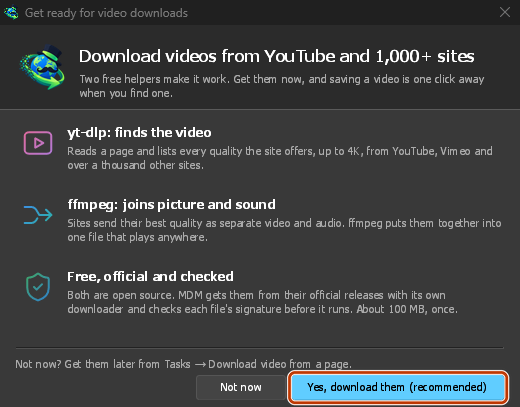
Next, GDM offers its two free video helpers: yt-dlp, which finds the video on a page, and ffmpeg, which joins its picture and sound. Click Yes, download them (recommended) and they download in the background, about 100 MB, once. Not now leaves them for later: the video window offers them when you first need them. More in Videos.
Головне вікно
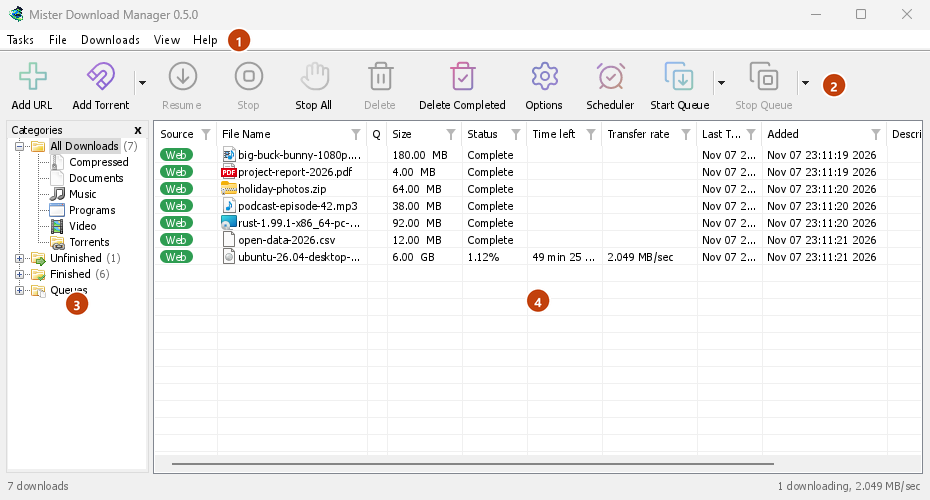
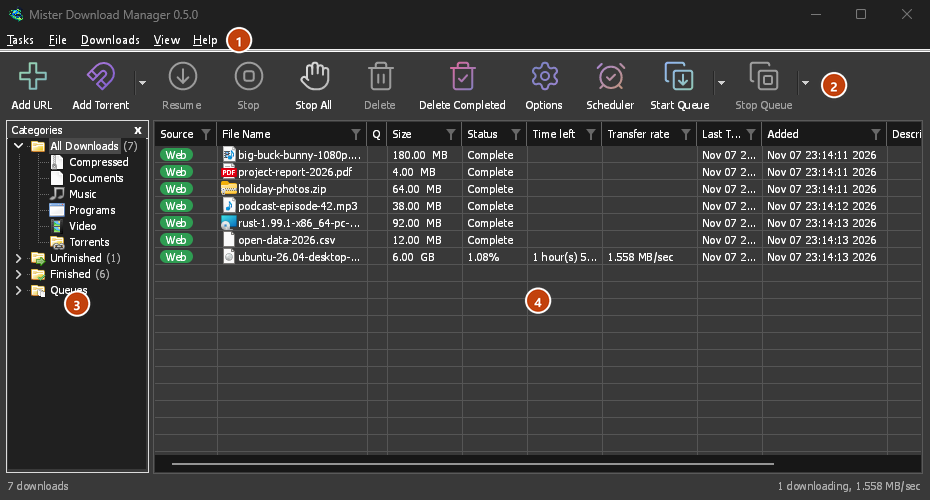
Згори вниз:
- Рядок меню.
- Завдання — додати завантаження, торренти, магнітні посилання, пакетні завантаження та відео зі сторінки; Налаштування торрентів; Захоплення посилань; Канали RSS; показати ціль перетягування; імпортувати та експортувати список; вийти.
- Файл — дії з вибраним завантаженням: Зупинити завантаження, Видалити, Завантажити зараз, Перезавантажити.
- Завантаження — Призупинити все, Зупинити все, Видалити всі завершені, Знайти, Планувальник, черги, Обмежувач швидкості та Параметри.
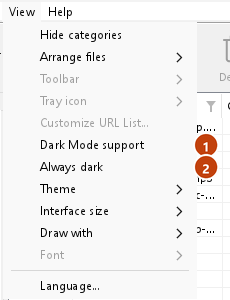
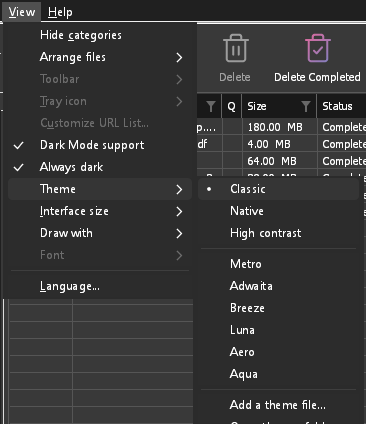
- Вигляд — показати або приховати категорії, відсортувати список (Упорядкувати файли), Підтримка темного режиму, Завжди темна тема, Тема, Розмір інтерфейсу (кожне вікно більше, від 100 % до 200 %; також Ctrl +, Ctrl − та Ctrl 0), Малювати за допомогою (OpenGL, або Direct3D на Windows, Vulkan на Linux, Metal на macOS) та Мова.
- Help — help pages and tutorials (on the website, in your language when it has it), Keyboard shortcuts, Report a problem, Check for updates, About, Tell a friend and Support GDM (its creator's GitHub Sponsors page: optional, nothing in GDM changes).
- Панель інструментів. Додати URL, Додати торрент, Продовжити, Зупинити, Зупинити все, Видалити, Видалити завершені, Параметри, Планувальник, Запустити чергу, Зупинити чергу. Маленька стрілка поруч із Додати торрент, Запустити чергу та Зупинити чергу відкриває додаткові варіанти.
- Категорії (ліворуч). Виберіть, що показувати у списку: Усі завантаження, Незавершені, Завершено та Черги, у кожному з яких є категорії. Перетягніть межу між панеллю та списком, щоб розширити панель.
- Список завантажень (праворуч). Кожне завантаження займає один рядок. Докладніше — у розділі Список завантажень.
Темний режим
GDM follows your system: when Windows (or your desktop's light/dark preference on Linux and macOS) is set to dark mode, so is GDM. To keep GDM light whatever the system does, turn off View → Dark Mode support. To keep it dark whatever the system does, for example on a desktop that reports no preference, turn on View → Always dark.

Теми
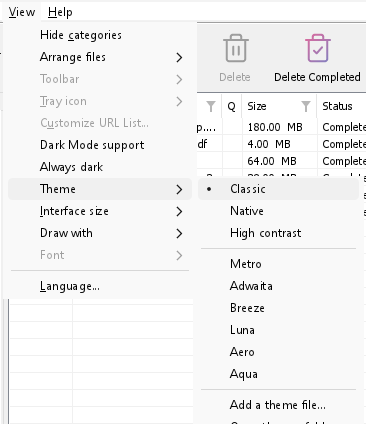
View → Theme changes GDM's look at once, keeping its layout:
- Classic: GDM's own look, the default.
- Системна: кольори вашої системи. Колір акценту Windows (Налаштування → Персоналізація → Кольори) і, якщо його ввімкнено, контрастна тема; колір акценту робочого столу та налаштування високої контрастності в Linux (GNOME 47 і новіших версій, KDE Plasma); колір акценту в macOS. GDM використовує ці кольори й налаштування, коли ви їх змінюєте.
- Висока контрастність: чорно-біле оформлення, яскравий акцент, чітко окреслені краї та контрастність тексту 7:1 або вище.
- Metro: Windows 8's flat look: square corners, flat buttons and boxes, a coloured title bar with the title centred (on Windows, where GDM draws it), and one-colour icons (Microsoft's Fluent UI System Icons).
- Adwaita: GNOME's look: round corners, flat grey buttons, a rounded focus ring, GNOME's check boxes, a header bar with the title in bold and round buttons (on Windows, where GDM draws it), and GNOME's Adwaita icons, in colour for files and categories, one colour in the toolbar.
- Breeze: KDE Plasma's look: rounded corners, buttons and boxes that take the accent's edge under the pointer or when focused, KDE's check boxes and focus frame, KDE's title bar with the title centred and round buttons (on Windows, where GDM draws it), and KDE's Breeze icons.
- Luna: Windows XP's look: buttons shaded from white with an orange glow under the pointer, green ticks, square text boxes, progress in green blocks, a deep blue title bar with the title in bold (on Windows, where GDM draws it), and colourful icons drawn for GDM in that manner.
- Aero: Windows 7's look: glossy buttons that turn light blue under the pointer, quiet check boxes, a glossy green progress bar, a glassy title bar with the title on a soft glow (on Windows), and glossy icons drawn for GDM in that manner.
- Aqua: Mac OS X's look: gel buttons round at the ends (the default one blue), glossy check boxes, a blue focus ring, a blue gel progress bar, a grey title bar with small round buttons (on Windows), and icons drawn for GDM in that manner.
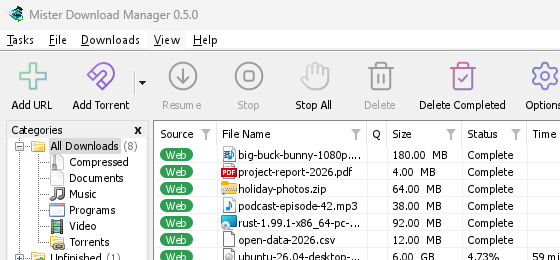

Класична 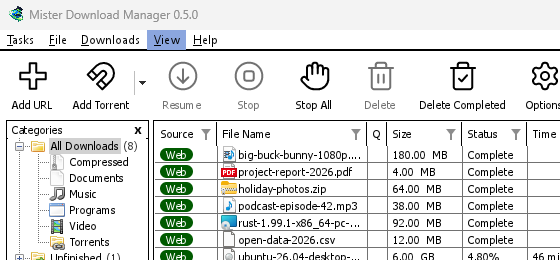
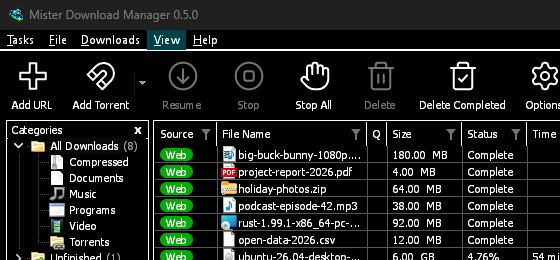
Висока контрастність 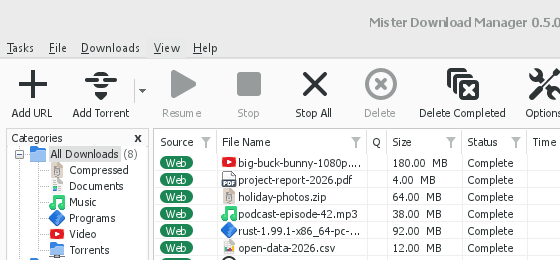
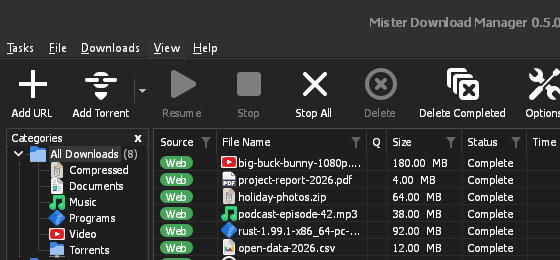
Adwaita 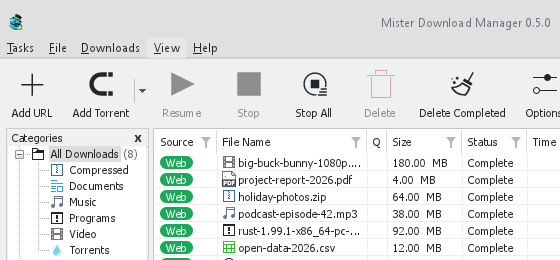
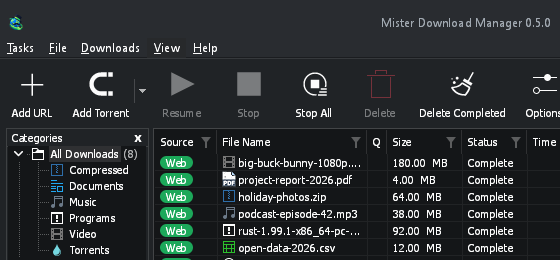
Breeze
Кожна тема має світлу та темну сторону: Підтримка темного режиму та Завжди темна тема дозволяють перемикатися між ними, як і раніше. Файли тем, які ви поміщаєте в папку тем (Вигляд → Тема → Відкрити папку тем), також відображаються там, як і колірні схеми Base16 та pywal (Вигляд → Тема → Додати файл теми…; pywal слідує за wal під час виконання): Теми вказує, де знаходиться ця папка, що містить файл теми (inherits, кольори, розміри, форми елементів керування, піктограми), як використовуються кольори схеми, а також як створити та поділитися нею.
Іконка в треї
Closing the main window doesn't quit GDM. It hides in the notification area, and downloads, queues and schedules carry on. To make closing quit (a portable copy's folder can then be deleted), untick Options → General → Keep running when closing the window. If there is no icon for GDM at all — not in the notification area, nor behind the ^ hidden icons — the window minimizes to the taskbar instead, so downloads continue and there is a way back. An icon behind ^ can be clicked to bring the window back, and starting GDM again always does.
On Linux this needs a tray, which most desktops have (KDE Plasma, Xfce, Cinnamon, Ubuntu's GNOME or GNOME with the AppIndicator extension, waybar's tray). On a desktop without one (some tiling window managers), closing the window quits GDM, since there would be nowhere to bring it back from.
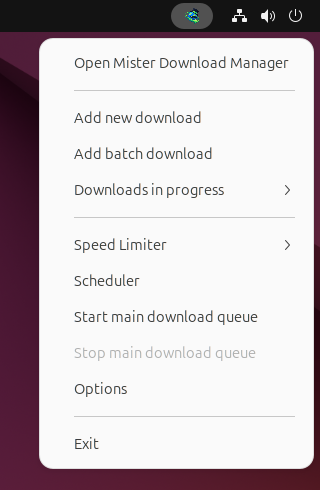
- Натисніть іконку в треї, щоб повернути вікно.
- Клацніть його правою кнопкою миші, щоб відкрити Додати нове завантаження, Додати пакетне завантаження, Завантаження виконуються, Обмежувач швидкості, Планувальник, головну чергу завантажень, Параметри та Вихід.
- Завантаження виконуються відображає запущені завантаження. Виберіть одне, щоб побачити вікно його прогресу.
Згорнути також приховує головне вікно, якщо ввімкнено Згортати в область сповіщень у Параметри → Загальні. За замовчуванням ця функція ввімкнена; якщо в треї немає значка, Згорнути відправляє вікно на панель завдань.
Вікно прогресу завантаження також може бути там, за допомогою кнопки «Згорнути» або Приховати в область сповіщень: короткий тире зі стрілкою вниз до кута.
У Windows ця кнопка знаходиться в рядку заголовка вікна, ліворуч від кнопки «Згорнути», а також у меню рядка заголовка (Alt+Пробіл). У Linux та macOS вона знаходиться в кінці рядка вкладок.
Щоб повернути вікно, виберіть його в Завантаження виконуються або двічі клацніть завантаження у списку.
Щоб вийти, оберіть Завдання → Вихід або Вихід у меню трея.
Where GDM keeps its data
Список завантажень і налаштування зберігаються в %APPDATA%\misterdownloadmanager (downloads.json); у Linux — в ~/.local/share/misterdownloadmanager, на Mac — в ~/Library/Application Support/misterdownloadmanager. Портативна копія зберігає їх у своїй папці data. Завантажені файли потрапляють до вашої папки Завантаження, відсортовані за папками відповідно до категорій; ви можете змінити це в Параметри → Зберегти до.
Наступні кроки
Безкоштовно, з відкритим кодом, без реклами, без пробного періоду.
Download GolinksPRO Download Manager