
GDM runs on 64-bit Windows 10 and Windows 11, and on 64-bit Linux: see On Linux. Builds for macOS are new and still experimental: see On a Mac.
Выберите загрузку
Все версии находятся на странице Выпуски. Для Windows есть три файла:
| Файл | Что это |
|---|---|
MisterDownloadManager-<version>-setup.exe |
The installer. Pick this one unless you have a reason not to. It can set up browser integration and open .torrent files and magnet links with GDM. |
MisterDownloadManager-<version>-portable.zip |
Портативная копия. Список загрузок и настройки остаются в папке data рядом с программой, и ничего не записывается в реестр. Для интеграции с браузером требуется установщик. См. Портативный режим. |
MisterDownloadManager-<version>-x64.zip |
Те же программы без установщика. Он хранит свои данные в %APPDATA%\misterdownloadmanager, как установленная копия. |
В Linux
GDM runs on 64-bit Linux with a desktop session. It is tested on Ubuntu 24.04, Debian 12 and
Fedora, with GNOME, KDE Plasma, Xfce and Cinnamon, on X11 and in Wayland sessions. Pick one
of these files (up to version 0.2.4, their names end in -experimental, as in
...-linux-x86_64-experimental.deb):
| Файл | Что это |
|---|---|
...-linux-x86_64.deb |
For Ubuntu, Debian, Mint and Pop!_OS: sudo apt install ./<file>.deb. It brings the libraries GDM needs. |
...-linux-x86_64.rpm |
For Fedora, openSUSE and RHEL: sudo dnf install ./<file>.rpm. It brings the libraries GDM needs. |
...-linux-x86_64.AppImage |
Работает на большинстве дистрибутивов: сделайте его исполняемым (chmod +x) и запустите. Он обновляется на месте (Справка → Проверить обновления). |
...-linux-x86_64.tar.gz |
Обычные программы для любого дистрибутива. |
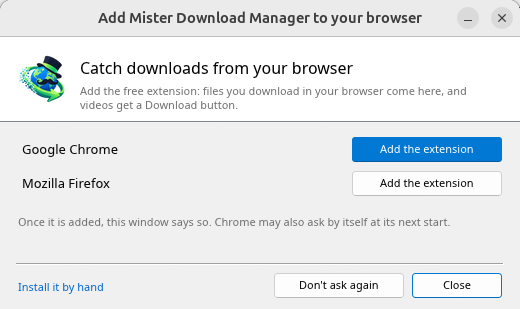
Browser integration is set up by GDM itself at each start (the browsers installed then are found); add the extension as in Browser integration. Firefox installed as a Snap (Ubuntu's) reaches GDM once you allow it; other Snap and Flatpak browsers can't (see Flatpak and Snap browsers). The tray icon, Dark Mode support and Launch on startup work on GNOME (Ubuntu's), KDE Plasma, Xfce and Cinnamon.
In a Wayland session the windows go through XWayland (below). Not there yet on Linux: screen readers (Orca) don't read GDM's windows; browsers installed as a Flatpak can't reach GDM (Firefox from Flathub may, through the desktop as the Snap does, but that isn't checked yet); and View → Draw with → Vulkan is a choice, OpenGL stays the default.
In a Wayland session (GNOME, KDE Plasma and others), GDM's windows run through XWayland when it is there: Wayland doesn't let a program place its own windows, so GDM's menus and drop-down lists would open in the middle of the screen. To run on Wayland itself anyway, start it with MDM_WAYLAND=1 misterdownloadmanager. If the system lacks a library X11 windows need (such as libxkbcommon-x11, which the .deb and .rpm bring but the AppImage and the tar.gz can't), GDM opens on Wayland instead; with no window system it can use, it names what's missing and the command that installs it.
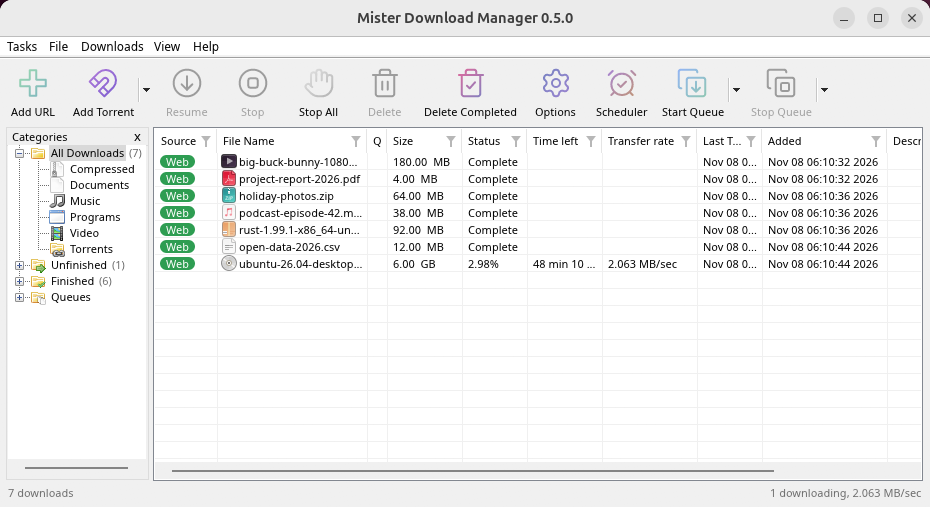
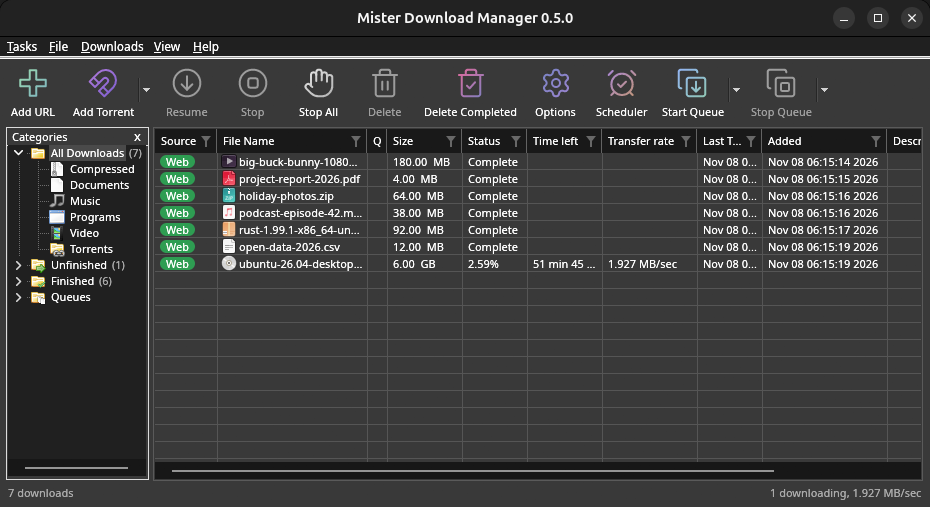
Окна такие, как описано в этой справке, со шрифтами, значками файлов и заголовками окон рабочего стола:
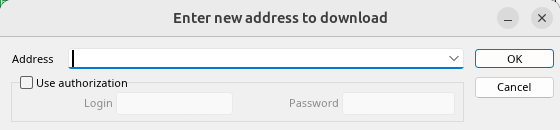
Добавить URL. 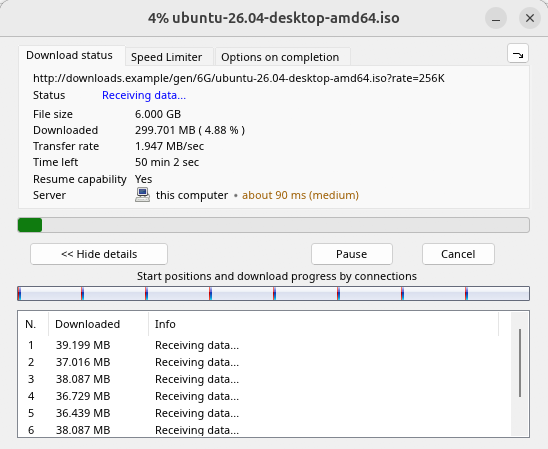
Ход загрузки. 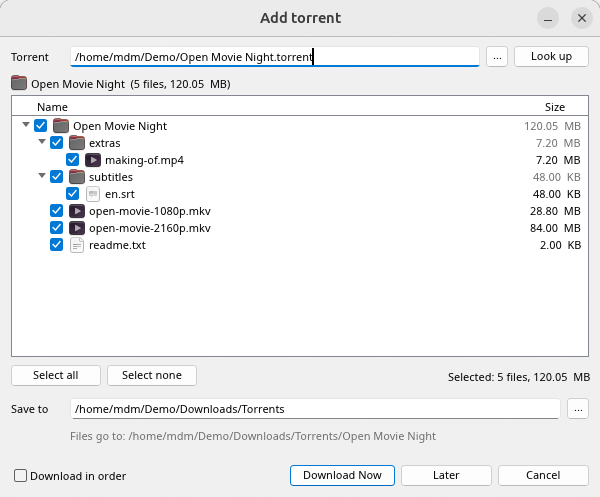
Добавить торрент. 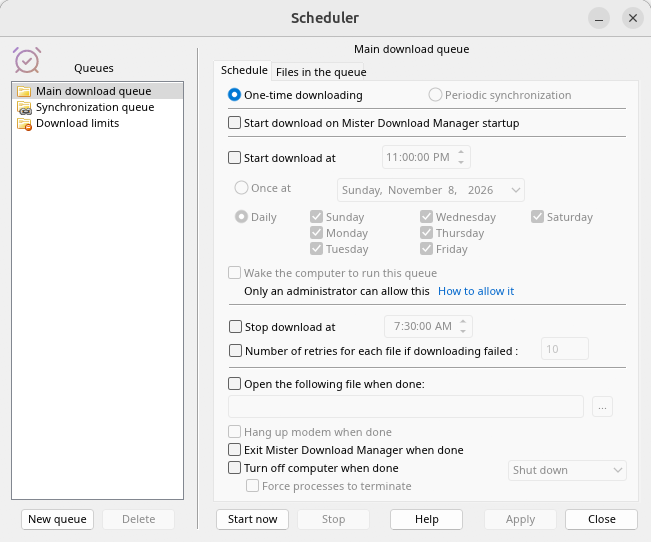
Планировщик. 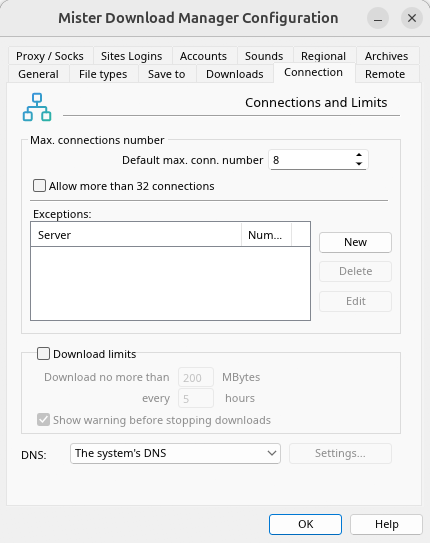
Параметры.
И на других рабочих столах, на которых он был проверен:
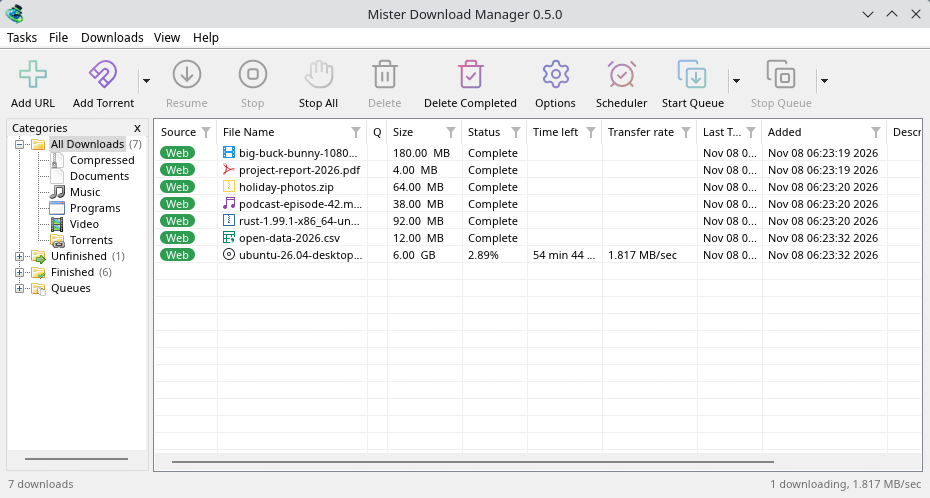
KDE Plasma. 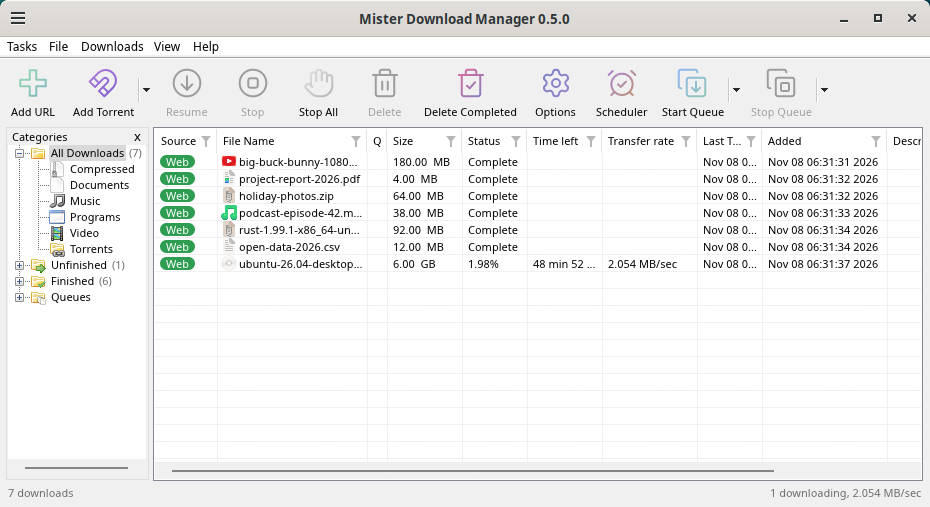
Cinnamon. 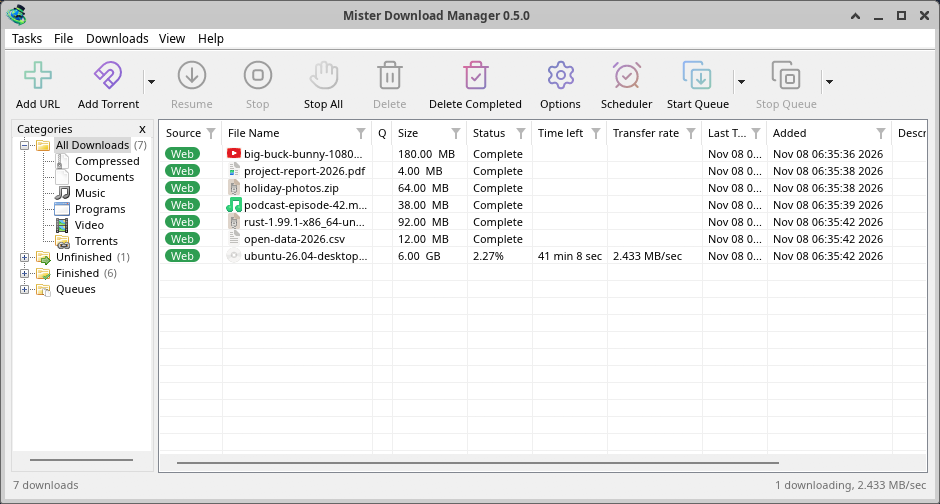
Xfce.
Удаление в Linux
sudo apt remove misterdownloadmanager (or sudo dnf remove misterdownloadmanager) removes the
programs, and the small files that tell your browsers where GDM's helper is: the .deb and .rpm
install those for everyone (in /etc and /usr/lib), for Chrome, Chromium, Edge, Brave, Vivaldi
and Firefox (the Snap too), so GDM doesn't write them in your home folder. For the AppImage or the
tar.gz, delete the file or the folder.
What GDM keeps in your home folder stays, as with any package: your list and settings
(~/.local/share/misterdownloadmanager), the AppImage's and the tar.gz's browser files, and
those of the browsers that read them only there (Opera, Helium, Thorium, and Firefox's forks:
Zen, LibreWolf, Floorp, Waterfox). A package can't remove those: it never touches
home folders. Without GDM they lead nowhere, so the extension says it can't reach GDM. To remove
them as well, run this as each user who used GDM, before uninstalling:
misterdownloadmanager-nmhost --unregister
(Из AppImage: ~/.local/share/misterdownloadmanager/browser-host/misterdownloadmanager-nmhost --unregister.) Уже удалено? Это удаляет те же файлы:
find ~/.mozilla ~/.librewolf ~/.config -name com.misterdownloadmanager.host.json -delete 2>/dev/null
На Mac
Сборки для macOS новые и пока экспериментальные: мы еще не пробовали их на Mac сами, так что вы будете одними из первых. Пожалуйста, сообщите нам, как все прошло, хорошо или плохо.
| Файл | Что это |
|---|---|
...-macos-arm64-experimental.dmg |
For a Mac with Apple Silicon (M1 or later: Apple menu → About This Mac shows a Chip). Open it and drag GolinksPRO Download Manager to Applications. macOS asks before its first start, because the app isn't notarized by Apple: right-click it and choose Open (on macOS 15 and later: System Settings → Privacy & Security → Open Anyway). |
...-macos-x86_64-experimental.dmg |
То же самое для Mac с процессором Intel (Об этом Mac показывает Процессор). |
Browser integration is set up by GDM itself at each start (the browsers installed then are found); add the extension as in Browser integration.
Установка с помощью программы установки
- Запустите
MisterDownloadManager-<version>-setup.exe. - Choose the language. Windows' display language is already selected. The setup offers every language GDM has, and GDM starts in the one you pick.
- Выберите, устанавливать только для вас или для всех на компьютере. Только для вас не требует прав администратора и устанавливается в
%LOCALAPPDATA%\Programs\GolinksPRO Download Manager. Для всех устанавливается вProgram Files. - Pick what the setup should do: - Set up browser integration (Chrome, Edge, Brave, Firefox) - Open .torrent files and magnet links with GolinksPRO Download Manager - Start GolinksPRO Download Manager when Windows starts - Create a desktop shortcut (off unless you tick it)
- Click Install, then Finish to start GDM.
If GDM is already running, the setup asks it to save and close first. To update, use Help → Check for updates → Update now, or run the setup of the new version; your list and settings stay.
Интеграция с браузером требует ещё одного шага в каждом браузере: добавления расширения. В Firefox нажмите Добавить в Firefox на его странице на addons.mozilla.org; в Chrome, Edge, Brave, Opera и Vivaldi нажмите Добавить в Chrome на его странице в Chrome Web Store. Подробнее см. в разделе Интеграция с браузером.
Удаление
Uninstall GDM from Windows Settings → Apps. The uninstaller asks whether to delete your download list and settings too. Your downloaded files are never touched.
Использование zip-копии
- Распакуйте архив в папку, в которую можно записывать файлы (не прямо в
Program Files). - Запустите
misterdownloadmanager.exe.
В архивах — те же программы, что и в установщике: приложение, misterdownloadmanager-cli.exe (загрузка из командной строки; см. Командная строка и автоматизация) и папка extension.
Первый запуск и язык
- Installed with the setup: GDM starts in the language you chose in the setup.
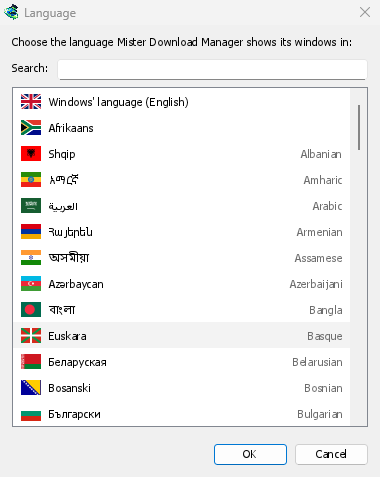
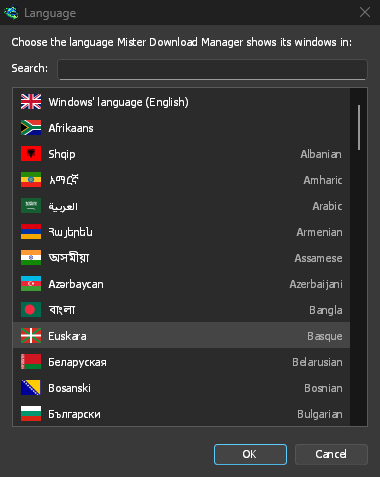
- Otherwise: GDM shows the list of languages, each with its flag and its own name. Pick yours.
Вы можете изменить язык в любое время в меню Вид → Язык. Подробнее — в разделе Языки.
Видеопомощники
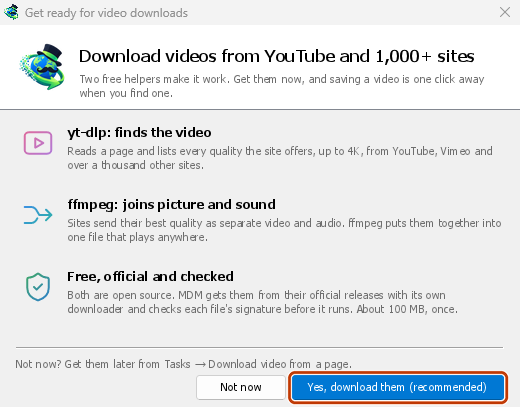
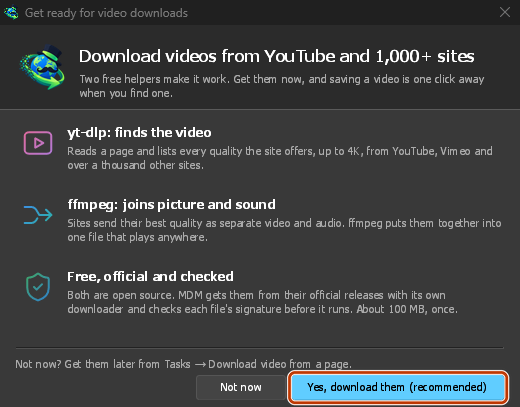
Next, GDM offers its two free video helpers: yt-dlp, which finds the video on a page, and ffmpeg, which joins its picture and sound. Click Yes, download them (recommended) and they download in the background, about 100 MB, once. Not now leaves them for later: the video window offers them when you first need them. More in Videos.
Главное окно
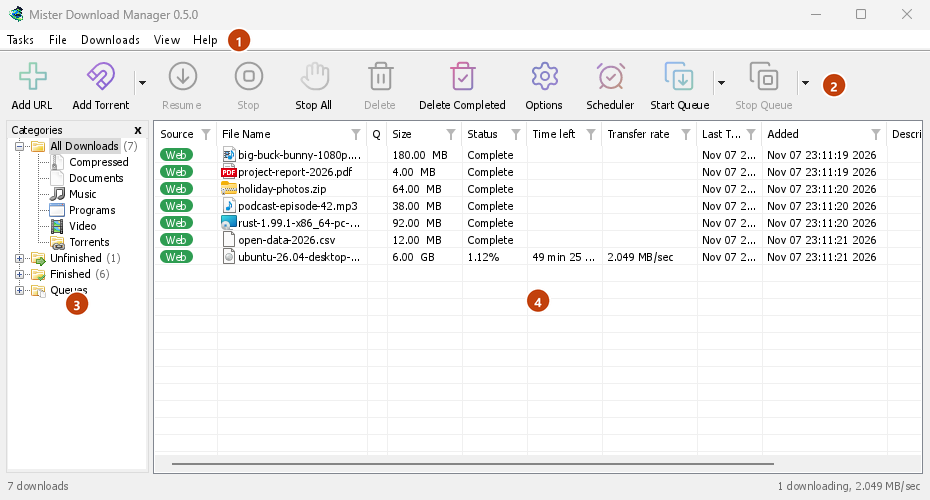
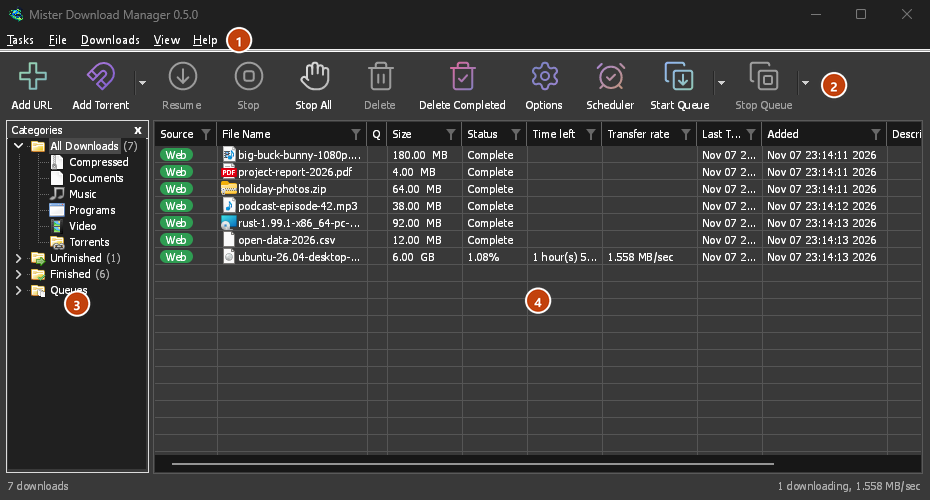
Сверху вниз:
- Строка меню.
- Задачи — добавить загрузки, торренты, magnet-ссылки, пакетные загрузки и видео со страницы; Настройки торрента; Перехват ссылок; Ленты RSS; показать цель перетаскивания; импортировать и экспортировать список; выйти.
- Файл — выбранная загрузка: Остановить загрузку, Удалить, Загрузить сейчас, Перезагрузить.
- Загрузки — Приостановить все, Остановить все, Удалить все завершенные, Найти, Планировщик, очереди, Ограничитель скорости и Параметры.
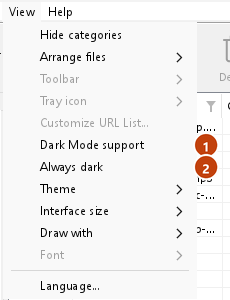
- Вид — показать или скрыть категории, отсортировать список (Упорядочить файлы), Поддержка темного режима, Всегда темная, Тема, Размер интерфейса (каждое окно больше, от 100 % до 200 %; также Ctrl +, Ctrl − и Ctrl 0), Отрисовка с помощью (OpenGL, или Direct3D в Windows, Vulkan в Linux, Metal в macOS) и Язык.
- Help — help pages and tutorials (on the website, in your language when it has it), Keyboard shortcuts, Report a problem, Check for updates, About, Tell a friend and Support GDM (its creator's GitHub Sponsors page: optional, nothing in GDM changes).
- Панель инструментов. Добавить URL, Добавить торрент, Продолжить, Остановить, Остановить все, Удалить, Удалить завершенные, Параметры, Планировщик, Запустить очередь, Остановить очередь. Маленькая стрелка рядом с Добавить торрент, Запустить очередь и Остановить очередь открывает дополнительные параметры.
- Категории (слева). Выберите, что отображать в списке: Все загрузки, Незавершенные, Завершено и Очереди, у каждой — свои категории. Перетащите границу между панелью и списком, чтобы расширить панель.
- Список загрузок (справа). Каждая загрузка занимает отдельную строку. См. Список загрузок.
Темный режим
GDM follows your system: when Windows (or your desktop's light/dark preference on Linux and macOS) is set to dark mode, so is GDM. To keep GDM light whatever the system does, turn off View → Dark Mode support. To keep it dark whatever the system does, for example on a desktop that reports no preference, turn on View → Always dark.

Темы
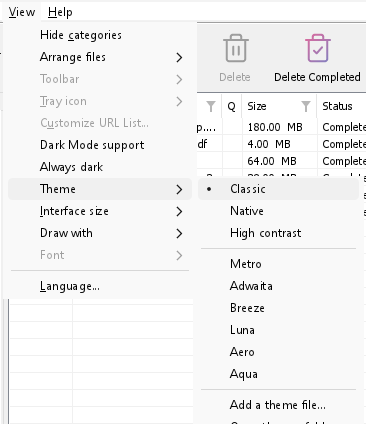
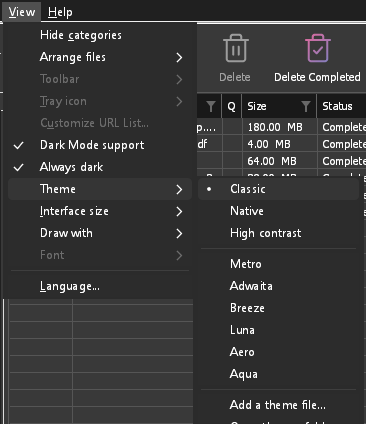
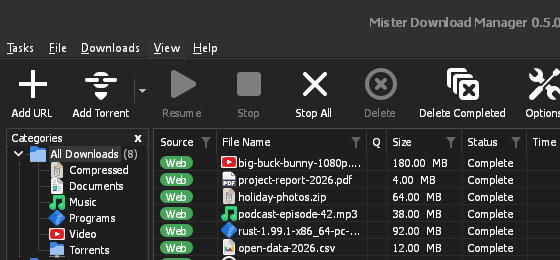
View → Theme changes GDM's look at once, keeping its layout:
- Classic: GDM's own look, the default.
- Системная: цвета вашей системы. Акцентный цвет Windows («Параметры» → «Персонализация» → «Цвета») и, если она включена, контрастная тема; акцентный цвет рабочего стола и повышенная контрастность в Linux (GNOME 47 и новее, KDE Plasma); акцентный цвет в macOS. GDM учитывает изменения этих параметров.
- Высокий контраст: черно-белая тема с ярким акцентом, обведенными границами и контрастностью текста 7:1 или выше.
- Metro: Windows 8's flat look: square corners, flat buttons and boxes, a coloured title bar with the title centred (on Windows, where GDM draws it), and one-colour icons (Microsoft's Fluent UI System Icons).
- Adwaita: GNOME's look: round corners, flat grey buttons, a rounded focus ring, GNOME's check boxes, a header bar with the title in bold and round buttons (on Windows, where GDM draws it), and GNOME's Adwaita icons, in colour for files and categories, one colour in the toolbar.
- Breeze: KDE Plasma's look: rounded corners, buttons and boxes that take the accent's edge under the pointer or when focused, KDE's check boxes and focus frame, KDE's title bar with the title centred and round buttons (on Windows, where GDM draws it), and KDE's Breeze icons.
- Luna: Windows XP's look: buttons shaded from white with an orange glow under the pointer, green ticks, square text boxes, progress in green blocks, a deep blue title bar with the title in bold (on Windows, where GDM draws it), and colourful icons drawn for GDM in that manner.
- Aero: Windows 7's look: glossy buttons that turn light blue under the pointer, quiet check boxes, a glossy green progress bar, a glassy title bar with the title on a soft glow (on Windows), and glossy icons drawn for GDM in that manner.
- Aqua: Mac OS X's look: gel buttons round at the ends (the default one blue), glossy check boxes, a blue focus ring, a blue gel progress bar, a grey title bar with small round buttons (on Windows), and icons drawn for GDM in that manner.
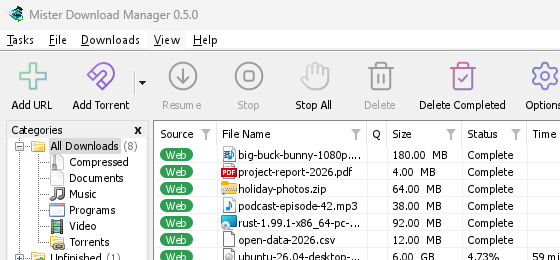

Классическая 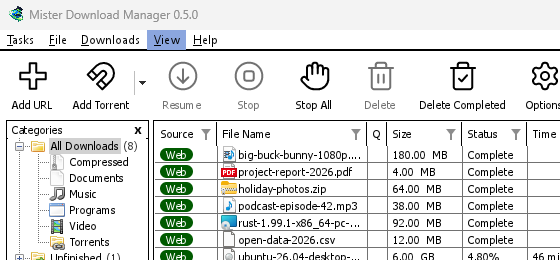
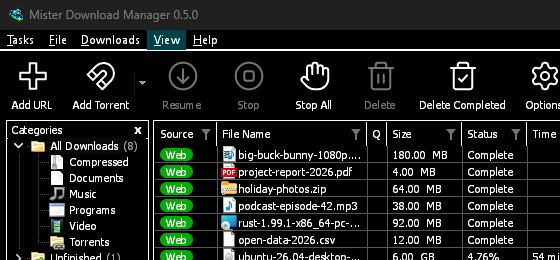
Высокий контраст 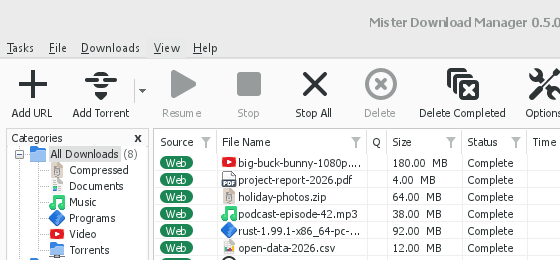
Adwaita 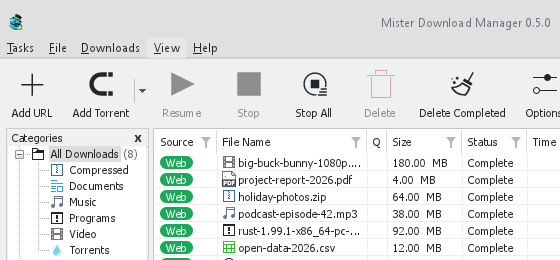
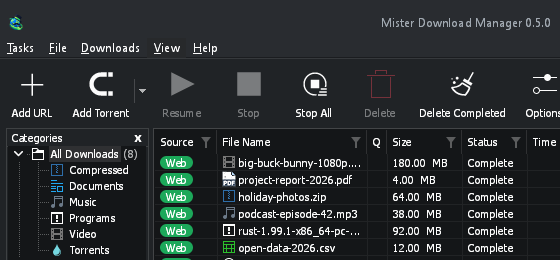
Breeze
У каждой темы есть светлая и темная сторона: Поддержка темного режима и Всегда темная позволяют выбирать между ними, как и раньше. Файлы тем, которые вы помещаете в папку тем (Вид → Тема → Открыть папку с темами), также отображаются там, как и цветовые схемы Base16 и pywal (Вид → Тема → Добавить файл темы…; pywal следует wal во время выполнения): в разделе Темы указано, где находится эта папка, что содержит файл темы (inherits, цвета, размеры, формы элементов управления, значки), как используются цвета схемы, а также как создать и поделиться ею.
Значок в трее
Closing the main window doesn't quit GDM. It hides in the notification area, and downloads, queues and schedules carry on. To make closing quit (a portable copy's folder can then be deleted), untick Options → General → Keep running when closing the window. If there is no icon for GDM at all — not in the notification area, nor behind the ^ hidden icons — the window minimizes to the taskbar instead, so downloads continue and there is a way back. An icon behind ^ can be clicked to bring the window back, and starting GDM again always does.
On Linux this needs a tray, which most desktops have (KDE Plasma, Xfce, Cinnamon, Ubuntu's GNOME or GNOME with the AppIndicator extension, waybar's tray). On a desktop without one (some tiling window managers), closing the window quits GDM, since there would be nowhere to bring it back from.
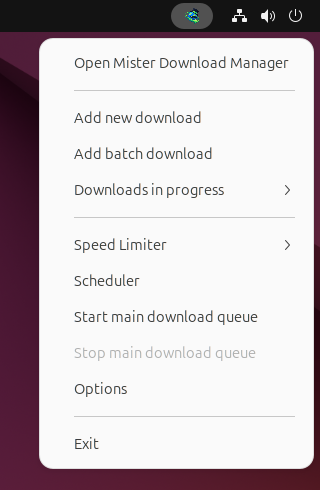
- Нажмите на значок в трее, чтобы вернуть окно.
- Нажмите на него правой кнопкой мыши, чтобы открыть Добавить новую загрузку, Добавить пакетную загрузку, Загрузки в процессе, Ограничитель скорости, Планировщик, основную очередь загрузок, Параметры и Выход.
- Загрузки в процессе показывает список текущих загрузок. Выберите одну, чтобы увидеть окно её прогресса.
Кнопка «Свернуть» также скрывает главное окно, если в Параметры → Общие включена опция Сворачивать в область уведомлений. Она включена по умолчанию; если в трее нет значка, кнопка «Свернуть» отправляет окно на панель задач.
Окно хода загрузки также может быть скрыто туда с помощью кнопки «Свернуть» или «Скрыть в область уведомлений»: короткий дефис со стрелкой вниз в угол.
В Windows эта кнопка находится в строке заголовка окна, слева от кнопки «Свернуть», а также в меню строки заголовка (Alt+Space). В Linux и macOS она находится в конце ряда вкладок.
Чтобы вернуть окно, выберите его в «Загрузки в процессе» или дважды щелкните загрузку в списке.
Для выхода выберите Задачи → Выход или Выход в меню трея.
Where GDM keeps its data
Список загрузок и параметры находятся в %APPDATA%\misterdownloadmanager (downloads.json); в Linux в ~/.local/share/misterdownloadmanager, на Mac в ~/Library/Application Support/misterdownloadmanager. Портативная копия хранит их в своей папке data. Загруженные файлы попадают в вашу папку Загрузки, отсортированные по папкам для каждой категории; вы можете изменить это в Параметры → Сохранить в.
Дальнейшие действия
Бесплатно, с открытым исходным кодом, без рекламы, без пробного периода.
Download GolinksPRO Download Manager