
GDM runs on 64-bit Windows 10 and Windows 11, and on 64-bit Linux: see On Linux. Builds for macOS are new and still experimental: see On a Mac.
Bir indirme seçin
Tüm sürümler Sürümler sayfasında bulunur. Windows için üç dosya vardır:
| Dosya | Ne işe yarar |
|---|---|
MisterDownloadManager-<version>-setup.exe |
The installer. Pick this one unless you have a reason not to. It can set up browser integration and open .torrent files and magnet links with GDM. |
MisterDownloadManager-<version>-portable.zip |
Taşınabilir bir kopya. İndirme listesi ve ayarlar programın yanındaki bir data klasöründe kalır ve kayıt defterine hiçbir şey yazılmaz. Tarayıcı entegrasyonu yükleyiciyi gerektirir. Taşınabilir mod bölümüne bakın. |
MisterDownloadManager-<version>-x64.zip |
Yükleyici olmadan aynı programlar. Verilerini yüklü bir kopya gibi %APPDATA%\misterdownloadmanager içinde tutar. |
Linux'ta
GDM runs on 64-bit Linux with a desktop session. It is tested on Ubuntu 24.04, Debian 12 and
Fedora, with GNOME, KDE Plasma, Xfce and Cinnamon, on X11 and in Wayland sessions. Pick one
of these files (up to version 0.2.4, their names end in -experimental, as in
...-linux-x86_64-experimental.deb):
| Dosya | Ne işe yarar |
|---|---|
...-linux-x86_64.deb |
For Ubuntu, Debian, Mint and Pop!_OS: sudo apt install ./<file>.deb. It brings the libraries GDM needs. |
...-linux-x86_64.rpm |
For Fedora, openSUSE and RHEL: sudo dnf install ./<file>.rpm. It brings the libraries GDM needs. |
...-linux-x86_64.AppImage |
Çoğu dağıtımda çalışır: yürütülebilir yapın (chmod +x) ve çalıştırın. Yerinde güncellenir (Yardım → Güncelleştirmeleri denetle). |
...-linux-x86_64.tar.gz |
Herhangi bir dağıtım için sade programlar. |
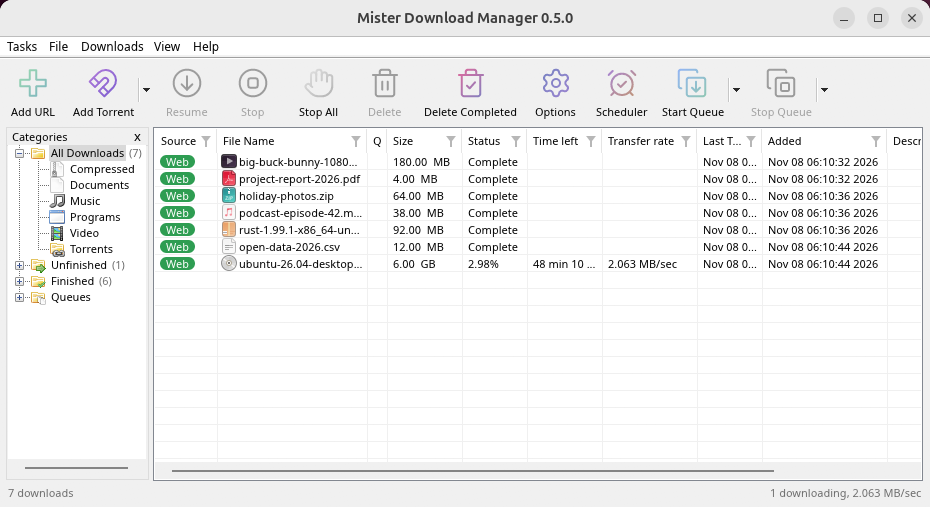
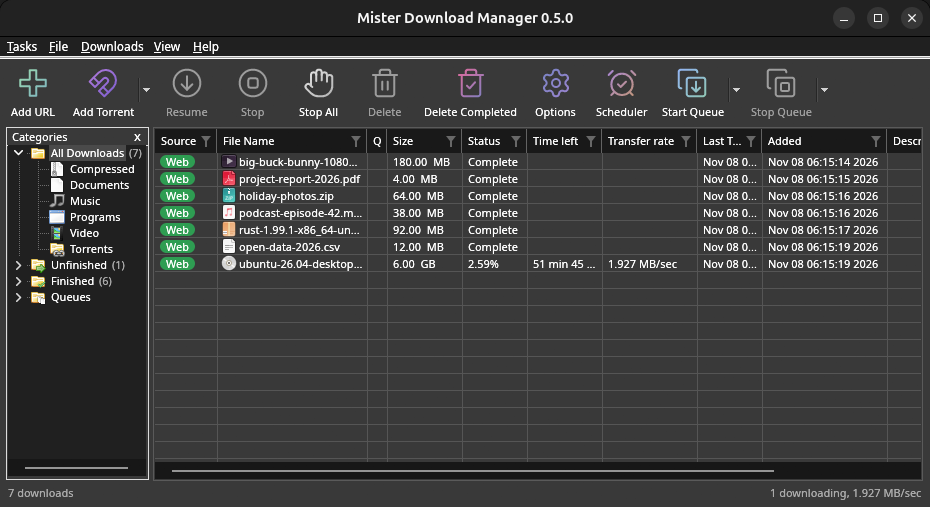
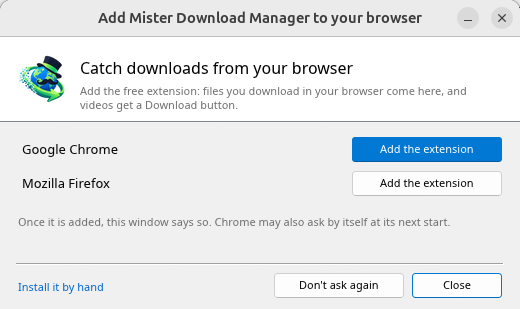
Browser integration is set up by GDM itself at each start (the browsers installed then are found); add the extension as in Browser integration. Firefox installed as a Snap (Ubuntu's) reaches GDM once you allow it; other Snap and Flatpak browsers can't (see Flatpak and Snap browsers). The tray icon, Dark Mode support and Launch on startup work on GNOME (Ubuntu's), KDE Plasma, Xfce and Cinnamon.
In a Wayland session the windows go through XWayland (below). Not there yet on Linux: screen readers (Orca) don't read GDM's windows; browsers installed as a Flatpak can't reach GDM (Firefox from Flathub may, through the desktop as the Snap does, but that isn't checked yet); and View → Draw with → Vulkan is a choice, OpenGL stays the default.
In a Wayland session (GNOME, KDE Plasma and others), GDM's windows run through XWayland when it is there: Wayland doesn't let a program place its own windows, so GDM's menus and drop-down lists would open in the middle of the screen. To run on Wayland itself anyway, start it with MDM_WAYLAND=1 misterdownloadmanager. If the system lacks a library X11 windows need (such as libxkbcommon-x11, which the .deb and .rpm bring but the AppImage and the tar.gz can't), GDM opens on Wayland instead; with no window system it can use, it names what's missing and the command that installs it.
Pencereler, masaüstünün yazı tipleri, dosya simgeleri ve başlık çubuklarıyla bu yardımda açıklananlardır:
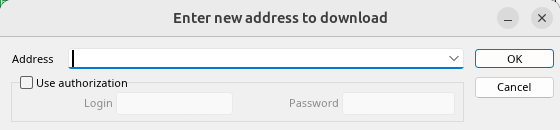
URL Ekle. 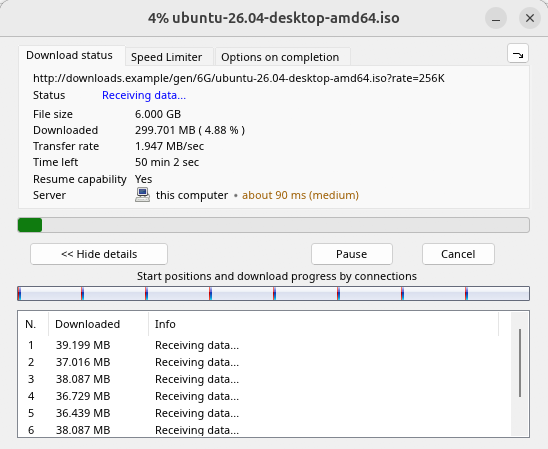
Bir indirmenin ilerlemesi. 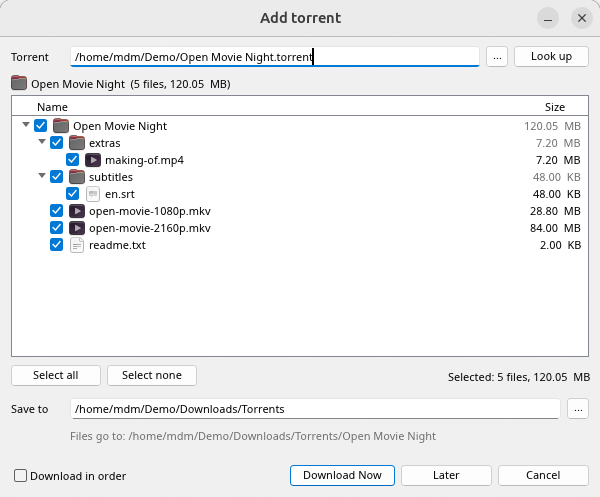
Torrent ekle. 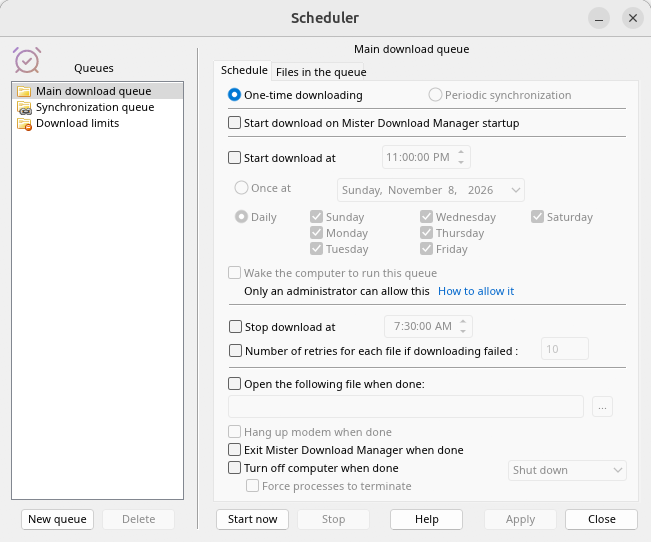
Zamanlayıcı. 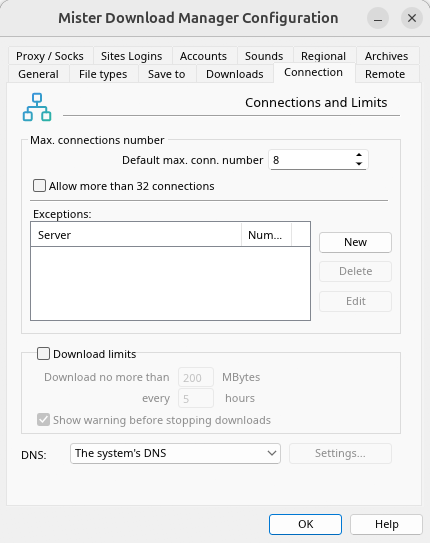
Seçenekler.
Ve kontrol edildiği diğer masaüstlerinde:
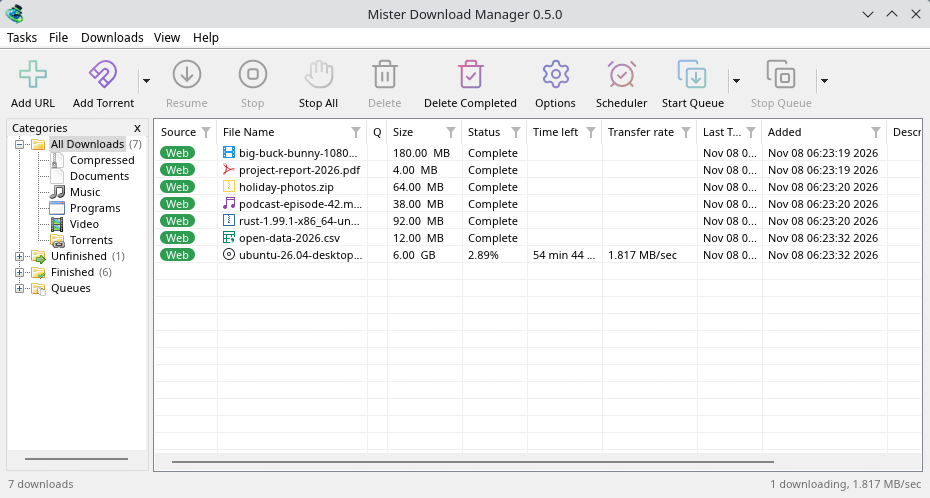
KDE Plasma. 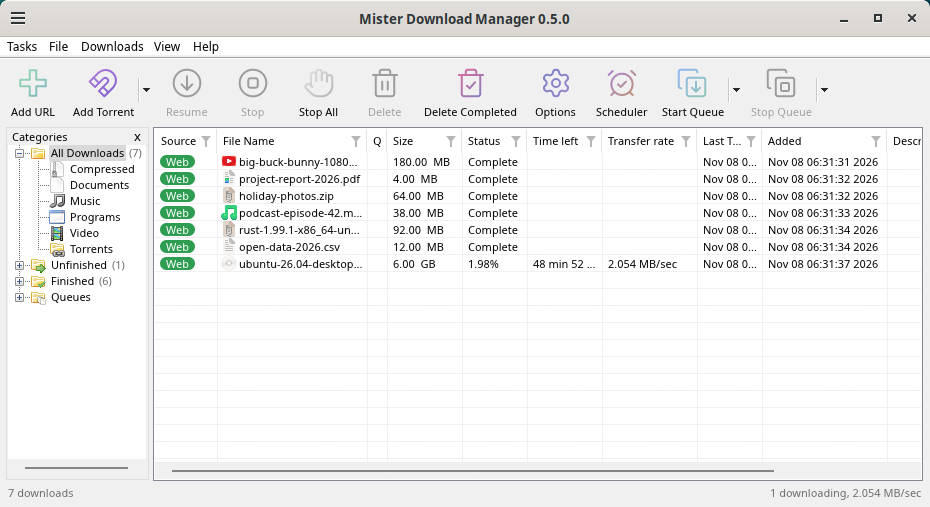
Cinnamon. 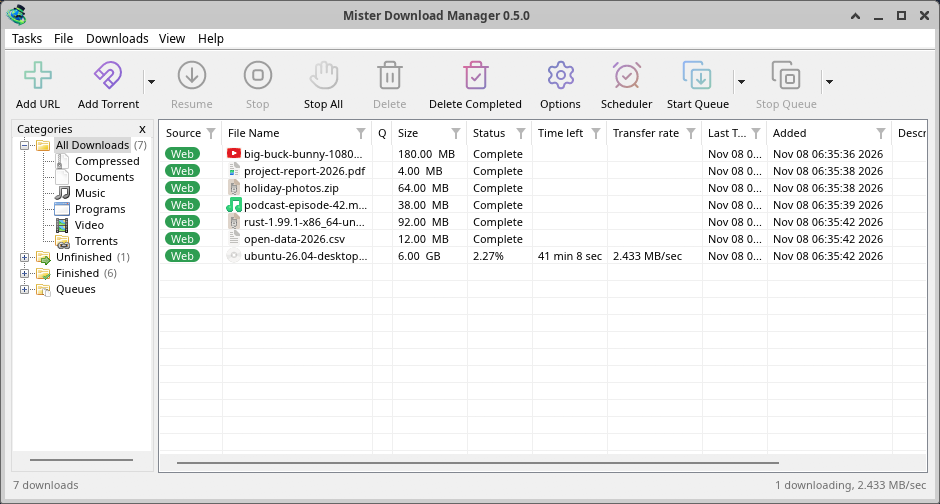
Xfce.
Linux'ta kaldırma
sudo apt remove misterdownloadmanager (or sudo dnf remove misterdownloadmanager) removes the
programs, and the small files that tell your browsers where GDM's helper is: the .deb and .rpm
install those for everyone (in /etc and /usr/lib), for Chrome, Chromium, Edge, Brave, Vivaldi
and Firefox (the Snap too), so GDM doesn't write them in your home folder. For the AppImage or the
tar.gz, delete the file or the folder.
What GDM keeps in your home folder stays, as with any package: your list and settings
(~/.local/share/misterdownloadmanager), the AppImage's and the tar.gz's browser files, and
those of the browsers that read them only there (Opera, Helium, Thorium, and Firefox's forks:
Zen, LibreWolf, Floorp, Waterfox). A package can't remove those: it never touches
home folders. Without GDM they lead nowhere, so the extension says it can't reach GDM. To remove
them as well, run this as each user who used GDM, before uninstalling:
misterdownloadmanager-nmhost --unregister
(AppImage'dan: ~/.local/share/misterdownloadmanager/browser-host/misterdownloadmanager-nmhost --unregister.) Zaten kaldırıldı mı? Bu, aynı dosyaları kaldırır:
find ~/.mozilla ~/.librewolf ~/.config -name com.misterdownloadmanager.host.json -delete 2>/dev/null
Mac'te
macOS derlemeleri yenidir ve hala deneyseldir: henüz bir Mac'te kendimiz denemedik, bu yüzden ilklerden biri olacaksınız. Lütfen iyi ya da kötü nasıl gittiğini bize bildirin.
| Dosya | Ne işe yarar |
|---|---|
...-macos-arm64-experimental.dmg |
For a Mac with Apple Silicon (M1 or later: Apple menu → About This Mac shows a Chip). Open it and drag GolinksPRO Download Manager to Applications. macOS asks before its first start, because the app isn't notarized by Apple: right-click it and choose Open (on macOS 15 and later: System Settings → Privacy & Security → Open Anyway). |
...-macos-x86_64-experimental.dmg |
Aynı işlem, Intel işlemcili bir Mac için (Bu Mac Hakkında bölümünde bir İşlemci görünür). |
Browser integration is set up by GDM itself at each start (the browsers installed then are found); add the extension as in Browser integration.
Kurulum ile yükle
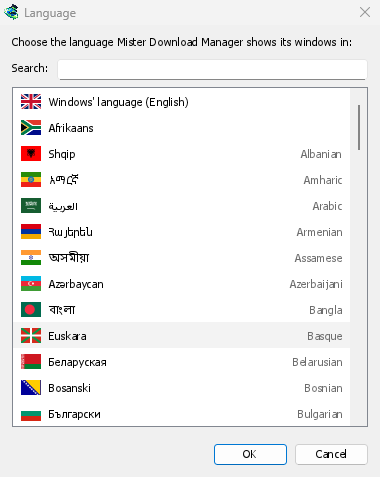
MisterDownloadManager-<version>-setup.exeçalıştırın.- Choose the language. Windows' display language is already selected. The setup offers every language GDM has, and GDM starts in the one you pick.
- Sadece sizin için mi yoksa bilgisayardaki herkes için mi yükleneceğini seçin. Sadece sizin için yönetici hakları gerektirmez ve
%LOCALAPPDATA%\Programs\GolinksPRO Download Managerkonumuna gider. Herkes içinProgram Fileskonumuna gider. - Pick what the setup should do: - Set up browser integration (Chrome, Edge, Brave, Firefox) - Open .torrent files and magnet links with GolinksPRO Download Manager - Start GolinksPRO Download Manager when Windows starts - Create a desktop shortcut (off unless you tick it)
- Click Install, then Finish to start GDM.
If GDM is already running, the setup asks it to save and close first. To update, use Help → Check for updates → Update now, or run the setup of the new version; your list and settings stay.
Tarayıcı entegrasyonu her tarayıcıda bir adım daha gerektirir: uzantıyı eklemek. Firefox'ta, addons.mozilla.org adresindeki sayfasında Firefox'a Ekle'ye tıklayın; Chrome, Edge, Brave, Opera ve Vivaldi'de ise Chrome Web Mağazası'ndaki sayfasında Chrome'a Ekle'ye tıklayın. Tarayıcı entegrasyonu nasıl yapılacağını gösterir.
Kaldır
Uninstall GDM from Windows Settings → Apps. The uninstaller asks whether to delete your download list and settings too. Your downloaded files are never touched.
Zip kopyası kullanın
- Dosyayı yazma izniniz olan bir klasöre açın (doğrudan
Program Filesiçine değil). misterdownloadmanager.exeçalıştırın.
Zip dosyaları, kurulum dosyasıyla aynı programları içerir: uygulama, misterdownloadmanager-cli.exe (komut satırından indirme yapmak için; bkz. Komut satırı ve otomasyon) ve extension klasörü.
İlk çalıştırma ve dil
- Installed with the setup: GDM starts in the language you chose in the setup.
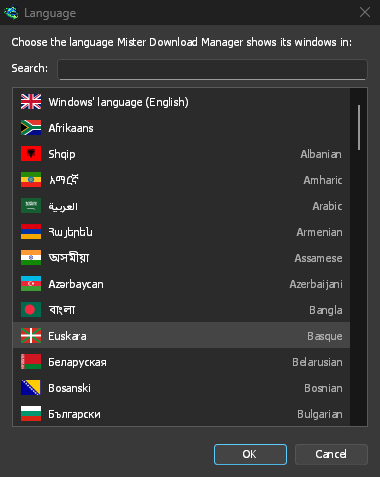
- Otherwise: GDM shows the list of languages, each with its flag and its own name. Pick yours.
Dili istediğiniz zaman Görünüm → Dil menüsünden değiştirebilirsiniz. Daha fazla bilgi için Diller bölümüne bakın.
Video yardımcıları
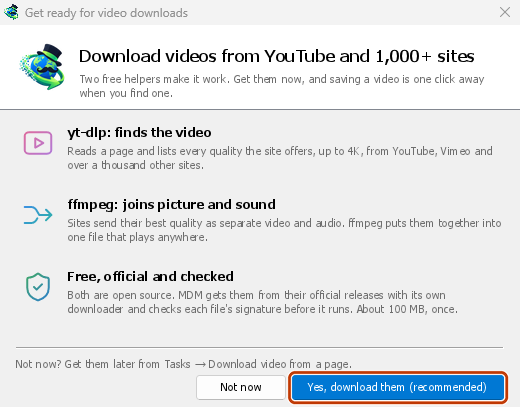
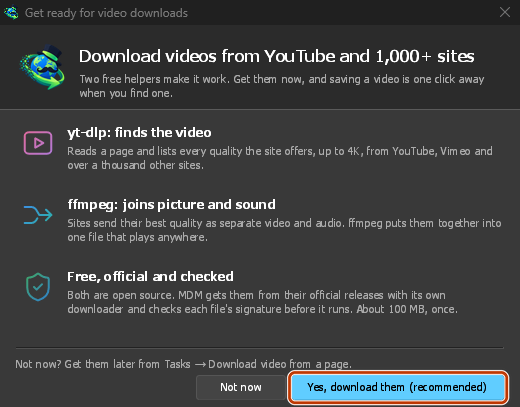
Next, GDM offers its two free video helpers: yt-dlp, which finds the video on a page, and ffmpeg, which joins its picture and sound. Click Yes, download them (recommended) and they download in the background, about 100 MB, once. Not now leaves them for later: the video window offers them when you first need them. More in Videos.
Ana pencere
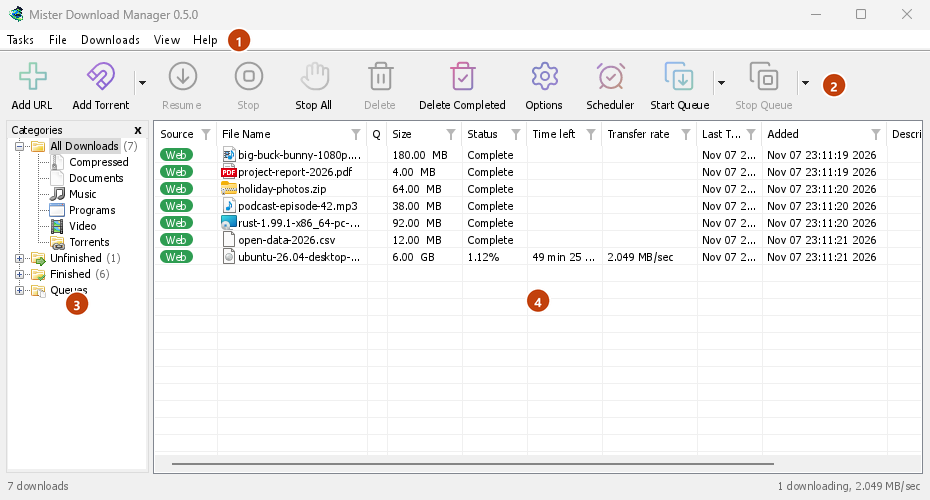
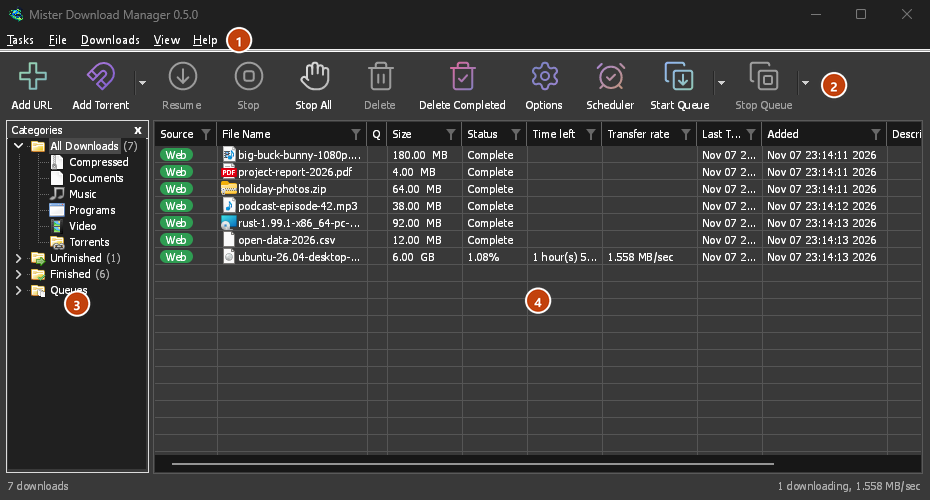
Yukarıdan aşağıya:
- Menü çubuğu.
- Görevler — indirmeler, torrentler, magnet bağlantıları, toplu indirmeler ve bir sayfadan videolar ekleyin; Torrent ayarları; Bağlantı yakalayıcı; RSS akışları; sürükle bırak hedefini göster; listeyi içe ve dışa aktar; çıkış.
- Dosya — seçili indirme: İndirmeyi Durdur, Kaldır, Şimdi İndir, Yeniden indir.
- İndirilenler — Tümünü Duraklat, Tümünü Durdur, Tamamlananların Tümünü Sil, Bul, Zamanlayıcı, sıralar, Hız Sınırlayıcı ve Seçenekler.
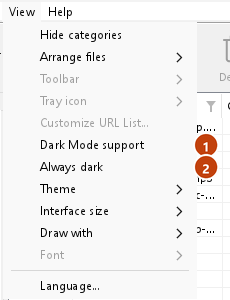
- Görünüm — kategorileri göster veya gizle, listeyi sırala (Dosyaları düzenle), Koyu mod desteği, Her zaman koyu, Tema, Arayüz boyutu (her pencere daha büyük, %100 ila %200; Ctrl +, Ctrl − ve Ctrl 0 da), Şununla çiz (OpenGL veya Windows'ta Direct3D, Linux'ta Vulkan, macOS'ta Metal) ve Dil.
- Help — help pages and tutorials (on the website, in your language when it has it), Keyboard shortcuts, Report a problem, Check for updates, About, Tell a friend and Support GDM (its creator's GitHub Sponsors page: optional, nothing in GDM changes).
- Araç Çubuğu. URL Ekle, Torrent Ekle, Sürdür, Durdur, Tümünü Durdur, Sil, Tamamlananları Sil, Seçenekler, Zamanlayıcı, Kuyruğu Başlat, Kuyruğu Durdur. Torrent Ekle, Kuyruğu Başlat ve Kuyruğu Durdur yanındaki küçük ok daha fazla seçenek açar.
- Kategoriler (sol). Listenin ne göstereceğini seçin: Tüm İndirmeler, Bitmemiş, Tamamlandı ve Sıralar; her birinin kendi kategorileri vardır. Bölmeyi genişletmek için bölme ile liste arasındaki boşluğu sürükleyin.
- İndirme listesi (sağ). Her indirme bir satırda gösterilir. İndirme listesi bölümüne bakın.
Koyu mod
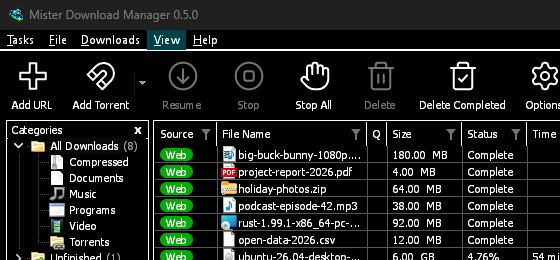
GDM follows your system: when Windows (or your desktop's light/dark preference on Linux and macOS) is set to dark mode, so is GDM. To keep GDM light whatever the system does, turn off View → Dark Mode support. To keep it dark whatever the system does, for example on a desktop that reports no preference, turn on View → Always dark.

Temalar
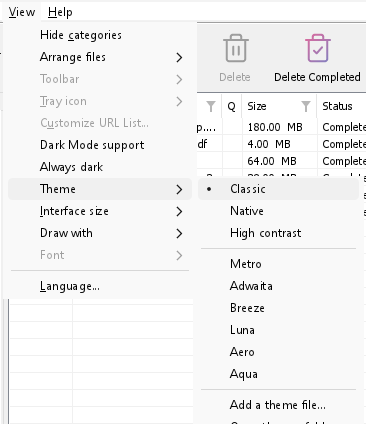
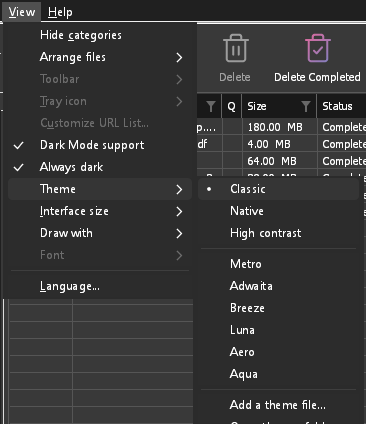
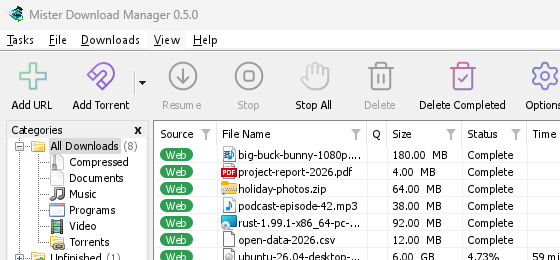
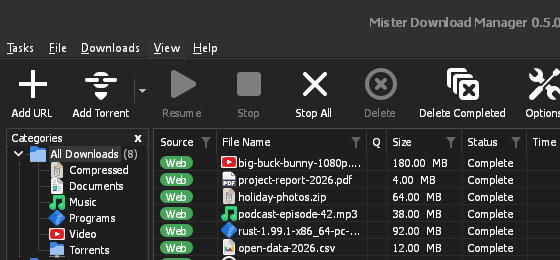
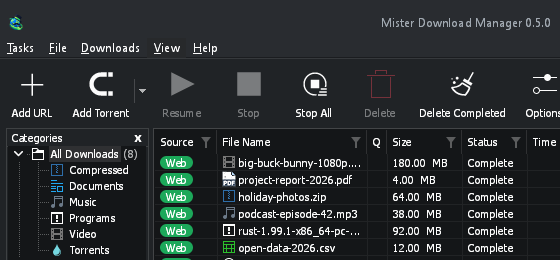
View → Theme changes GDM's look at once, keeping its layout:
- Classic: GDM's own look, the default.
- Yerel: Sisteminizin renkleri. Windows'un vurgu rengi (Ayarlar → Kişiselleştirme → Renkler) ve etkinse karşıtlık teması; Linux'ta masaüstünün vurgu rengi ve yüksek karşıtlık ayarı (GNOME 47 ve sonrası, KDE Plasma); macOS'ta vurgu rengi kullanılır. Bu ayarları değiştirdiğinizde GDM de değişiklikleri izler.
- Yüksek karşıtlık: siyah beyaz, parlak bir vurgu, her kenar çizili, metin 7:1 veya daha fazla kontrastta.
- Metro: Windows 8's flat look: square corners, flat buttons and boxes, a coloured title bar with the title centred (on Windows, where GDM draws it), and one-colour icons (Microsoft's Fluent UI System Icons).
- Adwaita: GNOME's look: round corners, flat grey buttons, a rounded focus ring, GNOME's check boxes, a header bar with the title in bold and round buttons (on Windows, where GDM draws it), and GNOME's Adwaita icons, in colour for files and categories, one colour in the toolbar.
- Breeze: KDE Plasma's look: rounded corners, buttons and boxes that take the accent's edge under the pointer or when focused, KDE's check boxes and focus frame, KDE's title bar with the title centred and round buttons (on Windows, where GDM draws it), and KDE's Breeze icons.
- Luna: Windows XP's look: buttons shaded from white with an orange glow under the pointer, green ticks, square text boxes, progress in green blocks, a deep blue title bar with the title in bold (on Windows, where GDM draws it), and colourful icons drawn for GDM in that manner.
- Aero: Windows 7's look: glossy buttons that turn light blue under the pointer, quiet check boxes, a glossy green progress bar, a glassy title bar with the title on a soft glow (on Windows), and glossy icons drawn for GDM in that manner.
- Aqua: Mac OS X's look: gel buttons round at the ends (the default one blue), glossy check boxes, a blue focus ring, a blue gel progress bar, a grey title bar with small round buttons (on Windows), and icons drawn for GDM in that manner.

Klasik 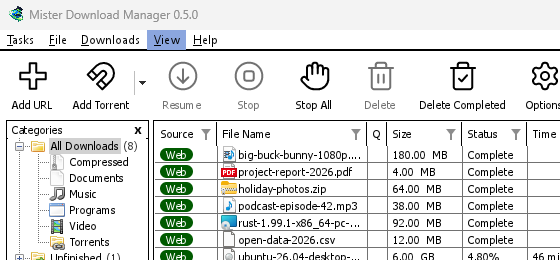
Yüksek karşıtlık 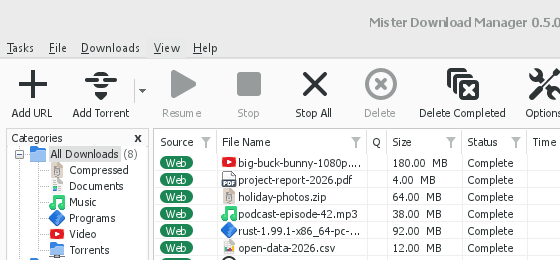
Adwaita 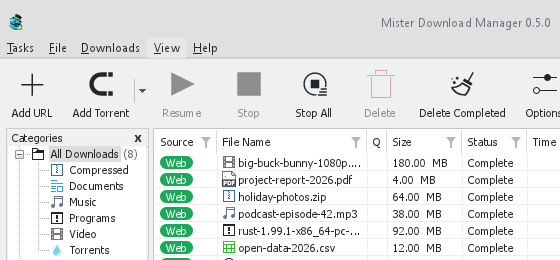
Breeze
Her birinin açık ve koyu bir tarafı vardır: Koyu mod desteği ve Her zaman koyu seçenekleri daha önce olduğu gibi aralarında seçim yapar. Temalar klasörüne (Görünüm → Tema → Temalar klasörünü aç) koyduğunuz tema dosyaları da orada listelenir, Base16 ve pywal renk şemaları da öyle (Görünüm → Tema → Tema dosyası ekle…; pywal çalıştıkça wal takip eder): Temalar bu klasörün nerede olduğunu, bir tema dosyasının ne içerdiğini (inherits, renkler, boyutlar, kontrol şekilleri, simgeler), bir şemanın renklerinin nasıl kullanıldığını ve nasıl oluşturulup paylaşılabileceğini açıklar.
Tepsi simgesi
Closing the main window doesn't quit GDM. It hides in the notification area, and downloads, queues and schedules carry on. To make closing quit (a portable copy's folder can then be deleted), untick Options → General → Keep running when closing the window. If there is no icon for GDM at all — not in the notification area, nor behind the ^ hidden icons — the window minimizes to the taskbar instead, so downloads continue and there is a way back. An icon behind ^ can be clicked to bring the window back, and starting GDM again always does.
On Linux this needs a tray, which most desktops have (KDE Plasma, Xfce, Cinnamon, Ubuntu's GNOME or GNOME with the AppIndicator extension, waybar's tray). On a desktop without one (some tiling window managers), closing the window quits GDM, since there would be nowhere to bring it back from.
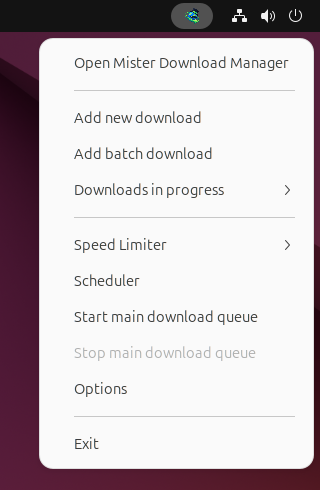
- Pencereyi geri getirmek için tepsi simgesine tıklayın.
- Yeni indirme ekle, Toplu indirme ekle, Devam eden indirmeler, Hız Sınırlayıcı, Zamanlayıcı, ana indirme kuyruğu, Seçenekler ve Çıkış için sağ tıklayın.
- Devam eden indirmeler çalışan indirmeleri listeler. İlerleme penceresini görmek için birini seçin.
Seçenekler → Genel bölümünde Bildirim alanına küçült açıkken, Simge Durumuna Küçült de ana pencereyi oraya gizler. Bu varsayılan olarak açıktır; tepside simge yoksa, Simge Durumuna Küçült pencereyi bunun yerine görev çubuğuna gönderir.
Bir indirme ilerleme penceresi de, Simge Durumuna Küçült düğmesiyle veya Bildirim alanına gizle düğmesiyle oraya gidebilir: köşeye doğru ok işareti olan kısa bir çizgi.
Windows'ta bu düğme, pencerenin başlık çubuğunda, Simge Durumuna Küçült'ün solunda ve başlık çubuğunun menüsünde (Alt+Ara Çubuğu) bulunur. Linux ve macOS'ta sekme satırının sonundadır.
Pencereyi geri getirmek için, Devam eden indirmeler bölümünden seçin veya listedeki indirmeye çift tıklayın.
Çıkmak için Görevler → Çıkış veya tepsi menüsünden Çıkış seçeneğini kullanın.
Where GDM keeps its data
İndirme listesi ve ayarlar %APPDATA%\misterdownloadmanager (downloads.json) içinde bulunur; Linux'ta ~/.local/share/misterdownloadmanager içinde, Mac'te ~/Library/Application Support/misterdownloadmanager içinde. Taşınabilir bir kopya bunları bunun yerine data klasöründe tutar. İndirilen dosyalar, kategoriye göre bir klasöre ayrılmış olarak İndirilenler klasörünüze gider; bunu Seçenekler → Kaydedileceği yer bölümünde değiştirebilirsiniz.
Sonraki adımlar
Ücretsiz, açık kaynak, reklamsız, deneme sürümü yok.
Download GolinksPRO Download Manager