
GDM runs on 64-bit Windows 10 and Windows 11, and on 64-bit Linux: see On Linux. Builds for macOS are new and still experimental: see On a Mac.
Elegir una descarga
Todas las versiones están en la página de Lanzamientos. Para Windows hay tres archivos:
| Archivo | Qué es |
|---|---|
MisterDownloadManager-<version>-setup.exe |
The installer. Pick this one unless you have a reason not to. It can set up browser integration and open .torrent files and magnet links with GDM. |
MisterDownloadManager-<version>-portable.zip |
Una copia portátil. La lista de descargas y la configuración permanecen en una carpeta data junto al programa, y no se escribe nada en el registro. La integración con el navegador necesita el instalador. Consulta Modo portátil. |
MisterDownloadManager-<version>-x64.zip |
Los mismos programas sin instalador. Guarda sus datos en %APPDATA%\misterdownloadmanager, como una copia instalada. |
En Linux
GDM runs on 64-bit Linux with a desktop session. It is tested on Ubuntu 24.04, Debian 12 and
Fedora, with GNOME, KDE Plasma, Xfce and Cinnamon, on X11 and in Wayland sessions. Pick one
of these files (up to version 0.2.4, their names end in -experimental, as in
...-linux-x86_64-experimental.deb):
| Archivo | Qué es |
|---|---|
...-linux-x86_64.deb |
For Ubuntu, Debian, Mint and Pop!_OS: sudo apt install ./<file>.deb. It brings the libraries GDM needs. |
...-linux-x86_64.rpm |
For Fedora, openSUSE and RHEL: sudo dnf install ./<file>.rpm. It brings the libraries GDM needs. |
...-linux-x86_64.AppImage |
Funciona en la mayoría de las distribuciones: hazlo ejecutable (chmod +x) y ejecútalo. Se actualiza en el mismo lugar (Ayuda → Buscar actualizaciones). |
...-linux-x86_64.tar.gz |
Los programas simples, para cualquier distribución. |
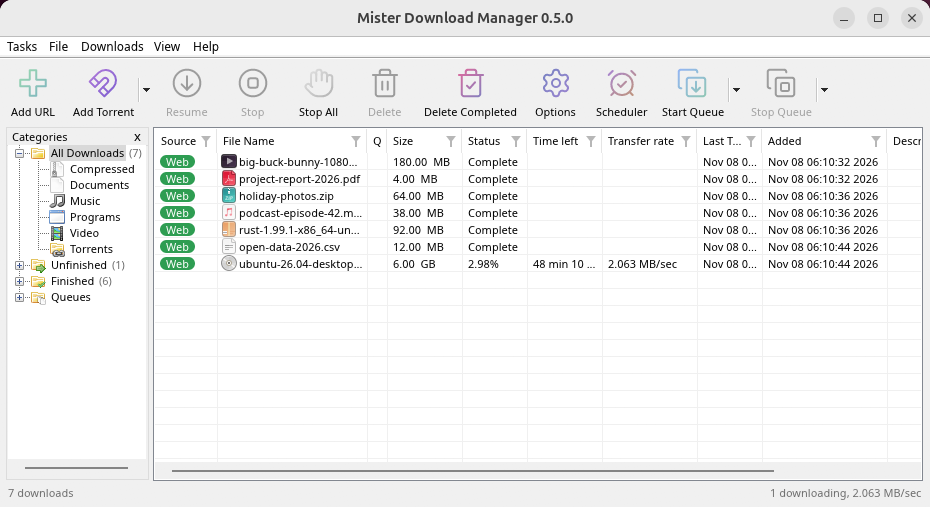
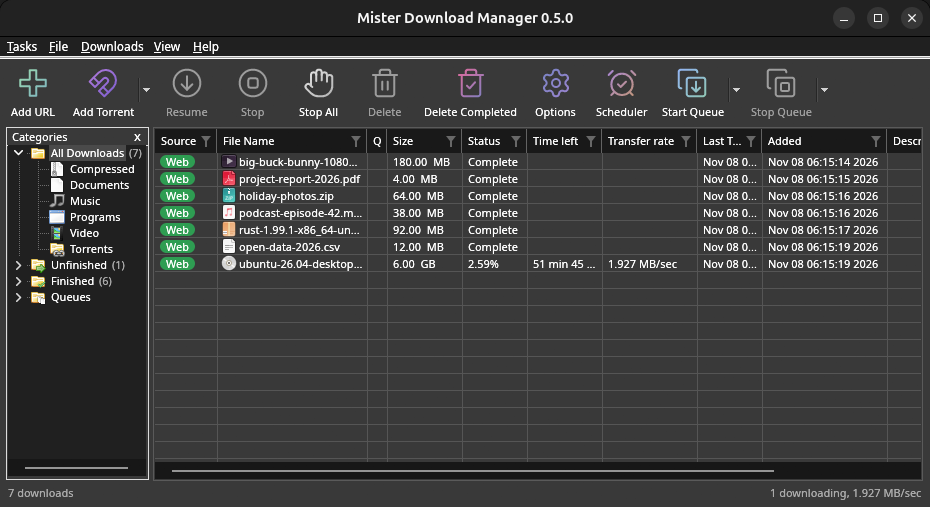
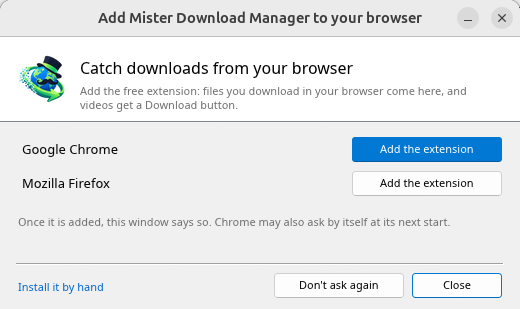
Browser integration is set up by GDM itself at each start (the browsers installed then are found); add the extension as in Browser integration. Firefox installed as a Snap (Ubuntu's) reaches GDM once you allow it; other Snap and Flatpak browsers can't (see Flatpak and Snap browsers). The tray icon, Dark Mode support and Launch on startup work on GNOME (Ubuntu's), KDE Plasma, Xfce and Cinnamon.
In a Wayland session the windows go through XWayland (below). Not there yet on Linux: screen readers (Orca) don't read GDM's windows; browsers installed as a Flatpak can't reach GDM (Firefox from Flathub may, through the desktop as the Snap does, but that isn't checked yet); and View → Draw with → Vulkan is a choice, OpenGL stays the default.
In a Wayland session (GNOME, KDE Plasma and others), GDM's windows run through XWayland when it is there: Wayland doesn't let a program place its own windows, so GDM's menus and drop-down lists would open in the middle of the screen. To run on Wayland itself anyway, start it with MDM_WAYLAND=1 misterdownloadmanager. If the system lacks a library X11 windows need (such as libxkbcommon-x11, which the .deb and .rpm bring but the AppImage and the tar.gz can't), GDM opens on Wayland instead; with no window system it can use, it names what's missing and the command that installs it.
Las ventanas son las descritas en esta ayuda, con las fuentes, los iconos de archivo y las barras de título del escritorio:
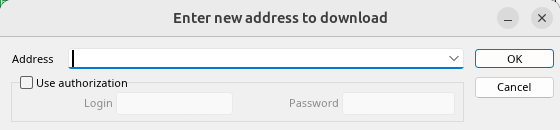
Añadir URL. 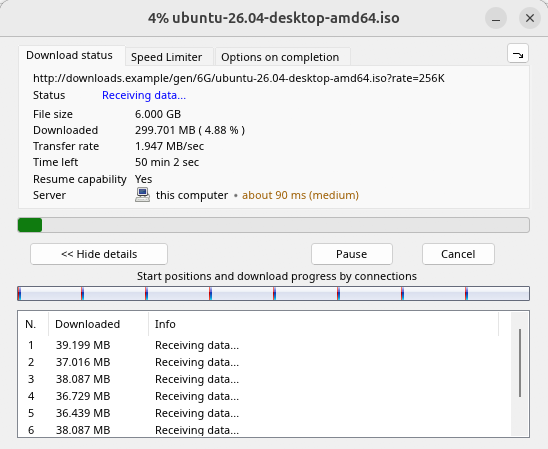
Progreso de una descarga. 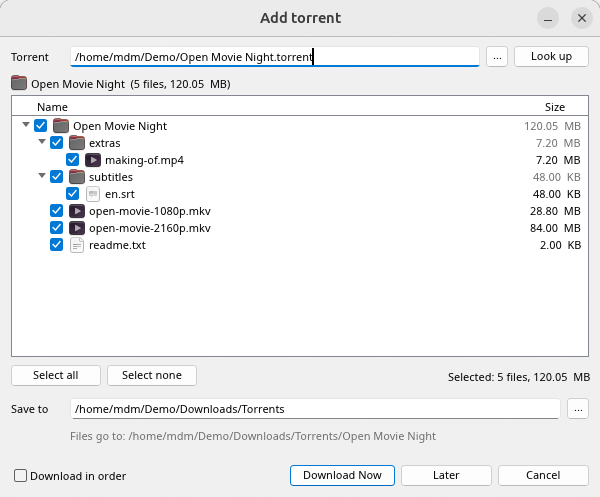
Añadir torrent. 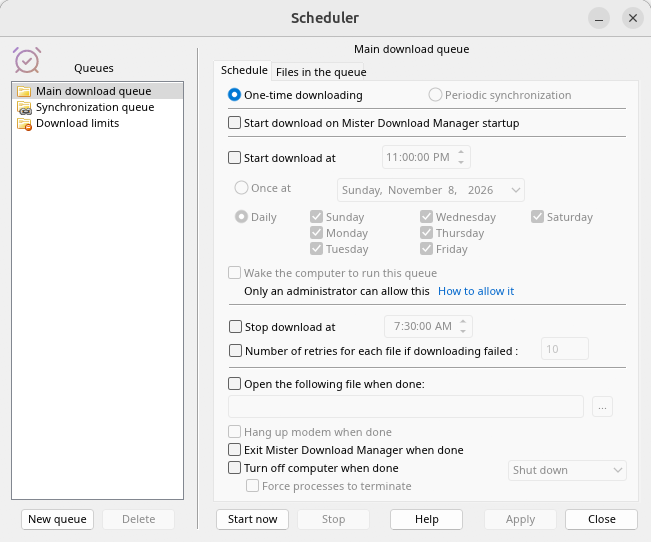
El Programador. 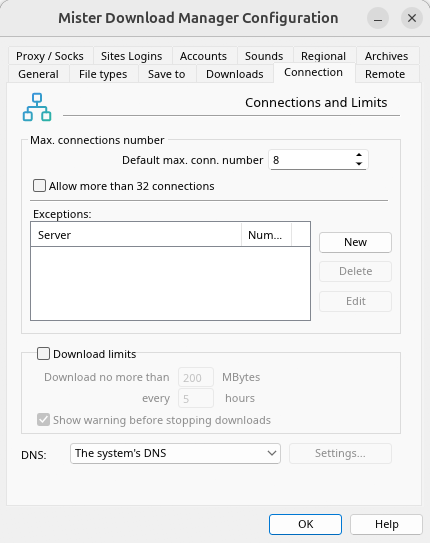
Opciones.
Y en los otros escritorios en los que se comprobó:
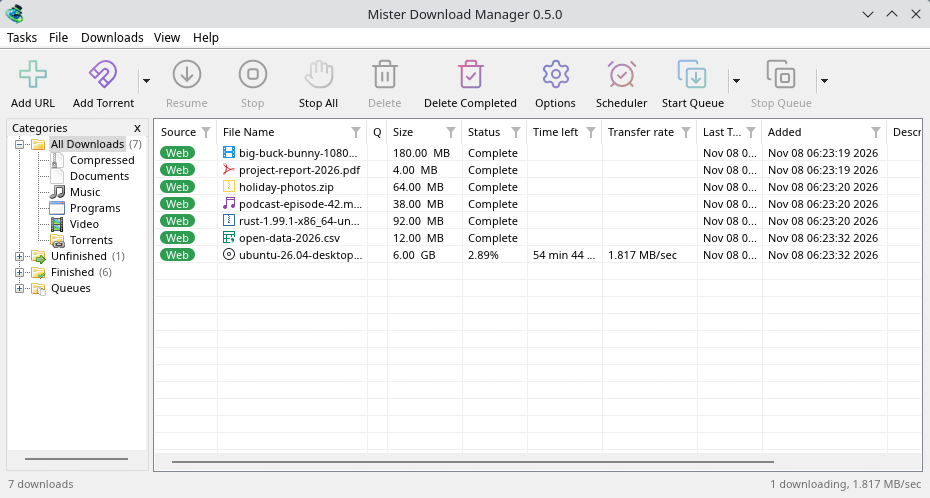
KDE Plasma. 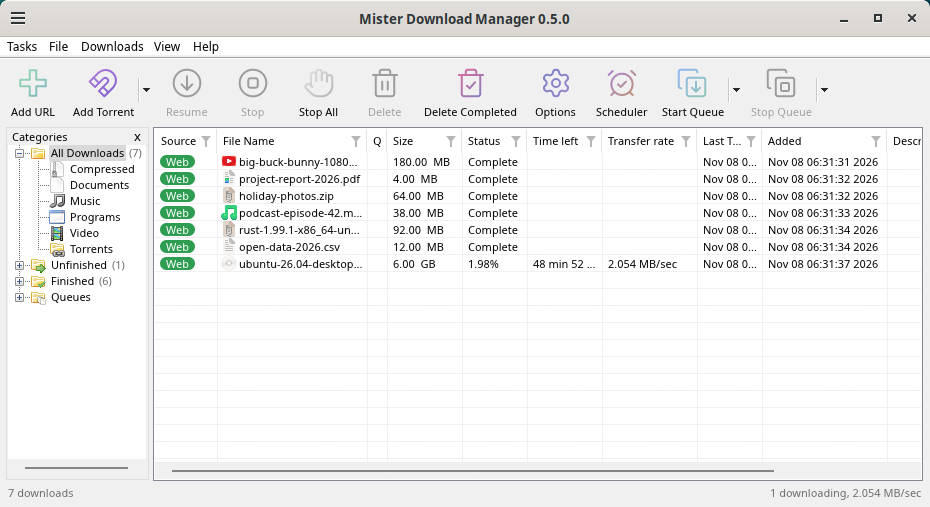
Cinnamon. 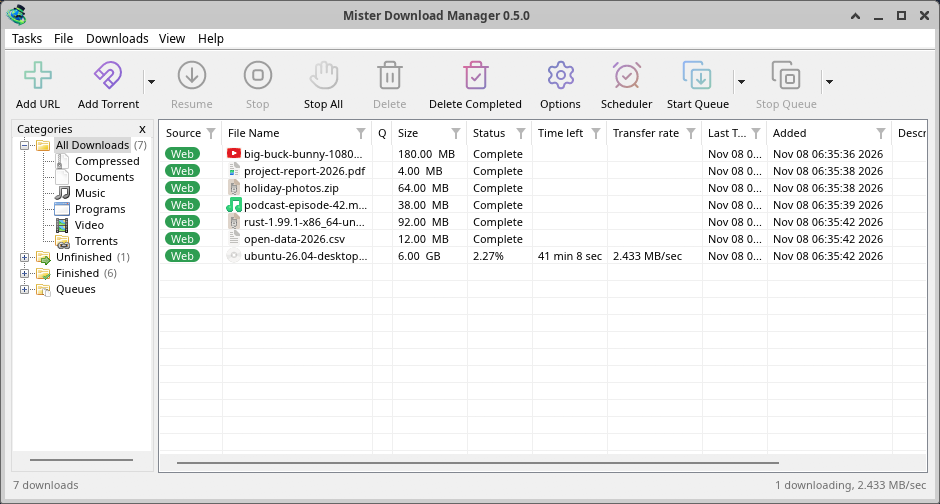
Xfce.
Desinstalar en Linux
sudo apt remove misterdownloadmanager (or sudo dnf remove misterdownloadmanager) removes the
programs, and the small files that tell your browsers where GDM's helper is: the .deb and .rpm
install those for everyone (in /etc and /usr/lib), for Chrome, Chromium, Edge, Brave, Vivaldi
and Firefox (the Snap too), so GDM doesn't write them in your home folder. For the AppImage or the
tar.gz, delete the file or the folder.
What GDM keeps in your home folder stays, as with any package: your list and settings
(~/.local/share/misterdownloadmanager), the AppImage's and the tar.gz's browser files, and
those of the browsers that read them only there (Opera, Helium, Thorium, and Firefox's forks:
Zen, LibreWolf, Floorp, Waterfox). A package can't remove those: it never touches
home folders. Without GDM they lead nowhere, so the extension says it can't reach GDM. To remove
them as well, run this as each user who used GDM, before uninstalling:
misterdownloadmanager-nmhost --unregister
(Desde el AppImage: ~/.local/share/misterdownloadmanager/browser-host/misterdownloadmanager-nmhost --unregister.) ¿Ya desinstalado? Esto elimina los mismos archivos:
find ~/.mozilla ~/.librewolf ~/.config -name com.misterdownloadmanager.host.json -delete 2>/dev/null
En un Mac
Las versiones para macOS son recientes y aún experimentales: todavía no las hemos probado nosotros mismos en un Mac, así que serías de los primeros. Por favor, cuéntanos cómo te fue, bien o mal.
| Archivo | Qué es |
|---|---|
...-macos-arm64-experimental.dmg |
For a Mac with Apple Silicon (M1 or later: Apple menu → About This Mac shows a Chip). Open it and drag GolinksPRO Download Manager to Applications. macOS asks before its first start, because the app isn't notarized by Apple: right-click it and choose Open (on macOS 15 and later: System Settings → Privacy & Security → Open Anyway). |
...-macos-x86_64-experimental.dmg |
Lo mismo, para un Mac con procesador Intel (Acerca de este Mac muestra un Procesador). |
Browser integration is set up by GDM itself at each start (the browsers installed then are found); add the extension as in Browser integration.
Instalar con el programa de instalación
- Ejecuta
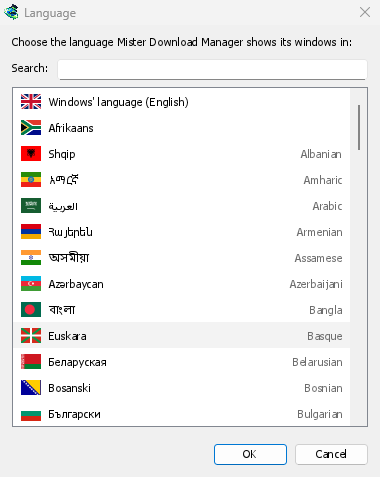
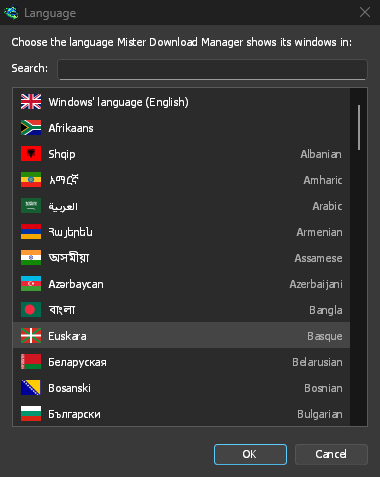
MisterDownloadManager-<version>-setup.exe. - Choose the language. Windows' display language is already selected. The setup offers every language GDM has, and GDM starts in the one you pick.
- Elige si instalar solo para ti o para todos los usuarios del ordenador. Solo para ti no necesita derechos de administrador y se instala en
%LOCALAPPDATA%\Programs\GolinksPRO Download Manager. Para todos se instala enProgram Files. - Pick what the setup should do: - Set up browser integration (Chrome, Edge, Brave, Firefox) - Open .torrent files and magnet links with GolinksPRO Download Manager - Start GolinksPRO Download Manager when Windows starts - Create a desktop shortcut (off unless you tick it)
- Click Install, then Finish to start GDM.
If GDM is already running, the setup asks it to save and close first. To update, use Help → Check for updates → Update now, or run the setup of the new version; your list and settings stay.
La integración con el navegador requiere un paso adicional en cada navegador: añadir la extensión. En Firefox, haz clic en Añadir a Firefox en su página en addons.mozilla.org; en Chrome, Edge, Brave, Opera y Vivaldi, haz clic en Añadir a Chrome en su página en Chrome Web Store. La sección Integración con el navegador muestra cómo hacerlo.
Desinstalar
Uninstall GDM from Windows Settings → Apps. The uninstaller asks whether to delete your download list and settings too. Your downloaded files are never touched.
Usar una copia zip
- Descomprime el archivo en una carpeta en la que puedas escribir (no directamente en
Program Files). - Ejecuta
misterdownloadmanager.exe.
Los archivos zip contienen los mismos programas que el instalador: la aplicación, misterdownloadmanager-cli.exe (descargas desde la línea de comandos; véase Línea de comandos y automatización) y la carpeta extension.
Primer inicio y el idioma
- Installed with the setup: GDM starts in the language you chose in the setup.
- Otherwise: GDM shows the list of languages, each with its flag and its own name. Pick yours.
Puede cambiarlo en cualquier momento en Ver → Idioma. Más información en Idiomas.
Los ayudantes de vídeo
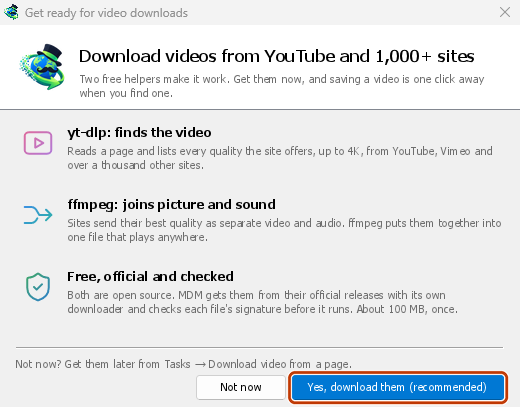
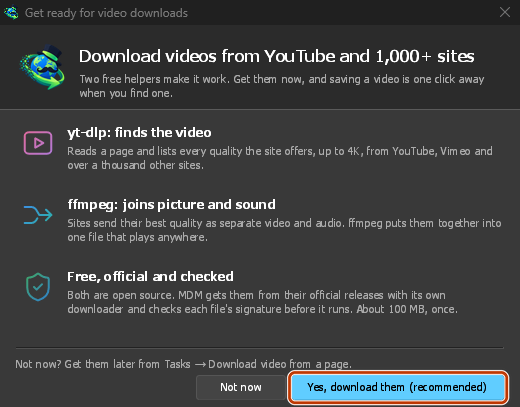
Next, GDM offers its two free video helpers: yt-dlp, which finds the video on a page, and ffmpeg, which joins its picture and sound. Click Yes, download them (recommended) and they download in the background, about 100 MB, once. Not now leaves them for later: the video window offers them when you first need them. More in Videos.
La ventana principal
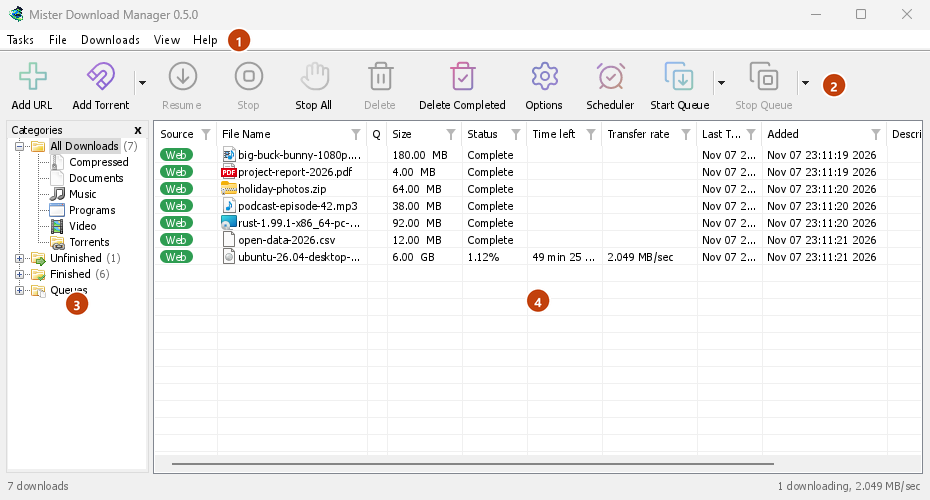
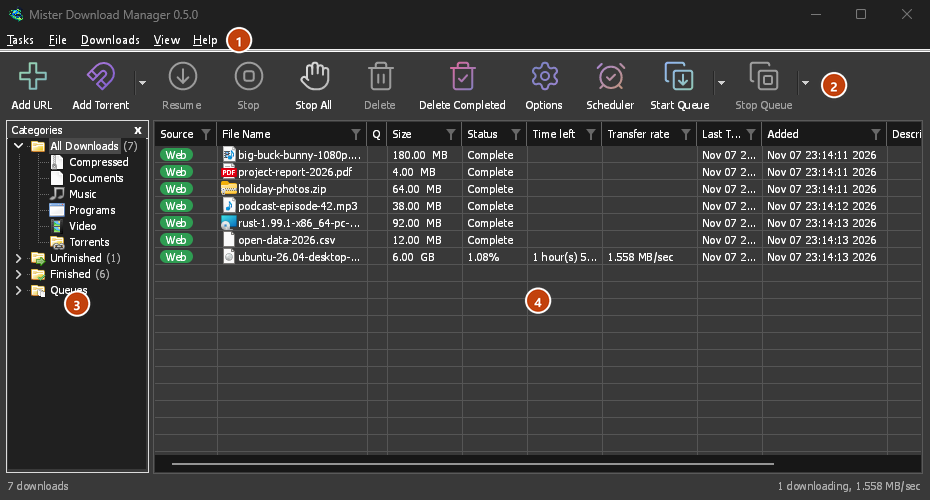
De arriba abajo:
- Barra de menú.
- Tareas — añadir descargas, torrents, enlaces magnet, descargas por lotes y vídeos de una página; Configuración de torrents; Capturador de enlaces; Fuentes RSS; mostrar el destino de arrastre; importar y exportar la lista; salir.
- Archivo — la descarga seleccionada: Detener descarga, Quitar, Descargar ahora, Volver a descargar.
- Descargas — Pausar todo, Detener todo, Eliminar todas las completadas, Buscar, el Programador, las colas, el Limitador de velocidad y Opciones.
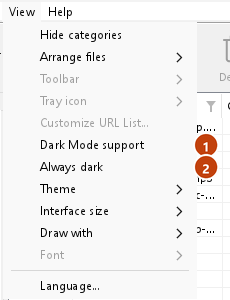
- Ver — mostrar u ocultar las categorías, ordenar la lista (Organizar archivos), Compatibilidad con el modo oscuro, Siempre oscuro, Tema, Tamaño de la interfaz (cada ventana más grande, del 100 % al 200 %; también Ctrl +, Ctrl − y Ctrl 0), Dibujar con (OpenGL, o Direct3D en Windows, Vulkan en Linux, Metal en macOS) e Idioma.
- Help — help pages and tutorials (on the website, in your language when it has it), Keyboard shortcuts, Report a problem, Check for updates, About, Tell a friend and Support GDM (its creator's GitHub Sponsors page: optional, nothing in GDM changes).
- Barra de herramientas. Añadir URL, Añadir torrent, Reanudar, Detener, Detener todo, Eliminar, Eliminar completadas, Opciones, Programador, Iniciar cola, Detener cola. La pequeña flecha junto a Añadir torrent, Iniciar cola y Detener cola abre más opciones.
- Categorías (izquierda). Elija lo que muestra la lista: Todas las descargas, Inacabado, Finalizado y Colas, cada una con sus categorías. Arrastre el espacio entre el panel y la lista para hacerlo más ancho.
- Lista de descargas (derecha). Una fila por descarga. Véase La lista de descargas.
Modo oscuro
GDM follows your system: when Windows (or your desktop's light/dark preference on Linux and macOS) is set to dark mode, so is GDM. To keep GDM light whatever the system does, turn off View → Dark Mode support. To keep it dark whatever the system does, for example on a desktop that reports no preference, turn on View → Always dark.

Temas
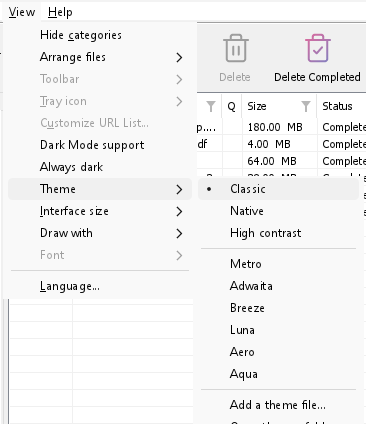
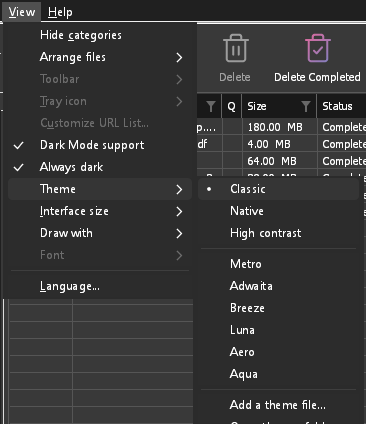
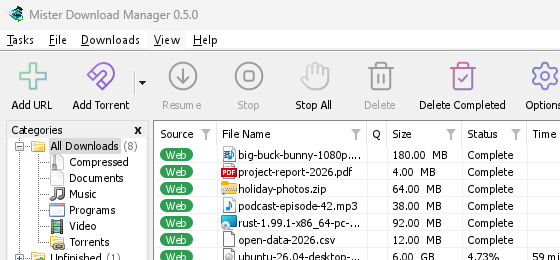
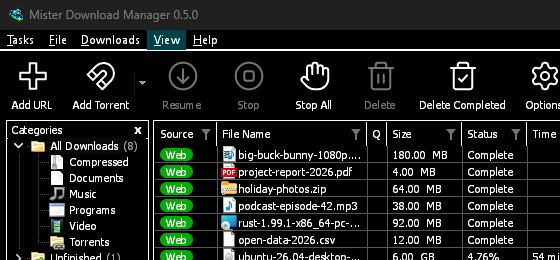
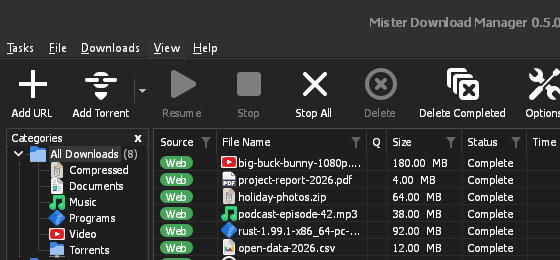
View → Theme changes GDM's look at once, keeping its layout:
- Classic: GDM's own look, the default.
- Nativo: los colores de su sistema. El color de énfasis de Windows (Configuración → Personalización → Colores) y, cuando está activado, su tema de contraste; el color de énfasis del escritorio y su configuración de mayor contraste en Linux (GNOME 47 y posteriores, KDE Plasma); el color de énfasis en macOS. Los sigue cuando los cambia.
- Contraste alto: blanco y negro, un acento brillante, todos los bordes dibujados, texto con una relación de 7:1 o más.
- Metro: Windows 8's flat look: square corners, flat buttons and boxes, a coloured title bar with the title centred (on Windows, where GDM draws it), and one-colour icons (Microsoft's Fluent UI System Icons).
- Adwaita: GNOME's look: round corners, flat grey buttons, a rounded focus ring, GNOME's check boxes, a header bar with the title in bold and round buttons (on Windows, where GDM draws it), and GNOME's Adwaita icons, in colour for files and categories, one colour in the toolbar.
- Breeze: KDE Plasma's look: rounded corners, buttons and boxes that take the accent's edge under the pointer or when focused, KDE's check boxes and focus frame, KDE's title bar with the title centred and round buttons (on Windows, where GDM draws it), and KDE's Breeze icons.
- Luna: Windows XP's look: buttons shaded from white with an orange glow under the pointer, green ticks, square text boxes, progress in green blocks, a deep blue title bar with the title in bold (on Windows, where GDM draws it), and colourful icons drawn for GDM in that manner.
- Aero: Windows 7's look: glossy buttons that turn light blue under the pointer, quiet check boxes, a glossy green progress bar, a glassy title bar with the title on a soft glow (on Windows), and glossy icons drawn for GDM in that manner.
- Aqua: Mac OS X's look: gel buttons round at the ends (the default one blue), glossy check boxes, a blue focus ring, a blue gel progress bar, a grey title bar with small round buttons (on Windows), and icons drawn for GDM in that manner.

Clásico 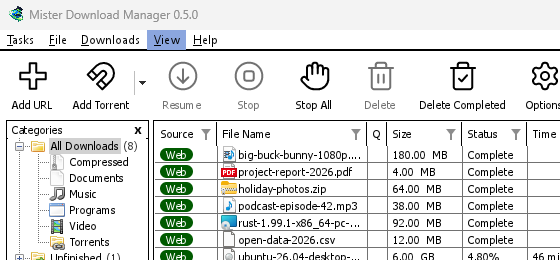
Contraste alto 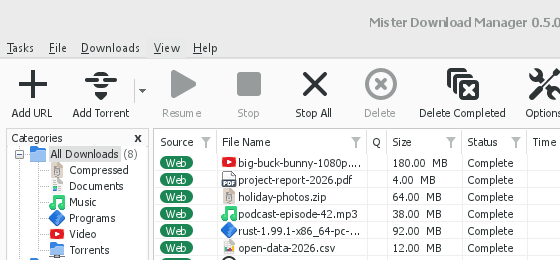
Adwaita 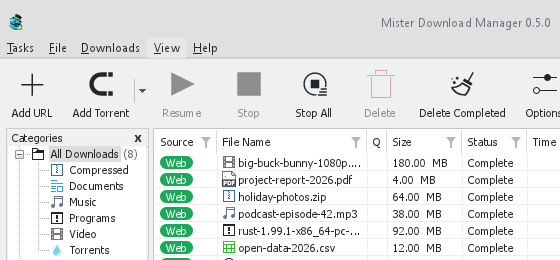
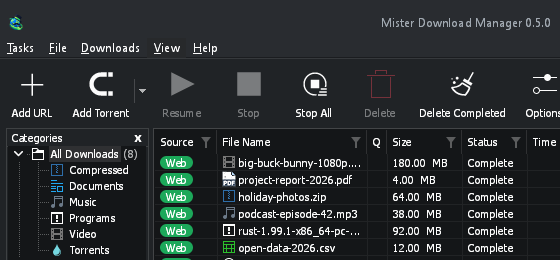
Breeze
Cada uno tiene un lado claro y uno oscuro: Compatibilidad con el modo oscuro y Siempre oscuro eligen entre ellos como antes. Los archivos de tema que pongas en la carpeta de temas (Ver → Tema → Abrir carpeta de temas) también se listan ahí, al igual que los esquemas de color Base16 y pywal (Ver → Tema → Añadir un archivo de tema…; pywal sigue a wal mientras se ejecuta): Temas indica dónde está esa carpeta, qué contiene un archivo de tema (inherits, colores, tamaños, formas de control, iconos), cómo se usan los colores de un esquema y cómo crear y compartir uno.
El icono del área de notificación
Closing the main window doesn't quit GDM. It hides in the notification area, and downloads, queues and schedules carry on. To make closing quit (a portable copy's folder can then be deleted), untick Options → General → Keep running when closing the window. If there is no icon for GDM at all — not in the notification area, nor behind the ^ hidden icons — the window minimizes to the taskbar instead, so downloads continue and there is a way back. An icon behind ^ can be clicked to bring the window back, and starting GDM again always does.
On Linux this needs a tray, which most desktops have (KDE Plasma, Xfce, Cinnamon, Ubuntu's GNOME or GNOME with the AppIndicator extension, waybar's tray). On a desktop without one (some tiling window managers), closing the window quits GDM, since there would be nowhere to bring it back from.
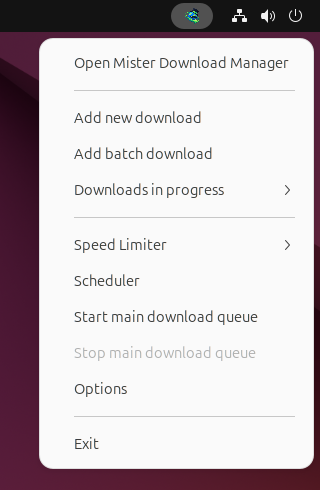
- Haz clic en el icono del área de notificación para volver a mostrar la ventana.
- Haz clic con el botón derecho para acceder a Añadir nueva descarga, Añadir descarga por lotes, Descargas en curso, Limitador de velocidad, Programador, la cola principal de descargas, Opciones y Salir.
- Descargas en curso muestra las descargas en ejecución. Elija una para ver su ventana de progreso.
Minimizar también oculta la ventana principal allí, mientras que Minimizar en el área de notificación está activado en Opciones → General. Está activado por defecto; si no hay icono en la bandeja, Minimizar envía la ventana a la barra de tareas.
La ventana de progreso de una descarga también puede ir allí, con su botón Minimizar o con su botón Ocultar en el área de notificación: una raya corta con una flecha hacia abajo en la esquina.
En Windows, ese botón está en la barra de título de la ventana, a la izquierda de Minimizar, y en el menú de la barra de título (Alt+Espacio). En Linux y macOS está al final de la fila de pestañas.
Para volver a mostrar la ventana, selecciónala en Descargas en curso o haz doble clic en la descarga de la lista.
Para salir, selecciona Tareas → Salir o Salir en el menú del área de notificación.
Where GDM keeps its data
La lista de descargas y la configuración están en %APPDATA%\misterdownloadmanager (downloads.json); en Linux en ~/.local/share/misterdownloadmanager, en un Mac en ~/Library/Application Support/misterdownloadmanager. Una copia portable las guarda en su carpeta data. Los archivos descargados van a tu carpeta Descargas, ordenados en una carpeta por categoría; puedes cambiar esto en Opciones → Guardar en.
Pasos siguientes
Gratis, código abierto, sin anuncios, sin prueba.
Download GolinksPRO Download Manager