
GDM runs on 64-bit Windows 10 and Windows 11, and on 64-bit Linux: see On Linux. Builds for macOS are new and still experimental: see On a Mac.
یک بارگیری انتخاب کنید
هر نسخه در صفحه انتشارها موجود است. برای Windows سه فایل وجود دارد:
| فایل | چیست |
|---|---|
MisterDownloadManager-<version>-setup.exe |
The installer. Pick this one unless you have a reason not to. It can set up browser integration and open .torrent files and magnet links with GDM. |
MisterDownloadManager-<version>-portable.zip |
نسخهای قابلحمل. فهرست بارگیریها و تنظیمات در پوشه data کنار برنامه میمانند و چیزی در رجیستری نوشته نمیشود. برای یکپارچهسازی مرورگر به نصبکننده نیاز دارید. حالت قابلحمل را ببینید. |
MisterDownloadManager-<version>-x64.zip |
همان برنامهها، بدون نصبکننده. دادههای برنامه در %APPDATA%\misterdownloadmanager نگه داشته میشوند، درست مانند نسخه نصبشده. |
در Linux
GDM runs on 64-bit Linux with a desktop session. It is tested on Ubuntu 24.04, Debian 12 and
Fedora, with GNOME, KDE Plasma, Xfce and Cinnamon, on X11 and in Wayland sessions. Pick one
of these files (up to version 0.2.4, their names end in -experimental, as in
...-linux-x86_64-experimental.deb):
| فایل | چیست |
|---|---|
...-linux-x86_64.deb |
For Ubuntu, Debian, Mint and Pop!_OS: sudo apt install ./<file>.deb. It brings the libraries GDM needs. |
...-linux-x86_64.rpm |
For Fedora, openSUSE and RHEL: sudo dnf install ./<file>.rpm. It brings the libraries GDM needs. |
...-linux-x86_64.AppImage |
روی بیشتر توزیعها اجرا میشود: آن را اجرایی کنید (chmod +x) و اجرا کنید. خودش را در همان محل بهروزرسانی میکند (راهنما ← بررسی بهروزرسانیها). |
...-linux-x86_64.tar.gz |
برنامههای معمولی، برای هر توزیعی. |
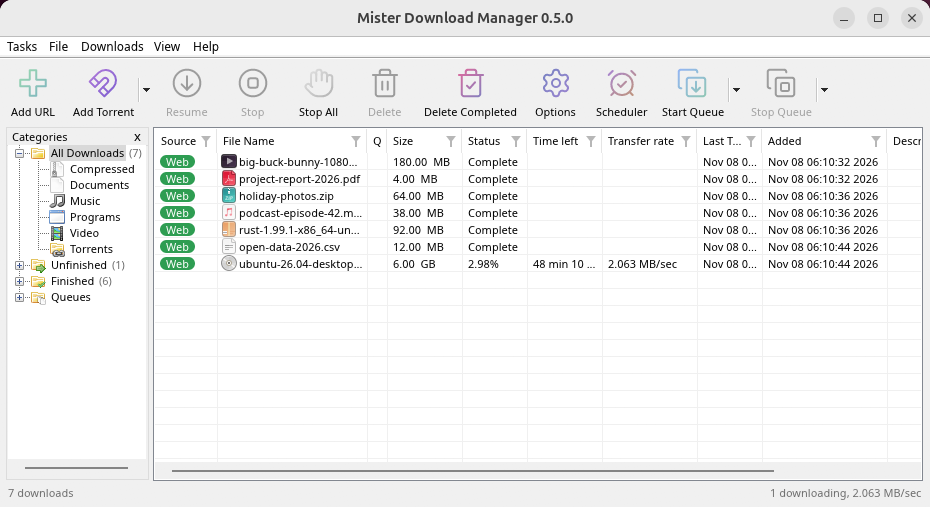
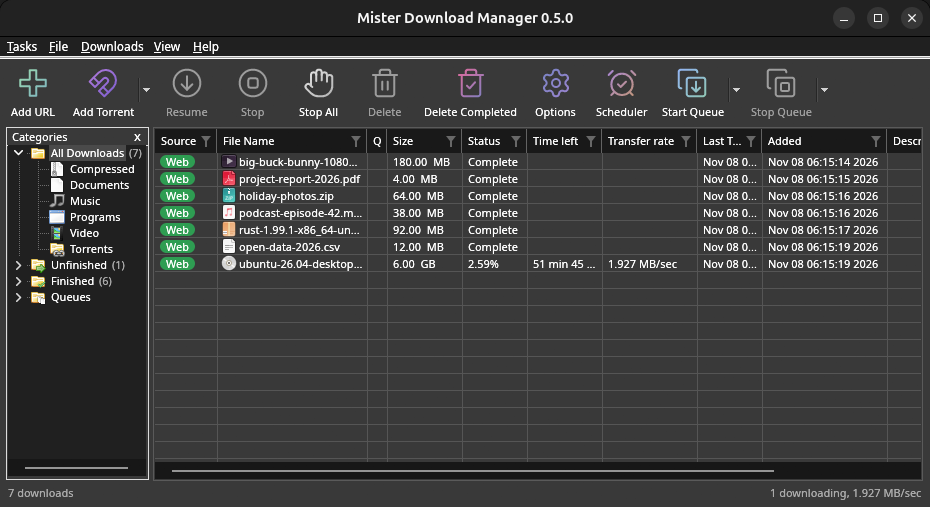
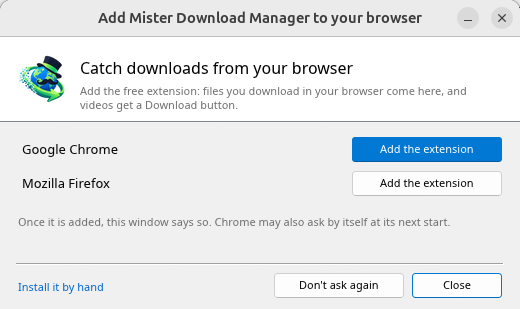
Browser integration is set up by GDM itself at each start (the browsers installed then are found); add the extension as in Browser integration. Firefox installed as a Snap (Ubuntu's) reaches GDM once you allow it; other Snap and Flatpak browsers can't (see Flatpak and Snap browsers). The tray icon, Dark Mode support and Launch on startup work on GNOME (Ubuntu's), KDE Plasma, Xfce and Cinnamon.
In a Wayland session the windows go through XWayland (below). Not there yet on Linux: screen readers (Orca) don't read GDM's windows; browsers installed as a Flatpak can't reach GDM (Firefox from Flathub may, through the desktop as the Snap does, but that isn't checked yet); and View → Draw with → Vulkan is a choice, OpenGL stays the default.
In a Wayland session (GNOME, KDE Plasma and others), GDM's windows run through XWayland when it is there: Wayland doesn't let a program place its own windows, so GDM's menus and drop-down lists would open in the middle of the screen. To run on Wayland itself anyway, start it with MDM_WAYLAND=1 misterdownloadmanager. If the system lacks a library X11 windows need (such as libxkbcommon-x11, which the .deb and .rpm bring but the AppImage and the tar.gz can't), GDM opens on Wayland instead; with no window system it can use, it names what's missing and the command that installs it.
پنجرهها همانهایی هستند که در این راهنما توضیح داده شدهاند، با فونتها، آیکونهای فایل و نوارهای عنوان دسکتاپ:
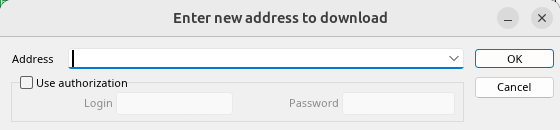
افزودن URL. 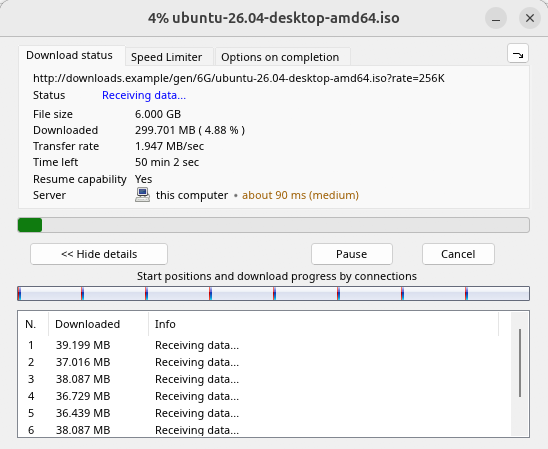
پیشرفت یک بارگیری. 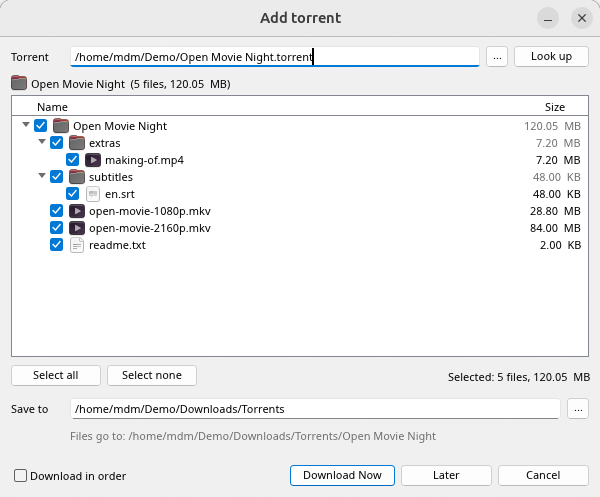
افزودن تورنت. 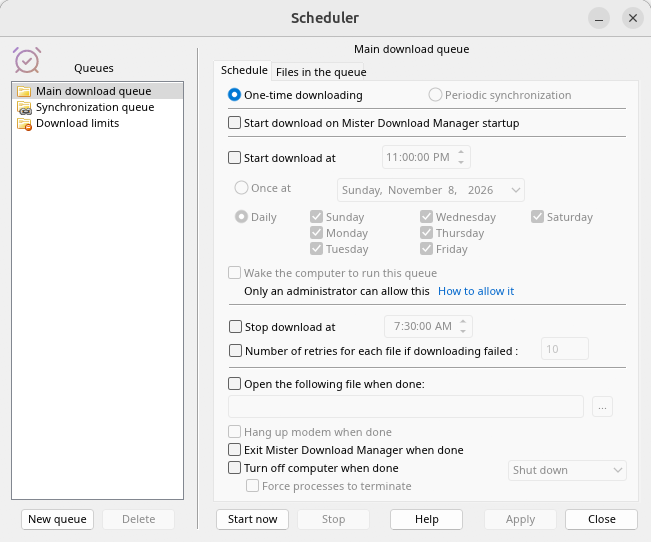
زمانبند. 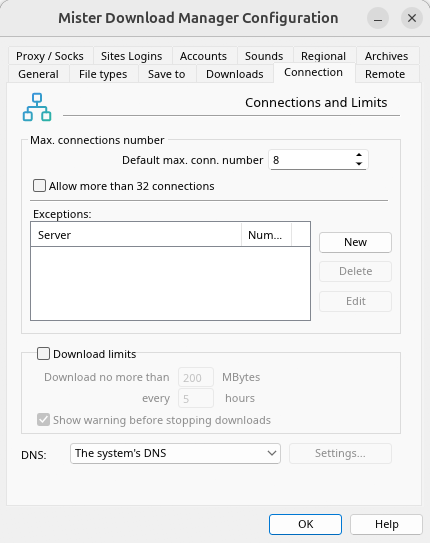
گزینهها.
و روی سایر دسکتاپهایی که روی آنها بررسی شد:
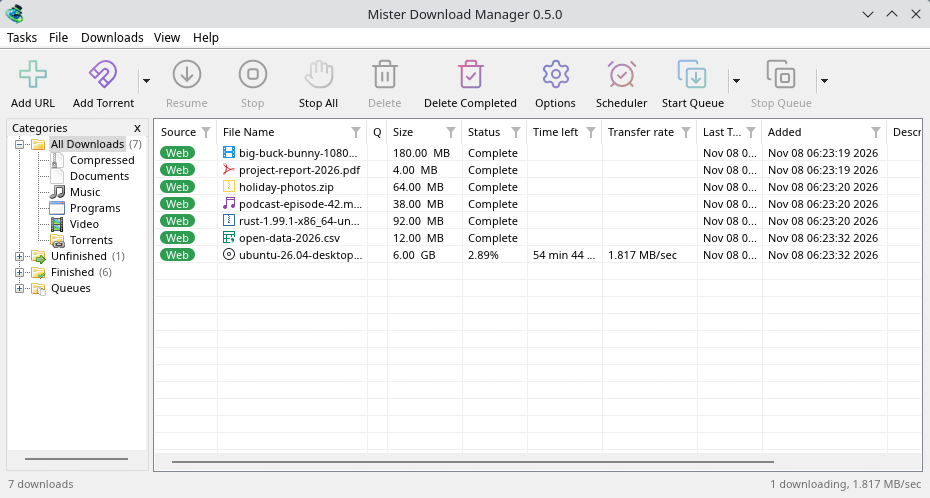
KDE Plasma. 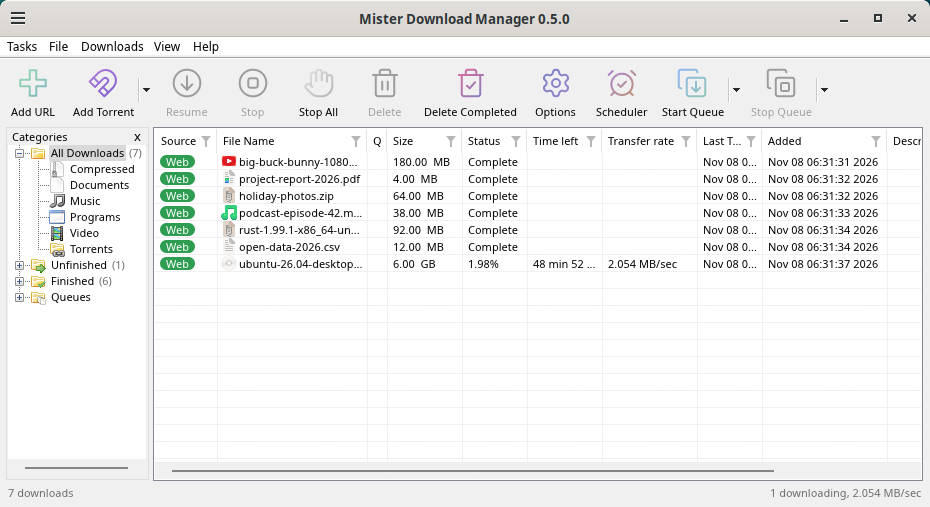
Cinnamon. 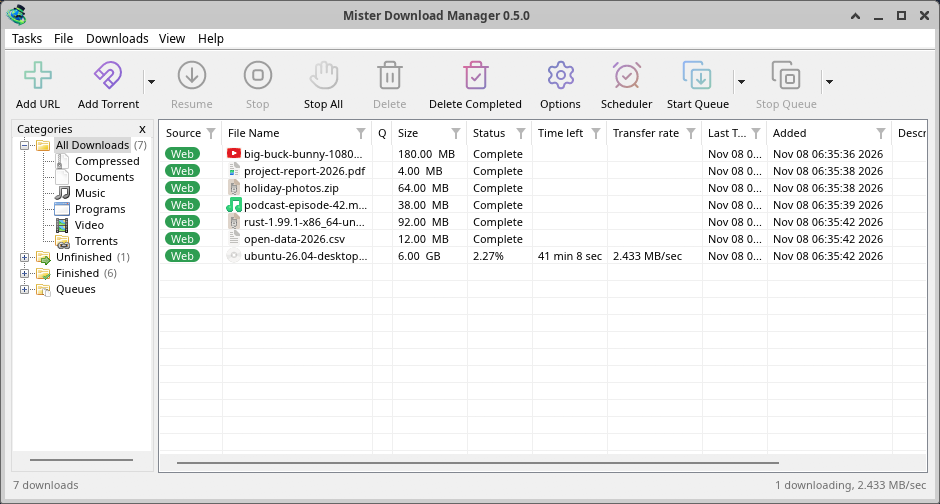
Xfce.
حذف نصب در Linux
sudo apt remove misterdownloadmanager (or sudo dnf remove misterdownloadmanager) removes the
programs, and the small files that tell your browsers where GDM's helper is: the .deb and .rpm
install those for everyone (in /etc and /usr/lib), for Chrome, Chromium, Edge, Brave, Vivaldi
and Firefox (the Snap too), so GDM doesn't write them in your home folder. For the AppImage or the
tar.gz, delete the file or the folder.
What GDM keeps in your home folder stays, as with any package: your list and settings
(~/.local/share/misterdownloadmanager), the AppImage's and the tar.gz's browser files, and
those of the browsers that read them only there (Opera, Helium, Thorium, and Firefox's forks:
Zen, LibreWolf, Floorp, Waterfox). A package can't remove those: it never touches
home folders. Without GDM they lead nowhere, so the extension says it can't reach GDM. To remove
them as well, run this as each user who used GDM, before uninstalling:
misterdownloadmanager-nmhost --unregister
(از AppImage: ~/.local/share/misterdownloadmanager/browser-host/misterdownloadmanager-nmhost --unregister.) قبلا حذف نصب شده است؟ این دستور همان فایلها را حذف میکند:
find ~/.mozilla ~/.librewolf ~/.config -name com.misterdownloadmanager.host.json -delete 2>/dev/null
در مک
نسخههای macOS جدید و هنوز آزمایشی هستند: ما هنوز آنها را روی مک خودمان امتحان نکردهایم، بنابراین شما جزو اولینها خواهید بود. لطفا به ما بگویید چگونه پیش رفت، خوب یا بد.
| فایل | چیست |
|---|---|
...-macos-arm64-experimental.dmg |
For a Mac with Apple Silicon (M1 or later: Apple menu → About This Mac shows a Chip). Open it and drag GolinksPRO Download Manager to Applications. macOS asks before its first start, because the app isn't notarized by Apple: right-click it and choose Open (on macOS 15 and later: System Settings → Privacy & Security → Open Anyway). |
...-macos-x86_64-experimental.dmg |
همین نسخه برای Macهای دارای پردازنده Intel است (درباره این Mac عبارت پردازنده را نشان میدهد). |
Browser integration is set up by GDM itself at each start (the browsers installed then are found); add the extension as in Browser integration.
نصب با برنامه نصب
MisterDownloadManager-<version>-setup.exeرا اجرا کنید.- Choose the language. Windows' display language is already selected. The setup offers every language GDM has, and GDM starts in the one you pick.
- انتخاب کنید که برنامه فقط برای شما نصب شود یا برای همه کاربران رایانه. نصب فقط برای شما به دسترسی مدیر نیاز ندارد و در
%LOCALAPPDATA%\Programs\GolinksPRO Download Managerانجام میشود. نصب برای همه درProgram Filesانجام میشود. - Pick what the setup should do: - Set up browser integration (Chrome, Edge, Brave, Firefox) - Open .torrent files and magnet links with GolinksPRO Download Manager - Start GolinksPRO Download Manager when Windows starts - Create a desktop shortcut (off unless you tick it)
- Click Install, then Finish to start GDM.
If GDM is already running, the setup asks it to save and close first. To update, use Help → Check for updates → Update now, or run the setup of the new version; your list and settings stay.
برای یکپارچهسازی مرورگر، باید در هر مرورگر یک مرحله دیگر انجام دهید: افزودن افزونه. در Firefox، در صفحه افزونه در addons.mozilla.org روی افزودن به Firefox کلیک کنید؛ در Chrome، Edge، Brave، Opera و Vivaldi، در صفحه افزونه در فروشگاه وب Chrome روی افزودن به Chrome کلیک کنید. یکپارچهسازی مرورگر روش انجام این کار را توضیح میدهد.
حذف نصب
Uninstall GDM from Windows Settings → Apps. The uninstaller asks whether to delete your download list and settings too. Your downloaded files are never touched.
استفاده از یک کپی زیپ
- فایل را در پوشهای که امکان نوشتن در آن را دارید از حالت فشرده خارج کنید (نه مستقیما در
Program Files). misterdownloadmanager.exeرا اجرا کنید.
فایلهای فشرده همان برنامههای نسخه نصبشونده را دارند: برنامه، misterdownloadmanager-cli.exe (بارگیری از خط فرمان؛ به خط فرمان و خودکارسازی مراجعه کنید) و پوشه extension.
نخستین اجرا و زبان
- Installed with the setup: GDM starts in the language you chose in the setup.
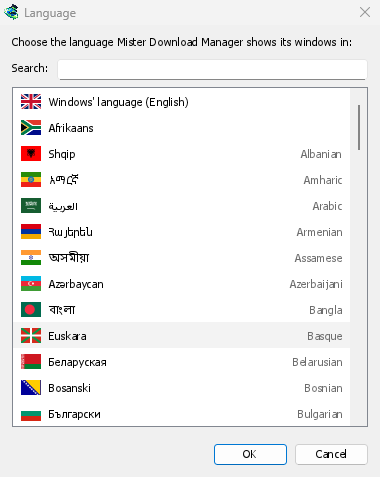
- Otherwise: GDM shows the list of languages, each with its flag and its own name. Pick yours.
میتوانید آن را در هر زمان در نما → زبان تغییر دهید. اطلاعات بیشتر در زبانها.
ابزارهای ویدیو
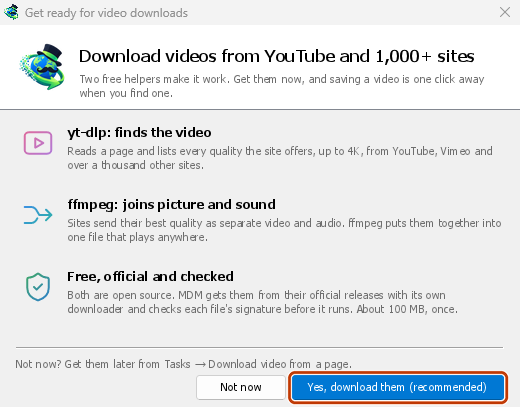
Next, GDM offers its two free video helpers: yt-dlp, which finds the video on a page, and ffmpeg, which joins its picture and sound. Click Yes, download them (recommended) and they download in the background, about 100 MB, once. Not now leaves them for later: the video window offers them when you first need them. More in Videos.
پنجره اصلی
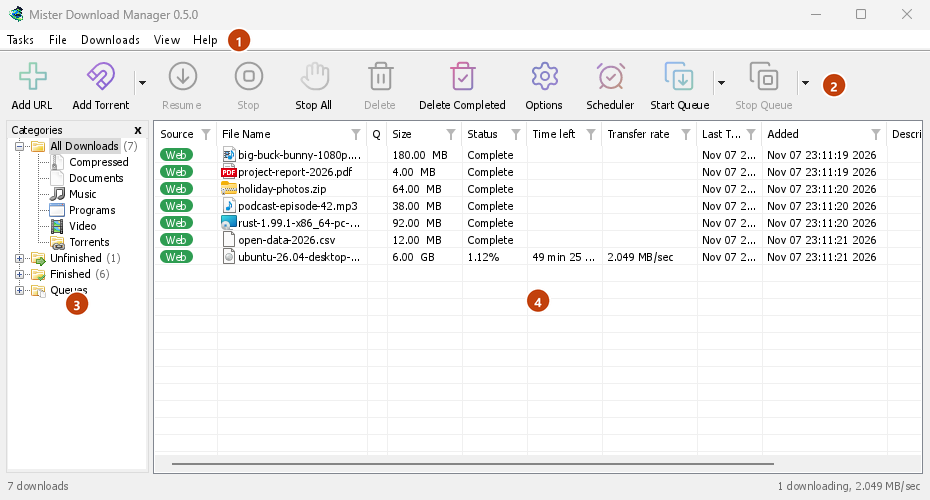
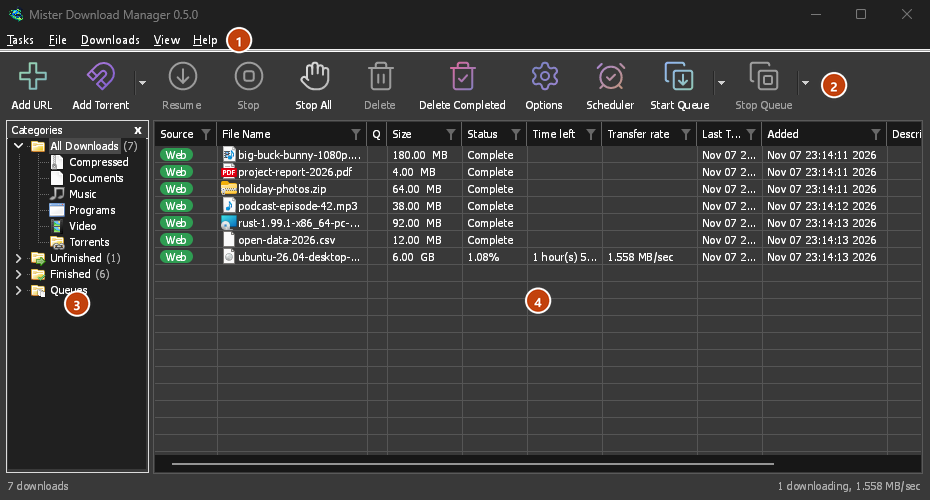
از بالا به پایین:
- نوار منو.
- وظایف — افزودن بارگیریها، تورنتها، پیوندهای مگنت، بارگیریهای دستهای و ویدیوها از یک صفحه؛ تنظیمات تورنت؛ رباینده پیوند؛ فیدهای RSS؛ نمایش هدف کشیدن و رها کردن؛ وارد و صادر کردن لیست؛ خروج.
- فایل — دانلود انتخابشده: توقف دانلود، حذف، اکنون بارگیری کن، بارگیری مجدد.
- بارگیریها — مکث همه، توقف همه، حذف همه تکمیلشدهها، جستجو، زمانبند، صفها، محدودکننده سرعت و گزینهها.
- نما — نمایش یا پنهان کردن دستهها، مرتبسازی لیست (مرتبسازی فایلها)، پشتیبانی از حالت تاریک، همیشه تیره، پوسته، اندازه رابط (هر پنجره بزرگتر، 100٪ تا 200٪؛ Ctrl +، Ctrl − و Ctrl 0 نیز)، ترسیم با (OpenGL، یا Direct3D در Windows، Vulkan در Linux، Metal در macOS) و زبان.
- Help — help pages and tutorials (on the website, in your language when it has it), Keyboard shortcuts, Report a problem, Check for updates, About, Tell a friend and Support GDM (its creator's GitHub Sponsors page: optional, nothing in GDM changes).
- نوار ابزار. افزودن URL، افزودن تورنت، ادامه، توقف، توقف همه، حذف، حذف تکمیلشدهها، گزینهها، زمانبند، شروع صف، توقف صف. فلش کوچک کنار افزودن تورنت، شروع صف و توقف صف گزینههای بیشتری را باز میکند.
- دستهها (چپ). انتخاب کنید که لیست چه چیزی را نشان دهد: همه دانلودها، ناتمام، تکمیلشده و صفها، هر کدام با دستههای خود. شکاف بین پنل و لیست را بکشید تا پهنتر شود.
- فهرست بارگیریها (سمت راست). برای هر بارگیری یک ردیف. به فهرست بارگیریها مراجعه کنید.
حالت تاریک
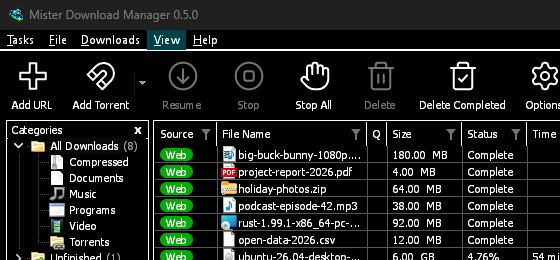
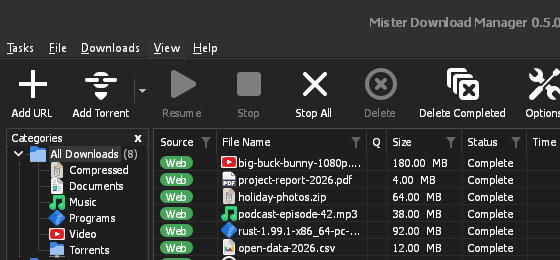
GDM follows your system: when Windows (or your desktop's light/dark preference on Linux and macOS) is set to dark mode, so is GDM. To keep GDM light whatever the system does, turn off View → Dark Mode support. To keep it dark whatever the system does, for example on a desktop that reports no preference, turn on View → Always dark.
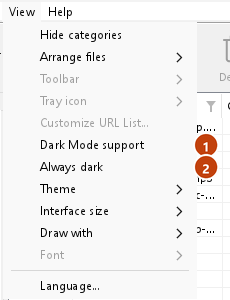

پوستهها
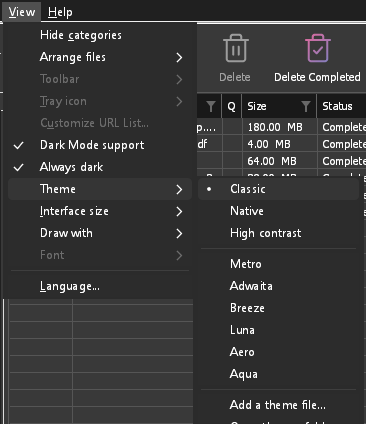
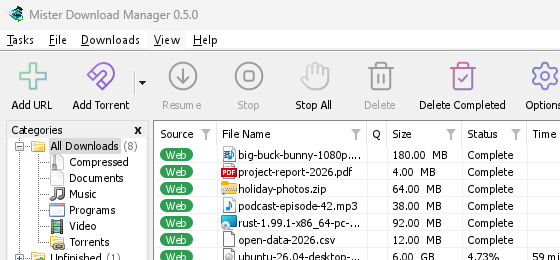
View → Theme changes GDM's look at once, keeping its layout:
- Classic: GDM's own look, the default.
- بومی: رنگهای سیستم شما. رنگ برجسته Windows (تنظیمات ← شخصیسازی ← رنگها) و در صورت فعال بودن، پوسته کنتراست آن؛ رنگ برجسته دسکتاپ و تنظیم کنتراست بالاتر آن در Linux (GNOME 47 و بالاتر، KDE Plasma)؛ رنگ برجسته در macOS. با تغییر آنها، GDM نیز از آنها پیروی میکند.
- کنتراست بالا: سیاه و سفید، یک رنگ برجسته روشن، هر لبه ترسیم شده، متن با نسبت 7:1 یا بیشتر.
- Metro: Windows 8's flat look: square corners, flat buttons and boxes, a coloured title bar with the title centred (on Windows, where GDM draws it), and one-colour icons (Microsoft's Fluent UI System Icons).
- Adwaita: GNOME's look: round corners, flat grey buttons, a rounded focus ring, GNOME's check boxes, a header bar with the title in bold and round buttons (on Windows, where GDM draws it), and GNOME's Adwaita icons, in colour for files and categories, one colour in the toolbar.
- Breeze: KDE Plasma's look: rounded corners, buttons and boxes that take the accent's edge under the pointer or when focused, KDE's check boxes and focus frame, KDE's title bar with the title centred and round buttons (on Windows, where GDM draws it), and KDE's Breeze icons.
- Luna: Windows XP's look: buttons shaded from white with an orange glow under the pointer, green ticks, square text boxes, progress in green blocks, a deep blue title bar with the title in bold (on Windows, where GDM draws it), and colourful icons drawn for GDM in that manner.
- Aero: Windows 7's look: glossy buttons that turn light blue under the pointer, quiet check boxes, a glossy green progress bar, a glassy title bar with the title on a soft glow (on Windows), and glossy icons drawn for GDM in that manner.
- Aqua: Mac OS X's look: gel buttons round at the ends (the default one blue), glossy check boxes, a blue focus ring, a blue gel progress bar, a grey title bar with small round buttons (on Windows), and icons drawn for GDM in that manner.
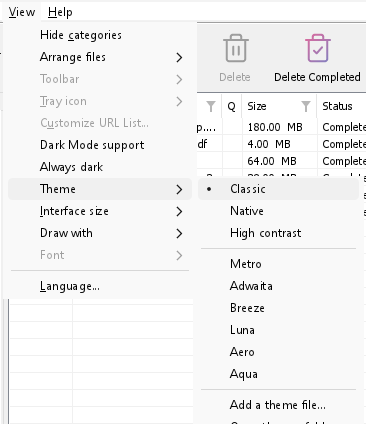

کلاسیک 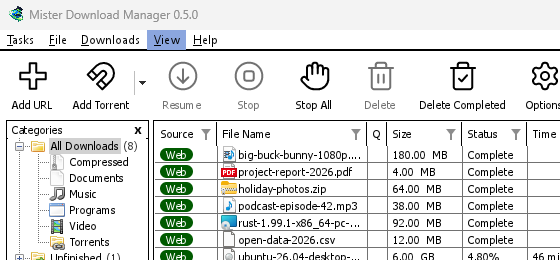
کنتراست بالا 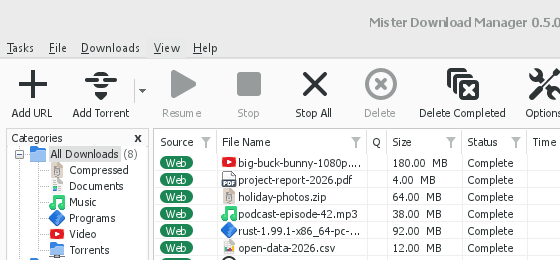
Adwaita 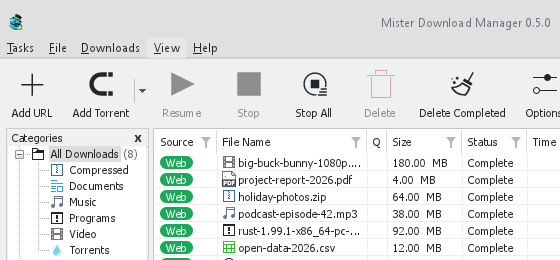
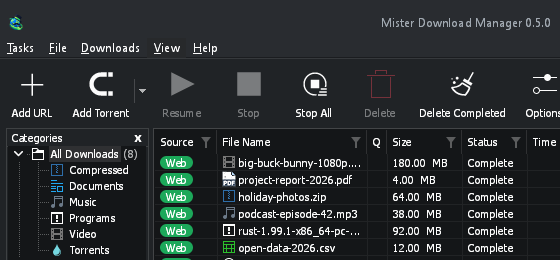
Breeze
هر کدام یک روی روشن و یک روی تیره دارند: پشتیبانی از حالت تاریک و همیشه تیره مانند قبل بین آنها انتخاب میکنند. فایلهای پوستهای که در پوشه پوستهها قرار میدهید (نما → پوسته → باز کردن پوشه پوستهها) نیز در آنجا فهرست میشوند، و همچنین طرحهای رنگی Base16 و pywal (نما → پوسته → افزودن فایل پوسته…؛ pywal هنگام اجرا از wal پیروی میکند): Themes میگوید آن پوشه کجاست، یک فایل پوسته چه چیزی را در خود جای میدهد (inherits، رنگها، اندازهها، اشکال کنترلها، آیکونها)، چگونه از رنگهای یک طرح استفاده میشود، و چگونه یکی را بسازید و به اشتراک بگذارید.
آیکون ناحیه اعلان
Closing the main window doesn't quit GDM. It hides in the notification area, and downloads, queues and schedules carry on. To make closing quit (a portable copy's folder can then be deleted), untick Options → General → Keep running when closing the window. If there is no icon for GDM at all — not in the notification area, nor behind the ^ hidden icons — the window minimizes to the taskbar instead, so downloads continue and there is a way back. An icon behind ^ can be clicked to bring the window back, and starting GDM again always does.
On Linux this needs a tray, which most desktops have (KDE Plasma, Xfce, Cinnamon, Ubuntu's GNOME or GNOME with the AppIndicator extension, waybar's tray). On a desktop without one (some tiling window managers), closing the window quits GDM, since there would be nowhere to bring it back from.
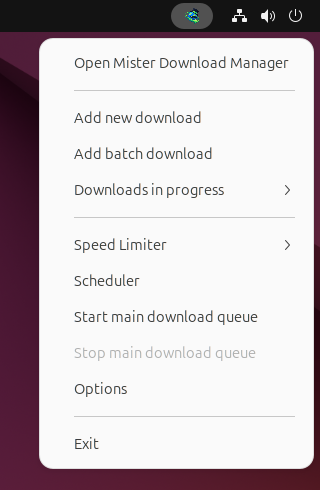
- برای بازگرداندن پنجره، روی آیکون ناحیه اعلان کلیک کنید.
- برای دسترسی به افزودن بارگیری جدید، افزودن بارگیری دستهای، بارگیریهای در حال انجام، محدودکننده سرعت، زمانبند، صف اصلی بارگیری، گزینهها و خروج، روی آن راستکلیک کنید.
- بارگیریهای در حال انجام، بارگیریهای فعال را فهرست میکند. یکی را انتخاب کنید تا پنجره پیشرفت آن را ببینید.
هنگامی که کوچکنمایی در ناحیه اعلان در گزینهها ← عمومی فعال است، کوچکنمایی نیز پنجره اصلی را در آنجا پنهان میکند. این گزینه بهطور پیشفرض فعال است؛ در صورتی که ناحیه اعلان آیکونی نداشته باشد، کوچکنمایی پنجره را به نوار وظیفه میفرستد.
پنجره پیشرفت بارگیری را هم میتوان با دکمه کوچکنمایی یا دکمه پنهان کردن در ناحیه اعلان به آنجا فرستاد؛ این دکمه خط تیره کوتاهی با پیکانی رو به پایین، به سمت گوشه، دارد.
در Windows، این دکمه در نوار عنوان پنجره، سمت چپ دکمه کوچکنمایی، و در منوی نوار عنوان (Alt+Space) قرار دارد. در Linux و macOS، در انتهای ردیف زبانههاست.
برای بازگرداندن پنجره، آن را در بارگیریهای در حال انجام انتخاب کنید یا روی بارگیری در فهرست دوبار کلیک کنید.
برای خروج، وظایف → خروج یا خروج را از منوی ناحیه اعلان انتخاب کنید.
Where GDM keeps its data
فهرست بارگیریها و تنظیمات در %APPDATA%\misterdownloadmanager (downloads.json) قرار دارند؛ در Linux در ~/.local/share/misterdownloadmanager، در مک در ~/Library/Application Support/misterdownloadmanager. یک کپی قابل حمل آنها را به جای آن در پوشه data خود نگه میدارد. فایلهای بارگیری شده به پوشه بارگیریها شما میروند که بر اساس دستهبندی در یک پوشه مرتب شدهاند؛ میتوانید این را در گزینهها ← ذخیره در تغییر دهید.
مراحل بعدی
رایگان، متنباز، بدون تبلیغات، بدون دوره آزمایشی.
Download GolinksPRO Download Manager