
With the GDM extension, clicking a download link in your browser hands the download to GDM. GDM gets the address together with the page it came from (the referrer), your cookies for the site and the browser's User-Agent, so downloads that need you to be signed in still work.
این افزونه در Google Chrome، Microsoft Edge، Brave، Opera و Vivaldi، در Firefox نسخه 140 یا بالاتر، و در Safari نسخه 17 یا بالاتر در مک (به Safari مراجعه کنید) کار میکند.
Browsers built on them work too: Chromium and Helium take the extension as Chrome does, Brave Origin as Brave does, Zen and LibreWolf as Firefox does. On Windows, Zen has a bug of its own (see The browser and GDM aren't connected).
تنظیم
یکپارچهسازی مرورگر دو بخش دارد: برنامه کمکی کوچکی که مرورگر با آن ارتباط برقرار میکند و خود افزونه.
- Install GDM with the setup and keep Set up browser integration (Chrome, Edge, Brave, Firefox) ticked. This registers the helper. (The portable copy can't do this; see Portable mode.) On Linux and macOS GDM registers it itself, each time it starts, for the browsers installed then.
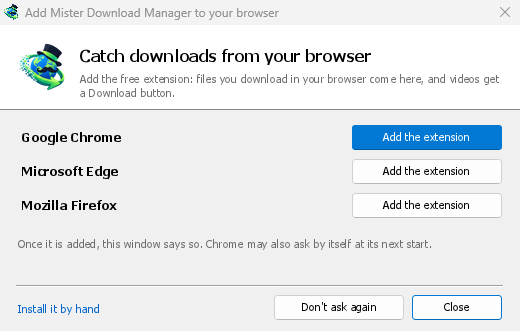
- Add the extension to each browser you use, as below: Firefox from its add-ons store, the others from the Chrome Web Store. Until a browser's extension has reached GDM, GDM's Add GolinksPRO Download Manager to your browser window opens at each start: it lists the browsers it found, and Add the extension opens the store's page in that browser. Install it by hand opens the steps for loading it without the store; Don't ask again stops the window.

Firefox
Firefox 140 or later is needed. Install the add-on from its page on addons.mozilla.org, GolinksPRO Download Manager: click Add to Firefox. Firefox keeps it updated. Zen and LibreWolf install it from the same page. (GDM's Add GolinksPRO Download Manager to your browser window opens that page for you.)
Chrome، Edge، Brave، Opera و Vivaldi
Install the extension from its page in the Chrome Web Store, GolinksPRO Download Manager: click Add to Chrome. In Edge the button is Get: Edge first asks to Allow extensions from other stores (click Allow), then Add extension. The browser keeps it updated. GDM's Add GolinksPRO Download Manager to your browser window opens that page in each browser for you, and Chrome may offer it by itself at its next start once GDM is installed.
To load it by hand instead (a browser that can't use the store, or a build of your own): its files are in the extension folder where GDM is installed: %LOCALAPPDATA%\Programs\GolinksPRO Download Manager\extension if you installed it for yourself, or Program Files\GolinksPRO Download Manager\extension if you installed it for everyone. Every release also has them as their own download, ...-extension-chromium.zip (unzip it first).
- صفحه افزونهها را باز کنید:
chrome://extensions،edge://extensionsیاbrave://extensions. - حالت توسعهدهنده را روشن کنید.
- روی بارگذاری بستهبندینشده کلیک کنید و پوشه
extension\chromiumرا انتخاب کنید.
GolinksPRO Download Manager appears in the list. Leave it turned on. Pin its button to the toolbar to see at a glance whether the browser reaches GDM.
Safari (macOS)
برنامه مک شامل افزونه Safari است: نیازی به بارگیری چیزی نیست. Safari 17 یا جدیدتر و macOS 14 یا جدیدتر لازم است.
- Drag GDM to Applications and start it once. GDM's Add GolinksPRO Download Manager to your browser window lists Safari: How to Add shows the steps below.
- In Safari open Settings → Extensions and tick GolinksPRO Download Manager. Click Always Allow on Every Website: the extension needs to read the site to pass your sign-in on.
- تا زمانی که برنامه توسط Apple تأیید نشده است (بیلدهای آزمایشی تأیید نشدهاند)، Safari افزونه را فقط در صورتی فهرست میکند که افزونههای بدون امضا مجاز باشند: Settings → Advanced → Show features for web developers، سپس Settings → Developer → Allow unsigned extensions. Safari هر بار که بسته میشود این تنظیم را فراموش میکند.
Safari به یک افزونه اجازه نمیدهد بارگیریهای مرورگر را ببیند یا متوقف کند، بنابراین عملکرد آن با سایر مرورگرها متفاوت است:
- Works as in the other browsers: the right-click items, the button over videos, Media on this page, the toolbar button, Alt-click, GDM starting by itself, and every rule in Options.
- A click on a link to a file type GDM takes goes to GDM. A download the page starts by itself (a script, or a link with no file name in its address that the server answers with a file) stays with Safari: use right-click → Download with GolinksPRO Download Manager for those.
- در دسترس نیست: اشتراکگذاری پروکسی یا VPN مرورگر، و بارگیری از یک فرم.
از فایل ZIP ساده
The -x64.zip copy has no installer, but you can register the helper yourself. Open a command prompt in GDM's folder and run:
misterdownloadmanager-nmhost.exe --register
این کار فقط برای حساب کاربری Windows شما انجام میشود. --unregister آن را لغو میکند. سپس افزونه را مانند بالا از پوشه extension فایل ZIP بارگذاری کنید.
چه چیزهایی لازم است
When you click a download, the extension checks GDM's Options:
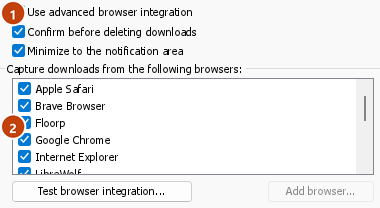
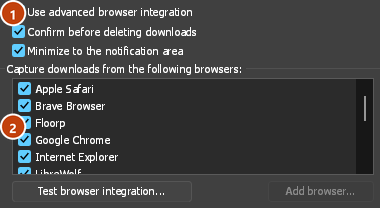
- Options → General → Use advanced browser integration must be on. Turn it off to send nothing to GDM.
- در گزینهها → عمومی → دریافت بارگیریها از مرورگرهای زیر باید مرورگرتان انتخاب شده باشد.
- Options → File types → Automatically start downloading the following file types باید نوع فایل را فهرست کند. این فهرست با موارد معمول شروع میشود: ZIP, RAR, 7Z, EXE, MSI, ISO, DMG, DEB, RPM, APPIMAGE, MP3, MP4, MKV, WEBM, PDF, مدلهای هوش مصنوعی مانند GGUF و SAFETENSORS, فایلهای سهبعدی مانند GLB و STL، و بسیاری دیگر. هر چیز دیگری را میتوان به فهرست اضافه کرد.
- در گزینهها → انواع فایل → از سایتهای زیر بارگیری را بهطور خودکار شروع نکنید نباید آن سایت فهرست شده باشد. نامها با فاصله از هم جدا میشوند و
*با هر بخشی از نام مطابقت دارد، مانند*.update.microsoft.com. گزینه ویرایش فهرست ... زیر آن، نشانیهای کامل را که باید نادیده گرفته شوند، هرکدام در یک سطر (https://example.com/private/*) فهرست میکند. - در گزینهها → انواع فایل → فایلهای کوچکتر از این اندازه را بارگیری نکنید، فایلهای کوچک (مثل رسید یا آیکون) به مرورگر سپرده میشوند. مقدار 0 یعنی هر اندازهای پذیرفته میشود.
- افزونه باید اجازه خواندن محتوای سایت را داشته باشد. اگر دسترسی آن را به برخی سایتها محدود کنید (یا گزینه با کلیک را انتخاب کنید)، نمیتواند اطلاعات ورود شما را منتقل کند؛ بنابراین بارگیری از آن سایتها به مرورگر سپرده میشود.
When the browser keeps a download, the extension's button says which of these left it there, with the file's name, and GDM's log has a line for each one (logs\mdm.log in GDM's data folder).
هم نشانیای که روی آن کلیک کردهاید و هم نشانی مقصد پس از تغییر مسیر بررسی میشوند؛ بنابراین سایتی که از فهرست خارج کردهاید، حتی اگر شما را به سرور دیگری بفرستد، همچنان از فهرست خارج میماند. بارگیریهای دیگر به مرورگر سپرده میشوند. تغییرات تنظیمات ظرف یک دقیقه به مرورگر میرسند و نیازی به راهاندازی مجدد آن نیست.
When GDM takes a download, it gets the browser's file name, size and type with it, so Download File Info shows them at once without asking the server again. A download from a form (a button that posts and gets a file back) is posted again by GDM with the form's data; a form that sends a file stays with the browser.
When GDM takes a download, the browser's own copy is cancelled and removed from the browser's download list. In Firefox and the browsers built on it (Waterfox, Zen, LibreWolf), GDM takes it as soon as the server answers, before the browser asks What should … do with this file?: for a file GDM takes, that question never shows (Waterfox asks it for every new type of file). Files GDM doesn't take get the question as before. Download File Info opens in GDM (unless you turned it off in Options → Downloads). Cancelling there doesn't hand the download back to the browser.
Click a download link in the browser: Download File Info opens in GDM. 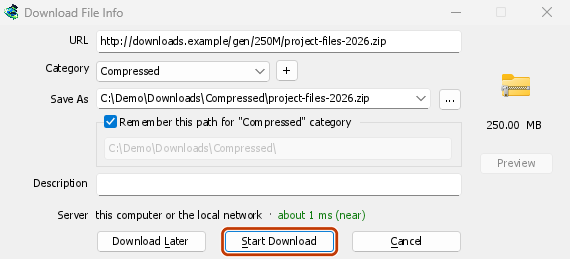

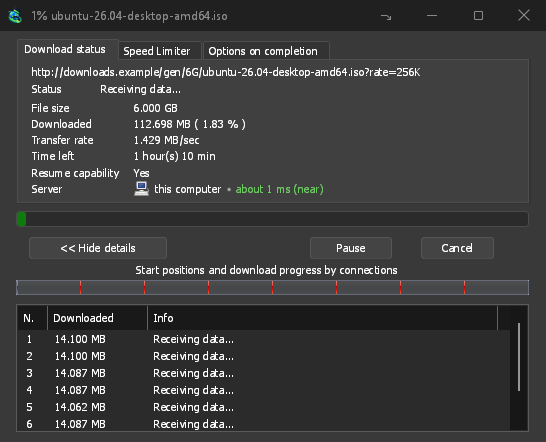
شروع دانلود: پنجره پیشرفت، روند بارگیری را نشان میدهد. 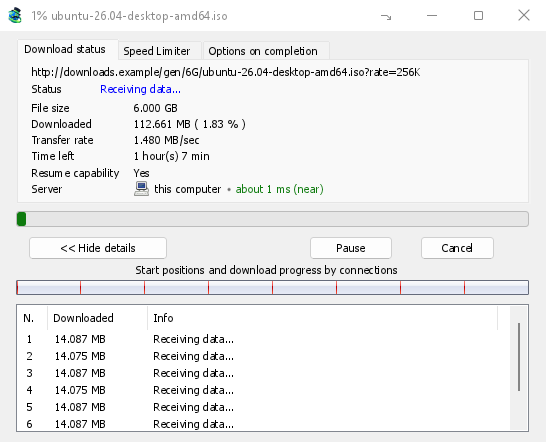
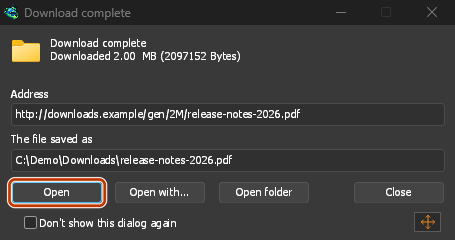
بارگیری کامل شد: فایل را باز کنید، یا پوشه را باز کنید. 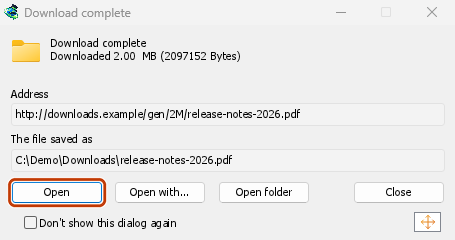
Downloads from a private window use that window's cookies, never the normal ones, and aren't kept in GDM's list after it closes.
Files GDM downloads from the browser are marked as coming from the internet, as the browser marks its own: Windows checks a program with SmartScreen before it runs and Office opens a document in Protected View.
فایلهایی که مرورگر باز میکند
A PDF, a song or a video that the browser would show or play itself goes to GDM too, when its type is in Options → File types (not on the excluded sites). To turn this off, untick Also take files the browser would open in Options → General → Keys.... This needs a Chromium browser (Chrome, Edge, Brave, Opera, Vivaldi) version 128 or later, or Firefox.
دکمه نوار ابزار
The extension's button shows whether the browser reaches GDM. A red ! means it doesn't; click the button to see why, and How to fix it opens the matching section of The browser and GDM aren't connected. The button also:
- دریافت بارگیریها از این مرورگر: برای مکث، تیک این گزینه را بردارید. تا وقتی دوباره تیک آن را نزنید، همه بارگیریها در مرورگر میمانند.
- Never take downloads from the current site: adds it to GDM's excluded sites.
- Open GolinksPRO Download Manager and Options....
- Media on this page: what the page has loaded that GDM can download (see below).
افزونه VPN یا پروکسی
A VPN or proxy extension is a proxy for the browser only. Switch on Send downloads through this browser's proxy or VPN extension in the extension's toolbar popup (it's off as installed), and GDM downloads what it takes from the browser through the same proxy (with Options → Proxy / Socks → Use proxy/socks from a browser's request, on by default; see Options). Switched off, the extension reads nothing of the browser's proxy.
- Firefox asks you once, at the switch, to allow the extension to read the browser's proxy; switching it off takes that permission back. GDM gets the proxy the browser's own request for the file took, including the ones a VPN extension picks for each request.
- Chrome, Edge, Brave, Opera and Vivaldi can't ask for that permission at the switch, so the
extension has it from the install (Chrome counts it under the access to every site the extension
already asks for, so it adds no line to the install prompt and the update asks for nothing new).
The switch asks nothing. GDM gets the browser's effective proxy, whoever set it (a VPN or proxy
extension, a policy, the command line): a fixed server for the download's scheme (
http,https,socks4,socks5), unless the address is on its bypass list, or its proxy auto-config script (by its address or inline). With no proxy, or the system's, nothing is sent and GDM goes by its own Options. A QUIC proxy can't be shared.
در هر دو مورد، اطلاعات ورود به پروکسی هرگز خوانده نمیشود: پروکسی که اطلاعات ورود خود افزونه VPN را درخواست میکند، قابل اشتراکگذاری نیست، و بارگیری به جای ادامه بدون آن، این موضوع را اعلام میکند.
رسانههای این صفحه
برخی صفحهها ویدئو را بدون پیوند پخش میکنند و برخی پخشکنندهها آن را از دکمه بارگیری هم پنهان میکنند. دکمه نوار ابزار مواردی را که صفحه بارگیری کرده فهرست میکند تا همچنان بتوانید آنها را ذخیره کنید:
- جریانها: HLS (
.m3u8) و DASH (.mpd)، روشهایی که بیشتر سایتها برای پخش ویدئوهای بلند به کار میبرند. هر جریان فقط یک بار فهرست میشود، حتی اگر پخشکننده بین چند کیفیت جابهجا شود. کیفیتها (1080p · 720p) و مدت جریان هم در فهرست میآیند، اگر افزونه بتواند آنها را بخواند. جریانهایی که نشانیشان به.m3u8یا.mpdختم نمیشود و بهصورت متن ساده ارائه میشوند نیز پیدا میشوند: وقتی فهرست را باز میکنید (یا هنگام نمایش جریان، روی پخشکننده دکمه بارگیری را میزنید)، افزونه برای شناسایی جریان، چند کیلوبایت نخست دادههایی را میخواند که پخشکننده دریافت کرده است. تا وقتی درخواست نکنید، چیزی خوانده نمیشود. - فایلهای ویدئویی و صوتی که صفحه پخش کرده است (MP4، WebM، MP3 و موارد مشابه)، همراه با اندازه فایل و، برای ویدئوها، اندازه تصویر.
Start the video first: the list fills as the page loads things, and it's emptied when the tab goes
to another page. With Prefix media file names with the page title on, a file from the list is
named after the page, then its own name (The page - clip.mp4). Click Download beside one: a stream opens GDM's Download video from a page
window, which reads its qualities (yt-dlp does the work); a file goes to GDM's list like any other
download. Your cookies for its server, the page as the referrer and your browser's User-Agent go
with it, as they do for a link you click.
Pieces of a stream (its segments) are never listed. A copy-protected stream (DRM: Widevine, PlayReady, FairPlay, as most paid streaming services use) is listed as Protected, with no Download button: no tool may break that protection, and GDM doesn't try.
برای این کار لازم نیست کار دیگری انجام دهید: افزونه برای واگذاری بارگیریها، از قبل مواردی را که مرورگر بارگیری میکند میبیند. اطلاعاتی که ثبت میکند در حافظه مرورگر میماند و با بستن مرورگر پاک میشود.
Right-click: Download with GolinksPRO Download Manager
Right-click a link, a video, a sound or a picture and choose Download with GolinksPRO Download Manager. GDM downloads it whatever its type: you asked for it, so the file types list and the excluded sites don't apply here (they only decide which downloads GDM takes over by itself). A video that plays as a stream goes to the Download video window with the stream its player loaded (HLS or DASH), as the button over videos sends it, with your cookies for the stream's server and the page as the referrer.
Select part of a page and right-click it for Download selected links with GolinksPRO Download Manager, or right-click the page for Download all links with GolinksPRO Download Manager: the links open in Link grabber, sorted into packages, where you tick the ones you want.
If GDM can't be reached when you choose one of these, the help page opens at the section that explains why.
دکمه بارگیری روی ویدئوها
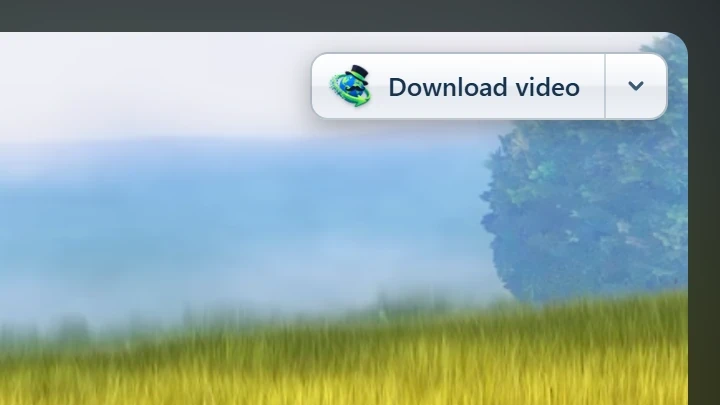
Point at a video on a web page and a small Download video button appears at its edge. Click it and GDM's Download video from a page window opens and looks up the qualities it can download. It takes the video you clicked: its own file when it plays one, or the stream the player loaded (HLS or DASH), else the page. When the button can't tell which one you mean, the toolbar button's Media on this page lists them all. Embedded players work too, and your sign-in for the site, the page that embeds the player and your browser's User-Agent go with it, so videos for members, or that play only on the site that embeds them, can be downloaded. Sound players get the button too.
دکمه مزاحم نیست: فقط وقتی روی ویدئو میروید نمایش داده میشود (یا وقتی پخشکننده فوکوس صفحهکلید را دارد؛ در این حالت با فشردن Tab به دکمه میروید). وقتی اشارهگر ثابت بماند، دکمه محو میشود و برای ویدئوهای کوچک و حلقههای کوتاه و بیصدا (تصاویر متحرک و پسزمینهها) نمایش داده نمیشود. در حالت تمامصفحه، اگر پخشکننده اجازه دهد، دکمه همراه ویدئو جابهجا میشود. اگر ویدئو با DRM محافظت شده باشد، پیامی نمایش داده میشود که میگوید نمیتوان ویدئو را ذخیره کرد.
- انتقال: دکمه را در امتداد لبه ویدئو به هر جایی بکشید؛ دکمه به نزدیکترین لبه میچسبد و در همان سایت همانجا میماند.
- Its menu (the arrow next to it): Hide on this video, Never on the site (GDM remembers the site), and Button settings..., which opens GDM's Options.
- Turn it off, or see the sites it stays off: Options → General → Customize GDM Download panels in browsers → Edit....

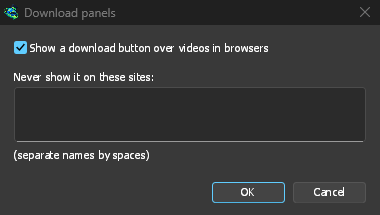
این دکمه هم از تنظیمات یکپارچهسازی پیروی میکند: اگر استفاده از یکپارچهسازی پیشرفته مرورگر خاموش باشد یا مرورگر انتخاب نشده باشد، نمایش داده نمیشود.
کلیدهای اجبار یا جلوگیری از دریافت
Hold Alt while clicking a link to let the browser download it instead of GDM. In Firefox, Alt+click saves a link only when its browser.altClickSave setting is on (in about:config); otherwise right-click the link and choose Save Link As..., which the browser keeps. Options → General → Keys... says so, and holds Also take files the browser would open.
برای اینکه بارگیریهای یک سایت همیشه در مرورگر انجام شوند، از گزینه هرگز بارگیری از در دکمه نوار ابزار استفاده کنید یا سایت را به فهرست از سایتهای زیر بارگیری را بهطور خودکار آغاز نکن اضافه کنید. برای اینکه نوع خاصی از فایل در مرورگر بارگیری شود، آن را از فهرست انواع فایل حذف کنید.
When GDM isn't running
You don't need to start GDM first. When the browser hands over a download and GDM isn't running, the helper starts it and passes the download on.
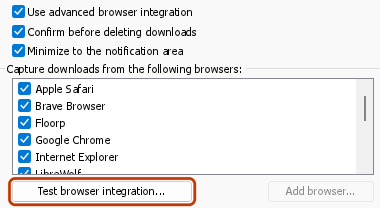
If GDM can't be reached at all (it was uninstalled, or the helper isn't registered), the download stays with the browser, so nothing is lost, and the toolbar button shows a red !. See The browser and GDM aren't connected, or run Options → General → Test browser integration....

مراحل بعدی
- آموزش: دریافت بارگیریها از مرورگر →
- Change which file types GDM takes →
- اگر مرورگر بارگیریها را تحویل نمیدهد →
رایگان، متنباز، بدون تبلیغات، بدون دوره آزمایشی.
Download GolinksPRO Download Manager