

With the GDM extension, clicking a download link in your browser hands the download to GDM. GDM gets the address together with the page it came from (the referrer), your cookies for the site and the browser's User-Agent, so downloads that need you to be signed in still work.
ส่วนขยายนี้ทำงานใน Google Chrome, Microsoft Edge, Brave, Opera และ Vivaldi, ใน Firefox เวอร์ชัน 140 ขึ้นไป และใน Safari เวอร์ชัน 17 ขึ้นไปบน Mac (ดู Safari)
Browsers built on them work too: Chromium and Helium take the extension as Chrome does, Brave Origin as Brave does, Zen and LibreWolf as Firefox does. On Windows, Zen has a bug of its own (see The browser and GDM aren't connected).
ตั้งค่า
การรวมเบราว์เซอร์มีสองส่วน: โปรแกรมช่วยขนาดเล็กที่เบราว์เซอร์ใช้สื่อสารด้วย และส่วนขยายเอง
- Install GDM with the setup and keep Set up browser integration (Chrome, Edge, Brave, Firefox) ticked. This registers the helper. (The portable copy can't do this; see Portable mode.) On Linux and macOS GDM registers it itself, each time it starts, for the browsers installed then.
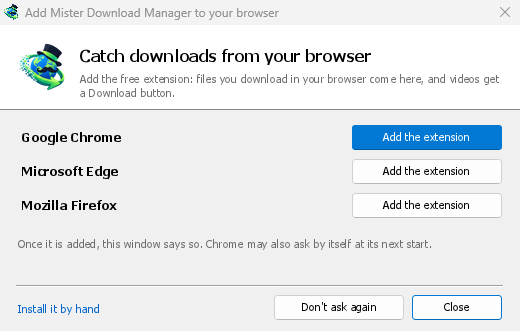
- Add the extension to each browser you use, as below: Firefox from its add-ons store, the others from the Chrome Web Store. Until a browser's extension has reached GDM, GDM's Add GolinksPRO Download Manager to your browser window opens at each start: it lists the browsers it found, and Add the extension opens the store's page in that browser. Install it by hand opens the steps for loading it without the store; Don't ask again stops the window.

Firefox
Firefox 140 or later is needed. Install the add-on from its page on addons.mozilla.org, GolinksPRO Download Manager: click Add to Firefox. Firefox keeps it updated. Zen and LibreWolf install it from the same page. (GDM's Add GolinksPRO Download Manager to your browser window opens that page for you.)
Chrome, Edge, Brave, Opera และ Vivaldi
Install the extension from its page in the Chrome Web Store, GolinksPRO Download Manager: click Add to Chrome. In Edge the button is Get: Edge first asks to Allow extensions from other stores (click Allow), then Add extension. The browser keeps it updated. GDM's Add GolinksPRO Download Manager to your browser window opens that page in each browser for you, and Chrome may offer it by itself at its next start once GDM is installed.
To load it by hand instead (a browser that can't use the store, or a build of your own): its files are in the extension folder where GDM is installed: %LOCALAPPDATA%\Programs\GolinksPRO Download Manager\extension if you installed it for yourself, or Program Files\GolinksPRO Download Manager\extension if you installed it for everyone. Every release also has them as their own download, ...-extension-chromium.zip (unzip it first).
- เปิดหน้าส่วนขยาย:
chrome://extensions,edge://extensionsหรือbrave://extensions - เปิด โหมดนักพัฒนาซอฟต์แวร์
- คลิก โหลดส่วนขยายที่ไม่ได้แพ็ค และเลือกโฟลเดอร์
extension\chromium
GolinksPRO Download Manager appears in the list. Leave it turned on. Pin its button to the toolbar to see at a glance whether the browser reaches GDM.
Safari (macOS)
แอป Mac มีส่วนขยาย Safari อยู่แล้ว ไม่ต้องดาวน์โหลดอะไรเพิ่มเติม ต้องใช้ Safari 17 ขึ้นไป และ macOS 14 ขึ้นไป
- Drag GDM to Applications and start it once. GDM's Add GolinksPRO Download Manager to your browser window lists Safari: How to Add shows the steps below.
- In Safari open Settings → Extensions and tick GolinksPRO Download Manager. Click Always Allow on Every Website: the extension needs to read the site to pass your sign-in on.
- ในขณะที่แอปยังไม่ได้รับการรับรองจาก Apple (เวอร์ชันทดลองยังไม่ได้รับการรับรอง) Safari จะแสดงส่วนขยายนี้เมื่ออนุญาตส่วนขยายที่ไม่ได้ลงชื่อเท่านั้น: การตั้งค่า → ขั้นสูง → แสดงคุณสมบัติสำหรับนักพัฒนาเว็บ จากนั้น การตั้งค่า → นักพัฒนา → อนุญาตส่วนขยายที่ไม่ได้ลงชื่อ Safari จะลืมการตั้งค่านี้ทุกครั้งที่ปิด
Safari ไม่อนุญาตให้ส่วนขยายเห็นหรือหยุดการดาวน์โหลดของเบราว์เซอร์ ดังนั้นการทำงานจึงแตกต่างจากเบราว์เซอร์อื่น:
- Works as in the other browsers: the right-click items, the button over videos, Media on this page, the toolbar button, Alt-click, GDM starting by itself, and every rule in Options.
- A click on a link to a file type GDM takes goes to GDM. A download the page starts by itself (a script, or a link with no file name in its address that the server answers with a file) stays with Safari: use right-click → Download with GolinksPRO Download Manager for those.
- ไม่สามารถใช้งานได้: การแชร์พร็อกซีหรือ VPN ของเบราว์เซอร์ และการดาวน์โหลดจากฟอร์ม
จากไฟล์ zip ธรรมดา
The -x64.zip copy has no installer, but you can register the helper yourself. Open a command prompt in GDM's folder and run:
misterdownloadmanager-nmhost.exe --register
นี่สำหรับบัญชี Windows ของคุณเท่านั้น --unregister จะยกเลิกการตั้งค่านี้ จากนั้นโหลดส่วนขยายตามด้านบน จากโฟลเดอร์ extension ของไฟล์ zip
สิ่งที่ต้องทำ
When you click a download, the extension checks GDM's Options:
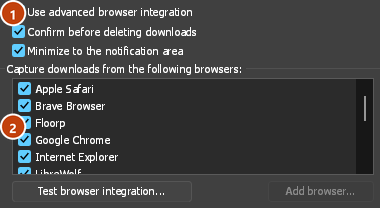
- Options → General → Use advanced browser integration must be on. Turn it off to send nothing to GDM.
- ตัวเลือก → ทั่วไป → ดักจับการดาวน์โหลดจากเบราว์เซอร์ต่อไปนี้ ต้องมีเบราว์เซอร์ของคุณทำเครื่องหมายไว้
- ตัวเลือก → ชนิดไฟล์ → เริ่มดาวน์โหลดชนิดไฟล์ต่อไปนี้โดยอัตโนมัติ ต้องระบุชนิดไฟล์นั้น รายการเริ่มต้นด้วยชนิดไฟล์ทั่วไป: ZIP, RAR, 7Z, EXE, MSI, ISO, DMG, DEB, RPM, APPIMAGE, MP3, MP4, MKV, WEBM, PDF, โมเดล AI เช่น GGUF และ SAFETENSORS, ไฟล์ 3D เช่น GLB และ STL และอื่น ๆ อีกมากมาย สามารถเพิ่มชนิดไฟล์อื่น ๆ ลงในรายการได้
- ตัวเลือก → ชนิดไฟล์ → ไม่เริ่มดาวน์โหลดอัตโนมัติจากเว็บไซต์ต่อไปนี้ ต้องไม่มีเว็บไซต์นั้นอยู่ในรายการ ชื่อจะคั่นด้วยช่องว่าง และ
*จะตรงกับส่วนใดก็ได้ เช่น*.update.microsoft.comแก้ไขรายการ... ด้านล่างจะแสดงที่อยู่ทั้งหมดที่จะไม่ดำเนินการ โดยมีหนึ่งที่อยู่ต่อบรรทัด (https://example.com/private/*) - ตัวเลือก → ชนิดไฟล์ → ไม่รับไฟล์ที่เล็กกว่า จะปล่อยให้ไฟล์ขนาดเล็ก (ใบเสร็จ, ไอคอน) ถูกดาวน์โหลดโดยเบราว์เซอร์ หากตั้งค่าเป็น 0 จะรับทุกขนาด
- ต้องอนุญาตให้ส่วนขยายอ่านเว็บไซต์ได้ เมื่อคุณจำกัดให้ใช้ได้กับบางเว็บไซต์ (หรือ เมื่อคลิก) ส่วนขยายจะไม่สามารถส่งข้อมูลการลงชื่อเข้าใช้ของคุณไปได้ ดังนั้นจึงปล่อยให้การดาวน์โหลดจากเว็บไซต์เหล่านั้นถูกจัดการโดยเบราว์เซอร์
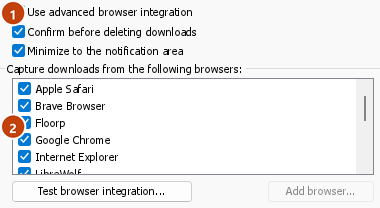
When the browser keeps a download, the extension's button says which of these left it there, with the file's name, and GDM's log has a line for each one (logs\mdm.log in GDM's data folder).
ทั้งที่อยู่ที่คุณคลิกและที่อยู่ที่ถูกเปลี่ยนเส้นทางไปจะถูกตรวจสอบ ดังนั้นเว็บไซต์ที่คุณยกเว้นจะยังคงถูกยกเว้นแม้ว่าจะส่งคุณไปยังเซิร์ฟเวอร์อื่นก็ตาม ส่วนที่เหลือจะยังคงอยู่กับเบราว์เซอร์ การเปลี่ยนแปลงในตัวเลือกจะส่งผลถึงเบราว์เซอร์ภายในหนึ่งนาที คุณไม่จำเป็นต้องรีสตาร์ทเบราว์เซอร์
When GDM takes a download, it gets the browser's file name, size and type with it, so Download File Info shows them at once without asking the server again. A download from a form (a button that posts and gets a file back) is posted again by GDM with the form's data; a form that sends a file stays with the browser.
When GDM takes a download, the browser's own copy is cancelled and removed from the browser's download list. In Firefox and the browsers built on it (Waterfox, Zen, LibreWolf), GDM takes it as soon as the server answers, before the browser asks What should … do with this file?: for a file GDM takes, that question never shows (Waterfox asks it for every new type of file). Files GDM doesn't take get the question as before. Download File Info opens in GDM (unless you turned it off in Options → Downloads). Cancelling there doesn't hand the download back to the browser.
Click a download link in the browser: Download File Info opens in GDM. 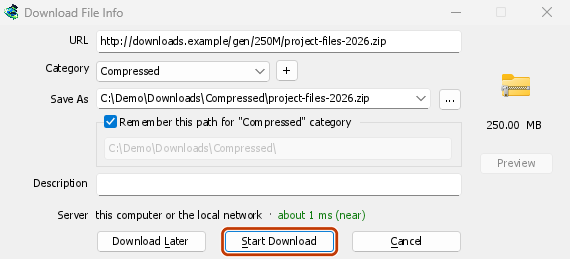

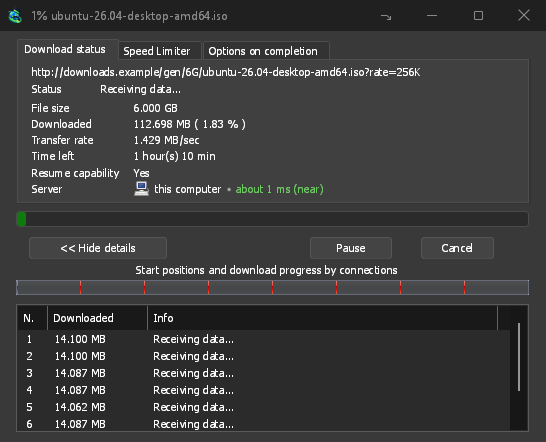
เริ่มการดาวน์โหลด: หน้าต่างความคืบหน้าแสดงการดาวน์โหลด 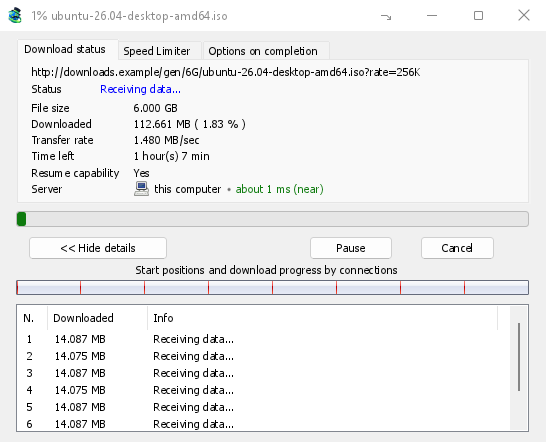
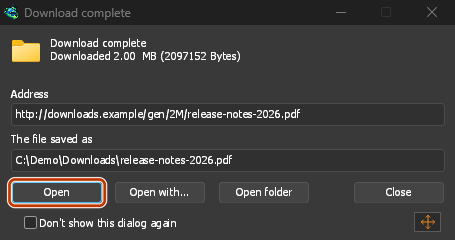
ดาวน์โหลดเสร็จสมบูรณ์: เปิดไฟล์ หรือ เปิดโฟลเดอร์ 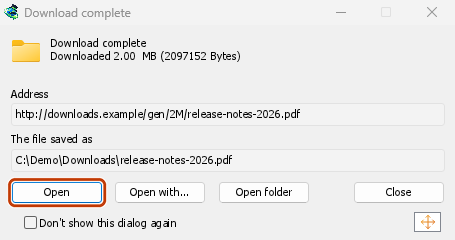
Downloads from a private window use that window's cookies, never the normal ones, and aren't kept in GDM's list after it closes.
Files GDM downloads from the browser are marked as coming from the internet, as the browser marks its own: Windows checks a program with SmartScreen before it runs and Office opens a document in Protected View.
ไฟล์ที่เบราว์เซอร์จะเปิด
A PDF, a song or a video that the browser would show or play itself goes to GDM too, when its type is in Options → File types (not on the excluded sites). To turn this off, untick Also take files the browser would open in Options → General → Keys.... This needs a Chromium browser (Chrome, Edge, Brave, Opera, Vivaldi) version 128 or later, or Firefox.
ปุ่มบนแถบเครื่องมือ
The extension's button shows whether the browser reaches GDM. A red ! means it doesn't; click the button to see why, and How to fix it opens the matching section of The browser and GDM aren't connected. The button also:
- รับการดาวน์โหลดจากเบราว์เซอร์นี้: ยกเลิกการเลือกเพื่อหยุดชั่วคราว การดาวน์โหลดทั้งหมดจะอยู่ในเบราว์เซอร์จนกว่าจะเลือกตัวเลือกนี้อีกครั้ง
- Never take downloads from the current site: adds it to GDM's excluded sites.
- Open GolinksPRO Download Manager and Options....
- Media on this page: what the page has loaded that GDM can download (see below).
ส่วนขยาย VPN หรือพร็อกซี
A VPN or proxy extension is a proxy for the browser only. Switch on Send downloads through this browser's proxy or VPN extension in the extension's toolbar popup (it's off as installed), and GDM downloads what it takes from the browser through the same proxy (with Options → Proxy / Socks → Use proxy/socks from a browser's request, on by default; see Options). Switched off, the extension reads nothing of the browser's proxy.
- Firefox asks you once, at the switch, to allow the extension to read the browser's proxy; switching it off takes that permission back. GDM gets the proxy the browser's own request for the file took, including the ones a VPN extension picks for each request.
- Chrome, Edge, Brave, Opera and Vivaldi can't ask for that permission at the switch, so the
extension has it from the install (Chrome counts it under the access to every site the extension
already asks for, so it adds no line to the install prompt and the update asks for nothing new).
The switch asks nothing. GDM gets the browser's effective proxy, whoever set it (a VPN or proxy
extension, a policy, the command line): a fixed server for the download's scheme (
http,https,socks4,socks5), unless the address is on its bypass list, or its proxy auto-config script (by its address or inline). With no proxy, or the system's, nothing is sent and GDM goes by its own Options. A QUIC proxy can't be shared.
ในทั้งสองกรณี จะไม่มีการอ่านข้อมูลเข้าสู่ระบบของพร็อกซี: พร็อกซีที่ขอข้อมูลเข้าสู่ระบบของส่วนขยาย VPN เองไม่สามารถแชร์ได้ และการดาวน์โหลดจะแจ้งให้ทราบแทนที่จะดำเนินการโดยไม่มีข้อมูลนั้น
สื่อในหน้านี้
บางหน้าเล่นวิดีโอโดยไม่มีลิงก์ไปยังวิดีโอ และเครื่องเล่นบางตัวก็ซ่อนวิดีโอจากปุ่มดาวน์โหลดด้วย ปุ่มบนแถบเครื่องมือจะแสดงสิ่งที่หน้าเว็บโหลดไว้ คุณจึงยังบันทึกได้:
- สตรีม: HLS (
.m3u8) และ DASH (.mpd), วิธีที่เว็บไซต์ส่วนใหญ่ใช้เล่นวิดีโอขนาดยาว สตรีมแต่ละรายการจะแสดงเพียงครั้งเดียว ไม่ว่าเครื่องเล่นจะสลับคุณภาพกี่ครั้ง โดยจะแสดงคุณภาพ (1080p · 720p) และความยาวหากส่วนขยายอ่านข้อมูลเหล่านี้ได้ นอกจากนี้ยังตรวจพบสตรีมที่ที่อยู่ไม่ได้ลงท้ายด้วย.m3u8หรือ.mpdและส่งมาเป็นข้อความธรรมดาได้ด้วย: เมื่อเปิดรายการ (หรือกดปุ่มดาวน์โหลดเหนือเครื่องเล่น) ขณะที่เครื่องเล่นกำลังเล่นสตรีม ส่วนขยายจะอ่านข้อมูลสองสามกิโลไบต์แรกที่เครื่องเล่นดึงมาเพื่อระบุสตรีม จะไม่มีการอ่านข้อมูลจนกว่าจะสั่ง - ไฟล์วิดีโอและเสียง ที่หน้าเว็บเล่น (MP4, WebM, MP3 และอื่นๆ) พร้อมขนาดไฟล์ และขนาดภาพสำหรับวิดีโอ
Start the video first: the list fills as the page loads things, and it's emptied when the tab goes
to another page. With Prefix media file names with the page title on, a file from the list is
named after the page, then its own name (The page - clip.mp4). Click Download beside one: a stream opens GDM's Download video from a page
window, which reads its qualities (yt-dlp does the work); a file goes to GDM's list like any other
download. Your cookies for its server, the page as the referrer and your browser's User-Agent go
with it, as they do for a link you click.
Pieces of a stream (its segments) are never listed. A copy-protected stream (DRM: Widevine, PlayReady, FairPlay, as most paid streaming services use) is listed as Protected, with no Download button: no tool may break that protection, and GDM doesn't try.
ไม่ต้องดำเนินการใดๆ เพิ่มเติม: ส่วนขยายมองเห็นสิ่งที่เบราว์เซอร์ดาวน์โหลดอยู่แล้ว เพื่อส่งต่อการดาวน์โหลด ข้อมูลที่บันทึกไว้จะอยู่ในหน่วยความจำของเบราว์เซอร์ และจะถูกลบเมื่อปิดเบราว์เซอร์
Right-click: Download with GolinksPRO Download Manager
Right-click a link, a video, a sound or a picture and choose Download with GolinksPRO Download Manager. GDM downloads it whatever its type: you asked for it, so the file types list and the excluded sites don't apply here (they only decide which downloads GDM takes over by itself). A video that plays as a stream goes to the Download video window with the stream its player loaded (HLS or DASH), as the button over videos sends it, with your cookies for the stream's server and the page as the referrer.
Select part of a page and right-click it for Download selected links with GolinksPRO Download Manager, or right-click the page for Download all links with GolinksPRO Download Manager: the links open in Link grabber, sorted into packages, where you tick the ones you want.
If GDM can't be reached when you choose one of these, the help page opens at the section that explains why.
ปุ่มดาวน์โหลดเหนือวิดีโอ
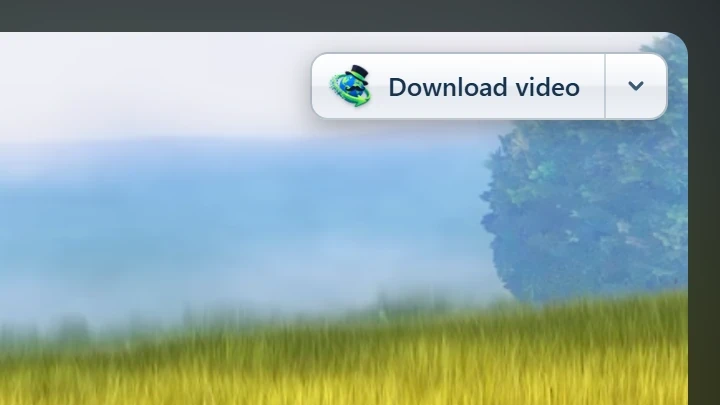
Point at a video on a web page and a small Download video button appears at its edge. Click it and GDM's Download video from a page window opens and looks up the qualities it can download. It takes the video you clicked: its own file when it plays one, or the stream the player loaded (HLS or DASH), else the page. When the button can't tell which one you mean, the toolbar button's Media on this page lists them all. Embedded players work too, and your sign-in for the site, the page that embeds the player and your browser's User-Agent go with it, so videos for members, or that play only on the site that embeds them, can be downloaded. Sound players get the button too.
ปุ่มจะไม่เกะกะ โดยจะแสดงเฉพาะเมื่อชี้ไปที่วิดีโอ (หรือเมื่อโปรแกรมเล่นได้รับโฟกัสจากแป้นพิมพ์ โดยกด Tab เพื่อเลื่อนไปยังปุ่ม) ปุ่มจะค่อยๆ จางเมื่อปล่อยตัวชี้ไว้นิ่งๆ และไม่แสดงบนวิดีโอขนาดเล็กหรือลูปสั้นๆ ที่ไม่มีเสียง (ภาพเคลื่อนไหวและพื้นหลัง) ในโหมดเต็มหน้าจอ ปุ่มจะตามวิดีโอไปหากโปรแกรมเล่นรองรับ สำหรับวิดีโอที่มีการป้องกันการคัดลอก (DRM) ปุ่มจะแจ้งว่าไม่สามารถบันทึกวิดีโอได้
- ย้ายปุ่ม: ลากไปตามขอบวิดีโอ ปุ่มจะยึดกับขอบที่ใกล้ที่สุด และอยู่ตรงนั้นบนเว็บไซต์นั้น
- Its menu (the arrow next to it): Hide on this video, Never on the site (GDM remembers the site), and Button settings..., which opens GDM's Options.
- Turn it off, or see the sites it stays off: Options → General → Customize GDM Download panels in browsers → Edit....

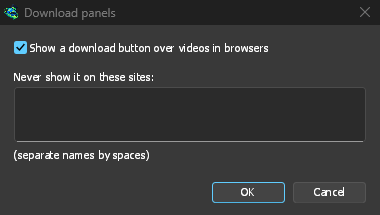
ปุ่มนี้ทำงานตามการตั้งค่าการรวมเบราว์เซอร์ส่วนอื่น โดยจะไม่แสดงเมื่อปิด ใช้การรวมเบราว์เซอร์ขั้นสูง หรือไม่ได้เลือกเบราว์เซอร์
ปุ่มสำหรับบังคับหรือป้องกันการดักจับ
Hold Alt while clicking a link to let the browser download it instead of GDM. In Firefox, Alt+click saves a link only when its browser.altClickSave setting is on (in about:config); otherwise right-click the link and choose Save Link As..., which the browser keeps. Options → General → Keys... says so, and holds Also take files the browser would open.
หากต้องการให้เบราว์เซอร์จัดการดาวน์โหลดจากเว็บไซต์หนึ่งต่อไป ให้ใช้ ไม่รับการดาวน์โหลดจาก บนปุ่มแถบเครื่องมือ หรือเพิ่มเว็บไซต์ลงในรายการ ไม่เริ่มดาวน์โหลดอัตโนมัติจากเว็บไซต์ต่อไปนี้ หากต้องการให้เบราว์เซอร์จัดการไฟล์บางประเภท ให้นำประเภทไฟล์นั้นออกจากรายการประเภทไฟล์
When GDM isn't running
You don't need to start GDM first. When the browser hands over a download and GDM isn't running, the helper starts it and passes the download on.
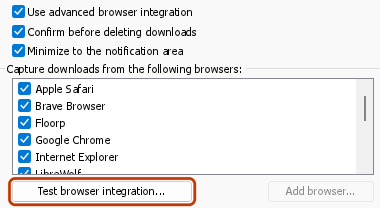
If GDM can't be reached at all (it was uninstalled, or the helper isn't registered), the download stays with the browser, so nothing is lost, and the toolbar button shows a red !. See The browser and GDM aren't connected, or run Options → General → Test browser integration....

ขั้นตอนถัดไป
- บทแนะนำ: รับการดาวน์โหลดจากเบราว์เซอร์ →
- Change which file types GDM takes →
- หากเบราว์เซอร์ไม่ส่งรายการดาวน์โหลดให้ →
ฟรี, โอเพนซอร์ส, ไม่มีโฆษณา, ไม่มีช่วงทดลองใช้
Download GolinksPRO Download Manager