

With the GDM extension, clicking a download link in your browser hands the download to GDM. GDM gets the address together with the page it came from (the referrer), your cookies for the site and the browser's User-Agent, so downloads that need you to be signed in still work.
The extension works in Google Chrome, Microsoft Edge, Brave, Opera and Vivaldi, in Firefox 140 or later, and in Safari 17 or later on a Mac (see Safari).
Browsers built on them work too: Chromium and Helium take the extension as Chrome does, Brave Origin as Brave does, Zen and LibreWolf as Firefox does. On Windows, Zen has a bug of its own (see The browser and GDM aren't connected).
সেট আপ করুন
ব্রাউজার ইন্টিগ্রেশনের দুটি অংশ আছে: একটি ছোট সাহায্যকারী প্রোগ্রাম যার সাথে ব্রাউজার কথা বলে, এবং এক্সটেনশনটি নিজে।
- Install GDM with the setup and keep Set up browser integration (Chrome, Edge, Brave, Firefox) ticked. This registers the helper. (The portable copy can't do this; see Portable mode.) On Linux and macOS GDM registers it itself, each time it starts, for the browsers installed then.
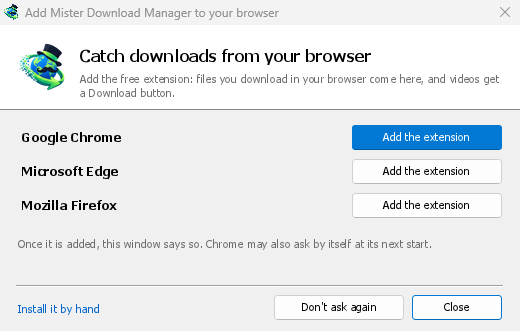
- Add the extension to each browser you use, as below: Firefox from its add-ons store, the others from the Chrome Web Store. Until a browser's extension has reached GDM, GDM's Add GolinksPRO Download Manager to your browser window opens at each start: it lists the browsers it found, and Add the extension opens the store's page in that browser. Install it by hand opens the steps for loading it without the store; Don't ask again stops the window.

Firefox
Firefox 140 or later is needed. Install the add-on from its page on addons.mozilla.org, GolinksPRO Download Manager: click Add to Firefox. Firefox keeps it updated. Zen and LibreWolf install it from the same page. (GDM's Add GolinksPRO Download Manager to your browser window opens that page for you.)
Chrome, Edge, Brave, Opera এবং Vivaldi
Install the extension from its page in the Chrome Web Store, GolinksPRO Download Manager: click Add to Chrome. In Edge the button is Get: Edge first asks to Allow extensions from other stores (click Allow), then Add extension. The browser keeps it updated. GDM's Add GolinksPRO Download Manager to your browser window opens that page in each browser for you, and Chrome may offer it by itself at its next start once GDM is installed.
To load it by hand instead (a browser that can't use the store, or a build of your own): its files are in the extension folder where GDM is installed: %LOCALAPPDATA%\Programs\GolinksPRO Download Manager\extension if you installed it for yourself, or Program Files\GolinksPRO Download Manager\extension if you installed it for everyone. Every release also has them as their own download, ...-extension-chromium.zip (unzip it first).
- এক্সটেনশন পৃষ্ঠা খুলুন:
chrome://extensions,edge://extensionsঅথবাbrave://extensions। - ডেভেলপার মোড চালু করুন।
- আনপ্যাকড লোড করুন ক্লিক করুন এবং
extension\chromiumফোল্ডারটি বেছে নিন।
GolinksPRO Download Manager appears in the list. Leave it turned on. Pin its button to the toolbar to see at a glance whether the browser reaches GDM.
Safari (macOS)
Mac অ্যাপটিতে Safari এক্সটেনশনটি রয়েছে: আলাদা করে কিছু ডাউনলোড করার প্রয়োজন নেই। Safari 17 বা তার পরের সংস্করণ এবং macOS 14 বা তার পরের সংস্করণ প্রয়োজন।
- Drag GDM to Applications and start it once. GDM's Add GolinksPRO Download Manager to your browser window lists Safari: How to Add shows the steps below.
- In Safari open Settings → Extensions and tick GolinksPRO Download Manager. Click Always Allow on Every Website: the extension needs to read the site to pass your sign-in on.
- অ্যাপটি Apple দ্বারা নোটারাইজড না হওয়ায় (পরীক্ষামূলক বিল্ডগুলো নয়), Safari এক্সটেনশনটিকে শুধুমাত্র আনসাইনড এক্সটেনশন অনুমোদিত থাকলে তালিকাভুক্ত করে: Settings → Advanced → Show features for web developers, তারপর Settings → Developer → Allow unsigned extensions। Safari প্রতিবার বন্ধ হওয়ার সময় এই সেটিংটি ভুলে যায়।
Safari একটি এক্সটেনশনকে ব্রাউজারের ডাউনলোড দেখতে বা থামাতে দেয় না, তাই অন্যান্য ব্রাউজার থেকে এর কার্যকারিতা ভিন্ন:
- Works as in the other browsers: the right-click items, the button over videos, Media on this page, the toolbar button, Alt-click, GDM starting by itself, and every rule in Options.
- A click on a link to a file type GDM takes goes to GDM. A download the page starts by itself (a script, or a link with no file name in its address that the server answers with a file) stays with Safari: use right-click → Download with GolinksPRO Download Manager for those.
- উপলব্ধ নয়: ব্রাউজারের প্রক্সি বা VPN শেয়ার করা এবং একটি ফর্ম থেকে ডাউনলোড।
সাধারণ জিপ থেকে
The -x64.zip copy has no installer, but you can register the helper yourself. Open a command prompt in GDM's folder and run:
misterdownloadmanager-nmhost.exe --register
এটি শুধুমাত্র আপনার Windows অ্যাকাউন্টের জন্য। --unregister এটি বাতিল করে। তারপর উপরের মতো জিপের extension ফোল্ডার থেকে এক্সটেনশনটি লোড করুন।
যা লাগে
When you click a download, the extension checks GDM's Options:
- Options → General → Use advanced browser integration must be on. Turn it off to send nothing to GDM.
- বিকল্প → সাধারণ → নিম্নলিখিত ব্রাউজারগুলি থেকে ডাউনলোডগুলি ক্যাপচার করুন-এ আপনার ব্রাউজারটি টিক দেওয়া থাকতে হবে।
- সেটিংস → ফাইলের ধরন → নিম্নলিখিত ফাইলের ধরনগুলো স্বয়ংক্রিয়ভাবে ডাউনলোড করা শুরু করুন তালিকায় ফাইলের ধরনটি থাকতে হবে। তালিকাটি সাধারণ ধরনগুলো দিয়ে শুরু হয়: ZIP, RAR, 7Z, EXE, MSI, ISO, DMG, DEB, RPM, APPIMAGE, MP3, MP4, MKV, WEBM, PDF, GGUF এবং SAFETENSORS-এর মতো AI মডেল, GLB এবং STL-এর মতো 3D ফাইল এবং আরও অনেক কিছু। অন্য যেকোনো কিছু তালিকায় যোগ করা যেতে পারে।
- বিকল্প → ফাইলের প্রকার → নিম্নলিখিত সাইটগুলি থেকে স্বয়ংক্রিয়ভাবে ডাউনলোড শুরু করবেন না তালিকায় সাইটটি থাকা উচিত নয়। নামগুলি স্পেস দ্বারা আলাদা করা হয়, এবং
*যেকোনো অংশের সাথে মিলে যায়, যেমন*.update.microsoft.com। এর নিচে তালিকা সম্পাদনা করুন ... সম্পূর্ণ ঠিকানাগুলি তালিকাভুক্ত করে যা বাদ দিতে হবে, প্রতি লাইনে একটি (https://example.com/private/*)। - বিকল্প → ফাইলের প্রকার → এর চেয়ে ছোট ফাইল নেবেন না ছোট ফাইল (একটি রসিদ, একটি আইকন) ব্রাউজারের জন্য রেখে দেয়। 0 যেকোনো আকারের ফাইল নেয়।
- এক্সটেনশনটিকে সাইটটি পড়ার অনুমতি দিতে হবে। যখন আপনি এটিকে কিছু সাইটে (বা ক্লিক করলে) সীমাবদ্ধ করেন, তখন এটি আপনার সাইন-ইন পাস করতে পারে না, তাই এটি সেই সাইটগুলির ডাউনলোড ব্রাউজারের জন্য রেখে দেয়।
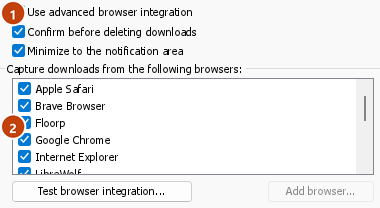
When the browser keeps a download, the extension's button says which of these left it there, with the file's name, and GDM's log has a line for each one (logs\mdm.log in GDM's data folder).
আপনি যে ঠিকানায় ক্লিক করেছেন এবং যে ঠিকানায় এর পুনঃনির্দেশগুলি নিয়ে গেছে, উভয়ই পরীক্ষা করা হয়, তাই আপনি যে সাইটটি বাদ দিয়েছেন সেটি বাদ থাকে, এমনকি যখন এটি আপনাকে অন্য সার্ভারে পাঠায় তখনও। বাকি সবকিছু ব্রাউজারের সাথে থাকে। বিকল্পগুলিতে পরিবর্তনগুলি এক মিনিটের মধ্যে ব্রাউজারে পৌঁছে যায়; আপনাকে এটি পুনরায় চালু করতে হবে না।
When GDM takes a download, it gets the browser's file name, size and type with it, so Download File Info shows them at once without asking the server again. A download from a form (a button that posts and gets a file back) is posted again by GDM with the form's data; a form that sends a file stays with the browser.
When GDM takes a download, the browser's own copy is cancelled and removed from the browser's download list. In Firefox and the browsers built on it (Waterfox, Zen, LibreWolf), GDM takes it as soon as the server answers, before the browser asks What should … do with this file?: for a file GDM takes, that question never shows (Waterfox asks it for every new type of file). Files GDM doesn't take get the question as before. Download File Info opens in GDM (unless you turned it off in Options → Downloads). Cancelling there doesn't hand the download back to the browser.
Click a download link in the browser: Download File Info opens in GDM. 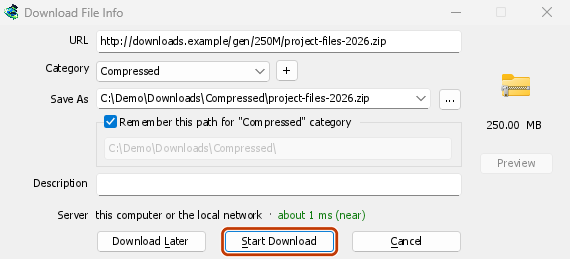

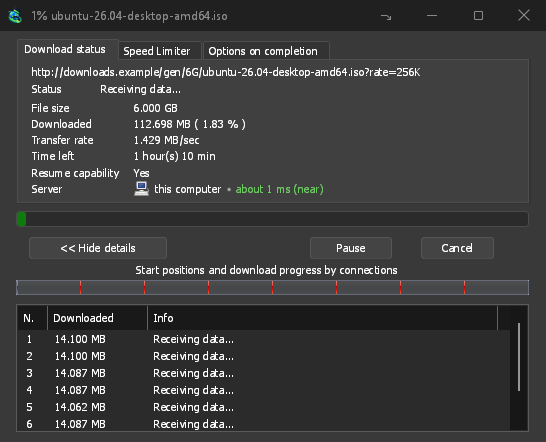
ডাউনলোড শুরু করুন: প্রগ্রেস উইন্ডো দেখায় এটি আসছে। 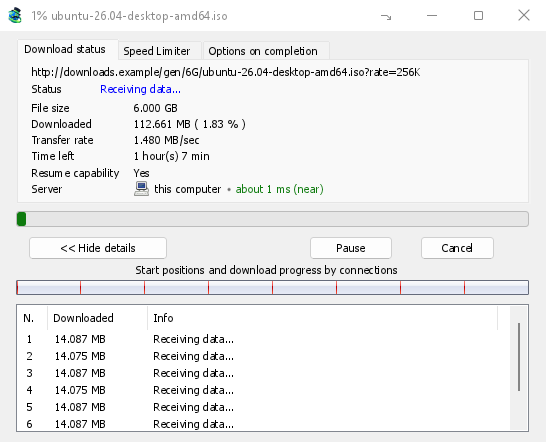
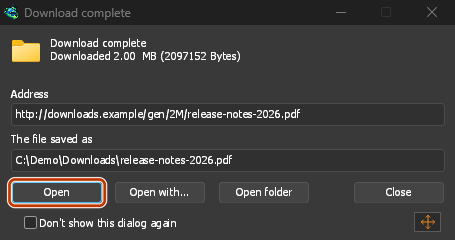
ডাউনলোড সম্পূর্ণ: ফাইলটি খুলুন, অথবা ফোল্ডার খুলুন। 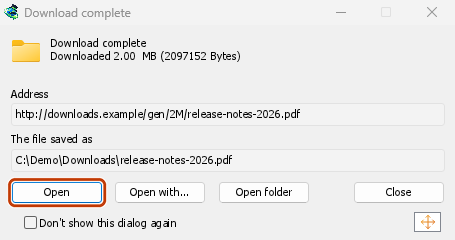
Downloads from a private window use that window's cookies, never the normal ones, and aren't kept in GDM's list after it closes.
Files GDM downloads from the browser are marked as coming from the internet, as the browser marks its own: Windows checks a program with SmartScreen before it runs and Office opens a document in Protected View.
ব্রাউজার যে ফাইলগুলি খুলবে
A PDF, a song or a video that the browser would show or play itself goes to GDM too, when its type is in Options → File types (not on the excluded sites). To turn this off, untick Also take files the browser would open in Options → General → Keys.... This needs a Chromium browser (Chrome, Edge, Brave, Opera, Vivaldi) version 128 or later, or Firefox.
টুলবার বাটন
The extension's button shows whether the browser reaches GDM. A red ! means it doesn't; click the button to see why, and How to fix it opens the matching section of The browser and GDM aren't connected. The button also:
- এই ব্রাউজার থেকে ডাউনলোড নিন: বিরতি দিতে এটি আনটিক করুন, এবং আপনি এটি আবার টিক না করা পর্যন্ত প্রতিটি ডাউনলোড ব্রাউজারের সাথে থাকবে।
- Never take downloads from the current site: adds it to GDM's excluded sites.
- Open GolinksPRO Download Manager and Options....
- Media on this page: what the page has loaded that GDM can download (see below).
একটি VPN বা প্রক্সি এক্সটেনশন
A VPN or proxy extension is a proxy for the browser only. Switch on Send downloads through this browser's proxy or VPN extension in the extension's toolbar popup (it's off as installed), and GDM downloads what it takes from the browser through the same proxy (with Options → Proxy / Socks → Use proxy/socks from a browser's request, on by default; see Options). Switched off, the extension reads nothing of the browser's proxy.
- Firefox asks you once, at the switch, to allow the extension to read the browser's proxy; switching it off takes that permission back. GDM gets the proxy the browser's own request for the file took, including the ones a VPN extension picks for each request.
- Chrome, Edge, Brave, Opera and Vivaldi can't ask for that permission at the switch, so the
extension has it from the install (Chrome counts it under the access to every site the extension
already asks for, so it adds no line to the install prompt and the update asks for nothing new).
The switch asks nothing. GDM gets the browser's effective proxy, whoever set it (a VPN or proxy
extension, a policy, the command line): a fixed server for the download's scheme (
http,https,socks4,socks5), unless the address is on its bypass list, or its proxy auto-config script (by its address or inline). With no proxy, or the system's, nothing is sent and GDM goes by its own Options. A QUIC proxy can't be shared.
উভয় ক্ষেত্রেই, প্রক্সির লগইন কখনও পড়া হয় না: একটি প্রক্সি যা VPN এক্সটেনশনের নিজস্ব লগইনের জন্য জিজ্ঞাসা করে তা শেয়ার করা যায় না, এবং ডাউনলোডটি এটি ছাড়া না গিয়ে তা বলে।
এই পৃষ্ঠার মিডিয়া
কিছু পৃষ্ঠা কোনো লিঙ্ক ছাড়াই ভিডিও চালায়, এবং কিছু প্লেয়ার ডাউনলোড বাটন থেকেও ভিডিও লুকিয়ে রাখে। টুলবার বাটনটি পৃষ্ঠাটি যা লোড করেছে তার তালিকা দেখায়, যাতে আপনি এখনও এটি সংরক্ষণ করতে পারেন:
- স্ট্রিম: HLS (
.m3u8) এবং DASH (.mpd), বেশিরভাগ সাইট যেভাবে দীর্ঘ ভিডিও চালায়। প্রতিটি স্ট্রিম একবার তালিকাভুক্ত করা হয়, প্লেয়ার যতবারই গুণমান পরিবর্তন করুক না কেন, এর গুণমান (1080p · 720p) এবং এর দৈর্ঘ্য সহ, যখন এক্সটেনশন সেগুলি পড়তে পারে। একটি স্ট্রিম যার ঠিকানা.m3u8বা.mpdদিয়ে শেষ হয় না, যা প্লেইন টেক্সট হিসাবে পরিবেশিত হয়, সেটিও খুঁজে পাওয়া যায়: যখন আপনি তালিকাটি খোলেন (বা এর প্লেয়ারের উপর ডাউনলোড বোতাম টিপুন) এবং প্লেয়ার একটি স্ট্রিম চালায়, তখন এক্সটেনশনটি প্লেয়ার দ্বারা আনা প্রথম কয়েক কিলোবাইট পড়ে এটিকে চিনতে পারে। আপনি না চাওয়া পর্যন্ত কিছুই পড়া হয় না। - পৃষ্ঠাটি যে ভিডিও এবং সাউন্ড ফাইল চালিয়েছে (MP4, WebM, MP3 এবং এই জাতীয়), তাদের আকার এবং, একটি ভিডিওর জন্য, এর ছবির আকার।
Start the video first: the list fills as the page loads things, and it's emptied when the tab goes
to another page. With Prefix media file names with the page title on, a file from the list is
named after the page, then its own name (The page - clip.mp4). Click Download beside one: a stream opens GDM's Download video from a page
window, which reads its qualities (yt-dlp does the work); a file goes to GDM's list like any other
download. Your cookies for its server, the page as the referrer and your browser's User-Agent go
with it, as they do for a link you click.
Pieces of a stream (its segments) are never listed. A copy-protected stream (DRM: Widevine, PlayReady, FairPlay, as most paid streaming services use) is listed as Protected, with no Download button: no tool may break that protection, and GDM doesn't try.
এর জন্য আপনার কাছ থেকে আর কিছু প্রয়োজন নেই: এক্সটেনশনটি ইতিমধ্যেই দেখে ব্রাউজার কী ডাউনলোড করে যাতে ডাউনলোডগুলি হস্তান্তর করা যায়। এটি যা নোট করে তা ব্রাউজারের মেমরিতে থাকে এবং ব্রাউজার বন্ধ হলে ভুলে যায়।
Right-click: Download with GolinksPRO Download Manager
Right-click a link, a video, a sound or a picture and choose Download with GolinksPRO Download Manager. GDM downloads it whatever its type: you asked for it, so the file types list and the excluded sites don't apply here (they only decide which downloads GDM takes over by itself). A video that plays as a stream goes to the Download video window with the stream its player loaded (HLS or DASH), as the button over videos sends it, with your cookies for the stream's server and the page as the referrer.
Select part of a page and right-click it for Download selected links with GolinksPRO Download Manager, or right-click the page for Download all links with GolinksPRO Download Manager: the links open in Link grabber, sorted into packages, where you tick the ones you want.
If GDM can't be reached when you choose one of these, the help page opens at the section that explains why.
ভিডিওর উপরে ডাউনলোড বোতাম
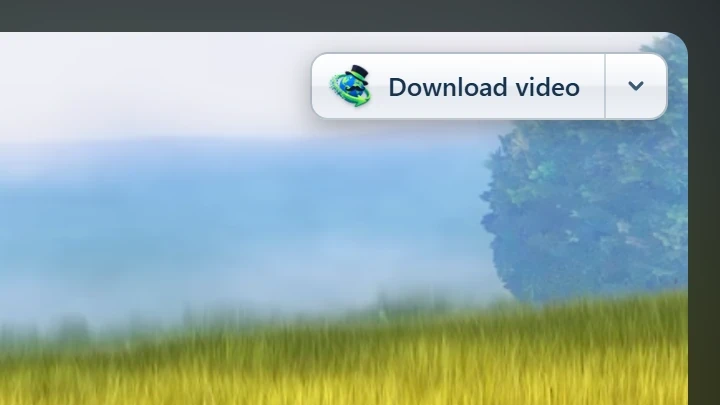
Point at a video on a web page and a small Download video button appears at its edge. Click it and GDM's Download video from a page window opens and looks up the qualities it can download. It takes the video you clicked: its own file when it plays one, or the stream the player loaded (HLS or DASH), else the page. When the button can't tell which one you mean, the toolbar button's Media on this page lists them all. Embedded players work too, and your sign-in for the site, the page that embeds the player and your browser's User-Agent go with it, so videos for members, or that play only on the site that embeds them, can be downloaded. Sound players get the button too.
এটি পথের বাইরে থাকে: এটি কেবল তখনই দেখা যায় যখন আপনি একটি ভিডিওর উপর পয়েন্ট করেন (অথবা প্লেয়ারের কীবোর্ডের ফোকাস থাকে; Tab তখন বাটনে চলে যায়), পয়েন্টার স্থির থাকলে ম্লান হয়ে যায়, এবং ছোট ভিডিও এবং ছোট নীরব লুপ (অ্যানিমেটেড ছবি, ব্যাকগ্রাউন্ড) বাদ দেয়। ফুলস্ক্রিনে এটি ভিডিওকে অনুসরণ করে যখন প্লেয়ার এটি অনুমতি দেয়। একটি কপি-সুরক্ষিত ভিডিওতে (DRM) এটি বলে যে ভিডিওটি সংরক্ষণ করা যাবে না।
- এটি সরান: ভিডিওর কিনারায় যেকোনো জায়গায় টেনে নিয়ে যান; এটি নিকটতম কিনারায় আটকে যায় এবং সেই সাইটে সেখানেই থাকে।
- Its menu (the arrow next to it): Hide on this video, Never on the site (GDM remembers the site), and Button settings..., which opens GDM's Options.
- Turn it off, or see the sites it stays off: Options → General → Customize GDM Download panels in browsers → Edit....

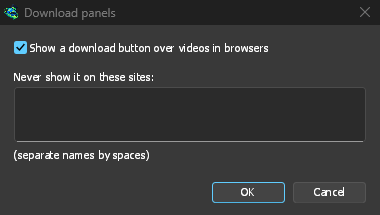
বোতামটি বাকি ইন্টিগ্রেশন অনুসরণ করে: যখন উন্নত ব্রাউজার ইন্টিগ্রেশন ব্যবহার করুন বন্ধ থাকে বা ব্রাউজারটি আনটিক করা থাকে তখন এটি দেখা যায় না।
ডাউনলোড জোর করে বা আটকানোর জন্য কী
Hold Alt while clicking a link to let the browser download it instead of GDM. In Firefox, Alt+click saves a link only when its browser.altClickSave setting is on (in about:config); otherwise right-click the link and choose Save Link As..., which the browser keeps. Options → General → Keys... says so, and holds Also take files the browser would open.
একটি সাইটের ডাউনলোডগুলি ব্রাউজারে স্থায়ীভাবে রাখতে, টুলবার বাটনের কখনোই ডাউনলোড নেবেন না ব্যবহার করুন, অথবা সাইটটি নিম্নলিখিত সাইটগুলি থেকে স্বয়ংক্রিয়ভাবে ডাউনলোড শুরু করবেন না-এ যোগ করুন। ব্রাউজারে একটি ফাইলের প্রকার রাখতে, এটিকে ফাইলের প্রকারের তালিকা থেকে সরিয়ে দিন।
When GDM isn't running
You don't need to start GDM first. When the browser hands over a download and GDM isn't running, the helper starts it and passes the download on.
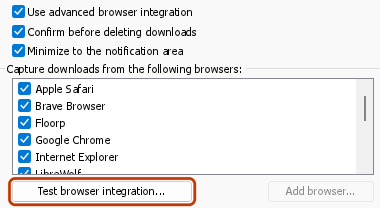
If GDM can't be reached at all (it was uninstalled, or the helper isn't registered), the download stays with the browser, so nothing is lost, and the toolbar button shows a red !. See The browser and GDM aren't connected, or run Options → General → Test browser integration....

পরবর্তী ধাপ
- টিউটোরিয়াল: আপনার ব্রাউজার থেকে ডাউনলোড ধরুন →
- Change which file types GDM takes →
- যদি ব্রাউজার ডাউনলোড হস্তান্তর না করে →
বিনামূল্যে, ওপেন সোর্স, কোনো বিজ্ঞাপন নেই, কোনো ট্রায়াল নেই।
Download GolinksPRO Download Manager