

Het voortgangsvenster
Elke actieve download heeft een eigen voortgangsvenster. Dit wordt geopend wanneer de download start. U kunt het opnieuw openen door op de download in de lijst te dubbelklikken.
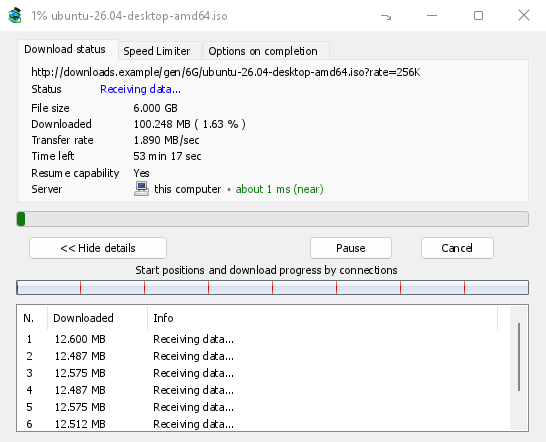
Het tabblad Downloadstatus toont:
- Status — Verbinden..., Gegevens ontvangen..., Gepauzeerd, Voltooid of de foutmelding.
- Bestandsgrootte, Gedownload en Overdrachtssnelheid.
- Resterende tijd.
- Resume capability — Yes if the server lets GDM continue the download later, No if it doesn't.
- Server — waar de server staat en hoe dichtbij. Zie Waar de server staat.
Details weergeven >> (standaard geopend) voegt de verbindingsweergave toe:
- Een balk van het hele bestand, die toont waar elke verbinding is gestart en hoe ver deze is gevorderd (Startposities en downloadvoortgang per verbinding).
- Een tabel met één rij per verbinding: het nummer, hoeveel er is gedownload en wat het op dit moment doet.
De knoppen:
- Pauzeren stopt de download en behoudt wat al is gedownload; Hervatten gaat verder.
- Annuleren stopt de download en sluit het venster. De download blijft in de lijst staan en kan worden hervat.
- Als u het venster sluit met de sluitknop, blijft de download actief.
- Verbergen in het systeemvak (een kort streepje met een pijl naar beneden in de hoek; op Windows in de titelbalk, links van Minimaliseren) plaatst het venster in het systeemvak; Actieve downloads in het menu van het pictogram in het systeemvak haalt het terug. Zie Het pictogram in het systeemvak.
Waar de server zich bevindt
Bestandsinfo downloaden, het voortgangsvenster en Eigenschappen tonen waar de server van een download staat: de vlag en naam van het land, en dan de tijd die een retourtje ernaartoe kost, zoals ongeveer 24 ms (dichtbij).
- Dichtbij (groen): minder dan 60 ms, meestal hetzelfde land of het buurland.
- Gemiddeld (oranje): 60 tot 150 ms, meestal hetzelfde continent.
- Ver weg (rood): meer dan 150 ms, meestal op een ander continent. Een server ver weg is vaak trager; meer verbindingen bieden dan het meeste voordeel.
Houd de muisaanwijzer boven de regel voor het adres van de server en informatie over hoe de tijd is gemeten.
How GDM knows:
- The country comes from a table of address ranges that comes with GDM (IP to Country Lite by DB-IP, CC BY 4.0), looked up on your computer. GDM never sends the address anywhere to ask where it is. The table is updated with each release; an address that has moved since may show its old country.
- The time is measured from the download's own connections, as each one opens: GDM sends nothing extra to the server. It is an estimate (the time to open a connection, divided by its round trips: one for http, two for https), so it says about. The quickest connection counts.
- Een server op uw computer of uw lokale netwerk wordt als zodanig weergegeven, zonder vlag.
- Through a proxy, GDM only sees the proxy, so it says through a proxy (with the proxy's country when it knows it) instead of guessing the server's. A VPN that works at the system level can't be seen: the country is then the server's, but the time includes the VPN's detour.
- Een content delivery network (Cloudflare, Amazon CloudFront, Fastly, Akamai en andere) levert een bestand vanaf een server bij u in de buurt, niet vanaf die van de site-eigenaar. De tooltip vermeldt dit: de locatie is de server van het netwerk, niet waar de site zich bevindt.
- Torrents, videos and galleries have no single server of GDM's own (peers, or yt-dlp's and gallery-dl's), so their windows don't show one.
Eigenschappen bewaart wat de laatste keer is gezien, dus een voltooide download toont nog steeds waar deze vandaan kwam.
Nog twee tabbladen:
- Snelheidsbegrenzer — een limiet die alleen geldt voor deze download. Zie hieronder.
- Opties na voltooiing — toont waar het bestand wordt opgeslagen. Vink Dialoogvenster 'Download voltooid' weergeven uit om het venster Download voltooid alleen voor dit bestand over te slaan.
Tabblad verbergen verwijdert een tabblad uit dit downloadvenster en keert terug naar Downloadstatus. Om de tabbladen terug te halen, klikt u met de rechtermuisknop op de tabbladrij en kiest u Verborgen tabbladen weergeven; het venster sluiten en opnieuw openen brengt ze ook terug.
Wanneer een download is voltooid
Download voltooid toont de bestandsgrootte, het adres en waar het bestand is opgeslagen. Kies Openen, Openen met..., Map openen of Sluiten. Op Windows kunt u ook het kleine vak rechtsonder naar Verkenner, een e-mail of een chat slepen om het bestand daar neer te zetten. Het venster blijft boven uw andere programma's staan totdat u erop klikt, maar neemt het toetsenbord niet over van het programma waarin u typt.
Vink Dit dialoogvenster niet meer weergeven aan om het niet meer te zien. U kunt dit weer inschakelen via Opties → Downloads → Dialoogvenster 'Download voltooid' weergeven.
How GDM uses connections
GDM splits a file into parts and downloads them over several connections at once:
- Standaard gebruikt GDM 8 verbindingen. U kunt dit instellen op 1 tot 32 via Opties → Verbinding → Standaard max. aantal verbindingen, of op maximaal 128 nadat u daar Meer dan 32 verbindingen toestaan aanvinkt. Meer verbindingen helpen alleen als de server de snelheid van elke verbinding beperkt en zoveel verbindingen vanaf één adres toestaat; de meeste servers staan er veel minder toe.
- Wanneer een verbinding zijn deel heeft voltooid, neemt die de helft van het grootste resterende deel over. Zo zit geen enkele verbinding stil terwijl een andere nog bezig is.
- Een verbinding die veel trager is dan de andere, wordt verbroken en opnieuw geopend.
- Some servers allow only a few connections. GDM notices this and stops asking that server for more. What it has learned shows in Options → Connection under Exceptions, marked (auto).
- U kunt zelf een nummer instellen voor een server: Opties → Verbinding → Nieuw, typ vervolgens de naam van de server en het aantal verbindingen.
Each connection writes straight into the file's place on disk, in a part file named <name>.mdm.part next to the final file. When every part is done, GDM checks the size and renames it. There is no temporary folder and no joining step at the end.
Hervatten
A download resumes where it stopped: after you stop it, after the connection drops, or after Windows or GDM crashes. GDM saves how far each part has got as it goes.
- Een verbroken verbinding wordt automatisch opnieuw geprobeerd. De tabel in het voortgangsvenster toont Opnieuw proberen en de reden.
- Als u een gestopte download wilt voortzetten, selecteert u deze en klikt u op Hervatten op de werkbalk (of kiest u Bestand → Nu downloaden).
- Before continuing, GDM checks that the file on the server is still the same. If it changed, the download stops with the file changed on the server. Use Redownload to start again from the beginning.
- If Resume capability is No, the server can't send a file in parts. GDM then downloads it over one connection, and a download that stops has to start over.
Een onderbroken download hervatten omvat ook verlopen links.
Alleen via uw VPN: de netwerkadapter en de killswitch
Options → Proxy / Socks → Network adapter holds every connection GDM opens to one network adapter, usually your VPN's: downloads, FTP, torrents, video pages and galleries, GDM's own downloads and the update check. It works as a kill switch: when the adapter disconnects, or the VPN is switched off, nothing goes out through your normal connection. Running downloads stop with … is not connected, and start again by themselves when the adapter is back. The line under the list shows the adapter's address, or that it isn't connected. Details in Options → Proxy / Socks and, for torrents, in Torrents and your security.
De DNS
Options → Connection → DNS chooses who turns the servers' names into addresses: the system's DNS (the default), or an encrypted one (DNS over HTTPS or TLS) such as Cloudflare, Google, Quad9, AdGuard, NextDNS or your own. With a network adapter chosen, GDM asks it through the adapter, so the names stay inside your VPN too. See Options → Connection.
Snelheidsbegrenzer
The Speed Limiter keeps GDM from using all of your connection.
Voor elke download
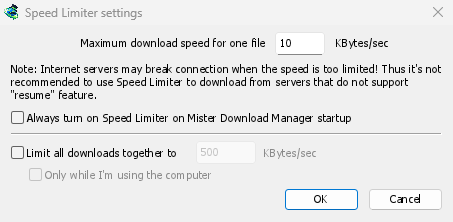
- Kies Downloads → Snelheidsbegrenzer → Instellingen....
- Stel Maximale downloadsnelheid voor één bestand in op KB/sec. De beginsnelheid is 10, dus stel deze waarde in voordat u de snelheidsbegrenzer inschakelt.
- Klik op OK.
- Kies Downloads → Snelheidsbegrenzer → Inschakelen. Met Uitschakelen krijgt u weer de volledige snelheid.
Always turn on Speed Limiter on GolinksPRO Download Manager startup turns it on each time GDM starts.
Een torrent telt hier als één bestand: elke torrent krijgt zijn eigen limiet. Een download met een eigen limiet (zie Voor één download) behoudt die limiet.
Voor alle downloads samen
In the same window, tick Limit all downloads together to and set the speed. This caps GDM as a whole, however many files are downloading, torrents included. When torrents and other downloads run at the same time, each side gets at least half of the speed, and more when the other side needs less: a torrent going slowly leaves the rest to the other downloads, and the other way round. It applies whenever it is ticked, whether the per-file limiter is on or off.
Tick Only while I'm using the computer to apply it only while you use the mouse or keyboard. After a minute without input, GDM goes back to full speed.
Voor één download
Open in het voortgangsvenster van de download het tabblad Snelheidsbegrenzer:
- Vink Snelheidsbegrenzer gebruiken aan.
- Stel Maximale downloadsnelheid in KBytes/sec in. De nieuwe limiet wordt direct toegepast.
- Tick Remember Speed Limiter settings for this file on download stop/resume to keep this limit for the file: it applies again when you resume it later, even after restarting GDM.
Voor een torrent geldt de limiet alleen voor die torrent; de andere behouden hun limiet. Een torrent kan niet onder de 16 KB/sec worden gehouden: een lagere limiet geeft hem 16.
Sommige servers verbreken de verbinding als de snelheid erg laag is. Stel geen strenge limiet in voor servers die downloads niet kunnen hervatten (Hervatbaarheid: Nee).
Volgende stappen
- Snelheid vrijhouden voor al het andere →
- Een onderbroken download hervatten →
- Verbindingsinstellingen in Opties →
Gratis, open source, geen advertenties, geen proefversie.
Download GolinksPRO Download Manager