

진행 창
실행 중인 다운로드마다 진행 창이 있습니다. 다운로드가 시작되면 창이 열립니다. 다시 열려면 목록에서 다운로드를 두 번 클릭하세요.
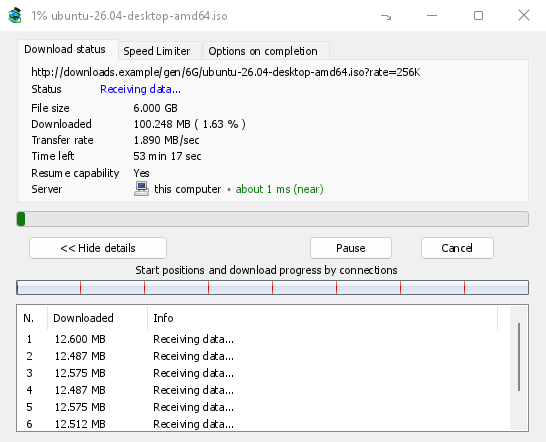
다운로드 상태 탭에는 다음이 표시됩니다.
- 상태 — 연결 중..., 데이터 수신 중..., 일시 중지됨, 완료 또는 오류.
- 파일 크기, 다운로드됨 및 전송률.
- 남은 시간.
- Resume capability — Yes if the server lets GDM continue the download later, No if it doesn't.
- 서버 — 서버의 위치와 거리입니다. 서버 위치를 참조하세요.
세부 정보 표시 >> (기본적으로 열림)를 선택하면 연결 보기가 추가됩니다.
- 각 연결이 시작된 위치와 진행 상황을 보여주는 전체 파일 막대(연결별 시작 위치 및 다운로드 진행률).
- 연결마다 한 행씩 표시되는 표로, 연결 번호와 다운로드한 양, 현재 작업이 표시됩니다.
버튼:
- 일시 중지를 선택하면 다운로드를 중지하고 다운로드한 부분을 유지합니다. 다시 시작을 선택하면 다운로드를 계속합니다.
- 취소를 선택하면 다운로드를 중지하고 창을 닫습니다. 다운로드는 목록에 남아 있으며 다시 시작할 수 있습니다.
- 닫기 버튼으로 창을 닫아도 다운로드는 계속됩니다.
- Hide to the notification area (a short dash with an arrow down to the corner; on Windows in the title bar, left of Minimize) puts the window in the notification area; Downloads in progress in the tray icon's menu brings it back. See The tray icon.
서버 위치
파일 정보 다운로드, 진행 창 및 속성에는 다운로드 서버의 위치가 표시됩니다. 서버가 있는 국가의 국기와 이름, 왕복 시간(예: 약 24 ms (가까움))이 표시됩니다.
- 가까움 (녹색): 60 ms 미만이며, 보통 같은 국가나 인접 국가입니다.
- 중간 (황색): 60~150 ms이며, 보통 같은 대륙입니다.
- 멂 (빨간색): 150 ms 초과이며, 보통 다른 대륙입니다. 서버가 멀면 속도가 느린 경우가 많고, 연결 수를 늘리면 가장 큰 도움이 됩니다.
서버 주소와 시간 측정 방식을 보려면 해당 줄 위로 마우스를 가져가세요.
How GDM knows:
- The country comes from a table of address ranges that comes with GDM (IP to Country Lite by DB-IP, CC BY 4.0), looked up on your computer. GDM never sends the address anywhere to ask where it is. The table is updated with each release; an address that has moved since may show its old country.
- The time is measured from the download's own connections, as each one opens: GDM sends nothing extra to the server. It is an estimate (the time to open a connection, divided by its round trips: one for http, two for https), so it says about. The quickest connection counts.
- 컴퓨터 또는 로컬 네트워크에 있는 서버는 국기 없이 해당 위치에 있는 것으로 표시됩니다.
- Through a proxy, GDM only sees the proxy, so it says through a proxy (with the proxy's country when it knows it) instead of guessing the server's. A VPN that works at the system level can't be seen: the country is then the server's, but the time includes the VPN's detour.
- 콘텐츠 전송 네트워크(Cloudflare, Amazon CloudFront, Fastly, Akamai 등)는 사이트 소유자의 서버가 아닌 가까운 서버에서 파일을 제공합니다. 툴팁에 이 정보가 표시됩니다. 표시되는 위치는 사이트가 있는 곳이 아니라 네트워크 서버의 위치입니다.
- Torrents, videos and galleries have no single server of GDM's own (peers, or yt-dlp's and gallery-dl's), so their windows don't show one.
속성에는 마지막 실행에서 확인한 정보가 유지되므로, 다운로드가 완료된 후에도 다운로드 출처가 표시됩니다.
탭이 두 개 더 있습니다:
- 속도 제한 — 이 다운로드에만 적용되는 제한입니다. 아래를 참조하세요.
- 완료 시 옵션 — 파일이 저장될 위치를 표시합니다. 이 파일에 대해서만 다운로드 완료 상자를 건너뛰려면 다운로드 완료 대화 상자 표시를 선택 해제하세요.
탭 숨기기를 선택하면 이 다운로드 창에서 탭이 사라지고 다운로드 상태로 돌아갑니다. 탭을 다시 표시하려면 탭 행을 마우스 오른쪽 버튼으로 클릭하고 숨겨진 탭 표시를 선택하세요. 창을 닫았다가 다시 열어도 탭이 다시 나타납니다.
다운로드 완료 후
다운로드 완료 창에는 파일 크기, 주소, 저장 위치가 표시됩니다. 열기, 다른 이름으로 열기..., 폴더 열기 또는 닫기를 선택하세요. Windows에서는 오른쪽 아래의 작은 상자를 탐색기, 이메일 또는 채팅 창으로 끌어다 놓아 파일을 첨부할 수도 있습니다. 이 창은 클릭할 때까지 다른 프로그램 위에 표시되지만, 입력 중인 프로그램의 키보드 포커스를 빼앗지는 않습니다.
이 대화 상자를 다시 보지 않으려면 이 대화 상자를 다시 표시 안 함을 선택하세요. 옵션 → 다운로드 → 다운로드 완료 대화 상자 표시에서 다시 켤 수 있습니다.
How GDM uses connections
GDM splits a file into parts and downloads them over several connections at once:
- GDM은 기본적으로 8개의 연결을 사용합니다. 옵션 → 연결 → 기본 최대 연결 수에서 1~32개로 설정할 수 있습니다. 여기서 32개 초과 연결 허용을 선택하면 최대 128개까지 설정할 수 있습니다. 연결 수를 늘려도 서버가 각 연결의 속도를 제한하고 하나의 주소에서 여러 연결을 허용할 때만 속도가 빨라집니다. 대부분의 서버는 훨씬 적은 연결만 허용합니다.
- 연결 하나가 맡은 부분을 완료하면, 아직 남은 부분 중 가장 큰 부분의 절반을 맡습니다. 따라서 다른 연결이 작업 중일 때 놀고 있는 연결이 생기지 않습니다.
- 다른 연결보다 훨씬 느린 연결은 끊어졌다가 다시 열립니다.
- Some servers allow only a few connections. GDM notices this and stops asking that server for more. What it has learned shows in Options → Connection under Exceptions, marked (auto).
- 서버에 대한 연결 수를 직접 설정할 수 있습니다. 옵션 → 연결 → 새로 만들기를 선택한 다음 서버 이름과 연결 수를 입력하세요.
Each connection writes straight into the file's place on disk, in a part file named <name>.mdm.part next to the final file. When every part is done, GDM checks the size and renames it. There is no temporary folder and no joining step at the end.
다운로드 이어받기
A download resumes where it stopped: after you stop it, after the connection drops, or after Windows or GDM crashes. GDM saves how far each part has got as it goes.
- 실패한 연결은 자동으로 다시 시도됩니다. 진행 창의 표에 다시 시도 중 상태와 이유가 표시됩니다.
- 중지된 다운로드를 계속하려면 해당 다운로드를 선택하고 도구 모음에서 다시 시작을 클릭하세요(또는 파일 → 지금 다운로드를 선택하세요).
- Before continuing, GDM checks that the file on the server is still the same. If it changed, the download stops with the file changed on the server. Use Redownload to start again from the beginning.
- If Resume capability is No, the server can't send a file in parts. GDM then downloads it over one connection, and a download that stops has to start over.
중단된 다운로드 다시 시작에서는 만료된 링크도 다룹니다.
VPN만 사용: 네트워크 어댑터 및 킬 스위치
Options → Proxy / Socks → Network adapter holds every connection GDM opens to one network adapter, usually your VPN's: downloads, FTP, torrents, video pages and galleries, GDM's own downloads and the update check. It works as a kill switch: when the adapter disconnects, or the VPN is switched off, nothing goes out through your normal connection. Running downloads stop with … is not connected, and start again by themselves when the adapter is back. The line under the list shows the adapter's address, or that it isn't connected. Details in Options → Proxy / Socks and, for torrents, in Torrents and your security.
DNS
Options → Connection → DNS chooses who turns the servers' names into addresses: the system's DNS (the default), or an encrypted one (DNS over HTTPS or TLS) such as Cloudflare, Google, Quad9, AdGuard, NextDNS or your own. With a network adapter chosen, GDM asks it through the adapter, so the names stay inside your VPN too. See Options → Connection.
속도 제한
The Speed Limiter keeps GDM from using all of your connection.
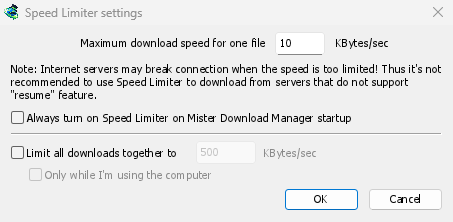
모든 다운로드에 적용
- 다운로드 → 속도 제한 → 설정...을 선택하세요.
- 파일 하나의 최대 다운로드 속도를 KB/초 단위로 설정하세요. 기본값은 10이므로 속도 제한을 켜기 전에 설정하세요.
- 확인을 클릭하세요.
- 다운로드 → 속도 제한 → 켜기를 선택하세요. 끄기를 선택하면 다시 최고 속도로 다운로드합니다.
Always turn on Speed Limiter on GolinksPRO Download Manager startup turns it on each time GDM starts.
여기서는 토렌트 하나를 파일 하나로 취급합니다. 토렌트마다 각각의 제한이 적용됩니다. 자체 제한이 설정된 다운로드(다운로드 하나에 적용 참조)는 해당 제한을 사용합니다.
모든 다운로드에 대해
In the same window, tick Limit all downloads together to and set the speed. This caps GDM as a whole, however many files are downloading, torrents included. When torrents and other downloads run at the same time, each side gets at least half of the speed, and more when the other side needs less: a torrent going slowly leaves the rest to the other downloads, and the other way round. It applies whenever it is ticked, whether the per-file limiter is on or off.
Tick Only while I'm using the computer to apply it only while you use the mouse or keyboard. After a minute without input, GDM goes back to full speed.
단일 다운로드에 대해
다운로드 진행 창에서 속도 제한 탭을 엽니다.
- 속도 제한기 사용을 선택합니다.
- KB/초 단위로 최대 다운로드 속도를 설정합니다. 새로운 제한은 즉시 적용됩니다.
- Tick Remember Speed Limiter settings for this file on download stop/resume to keep this limit for the file: it applies again when you resume it later, even after restarting GDM.
토렌트에 설정한 제한은 해당 토렌트에만 적용되며, 다른 토렌트에는 각자의 제한이 적용됩니다. 토렌트 속도는 16KB/초 미만으로 제한할 수 없습니다. 더 낮은 제한을 설정하면 16KB/초가 적용됩니다.
속도가 매우 낮으면 일부 서버에서 연결이 끊길 수 있습니다. 다시 시작할 수 없는 서버(다시 시작 기능: 아니요)에는 너무 낮은 제한을 설정하지 마세요.
다음 단계
무료, 오픈 소스, 광고 없음, 평가판 없음.
Download GolinksPRO Download Manager