

먼저, 무슨 일이 일어났는지 확인하세요
모든 다운로드는 재시도, 리디렉션, 서버 응답 및 오류와 같은 최근 이벤트 로그를 유지합니다.
- 목록에서 다운로드의 상태에 마우스를 올리면 확인할 수 있습니다.
- 또는 진행 창을 엽니다(미완료 다운로드를 두 번 클릭). 연결 테이블은 각 연결이 무엇을 하는지 보여주며, 연결이 실패하면 이유와 함께 재시도 중으로 표시됩니다.
- 파일 속성(Alt+Enter)은 마지막 시도 및 결과를 보여줍니다.
다운로드에 오류가 표시됩니다
- 이유를 읽어보세요(상태에 마우스를 올립니다).
- 다운로드를 선택하고 다시 시작을 클릭합니다. 많은 오류는 서버나 연결이 일시적으로 불안정할 때 발생합니다.
- 링크가 만료된 경우(로그인하는 사이트의 링크 또는 시간 제한이 있는 링크에서 흔함) 새 링크를 받으세요: 마우스 오른쪽 버튼 클릭 → 다운로드 주소 새로 고침. 손상된 다운로드 다시 시작을 참조하세요.
- If it says the file changed on the server, the file isn't the one GDM started with. Right-click → Redownload to start again from the beginning.
- Google Drive에서 지금 이 파일을 제공하지 않습니다라고 표시되면 해당 파일의 Drive 다운로드 제한에 도달한 것입니다. Google Drive 링크를 참조하세요.
다운로드가 다시 시작되지 않고 처음부터 다시 시작됩니다
- Look at Resume capability in the progress window. No means the server can't send a file in parts, so GDM can't continue it later.
- 일부 서버는 동일한 파일에 대해 매번 새 날짜를 보고합니다. 옵션 → 다운로드 → 다운로드 다시 시작 시 파일 수정 시간 변경 무시를 선택하세요.
다운로드가 느립니다
- 속도 제한이 꺼져 있는지 확인하세요: 다운로드 → 속도 제한 → 끄기. 또한 다운로드 → 속도 제한 → 설정... → 모든 다운로드 제한을 확인하세요. 이는 제한기가 꺼져 있어도 적용됩니다.
- 진행 창에서 다운로드 자체의 속도 제한 탭을 확인하세요.
- Check Options → Connection. A low Default max. conn. number, or an exception for the server, means fewer connections. Rows marked (auto) are servers that refused more connections; GDM can't do more there.
- 예약 관리자에서 다운로드 제한을 확인하세요. 제한에 도달하면 다운로드는 대기 중: 다운로드 제한에 도달했습니다(스케줄러)로 대기합니다.
The browser doesn't send downloads to GDM
- Was GDM installed with the setup, with Set up browser integration ticked? A portable copy can't take browser downloads. Run the setup again to add it.
- Is the extension loaded and turned on? Look for GolinksPRO Download Manager on the browser's extensions page. In Firefox, install it from addons.mozilla.org: a temporary add-on is gone after a restart. See Browser integration.
- 옵션 → 일반 → 고급 브라우저 통합 사용이 켜져 있고, 다음 브라우저에서 다운로드 캡처 아래에 브라우저가 선택되어 있습니까?
- Is the file's type in Options → File types? Only listed types are taken automatically. Download with GolinksPRO Download Manager on the right-click menu takes any link.
- 사이트가 다음 사이트에서 자동으로 다운로드 시작 안 함에 있습니까?
When none of this helps, the browser keeps the download, so nothing is lost. The extension's toolbar button says why it couldn't reach GDM; see The browser and GDM aren't connected.
예약 관리자가 큐를 시작하지 않았습니다
- GDM must be running at that time. Closing the window is fine (it stays in the tray); Tasks → Exit is not.
- 시간을 설정한 후 적용을 클릭했습니까?
- 매일은 선택한 요일에만 시작됩니다. 다음 시간에 한 번은 해당 날짜에만 시작됩니다.
- 컴퓨터가 절전 모드일 때는 이 큐를 실행하기 위해 컴퓨터 절전 모드 해제가 선택되어 있지 않으면 아무것도 실행되지 않습니다 (Windows에서는 전원 관리 옵션에서 절전 모드 해제 타이머 허용이 필요하며, 예약 관리자에서 꺼져 있는지 확인할 수 있습니다). 큐 실행을 위해 컴퓨터 절전 모드 해제를 참조하세요.
동영상이 다운로드되지 않습니다
동영상이 다운로드되지 않는 경우를 참조하세요.
마그넷 링크가 오래 걸립니다
A magnet link has to get the torrent's file list from other peers first. That can take a minute or two, and longer for torrents with few peers. If nobody answers in about three minutes, GDM gives up; try again later, or use the .torrent file if the site offers one.
GDM uses a lot of memory
작업 관리자에는 여러 수치가 표시되며, 각각 다른 의미를 가집니다:
- Memory (on the Processes tab) is what GDM holds for itself alone, its private working set. With the window open and nothing downloading, that is about 70 MB.
- Working set (Details tab, add the column) adds memory shared with other programs. GDM draws its windows with the graphics card, so the graphics driver's memory counts here too, about 120 MB in all.
- Commit size is memory GDM has reserved, whether in use or not.
Closed to the notification area, GDM gives its memory back to Windows: Memory drops to under 10 MB within seconds and stays low while it waits. Downloads, queues and the scheduler go on as before. The list of every language (View → Language) loads fonts for every script while it's open; GDM lets them go when it closes.
텍스트가 너무 작거나 흐릿하게 보입니다
GDM keeps Internet Download Manager's compact sizes. On a large or high-resolution screen, choose View → Interface size (125 %, 150 %, 175 % or 200 %), or press Ctrl + and Ctrl − in any GDM window, as in a browser; Ctrl 0 goes back to 100 %. Every window follows at once, and GDM starts at that size next time. It comes on top of Windows' own display scale (Settings → System → Display → Scale).
해당 크기에서 화면보다 큰 창 (1366 × 768 화면에서 200%로 설정된 옵션)은 화면이 허용하는 최대 크기로 열리며, 나머지는 스크롤됩니다. 스크롤 막대, 마우스 휠 또는 Tab 키를 사용하여 다음 컨트롤로 이동할 수 있습니다.
GDM tells Windows it draws for each monitor's own scale, so Windows never stretches its windows into blur, and it draws Windows' fonts grid-fitted to whole pixels. If the text still looks blurred, tell us your screen's resolution and Windows' display scale when you report it.
창이 멈추거나 잘못 그려집니다
On Windows, GDM draws its windows with Direct3D 12; on Linux and macOS, with OpenGL, or with Vulkan (Linux) or Metal (macOS) when you choose them. A graphics driver can still misbehave: a window that holds still for seconds, flickers, or shows wrong colours or blocks. Try the other one: choose View → Draw with → OpenGL (or Direct3D, Vulkan, Metal), then quit GDM (Tasks → Exit) and start it again. Choosing the first one goes back the same way.

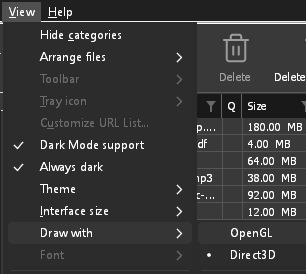
- If Direct3D, Vulkan or Metal can't start on your computer (no driver for it, some virtual machines), or its first window doesn't show within 10 seconds of its own (the time GDM spends loading your list and its icons doesn't count, however slow the computer is just after it starts), GDM draws with OpenGL, and View → Draw with says so and why. Choosing it again tries it again at the next start.
- Linux에서 Vulkan을 사용하려면 그래픽 카드용 Vulkan 드라이버가 필요합니다. AMD와 Intel 그래픽 카드에는 Mesa 드라이버(
mesa-vulkan-driversUbuntu 및 Debian,vulkan-radeon또는vulkan-intelArch)를, NVIDIA 그래픽 카드에는 NVIDIA 전용 드라이버를 사용하세요. - If neither can start, GDM draws with a software renderer (Microsoft's on Windows, Mesa's on Linux), so the window still opens (Remote Desktop, a virtual machine without a graphics driver). It works, but keeps the processor busier.
- If the graphics card is reset while GDM runs (a driver update), GDM starts again by itself. Lost twice in 10 minutes, it goes back to OpenGL, and View → Draw with says why.
- 카드 제조업체 사이트(Intel, AMD 또는 NVIDIA)에서 그래픽 드라이버를 업데이트하면 이러한 문제 중 상당수가 해결됩니다.
- A freeze whose report shows the window thread inside the graphics driver as it shows a frame (
ig4icd64.dllorig9icd64.dllfor Intel,nvoglv64.dllfor NVIDIA,atio6axx.dllfor AMD, underopengl32.dll) is the driver's OpenGL stuck, not GDM: on Windows, choose View → Draw with → Direct3D (the default) and restart GDM, and update the graphics driver. If Draw with says Direct3D didn't start there, the line under it says why. - A freeze or crash report says which one was drawing, on which graphics card and driver, and why that one (chosen, the default, or the other one failing), on its
Drawing with:line near the top: include it when you report a problem. A freeze report also says whether GDM was busy, waiting, or hardly ran at all (a computer too busy to run it); see Crash reports.
The setup or GDM won't start
- Windows에서 Windows에서 PC를 보호했습니다라고 표시되면 자세히를 클릭하고 파일이
MisterDownloadManager-<version>-setup.exe인지 확인한 다음, 릴리스 페이지에서 받은 파일이면 그래도 실행을 클릭하세요. - GDM runs only once. Starting it again brings the running copy's window to the front. If nothing appears, look for GDM's icon in the notification area.
- Linux, from the AppImage or the tar.gz: if the system lacks a library GDM's window needs (such as
libxkbcommon-x11), GDM names it on the terminal and in a message box, with the command that installs it (sudo apt install libxkbcommon-x11-0, or your distribution's). The .deb and .rpm bring these libraries themselves. In a Wayland session GDM opens its window on Wayland instead. - Linux, the first start is slow: GDM looks up the system's fonts for every script once, all together, while it starts (fontconfig); a first start on a busy computer can take a few seconds more. Install your distribution's Noto fonts if some scripts or symbols show as boxes.
My antivirus or VirusTotal flags GDM
일부 백신 프로그램은 새로운 설치 파일을 거의 본 적이 없다는 이유만으로 위험으로 표시하며, 특히 머신러닝 엔진에서 이런 현상이 자주 발생합니다. VirusTotal에서 대형 엔진은 아무런 문제를 표시하지 않는데 소수의 작은 엔진만 새로운 설치 파일을 위험으로 표시하는 경우, 대개 오탐입니다. 이런 경우 해당 업체에 보고합니다.
사용 중인 파일이 정품인지 확인하려면:
- Download GDM only from the website or GitHub Releases.
- 파일의 SHA-256을 확인하세요. Windows에서는
certutil -hashfile "MisterDownloadManager-0.5.0-setup.exe" SHA256를 실행하고, Linux에서는sha256sum와 파일 이름을 입력하세요. - 해당 릴리스의
SHA256SUMS.txt에 있는 동일 파일의 라인과 비교하세요.
일치하면 저희가 게시한 파일입니다. 모든 릴리스는 공개 소스 코드를 사용하여 GitHub에서 빌드되므로, 누구나 내용을 확인할 수 있습니다.
If your antivirus quarantined GDM, restore it and add an exception for its folder. If it flags something other than the setup or GDM's own programs, or a copy from anywhere else, don't run it, and please tell us.
HTTPS 다운로드가 "인증서 없음" 오류로 실패합니다 (Linux)
A minimal Linux system (often with the AppImage, the tar.gz or a build from source) may have no CA certificates, which GDM needs to check a secure server. Plain http:// and ftp:// downloads still work; each https:// or ftps:// one stops at once saying the computer has no certificates to check the server with. Install the ca-certificates package (sudo apt install ca-certificates, sudo dnf install ca-certificates), then resume the download. The .deb and .rpm bring it.
데이터 위치
- 설치된 버전 또는 일반 zip:
%APPDATA%\misterdownloadmanager. 목록과 설정은downloads.json에 있습니다. - 포터블 버전:
data폴더는misterdownloadmanager.exe옆에 있습니다. - Linux:
~/.local/share/misterdownloadmanager; Mac:~/Library/Application Support/misterdownloadmanager. - 비밀번호 (사이트 로그인, 프록시, 디브리드 계정)는
downloads.json이 아닌 시스템 키체인에 저장됩니다. 옵션 → 사이트 로그인을 참조하세요.
To back up your list, quit GDM (Tasks → Exit) and copy downloads.json.
업데이트
Help → Check for updates... tells you whether a newer version is out, and what is new in it. Check for updates at every start in that window lets GDM look by itself: a few seconds after it starts, and once a day while it stays open. When there's a new version, its window opens in front.
When there is one, Update now downloads it, checks it, puts it in place and restarts GDM; your list, settings and downloads stay as they are:
| 설치 유형 | 지금 업데이트 기능 |
|---|---|
| Windows, 설치 프로그램 | 새 설치 프로그램을 창을 표시하지 않고 실행합니다. 모든 사용자를 대상으로 설치할 때는 관리자 권한을 요청합니다. |
| Windows, 포터블 또는 일반 zip | 해당 폴더의 프로그램을 교체합니다(포터블 복사본의 data 폴더는 유지됩니다). |
| Mac | 응용 프로그램 폴더의 앱을 교체합니다. |
| Linux, AppImage 또는 .tar.gz | AppImage 또는 해당 폴더의 프로그램을 교체합니다. |
| Linux, .deb 또는 .rpm | 확인된 패키지를 시스템의 패키지 설치 프로그램으로 엽니다. 이 프로그램은 암호를 요청합니다. |
| Linux, 다른 패키지 관리자의 패키지 (pacman, ...) | 없음: 창에 그렇게 표시되며, 시스템 업데이트를 통해 새 버전이 제공됩니다. |
GDM installs an update only when the release's list of checksums is signed by GDM's release key and the file matches it; anything else is refused, and Download opens the Releases page instead. Updating this way starts with version 0.2.1: earlier versions open the Releases page.
AppImage는 AppImage 도구(AppImageLauncher, Gear Lever, AppImageUpdate)를 통해 업데이트할 수도 있습니다. 업데이트 주소를 가지고 있으며, 각 릴리스에는 .AppImage.zsync 파일이 있어 해당 도구는 변경된 부분만 다운로드합니다. 이 기능은 버전 0.2.4 이후의 AppImage부터 시작됩니다.
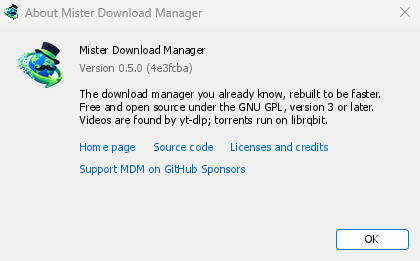
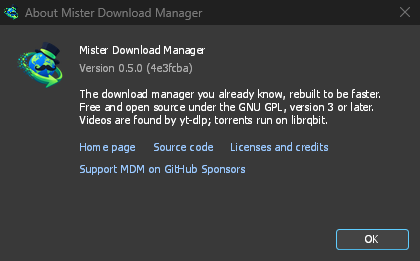
Help → About GolinksPRO Download Manager shows the version you have.
문제 보고
Choose Help → Report a problem. It opens the bug report form on GitHub with your GDM version, your system and its version, how GDM was installed and its interface language already filled in. Describe what happened, what you expected and the steps that make it happen. For a download, include the address if you can share it, and the reason shown under Status.
직접 양식을 열 수도 있습니다. 동일한 세부 정보를 요청합니다.
다음 단계
무료, 오픈 소스, 광고 없음, 평가판 없음.
Download GolinksPRO Download Manager