

ダウンロード → オプションを開くか、ツールバーのオプションをクリックします。ウィンドウには、2列のタブに12のページがあります。OKで変更を保存し、ウィンドウを閉じるかEscを押すと変更は破棄されます。
一部のボタンはグレー表示されています。これらはまだ実装されていない機能です。
一般

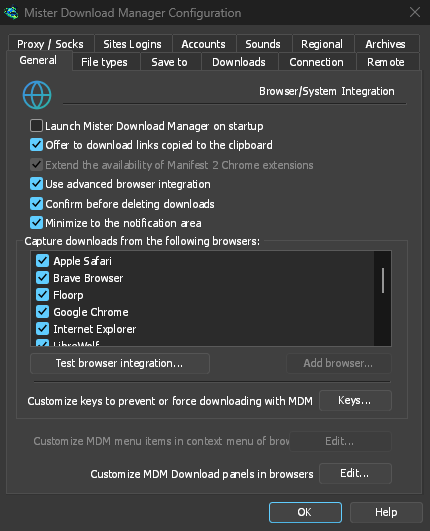
- Launch GolinksPRO Download Manager on startup — start GDM when you sign in to Windows. It starts in the notification area, its window hidden, with its downloads, queues and Scheduler running; click its icon (or start GDM again) to show the window. On Linux and macOS it starts with your session the same way; where no notification area shows GDM's icon (some Linux desktops), it starts minimized, and the option's tooltip says so. GDM waits for the notification area up to 30 seconds after making its icon, its window hidden, as a desktop's can come up after GDM at sign-in. Off by default. Greyed in a portable copy, which writes nothing to the registry.
- クリップボードにコピーされたリンクをダウンロードするよう提案する: ファイルの種類ページにあるファイル形式のリンクをコピーすると、ダウンロード ファイル情報が開き、ダウンロードを開始する準備ができます(ダウンロード開始ダイアログを表示がオフの場合、ダウンロードはすぐに開始されます)。アーカイブ、プログラム、音楽、ビデオ、PDF、および自分で追加した種類に限定されるため、写真、フォント、3Dモデルのアドレスをコピーしてもダウンロードは開始されません。既定でオンになっています。
- Use advanced browser integration — let the browser extension hand downloads to GDM. Turn it off to keep every download in the browser.
- ダウンロードを削除する前に確認する — ダウンロードをリストから削除する前に確認します。既定ではオンです。確認画面で今後このダイアログを表示しないにチェックを入れるとオフになり、ここにチェックを入れると再びオンになります。
- Keep running when closing the window — closing the main window hides it in the notification area instead of quitting, and downloads, queues and schedules go on. On by default; unticked, closing quits GDM (so a portable copy's folder can then be deleted). If there is no icon for GDM at all — not even behind the ^ hidden icons — the window minimizes to the taskbar instead, so downloads continue and the window stays reachable; an icon behind ^ can be clicked to bring it back, or start GDM again. Greyed where no tray shows GDM's icon (some Linux desktops): closing quits there.
- Minimize to the notification area — Minimize hides the main window, and a download's progress window, in the notification area; downloads go on. On by default. Where the tray has no icon, the main window minimizes to the taskbar instead. The close setting above is separate; when it is on, closing hides there too (or minimizes to the taskbar if there is no icon at all). Greyed where no tray shows GDM's icon (some Linux desktops); in a Wayland session the main window stays minimized in the dock, since Wayland can't hide a window.
- 以下のブラウザーからのダウンロードをキャプチャする — そのブラウザーのダウンロードをそのままにするには、チェックを外します。
- Customize GDM Download panels in browsers → Edit... — the download button over videos on web pages: turn it off, or list the sites it never shows on (separate them by spaces;
*.example.comcovers its subdomains). See Browser integration.
ブラウザー統合を参照してください。
ファイルの種類
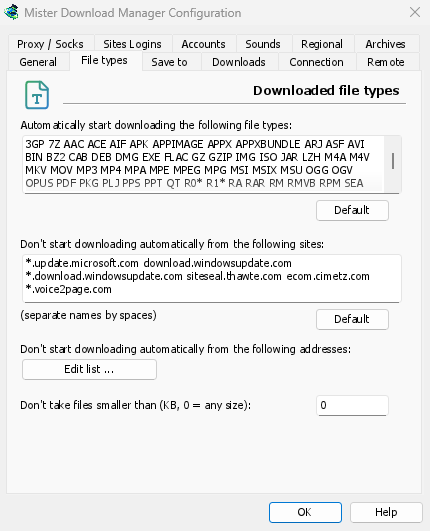

- 次のファイルの種類を自動的にダウンロードする: ブラウザーが引き渡す(およびクリップボードが取得する)ファイルの種類です。スペースで区切ります。
*はR0*のように任意の文字に一致します。既定をクリックすると、元のリストに戻ります。リストは、一般的なアーカイブ、プログラム、インストーラー(Windows、macOS、Linuxのもの:DMG、PKG、DEB、RPM、APPIMAGE、MSIX)、音楽、ビデオ、PDF、Officeファイル、AIモデルとデータセット(GGUF、SAFETENSORS、CKPT、PT、ONNX、PARQUET)、3DおよびCADファイル(GLB、FBX、OBJ、STL、BLEND、STEP)、デザインおよびカメラRAWファイル、電子書籍、ディスク イメージ、分割アーカイブから始まります。ページ、スクリプト、プレーン テキスト、Web画像は意図的に除外されているため、写真やページの保存はブラウザーで行われます。必要な種類を追加するか、ボックスに単一の*を入力して、拡張子を持つすべてのファイルを取得します。変更されていないリストには新しいバージョンが追加する種類が追加されます。編集したリストはそのまま残ります。 - 以下のサイトからは自動的にダウンロードを開始しない — ダウンロードをブラウザーで行うサイトをスペースで区切って指定します。
*.example.comはサイトのすべての部分に一致します。既定をクリックすると、元の一覧に戻ります。
保存先
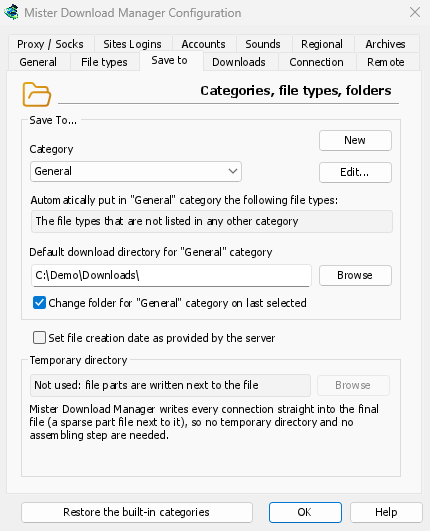

- カテゴリ — カテゴリを選択すると、下に設定が表示され、変更できます。
- 新規 — 独自のカテゴリを作成します。編集... — 選択したカテゴリの名前、ファイルの種類、フォルダーを変更します。組み込みのカテゴリ (圧縮、ドキュメント、音楽、プログラム、ビデオ) は、独自のものと同様に名前を変更したり、他のファイルの種類を指定したり、削除したりできます。名前を変更したカテゴリはフォルダーを保持します。一般とトレントはフォルダーのみを変更します。
- 組み込みのカテゴリを復元 — 名前を変更したり、種類を変更したり、削除したりした組み込みのカテゴリを元の状態に戻します。
- 以下のファイルの種類を「…」カテゴリに自動的に振り分ける — このカテゴリに振り分けるファイルの種類です。
- 「…」カテゴリの既定のダウンロード フォルダー — カテゴリのフォルダーです。パスを入力するか、参照をクリックします。
- 最後に選択したフォルダーを「…」カテゴリのフォルダーにする — ダウンロード ファイル情報で別のフォルダーを選択すると、以降そのフォルダーがカテゴリの保存先になります。既定ではオンです。(このウィンドウのこのパスを記憶するの初期状態を設定します。)
- サーバーから提供されたファイル作成日を設定 — ダウンロードした日付ではなく、サーバーから報告された日付をダウンロード完了後のファイルに設定します。
GDM doesn't use a temporary folder: every connection writes straight into the final file's place, so there is nothing to put together at the end.
ダウンロード
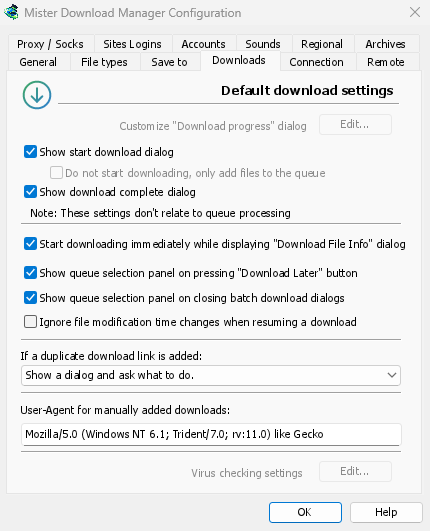
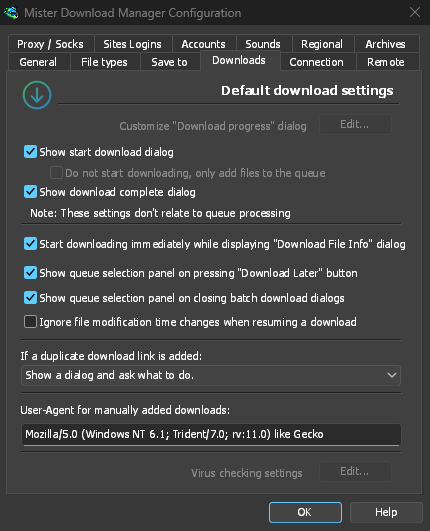
- ダウンロード開始ダイアログを表示 — 新しいダウンロードごとにダウンロード ファイル情報を表示します。オフにすると、ダウンロードはすぐに開始されます。ただし、ダウンロードを開始せず、ファイルをキューに追加するだけにチェックを入れている場合は、キューに追加されます。
- ダウンロード完了ダイアログを表示 — ファイルのダウンロードが完了したときにダウンロード完了を表示します。
- 「ダウンロード ファイル情報」ダイアログの表示中にダウンロードを開始する — 既定ではオンです。フォルダーを選択している間もダウンロードが進みます。
- 「後でダウンロード」ボタンを押したときにキュー選択パネルを表示 — どのキューに入れるか尋ねます。オフにするとメインダウンロードキューに入ります。
- 一括ダウンロード ダイアログを閉じるときにキュー選択パネルを表示 — 一括ダウンロードの場合も同様です。
- ダウンロードを再開するときにファイル変更時間の変更を無視する — 同じファイルに対して毎回新しい日付を報告するサーバーの場合。これがないと、そのようなサーバーは再開するたびに最初からやり直します。
- 重複するダウンロードリンクが追加された場合 — 尋ねる、番号付きの名前で追加する、古いものを上書きする、または完了したものを開く/未完了のものを再開する。
- User-Agent for manually added downloads — how GDM names itself to servers for downloads you add yourself. Downloads from the browser use the browser's own User-Agent.
接続
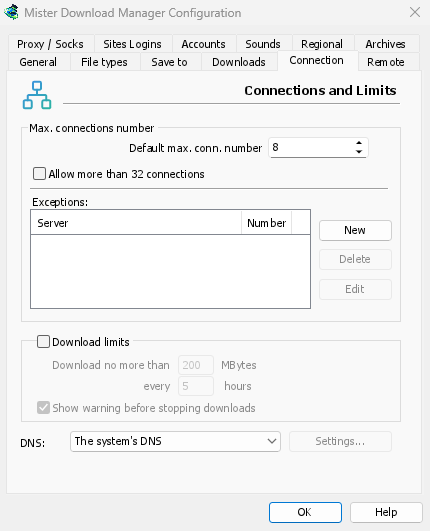
- 既定の最大接続数 — 各ダウンロードで使用できる接続数。1から32まで(既定は8)。数字を入力するか、矢印を使用してください。
- Allow more than 32 connections — raises the most to 128, for the number above and for the exceptions. Most servers allow far fewer from one address; GDM notices and asks those for fewer. Turned off again, any higher number comes back to 32.
- Exceptions — a different number for some servers. New adds one (the server's name and the number of connections); Edit and Delete change or remove the selected one. Rows marked (auto) are limits GDM learned by itself from servers that refused more connections. They can't be edited and fade away by themselves.
- ダウンロード制限 — 数時間ごとに設定された量を超えてダウンロードしないようにします。同じ設定はスケジューラにもあります。キューとスケジューラを参照してください。
- DNS — which DNS turns the servers' names into addresses for GDM's downloads, its own downloads (helpers, updates) and FTP. The system's DNS is the default (on Windows 11 it can already be encrypted, in Windows' own network settings). Or pick Cloudflare, Google, Quad9, AdGuard or NextDNS, or Another DNS... to type your own; Settings... chooses how it's asked:
- DNS over HTTPS(デフォルト)または DNS over TLS:暗号化されているため、途中で誰も検索した名前を見たり変更したりできません。
- Plain DNS: not encrypted. GDM asks it over TCP, never UDP, so it never needs a firewall exception.
- 独自の DNS の場合:サーバーの IP アドレス、証明書に表示される名前(TLS)、または
https://アドレス(HTTPS、IP アドレスが分かっている場合はそれも)を入力します。NextDNS は設定 ID を使用します。 - 到達できない場合はシステムの DNS を使用する:デフォルトではオフになっています。そのため、応答しない DNS は、システム DNS に検索を静かに表示するのではなく、その名前をメッセージで示してダウンロードを停止します。DNS が存在しないと判断した名前は、フォールバックしません(これはフィルタリング DNS を無効にしてしまいます)。
- テスト は github.com に問い合わせを行い、かかった時間を示します。
ホスト ファイル内の名前、およびローカル名(単一の単語、.local、.lan、.home.arpa、.internal、localhost)は、システムの DNS を使用します。ビデオ ページ(yt-dlp)と画像ギャラリー(gallery-dl)は、ネットワーク アダプターが選択されている場合にのみ、選択した DNS を使用します。それ以外の場合、トレント トラッカーと同様にシステムの DNS を使用します。プロキシを使用する場合、プロキシがアクセスするサイトの名前を検索します。
接続と速度で詳細を確認してください。
プロキシ / SOCKS
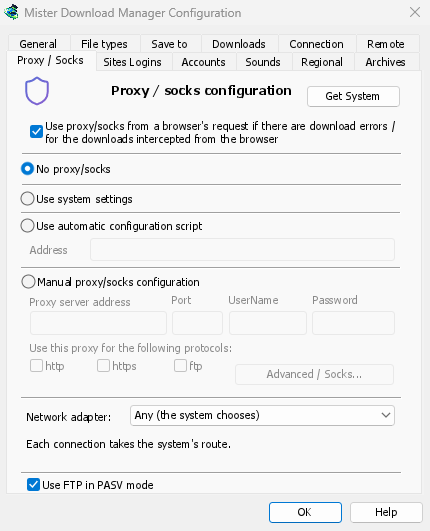
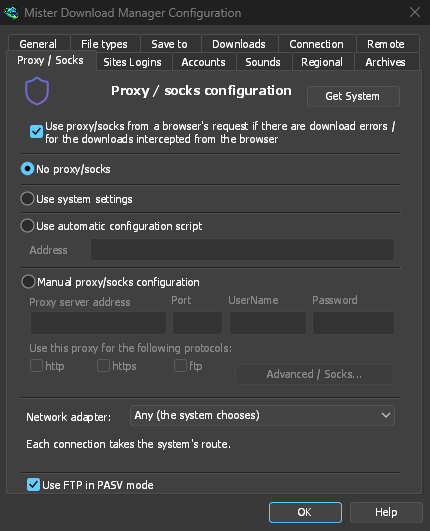
- プロキシ/SOCKS なし — 直接接続します。これが既定です。
- システム設定を使用する — システムのプロキシを使用します。Windows または macOS の設定、または Linux ではセッションの
https_proxy、http_proxy、all_proxy変数を使用します。 - Use automatic configuration script — the proxy auto-config (PAC) script your network gives: type its address (
http://…/proxy.pac, or a file). GDM fetches it and asks it which proxy each download goes through (PROXY,SOCKSorDIRECT), as browsers do. Until it has been fetched, or if it can't be, GDM uses the system's settings. - 手動プロキシ/SOCKS 構成 — プロキシのアドレス、ポート、および必要であればユーザー名とパスワードを入力し、それが対象とするプロトコル (http、https) にチェックを入れます。SOCKS プロキシの場合は、アドレスを
socks5://hostのように記述します。 - システムを取得 — Windows のプロキシ設定から手動フィールドに入力します (Windows の場合)。
- Use proxy/socks from a browser's request… — on by default. A download GDM takes from the browser goes through the proxy the browser used for it. That's the one a VPN or proxy extension set, the browser's own manual proxy, or its proxy auto-config script. Without it, the download would leave from your own address, and content limited to the VPN's country, or to its address, would fail. The browser extension reads that proxy and hands it to GDM with each download, once you switch on Send downloads through this browser's proxy or VPN extension in the extension's toolbar popup (Firefox asks you once; Chrome, Edge, Brave, Opera and Vivaldi ask nothing more: see A VPN or proxy extension).
- VPN拡張機能が自身に与えるログインを要求するプロキシは共有できません。他のプログラムはそのログインを持たないためです。その場合、ダウンロードはプロキシなしで進行するのではなく、停止してその旨を伝えます。VPN自身のアプリを使用するか、ネットワークアダプターでそのアダプターを選択してください。
- In Firefox, GDM sees the proxy the browser's own request for the file took, including the ones a VPN extension picks for each request. In Chrome and the other Chromium browsers, it sees the browser's proxy settings: the server for the download's scheme (honouring their bypass list) or their proxy auto-config script.
- When the browser used no proxy, and No proxy/socks is chosen, GDM uses Windows' proxy settings, as browsers do.
- Network adapter — Any (the system chooses) is the default. Pick an adapter, usually your VPN's, and every connection GDM opens goes out through it, or not at all. That covers downloads, FTP, torrents, video pages and image galleries, the DNS you chose, GDM's own downloads and the update check. It works as a kill switch: when the adapter disconnects, or the VPN is switched off, nothing goes out through your normal connection. Running downloads stop with "… is not connected" and start again when the adapter is back. The line under the list shows the adapter's address, or that it isn't connected.
- 保持の仕組み:Windowsはアダプター自身のアドレスをバインドします。Windowsはこれらのパケットをそのアダプターのみを通して送信します(その強力なホストモデル)。Linuxはデバイス自体をバインドし(Linux 5.7以降)、macOSはインターフェースをバインドします。アダプターが持たない種類のアドレス(IPv4のみのVPN上のIPv6)は拒否され、迂回して送信されることはありません。
- The system's DNS asks the names in its own way, and Windows may ask over every adapter. To keep the names inside the adapter too, choose a DNS under Connection → DNS: GDM then asks it through the adapter.
- Video pages and image galleries: yt-dlp, gallery-dl and the ffmpeg yt-dlp starts can't be held to an adapter themselves, so while one is chosen GDM gives them a proxy of its own on this computer (
127.0.0.1, with a password only they get). GDM opens their connections through the adapter, as it opens its own, and looks the names up with the DNS you chose. When the adapter disconnects, their connections close and the downloads stop with the others. Video formats that can't go through a proxy (RTMP, RTSP, MMS, FTP) are refused rather than sent around it. - まだアダプターに固定されていないため、アダプターが選択されている間は開始されません:
ftps://(暗黙のTLS;ftp://とTLSは問題ありません)。 - このコンピューター自体への接続(
localhost)はバインドされません。このコンピューター上のプロキシがダウンロードを運び、どこに送信するかはプロキシ次第です。 - macOSでは、再接続するVPNは新しいインターフェース(
utun5の代わりにutun4)を取得する場合があります。その場合は再度選択してください。 - Use FTP in PASV mode — on by default: for FTP downloads GDM opens the data connections itself (passive mode), which works through routers and firewalls. Turn it off only for a server that needs active mode (the server connects back to you). FTP never goes through the proxy above, so its ftp box stays greyed. See FTP and FTPS.
サイトのログイン
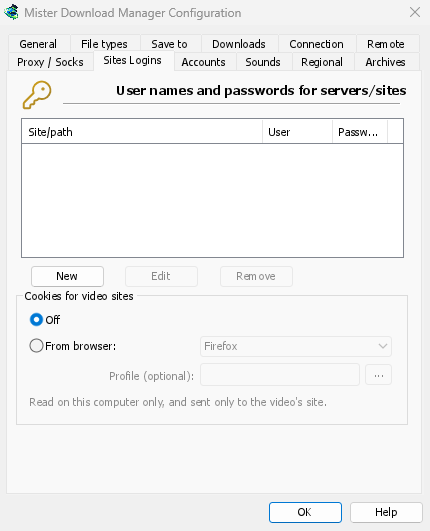
User names and passwords for sites that ask for them. New adds a row: the site (with a path if the login is only for part of it), the user name and the password. Edit and Remove change or delete the selected row. GDM uses the login for every download from that site. A login typed in Add URL (Use authorization) takes priority for that one download.
The passwords (these, the proxy's and the debrid accounts') are kept in the system's keychain: Windows Credential Manager, the keyring on Linux (Secret Service: GNOME Keyring, KeePassXC and others) or the macOS keychain; GDM's settings keep only a reference. A locked keyring is never unlocked for GDM: without one, they stay in GDM's settings, sealed for your Windows account on Windows. Options → Accounts says where they are. A portable copy keeps them in its own folder.
動画サイトの Cookie — サインインしている場合にのみ再生される動画 (YouTube の「ボットではないことを確認するためにサインインしてください」など) の場合:
- オフ (既定) — 動画のボタンを使用すると、yt-dlp はブラウザー拡張機能からのみ Cookie を取得します。
- ブラウザーから — yt-dlp は、検索またはダウンロードするすべての動画 (貼り付けられたアドレスを含む) について、このコンピューター上の選択したブラウザー (Firefox、Chrome、Edge、Brave、Opera、Vivaldi、Chromium、Whale、macOS の Safari) の Cookie を読み取ります。拡張機能がページの Cookie を渡した場合、代わりにそれらが使用されます。プロファイル (オプション): プロファイルの名前またはフォルダー (... で選択)。空の場合、最後に使用されたものが使用されます。Chrome、Edge、Brave は Windows で Cookie をロックします。Firefox は動作します。サインインを要求するサイトを参照してください。
アカウント

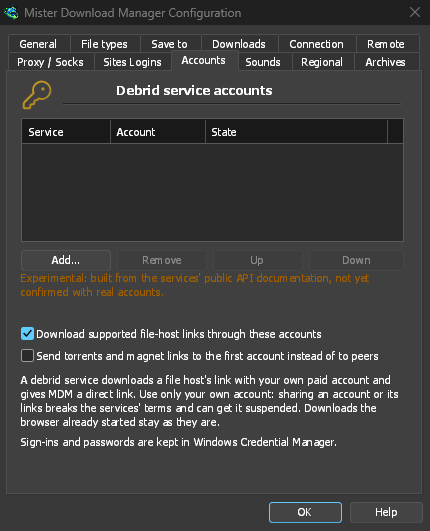
デブリットサービスアカウント(Real-Debrid、AllDebrid、Premiumize、実験的): 追加...は、ブラウザでコードを使って、またはAPIトークンやキーを使ってサインインします。サービスがサポートするホストからのリンクは、それを通じてダウンロードされます。リストの順序は、アカウントが要求される順序です。デブリットサービスアカウントを参照してください。
サウンド
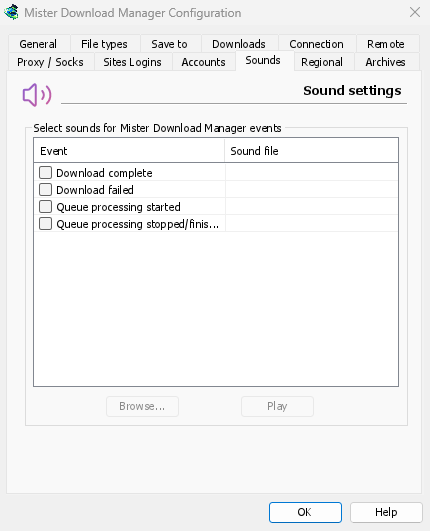

ダウンロード完了、ダウンロードに失敗しました、キュー処理を開始しました、キュー処理を停止/終了しましたのイベントでサウンドを再生します。イベントにチェックを入れ、選択し、参照...をクリックして.wavファイルを選択し、再生をクリックして聞きます。
地域

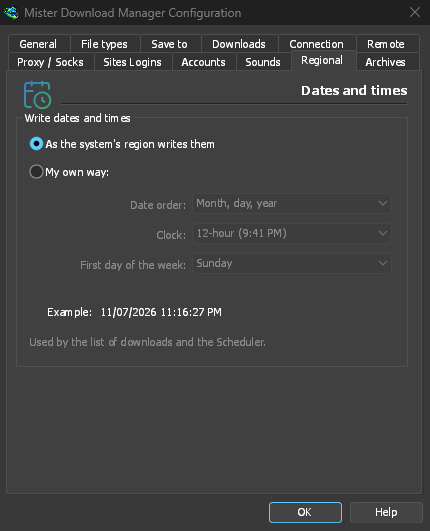
ダウンロードリストとスケジューラでの日付と時刻の表示形式。
- システムの地域設定に従う (既定) — Windows の地域設定 (設定 → 時刻と言語 → 地域) に従います。macOS および Linux では、言語の通常の表示方法に従います。英語の場合、リストは IDM 独自の日付テキストを保持します。
- 独自の方法 — 日付の順序 (日、月、年; 月、日、年; または年、月、日)、12 時間または 24 時間表示、およびスケジューラのカレンダーでの週の最初の曜日を選択します。例で結果が表示されます。
アーカイブ
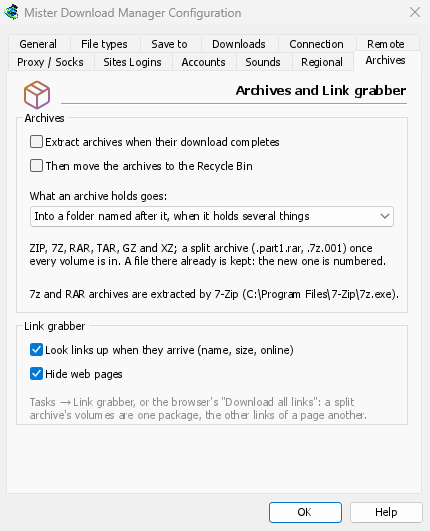
アーカイブ (zip, 7z, rar, tar, gz, xz) とリンク グラバー。
- ダウンロード完了時にアーカイブを展開する (デフォルトではオフ) — ダウンロードされたすべてのアーカイブが、それ自体 (または分割アーカイブの最後のボリューム) が揃い次第展開されます。リンク グラバーのパッケージには、独自の完了時に展開があります。
- その後、アーカイブをゴミ箱に移動する (デフォルトではオフ、macOSおよびLinuxではゴミ箱) — 展開が成功した場合のみ。これは、新しいパッケージの展開後にアーカイブを削除するのデフォルトでもあります。
- アーカイブの内容の保存先 — 複数の項目が含まれる場合はアーカイブと同じ名前のフォルダーに保存 (デフォルト)、常にそのようなフォルダーに保存、またはアーカイブと同じフォルダーに直接保存します。
- 7-Zipが見つかったかどうか。7zおよびRARアーカイブにはこれが必要です。
- リンク到着時に検索する (名前、サイズ、オンライン) — リンク グラバーは、各サーバーにファイルについて問い合わせます (デフォルトではオン)。
- Web ページを非表示にする — リンク グラバーで同じチェックボックスをオンにした場合の既定値。
リモート
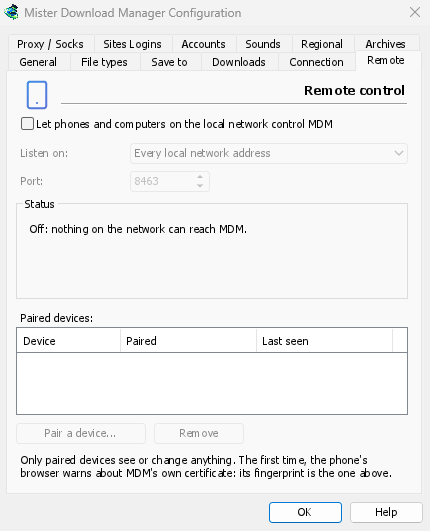
Control GDM from your phone or another computer on the local network: see Control GDM from your phone.
- Let phones and computers on the local network control GDM (off by default).
- リッスンする — すべてのローカルネットワークアドレス(デフォルト)、このコンピューターのみ、または1つのアドレス。
- ポート — デフォルトは8463。
- 状態 — 現在の動作、スマートフォンで開くアドレス、および証明書のフィンガープリント。
- ペアリング済みデバイス — デバイスのペアリングでQRコードとコードが表示されます。削除で選択したデバイスのペアリングがすぐに解除されます。
その他
このウィンドウ以外にも、いくつかの設定があります。
- ダウンロード → 速度制限 → 設定... — 速度制限。接続と速度を参照してください。
- タスク → トレント設定... — 共有とファイルの関連付け。トレントを参照してください。
- 表示 → ダーク モードのサポート、常にダーク、テーマ、描画方法、インターフェイスのサイズ、言語。詳細ははじめにとトラブルシューティングを参照してください。
- ヘルプ → 更新プログラムの確認... — 起動時に更新を確認するはそのウィンドウにあります。
次のステップ
無料、オープンソース、広告なし、試用期間なし。
Download GolinksPRO Download Manager