

打开下载 → 选项,或点击工具栏上的选项。窗口有两排共十二个选项卡页面。确定保存您的更改;关闭窗口或按Esc则放弃更改。
有些按钮是灰色的。它们属于尚未构建的功能。
常规

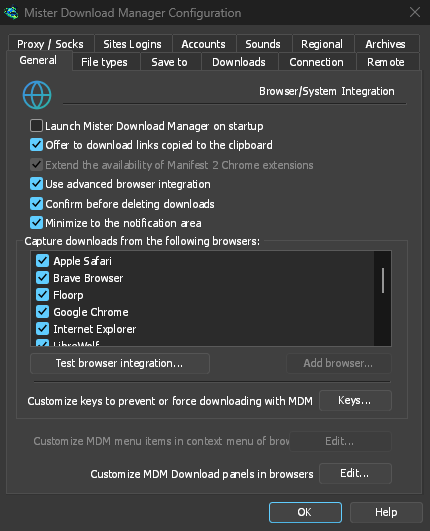
- Launch GolinksPRO Download Manager on startup — start GDM when you sign in to Windows. It starts in the notification area, its window hidden, with its downloads, queues and Scheduler running; click its icon (or start GDM again) to show the window. On Linux and macOS it starts with your session the same way; where no notification area shows GDM's icon (some Linux desktops), it starts minimized, and the option's tooltip says so. GDM waits for the notification area up to 30 seconds after making its icon, its window hidden, as a desktop's can come up after GDM at sign-in. Off by default. Greyed in a portable copy, which writes nothing to the registry.
- 提供下载复制到剪贴板的链接 — 当您复制的链接文件类型在文件类型页面上时,下载文件信息会随之打开,准备开始下载(如果显示开始下载对话框关闭,则立即开始下载)。它仅限于压缩包、程序、音乐、视频、PDF 和您自己添加的任何类型,因此复制图片、字体或 3D 模型的地址以在其他地方使用时,绝不会开始下载。默认开启。
- Use advanced browser integration — let the browser extension hand downloads to GDM. Turn it off to keep every download in the browser.
- 删除下载前确认 — 在从列表中删除下载前进行询问。默认开启;该问题中的不再显示此对话框会将其关闭,而在此处勾选则会重新开启。
- Keep running when closing the window — closing the main window hides it in the notification area instead of quitting, and downloads, queues and schedules go on. On by default; unticked, closing quits GDM (so a portable copy's folder can then be deleted). If there is no icon for GDM at all — not even behind the ^ hidden icons — the window minimizes to the taskbar instead, so downloads continue and the window stays reachable; an icon behind ^ can be clicked to bring it back, or start GDM again. Greyed where no tray shows GDM's icon (some Linux desktops): closing quits there.
- Minimize to the notification area — Minimize hides the main window, and a download's progress window, in the notification area; downloads go on. On by default. Where the tray has no icon, the main window minimizes to the taskbar instead. The close setting above is separate; when it is on, closing hides there too (or minimizes to the taskbar if there is no icon at all). Greyed where no tray shows GDM's icon (some Linux desktops); in a Wayland session the main window stays minimized in the dock, since Wayland can't hide a window.
- 从以下浏览器捕获下载 — 取消勾选某个浏览器,即可让其下载由浏览器自行处理。
- Customize GDM Download panels in browsers → Edit... — the download button over videos on web pages: turn it off, or list the sites it never shows on (separate them by spaces;
*.example.comcovers its subdomains). See Browser integration.
请参阅浏览器集成。
文件类型
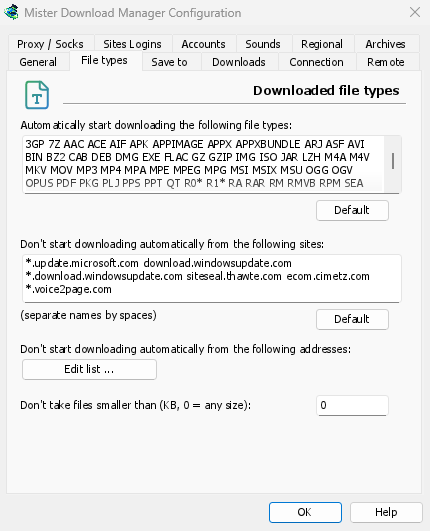

- 自动下载以下文件类型 — 浏览器移交(和剪贴板获取)的文件类型。用空格分隔;
*匹配任何字符,如R0*。点击默认会恢复原始列表。列表最初包含常见的压缩包、程序和安装程序(Windows、macOS 和 Linux:DMG、PKG、DEB、RPM、APPIMAGE、MSIX)、音乐和视频、PDF 和 Office 文件、AI 模型和数据集(GGUF、SAFETENSORS、CKPT、PT、ONNX、PARQUET)、3D 和 CAD 文件(GLB、FBX、OBJ、STL、BLEND、STEP)、设计和相机 RAW 文件、电子书、磁盘映像和分卷压缩包。页面、脚本、纯文本和网页图片被有意排除,因此保存图片或页面仍由浏览器处理;添加您需要的任何类型,或在框中输入单个*以获取所有带扩展名的文件。您从未更改过的列表会添加新版本增加的类型;您编辑过的列表则保持不变。 - 不自动从以下网站下载 — 下载保留在浏览器中的网站,用空格分隔。
*.example.com涵盖网站的每个部分。默认会恢复原始列表。
保存到
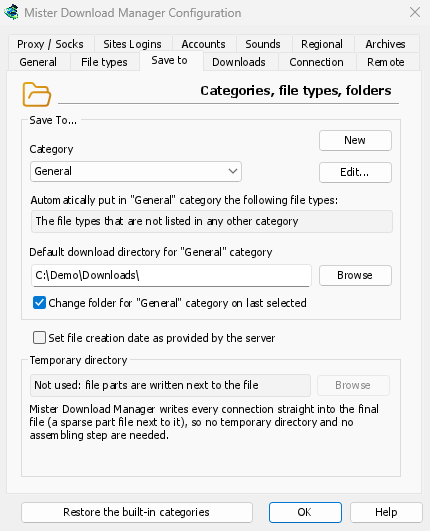

- 类别 — 选择一个类别以查看和更改其下方的设置。
- 新建 — 创建您自己的类别。编辑... — 更改所选类别的名称、文件类型和文件夹。内置类别(压缩文件、文档、音乐、程序、视频)可以像您自己的类别一样重命名、更改文件类型和删除;重命名后的类别会保留其文件夹。常规和种子类别只能更改其文件夹。
- 恢复内置类别 — 在您重命名、更改文件类型或删除内置类别后,将其恢复到初始状态。
- 自动将以下文件类型放入“…”类别 — 属于此类别的文件类型。
- “…”类别的默认下载目录 — 该类别的文件夹。输入路径或点击浏览。
- 根据上次选择更改“…”类别的文件夹 — 当您在下载文件信息中选择另一个文件夹时,它将成为该类别从那时起的文件夹。默认开启。(它设置了该窗口中记住此路径的初始状态。)
- 将文件创建日期设置为服务器提供日期 — 将完成文件的日期设置为服务器报告的日期,而不是您下载它们的日期。
GDM doesn't use a temporary folder: every connection writes straight into the final file's place, so there is nothing to put together at the end.
下载
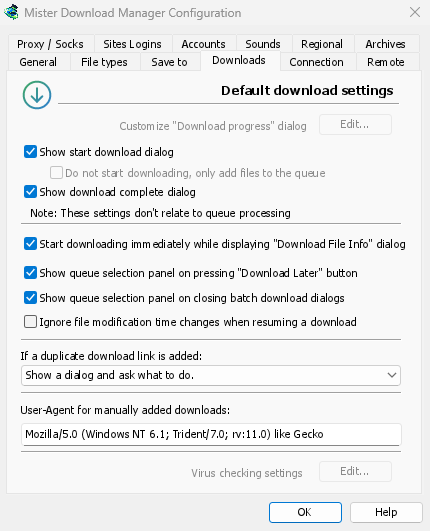
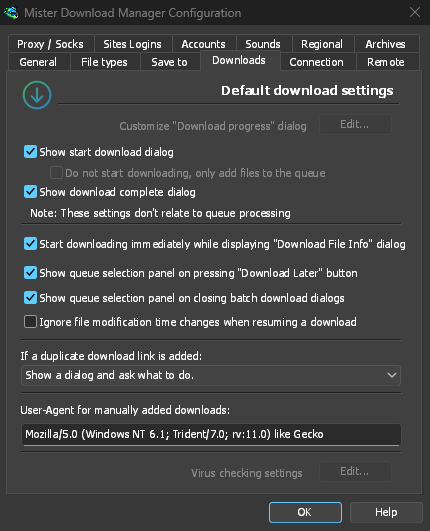
- 显示开始下载对话框 — 为每个新下载显示下载文件信息。如果关闭此选项,下载会立即开始,或者如果您勾选不开始下载,只将文件添加到队列,则只会加入队列。
- 显示下载完成对话框 — 文件完成时显示下载完成。
- 显示“下载文件信息”对话框时立即开始下载 — 默认开启,因此在您选择文件夹时下载已在进行中。
- 按下“稍后下载”按钮时显示队列选择面板 — 询问要使用哪个队列;关闭此选项后,下载会放入主下载队列。
- 关闭批量下载对话框时显示队列选择面板 — 批量下载也一样。
- 恢复下载时忽略文件修改时间的变化 — 适用于每次都为同一文件报告新日期的服务器。如果关闭此选项,此类服务器会导致每次恢复下载都从头开始。
- 添加重复的下载链接时 — 询问要执行哪种操作:以带编号的名称添加、覆盖旧文件,或打开已完成的文件/恢复未完成的文件。
- User-Agent for manually added downloads — how GDM names itself to servers for downloads you add yourself. Downloads from the browser use the browser's own User-Agent.
连接
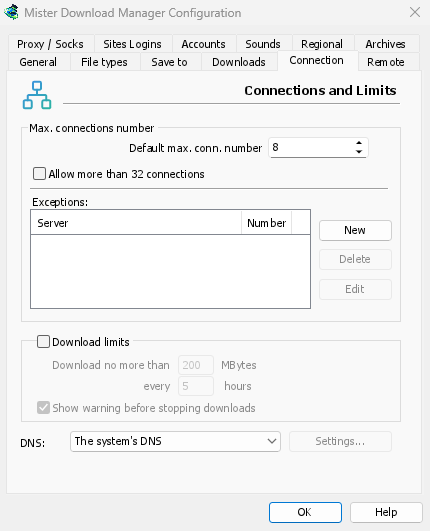
- 默认最大连接数 — 每个下载可使用的连接数为 1 到 32(默认为 8)。输入数字或使用箭头调整。
- Allow more than 32 connections — raises the most to 128, for the number above and for the exceptions. Most servers allow far fewer from one address; GDM notices and asks those for fewer. Turned off again, any higher number comes back to 32.
- Exceptions — a different number for some servers. New adds one (the server's name and the number of connections); Edit and Delete change or remove the selected one. Rows marked (auto) are limits GDM learned by itself from servers that refused more connections. They can't be edited and fade away by themselves.
- 下载限制 — 每隔几小时,限制下载量不超过设定值。计划程序中也有相同设置;请参阅队列和计划程序。
- DNS — which DNS turns the servers' names into addresses for GDM's downloads, its own downloads (helpers, updates) and FTP. The system's DNS is the default (on Windows 11 it can already be encrypted, in Windows' own network settings). Or pick Cloudflare, Google, Quad9, AdGuard or NextDNS, or Another DNS... to type your own; Settings... chooses how it's asked:
- 基于 HTTPS 的 DNS(默认)或基于 TLS 的 DNS:查询经过加密,因此传输过程中无人能看到或更改您查询的名称。
- Plain DNS: not encrypted. GDM asks it over TCP, never UDP, so it never needs a firewall exception.
- 自定义 DNS:输入服务器的 IP 地址、证书中显示的名称(TLS),或
https://地址(HTTPS;如果知道其 IP 地址,也可以填写)。NextDNS 则需要填写配置 ID。 - 如果无法访问,请使用系统的 DNS:此选项默认关闭,因此 DNS 无响应时会停止下载,并显示 DNS 名称,而不会悄悄将您的查询交给系统的 DNS。如果 DNS 指定某个名称不存在,则不会回退到系统的 DNS(否则会绕过 DNS 过滤)。
- 测试会查询 github.com 并显示耗时。
您主机文件中的名称以及本地名称(单个单词,.local、.lan、.home.arpa、.internal、localhost)仍使用系统的 DNS。视频页面 (yt-dlp) 和图片库 (gallery-dl) 仅在选择了网络适配器时使用您选择的 DNS;否则,它们会像种子追踪器一样使用系统的 DNS。使用代理时,代理会为您查找其所访问站点的名称。
更多内容请参阅连接和速度。
代理/Socks
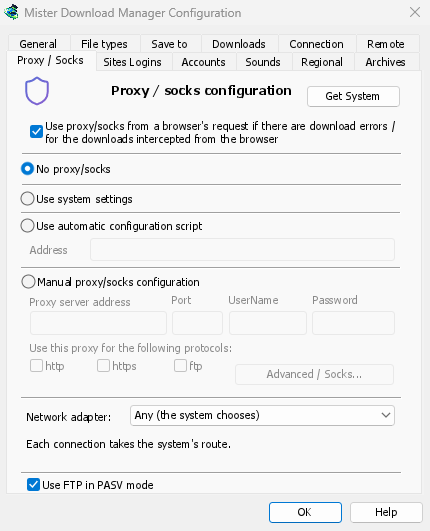
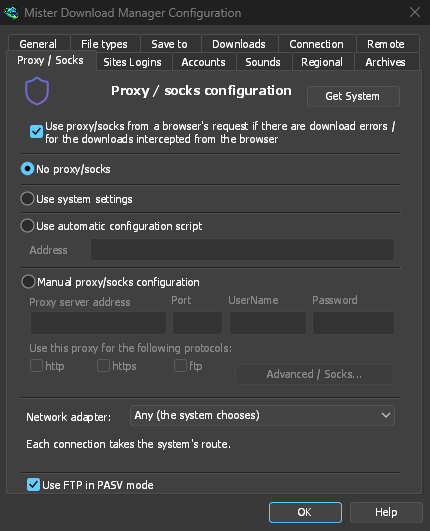
- 无代理/SOCKS — 直接连接。这是默认设置。
- 使用系统设置 — 使用系统的代理:Windows 或 macOS 的设置,或者 Linux 上您会话的
https_proxy、http_proxy和all_proxy变量。 - Use automatic configuration script — the proxy auto-config (PAC) script your network gives: type its address (
http://…/proxy.pac, or a file). GDM fetches it and asks it which proxy each download goes through (PROXY,SOCKSorDIRECT), as browsers do. Until it has been fetched, or if it can't be, GDM uses the system's settings. - 手动代理/SOCKS 配置 — 输入代理地址和端口;如果需要,还要输入用户名和密码,然后勾选代理支持的协议(http、https)。使用 SOCKS 代理时,地址格式为
socks5://host。 - 从系统获取 — 从 Windows 的代理设置中填充手动字段(在 Windows 上)。
- Use proxy/socks from a browser's request… — on by default. A download GDM takes from the browser goes through the proxy the browser used for it. That's the one a VPN or proxy extension set, the browser's own manual proxy, or its proxy auto-config script. Without it, the download would leave from your own address, and content limited to the VPN's country, or to its address, would fail. The browser extension reads that proxy and hands it to GDM with each download, once you switch on Send downloads through this browser's proxy or VPN extension in the extension's toolbar popup (Firefox asks you once; Chrome, Edge, Brave, Opera and Vivaldi ask nothing more: see A VPN or proxy extension).
- 如果代理需要 VPN 扩展自行提供的登录信息,就无法共享:其他程序无法获取这些登录信息。此时下载会停止并说明原因,而不会绕过代理继续下载。请使用 VPN 自带的应用,或在网络适配器中选择 VPN 的适配器。
- In Firefox, GDM sees the proxy the browser's own request for the file took, including the ones a VPN extension picks for each request. In Chrome and the other Chromium browsers, it sees the browser's proxy settings: the server for the download's scheme (honouring their bypass list) or their proxy auto-config script.
- When the browser used no proxy, and No proxy/socks is chosen, GDM uses Windows' proxy settings, as browsers do.
- Network adapter — Any (the system chooses) is the default. Pick an adapter, usually your VPN's, and every connection GDM opens goes out through it, or not at all. That covers downloads, FTP, torrents, video pages and image galleries, the DNS you chose, GDM's own downloads and the update check. It works as a kill switch: when the adapter disconnects, or the VPN is switched off, nothing goes out through your normal connection. Running downloads stop with "… is not connected" and start again when the adapter is back. The line under the list shows the adapter's address, or that it isn't connected.
- 它如何保持:Windows 绑定适配器自己的地址。然后 Windows 只通过该适配器发送这些数据包(其强主机模型)。Linux 绑定设备本身(Linux 5.7 或更高版本),macOS 绑定接口。适配器不具备的地址类型(例如仅支持 IPv4 的 VPN 上的 IPv6)将被拒绝,而不会绕过它发送。
- The system's DNS asks the names in its own way, and Windows may ask over every adapter. To keep the names inside the adapter too, choose a DNS under Connection → DNS: GDM then asks it through the adapter.
- Video pages and image galleries: yt-dlp, gallery-dl and the ffmpeg yt-dlp starts can't be held to an adapter themselves, so while one is chosen GDM gives them a proxy of its own on this computer (
127.0.0.1, with a password only they get). GDM opens their connections through the adapter, as it opens its own, and looks the names up with the DNS you chose. When the adapter disconnects, their connections close and the downloads stop with the others. Video formats that can't go through a proxy (RTMP, RTSP, MMS, FTP) are refused rather than sent around it. - 目前无法绑定到适配器,因此选择适配器后不会启动:
ftps://(隐式 TLS;带 TLS 的ftp://可以正常使用)。 - 连接到这台计算机本身的连接(
localhost)不会绑定到适配器。代理在这台计算机上转发下载,下载发送到哪里由代理决定。 - 在 macOS 上,VPN 重新连接后可能会使用新的网络接口(
utun5而不是utun4):请重新选择接口。 - Use FTP in PASV mode — on by default: for FTP downloads GDM opens the data connections itself (passive mode), which works through routers and firewalls. Turn it off only for a server that needs active mode (the server connects back to you). FTP never goes through the proxy above, so its ftp box stays greyed. See FTP and FTPS.
站点登录
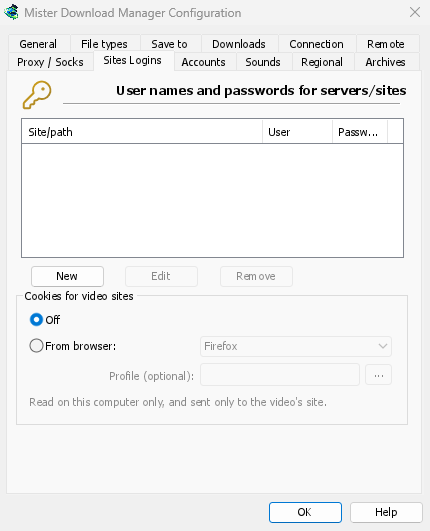
User names and passwords for sites that ask for them. New adds a row: the site (with a path if the login is only for part of it), the user name and the password. Edit and Remove change or delete the selected row. GDM uses the login for every download from that site. A login typed in Add URL (Use authorization) takes priority for that one download.
The passwords (these, the proxy's and the debrid accounts') are kept in the system's keychain: Windows Credential Manager, the keyring on Linux (Secret Service: GNOME Keyring, KeePassXC and others) or the macOS keychain; GDM's settings keep only a reference. A locked keyring is never unlocked for GDM: without one, they stay in GDM's settings, sealed for your Windows account on Windows. Options → Accounts says where they are. A portable copy keeps them in its own folder.
视频网站的 Cookie — 针对仅在您登录后才能播放的视频(YouTube 的“登录以确认您不是机器人”):
- 关(默认)— yt-dlp 仅在您使用视频上方的按钮时,从浏览器扩展程序获取 Cookie。
- 从浏览器 — yt-dlp 会读取此计算机上所选浏览器的 Cookie(Firefox、Chrome、Edge、Brave、Opera、Vivaldi、Chromium、Whale;macOS 上的 Safari),用于其查找或下载的每个视频,包括粘贴的地址。当扩展程序传递了页面自身的 Cookie 时,则使用这些 Cookie。配置文件(可选):配置文件的名称或文件夹(... 选择一个);为空时,使用上次使用的。Chrome、Edge 和 Brave 在 Windows 上会锁定其 Cookie:Firefox 可以。请参阅需要登录的网站。
帐户

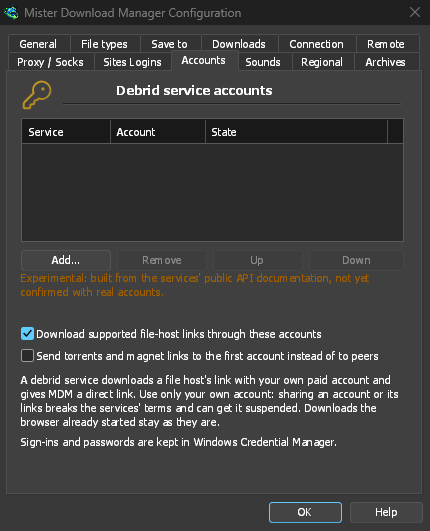
您的网盘服务帐户(Real-Debrid、AllDebrid、Premiumize;实验性):添加...可通过浏览器中的代码登录,或使用 API 令牌或密钥登录;之后,GDM 会通过相应服务下载该服务支持的主机上的链接。帐户会按列表顺序依次尝试。请参阅网盘服务帐户。
声音
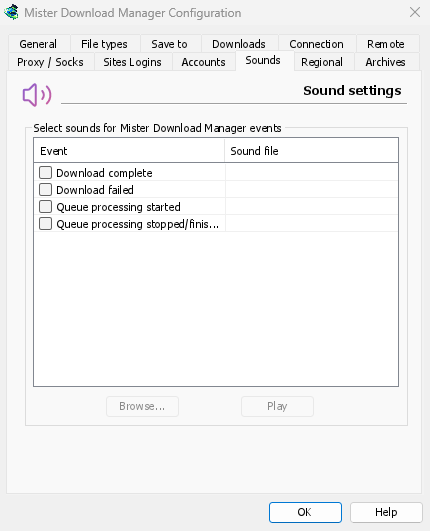

为下载完成、下载失败、队列处理已开始和队列处理已停止/完成播放声音。勾选一个事件并选中它,点击浏览选择 .wav 文件,然后点击播放试听。
区域

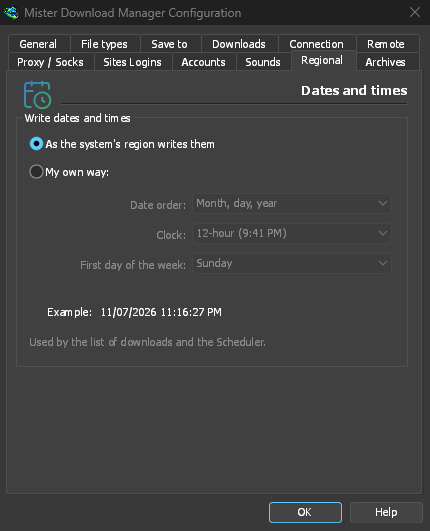
下载列表和计划程序中的日期和时间格式。
- 按系统区域设置写入(默认)— 使用 Windows 的区域设置(设置 → 时间和语言 → 区域);在 macOS 和 Linux 上,使用相应语言的常用格式。使用英语时,列表会保留 IDM 自己的日期文本。
- 自定义格式 — 选择日期顺序(日、月、年;月、日、年;或年、月、日)、12 小时制或 24 小时制,以及计划程序日历中的一周的第一天。示例会显示格式效果。
存档
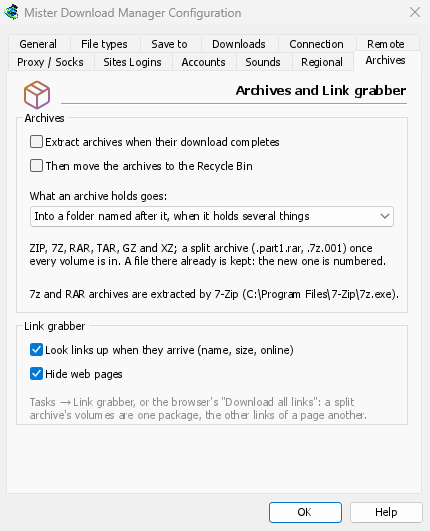
存档(zip、7z、rar、tar、gz、xz)和链接抓取器。
- 下载完成后提取存档(默认关闭)— 每个存档下载完成后立即提取;分卷存档则在最后一个卷下载完成后提取。链接抓取器的每个包都可以单独设置完成后提取。
- 然后将存档移至回收站(默认关闭;在 macOS 和 Linux 上移至废纸篓)— 仅在成功提取后移动。这也是新建包的提取后删除存档选项的默认设置。
- 存档内容的存放位置——存档包含多个文件时,放入以存档命名的文件夹中(默认);始终放入这样的文件夹中;或直接放入存档所在的文件夹中。
- 是否找到 7-Zip:7z 和 RAR 存档需要使用它。
- 链接到达时查找(名称、大小、在线) — 链接抓取器会向每台服务器查询文件信息(默认开启)。
- 隐藏网页——链接抓取器中相同复选框的默认设置(开启)。
远程
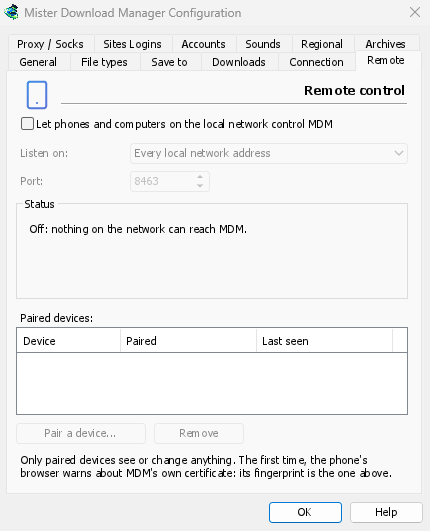
Control GDM from your phone or another computer on the local network: see Control GDM from your phone.
- Let phones and computers on the local network control GDM (off by default).
- 监听 — 所有本地网络地址(默认)、仅此电脑,或一个特定地址。
- 端口 — 默认 8463。
- 状态 — 当前正在做什么、手机上要打开的地址以及证书的指纹。
- 已配对设备 — 配对设备...显示一个二维码和一个代码;删除立即取消配对所选设备。
其他
一些设置不在本窗口中:
- 下载 → 速度限制器 → 设置… — 速度限制。请参阅连接和速度。
- 任务 → 种子设置… — 共享和文件关联。请参阅种子。
- 视图 → 深色模式支持、始终为深色、主题、绘制方式、界面大小和语言。请参阅入门和故障排除。
- 帮助 → 检查更新… — 每次启动时检查更新在该窗口中。
下一步
免费、开源、无广告、无试用版。
Download GolinksPRO Download Manager