

Queue big files during the day and let GDM download them at night, when nobody needs the connection. It can turn the computer off when it is done.
1. 将下载添加到队列
对于新下载:
- 像往常一样添加下载(添加 URL,或来自浏览器)。
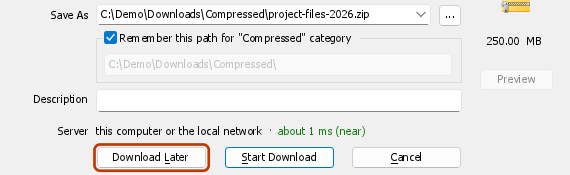
- 在下载文件信息中,点击稍后下载。
- 在添加到队列下,选择主下载队列。不要勾选立即启动队列。点击确定。
对于已在列表中的下载:
- 选择它们(按住Ctrl键点击可选择多个)。
- 右键点击并选择添加到队列 → 主下载队列。
Q列现在会为每个下载显示一个队列图标。

2. 设置开始时间
- 点击工具栏上的计划程序(或下载 → 计划程序)。
- 在左侧选择主下载队列。计划选项卡将打开。
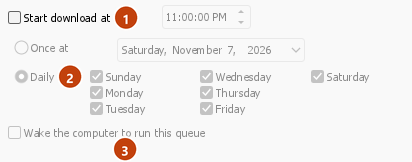
- 勾选在以下时间开始下载并设置时间,例如凌晨 1:00:00。点击小时并使用箭头或输入数字。
- 选择每日并勾选日期,或选择一次在并选择一个日期。
- 要在早上停止所有剩余的下载,请勾选在以下时间停止下载并设置一个时间,例如早上 7:00:00。

3. 选择同时运行的数量
- 打开队列中的文件选项卡。
- 设置同时下载 [N] 个文件。默认是四个。使用 1 可逐个下载。
- 列表显示了它们将运行的顺序。使用下面的箭头按钮可以向上或向下移动下载。
4. 决定结束时发生什么(可选)
回到计划选项卡:
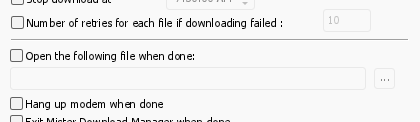
- Tick Turn off computer when done and choose Shut down, Sleep or Hibernate. GDM shows a 30-second countdown first, so you can still cancel if you're at the computer.
- Or tick Exit GolinksPRO Download Manager when done.

5. Apply and leave GDM running
- 点击应用,然后点击关闭。
- Leave GDM running. Closing the main window is fine: GDM keeps going in the tray. Don't use Tasks → Exit.
- 确保计算机在开始时间之前不会进入睡眠状态。
到达开始时间后,队列会自动启动。早上,可以在类别下的已完成中找到已完成的文件。
下一步
免费、开源、无广告、无试用版。
Download GolinksPRO Download Manager