


Inicia com o computador, sem atrapalhar
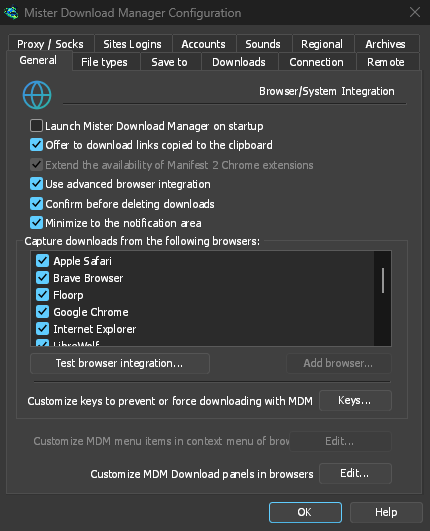
Tick Launch GolinksPRO Download Manager on startup in Options → General and GDM starts when you sign in, hidden, its icon in the notification area. Its downloads, queues, the Scheduler and downloads from the browser all run from there. Click the icon, or start GDM again, and the window opens as usual.
The option is off until you tick it. On Linux and macOS GDM starts with your session the same way. A portable copy can't start with Windows, since that needs the registry, so the option is greyed there.
Um clique oculta a janela de um download
A janela de progresso de um download tem um botão Ocultar na área de notificação: um traço curto com uma seta para baixo em direção ao canto. No Windows, ele fica na barra de título, à esquerda de Minimizar, e no menu da barra de título (Alt+Espaço). No Linux e macOS, ele fica no final da linha de abas. O download continua.
Para vê-lo novamente, clique com o botão direito no ícone da bandeja e escolha-o em Downloads em andamento, que lista todos os downloads em execução. Clicar duas vezes no download na lista também traz sua janela de volta.
Minimizar também envia janelas para a bandeja
With Minimize to the notification area on in Options → General (it is on by default), Minimize hides the main window, and a progress window, in the notification area instead of leaving them on the taskbar. Closing the main window does the same: GDM keeps running until you choose Tasks → Exit or Exit in the tray menu.
O menu da bandeja também tem Adicionar novo download, Adicionar download em lote, o Limitador de Velocidade, o Agendador, a fila principal de downloads e Opções.
Leve enquanto aguarda
Hidden in the notification area, GDM hands the memory it isn't using back to the system. Task Manager's Memory for GDM drops from about 50 MB to under 10 MB there, and GDM gives memory back again every 10 minutes while it stays hidden. On Linux it does the same with its free memory.
Onde não há bandeja
All of this needs a notification area that shows GDM's icon. Windows and macOS have one, and so do most Linux desktops (KDE, GNOME with its AppIndicator extension, waybar's tray). On a desktop without one, GDM starts minimized instead, closing the window quits GDM, and Minimize to the notification area is greyed. In a Wayland session the main window stays minimized in the dock, because Wayland can't hide a window.
Gratuito, de código aberto, sem anúncios, sem período de teste.
Download GolinksPRO Download Manager